
Opticum AX Lion Manual
PDF manual · 20 Pages
English



Quick check
Incorrect answer, please try again.
Chat with your Opticum AX Lion manual using AI
Get instant AI answers from your Opticum AX Lion manual
Ask anything about the Opticum AX Lion. Answers come from this manual, with the pages they are based on.
Ask a Question
Do you recommend AX Lion?
Yes NoFrequently Asked Questions
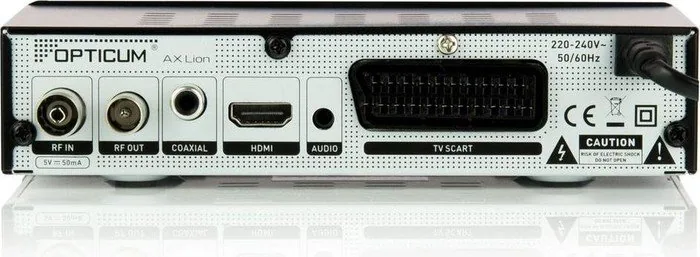
Connect the HDMI or Scart cable from the back of the receiver to the corresponding input on your television. Connect the power cable to a standard outlet and the antenna cable to the RF input port. Once connected, switch the TV input source to the correct HDMI or AV channel to view the output screen.
Is this answer helpful?
The default password for accessing locked menus and settings is typically 0000. You can change this code in the System Setup menu under the security options section to enhance protection against unauthorized usage by others in the household.
Is this answer helpful?
Yes, you can update the software using two methods. You can perform an Over-the-Air update if available in your region, or download the file to a USB stick and use the upgrade via USB option in the Tools menu to flash the latest version to the device.
Is this answer helpful?
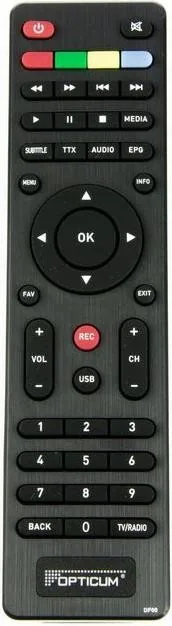
Yes, the remote control has dedicated buttons to open the media player function. You can use these keys to select audio or video files stored on a connected USB drive. The remote also allows you to pause, play, or rewind media using the control navigation buttons.
Is this answer helpful?
Navigate to the Tools menu on the main screen and select Factory Settings. You will be prompted to enter your PIN code. Select the Yes option to confirm the reset. This action will delete all custom playlists and settings and restore the unit to its original default configuration.
Is this answer helpful?
Keep the unit away from moisture and direct sunlight. Ensure there is proper ventilation with at least ten centimeters of clearance above the device. Do not plug in power until all cables are fully connected. Unplug the device during lightning storms to prevent electrical damage from power surges.
Is this answer helpful?
Yes, this product must not be disposed of as regular household waste. It contains electronic components that require separate recycling. You must take it to a designated collection point for electrical and electronic equipment to ensure environmentally friendly disposal and compliance with local laws.
Is this answer helpful?
Advantages and Disadvantages
Advantages

- Supports MPEG-2 and MPEG-4 decoding for diverse content types
- Includes HDMI and Scart connections for versatile display setups
- USB port enables media playback of music and photo files directly
- Electronic Program Guide helps schedule upcoming shows easily
- Child lock feature protects against unauthorized menu changes
Disadvantages

- Manual instructions provided primarily in German language
- PVR recording capabilities depend on external USB storage device
- No built-in hard drive included in standard base configuration
- Requires specific antenna alignment for optimal signal strength
- Default system password might need changing for security
Product Specification
Tuner Slots
1 (Fixed)
Single Tuner
1 DVB-T
Twin Tuner
No
Dual Tuner
No
Triple Tuner
No
Decoder
MPEG-4
Smartcard Reader
No
Common Interface
No
PVR
No
Video Outputs
1 HDMI Out, 1 SCART Out
Audio Outputs
1 Digital Audio Out (coaxial)
Additional Ports
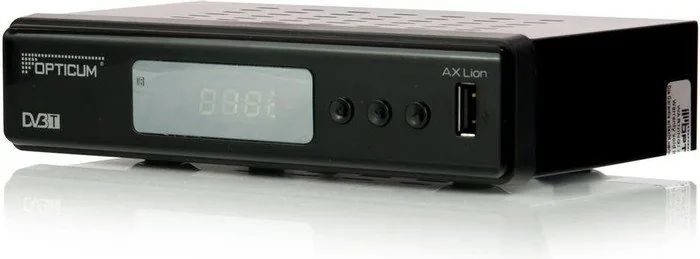
1 USB 2.0
Display
4-digit LED
Features
EPG, Media Player
Software Update
USB
Special Features
Device Buttons, FTA
Power Consumption
0.5W Standby
Color
Black
Product Description
Opticum DVB-T AX Lion Digital Receiver Overview and Features
The Opticum DVB-T AX Lion is a robust digital receiver designed for high-quality terrestrial broadcasting in European regions. It transforms your standard television into a hub for digital content delivery by decoding MPEG-2 and MPEG-4 streams efficiently. Accessing the instructions is the first step toward optimal performance, specifically the Opticum DVB-T AX Lion ohne PVR Manual. This guide ensures users understand safety protocols before powering the unit for the first time. It warns extensively against exposing the device to moisture or direct sunlight to prevent electrical damage. Proper ventilation is crucial, requiring at least ten centimeters of space above the unit to allow heat dissipation.
Physical connections on the rear panel include HDMI and Scart for video output and audio output to surround systems. The front panel features an IR sensor to ensure responsive remote control usage over various distances. The USB port allows for media playback of music, images, and video files from external flash drives without requiring internet. The included remote control offers extensive functionality including EPG navigation, timer settings for recording, and system setup access. Initial use utilizes a wizard to configure language and region settings automatically. Security features allow users to lock menus and specific programs using a PIN code. Software updates are available via the system menu to maintain current functionality.
Audio Description services and Picture-in-Picture modes are configurable for enhanced viewing experiences during busy days. The troubleshooting section assists quickly with signal loss, remote errors, or installation problems. Battery replacement instructions are provided specifically for the remote control unit. Disposal must follow electronic waste regulations to protect the local environment and human health regarding hazardous materials. This receiver supports wide VHF and UHF bands for comprehensive channel coverage across different regions. Users can create favorites lists to speed up channel selection during daily viewing. Timeshift capabilities allow viewing recorded content from USB drives to manage scheduling conflicts. Always verify antenna alignment and signal strength for best reception results. The unit consumes minimal power during standby mode to save energy costs.
Detailed menu options include setting local time zones, configuring video resolution formats, and adjusting screen display options. The game section provides entertainment without external consoles. Parental controls ensure children cannot access restricted content without permission. The factory reset function restores original settings if configuration errors occur. Remote control buttons include color-coded keys for interactive menu navigation. Each function is clearly labeled to reduce confusion during setup. Ensure all cables are secure before applying power to avoid shorts. The device works with standard wall outlets within the specified voltage range.
The remote control layout is intuitive with dedicated keys for volume, channel switching, and power management. Color buttons provide access to interactive sub-menus and quick settings. The number pad enables direct channel entry for faster navigation. The EPG button opens the program guide to check schedules and set reminders. A specific key allows access to the media player for USB content. The recorder button initiates recording sessions when external storage is connected. These buttons streamline the user experience significantly.
Note: Keep instructions handy for resets and troubleshooting future issues.
Search for 67,706 Manuals online


Type-in Brand or Model