

Opticon OPN-2001 Manual
PDF manual · 11 Pages
English



Quick check
Incorrect answer, please try again.
Chat with your Opticon OPN-2001 manual using AI
Get instant AI answers from your Opticon OPN-2001 manual
Ask anything about the Opticon OPN-2001. Answers come from this manual, with the pages they are based on.
OPN-2001 Maintenance Schedule
Wipe the exterior with a soft, lightly moist cloth. Gently wipe the reading window without scratching it. Do not use high pressure cleaning.
Ensure the serial number label has not been removed to avoid affecting warranty conditions.
Ask a Question
Do you recommend OPN-2001?
Yes NoFrequently Asked Questions
Fully charging an empty battery approximately takes two and a half hours. The LED indicates charging status with red for active and green when full.
Is this answer helpful?
The scanner stores barcodes in internal memory first. You must connect via USB cable to transfer data to the computer system later.
Is this answer helpful?
A red light flashes solidly during scanning. The device cannot store further items until data is cleared or transferred via USB connection.
Is this answer helpful?
No physical damage from drops or impacts is covered. Warranty covers defects in material and workmanship under proper use conditions.
Is this answer helpful?
You should not use it in freezing areas. It must not be used in temperatures higher than forty degrees Celsius or under direct heat.
Is this answer helpful?
Press and hold the Clear button for at least six seconds. Aim away from barcodes to ensure the reset completes without errors.
Is this answer helpful?
Yes, install the USB driver software before connecting. Download from the Opticon website or contact your representative for the correct files.
Is this answer helpful?
Advantages and Disadvantages
Advantages

- Portable handheld design allows scanning without a fixed base station for maximum mobility in warehouses.
- USB connection handles both charging and data transfer simultaneously simplifying the workflow setup.
- Large internal memory capacity stores numerous barcodes before needing a transfer to a computer system.
- Clear button functionality enables easy removal of incorrectly scanned items without restarting the scan.
- Laser safety standards include Class I compliance ensuring safe operation for general users without eyewear.
Disadvantages

- Battery requires two and a half hours to fully charge from empty which can interrupt continuous work.
- No wireless connectivity means physical USB connection is required for all data transfer to a computer.
- Strict warranty terms void coverage if hardware modifications are attempted by the customer or owner.
- Memory capacity is finite and a red light warns when storage is full preventing further scanning.
- Environment restrictions prohibit use in freezing temperatures or areas exceeding forty degrees Celsius usage.
Product Specification
Type
Handheld Scanner
Reading Distance
2.36-22.44 in
Connections
USB 2.0 Mini-B
Wireless
N/A
Protection Rating
IP42 Certified
Package Contents
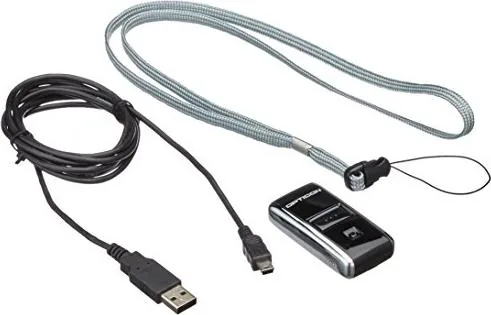
Barcode Scanner
Dimensions
1.26x2.44x0.63 in
Weight
0.99 oz
Features
Battery (Li-ion, 150mAh)
Manufacturer Warranty
2 Years
Product Description
The Opticon OPN-2001 Pocket Memory Scanner Experience
The Opticon OPN-2001 represents a significant advancement in handheld barcode data collection for modern business tasks. Designed for absolute simplicity, this device allows users to capture crucial data with a single scan without complex software immediately. The unit stores barcodes automatically in its internal memory before transferring them to a connected computer system. This makes inventory tracking and item counting incredibly efficient for professionals on the move. Whether you are managing a busy warehouse floor or a busy retail store counter, handling stock levels becomes effortless.
Ease of Use and Operational Functionality
Users will find the interface incredibly intuitive from day one. The scanner features a dedicated Scan button and a distinct Clear button for managing memory items precisely. When scanning, a visible laser beam projects onto the target code. The green LED indicates active reading, while solid green confirms successful storage in memory. If the memory fills up, a distinct red light warns you immediately. Clearing items requires pointing at the specific code and holding the dedicated button. This flexibility ensures errors are corrected easily without losing track of total progress or item counts.
Charging and System Connectivity
Powering up the hardware is straightforward through the built-in USB interface found on the device bottom. The unit connects directly to a PC using a provided USB cable. This connection serves a dual purpose for charging the internal battery and transferring data communication securely. A full battery charge from completely empty takes approximately two and a half hours to complete. While charging, a red light glows continuously on the front panel. Once full, the indicator turns solid green to signal readiness. If the light flashes distinct patterns, the battery might be defective and require expert service.
Safety and Warranty Coverage
Operating safety is strictly prioritized with Class I laser safety standards included. Users are advised never to look directly into the laser beam during operation. Environmental factors also matter significantly for longevity. The scanner should not be exposed to freezing temperatures or areas exceeding forty degrees Celsius. Direct sunlight exposure can be harmful to the reading window. Reviewing the Opticon OPN-2001 Manual details ensures proper care and operation. It covers liability and warranty terms for every registered unit. All products come with a two-year warranty on material and workmanship defects. Modifications void this coverage completely.
Conclusion and Maintenance
Integrating this technology streamlines workflow significantly for daily operations. Storing the original packaging materials is recommended for safe transport later. The device avoids complex setups requiring external bases or docks to function. It remains an ideal solution for mobile data entry tasks where speed and reliability matter most in competitive environments. Furthermore the included hand strap ensures the device stays secure during long inventory sessions without accidental drops.
Search for 67,706 Manuals online


Type-in Brand or Model