
Omnitronic TUNA-NET 19 Manual
PDF manual · 48 Pages
English



Quick check
Incorrect answer, please try again.
Chat with your Omnitronic TUNA-NET 19 manual using AI
Get instant AI answers from your Omnitronic TUNA-NET 19 manual
Ask anything about the Omnitronic TUNA-NET 19. Answers come from this manual, with the pages they are based on.
TUNA-NET 19 Maintenance Schedule
Disconnect from mains. Use a soft, lint-free, moistened cloth. Never use alcohol or solvents.
Replace the two AAA batteries if the remote stops working or its range decreases.
Ask a Question
Do you recommend TUNA-NET 19?
Yes NoFrequently Asked Questions
You can connect using WiFi by installing the included antenna to the WLAN port or by using a LAN network cable connected to the RJ45 port. Ensure your router supports DHCP for automatic configuration.
Is this answer helpful?
Yes, the device supports UPnP and DLNA protocols to stream music from local computers or media servers. It also plays files via Bluetooth from your smartphone or tablet.
Is this answer helpful?
Yes, the TUNA-NET 19 supports both DAB and DAB+ broadcasting. You can scan for stations in your region using the included wire antenna or a household aerial system.
Is this answer helpful?
Navigate to the Configuration menu, select Reset to Default, and confirm the action. This will delete all network settings and station presets, restoring the original system state.
Is this answer helpful?
The infrared remote control requires two 1.5V micro batteries of Type AAA. Ensure polarities are correct when placing new batteries in the compartment on the back.
Is this answer helpful?
Advantages and Disadvantages
Advantages

- Extensive connectivity with WiFi, LAN, and Bluetooth for versatile streaming options
- Supports multiple radio standards including Internet, DAB+, and traditional FM reception
- Built for rack mounting with sturdy steel and aluminum housing for long-term durability
- Includes extensive EQ and sleep timer features for customized audio comfort
- Large TFT display provides clear visual feedback for station and system info
Disadvantages

- Requires external antennas for optimal FM and DAB reception performance outside
- Remote control uses non-rechargeable AAA batteries instead of internal power source
- Network setup may be complex for users unfamiliar with WiFi encryption keys
Product Specification
Type
Tuner
Tuner
FM, DAB+, Internet Radio
Audio Connections
Digital Audio Out (coaxial), Digital Audio Out (optical), Headphones (6.35mm jack)
Additional Connections
RJ-45
Wireless
Bluetooth, Wi-Fi 4 (802.11b/g/n)
Features
Remote Control
Color
Black
Dimensions
16.93x2.48x10.63 in (WxHxD)
Weight
4.19 lbs
Product Description
The Omnitronic TUNA-NET 19 Audio Solution
Welcome to the world of premium audio streaming. The Omnitronic TUNA-NET 19 stands out as a robust internet radio solution designed for both home entertainment and professional audio setups. This device offers unparalleled access to thousands of radio stations from around the globe. Users can enjoy seamless streaming via wireless networks or a wired LAN connection. The interface includes a large TFT color display and an easy-to-use control knob for intuitive navigation. This product is ideal for users seeking high-quality sound without complexity.
Versatile Connectivity Options
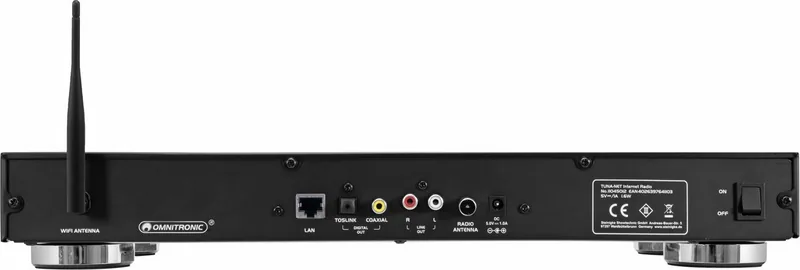
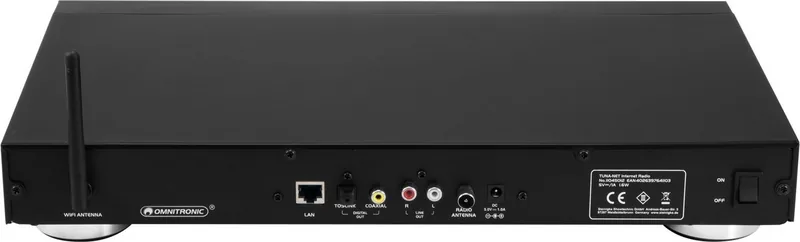
Connectivity is key for modern audio devices. This unit supports IEEE 802.11 standards for WiFi and offers a dedicated RJ45 port for wired access. You can switch effortlessly between Bluetooth mode for mobile music playback or listen to digital broadcasts. The inclusion of DAB and FM reception ensures traditional radio lovers remain satisfied without needing internet access. Network streaming capabilities utilize UPnP and DLNA protocols for accessing local media servers on your PC. The unit features both digital optical outputs and analog RCA line outputs for external amplification. It connects to your router easily for internet data.
Control and Configuration Features
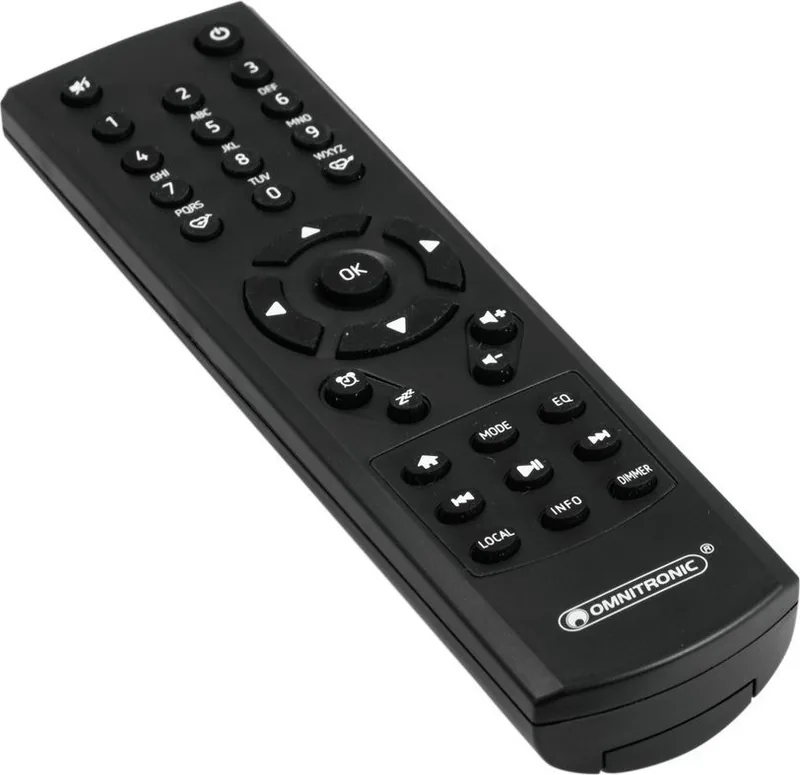
Operation is straightforward. You can manage settings using the front panel jog dial or the included infrared remote control. The remote features a number keypad for easy text entry when searching for specific station names. System settings allow for various equalizer adjustments to match your specific loudspeakers. You can also schedule automated timers for sleep modes or customizable alarms. The physical build features a sturdy steel housing with an aluminum front panel suitable for 19-inch rack installation. The device fits standard equipment racks securely.
Installation and Maintenance
To ensure optimal setup, users are advised to consult the Omnitronic TUNA-NET 19 Manual during initial configuration. This resource details safety instructions and connection diagrams for the included antennas. Proper antenna placement is crucial for FM and DAB signal strength across different regions. Regular cleaning keeps the surface free of dust and grime using a soft dry cloth. Do not use solvents or alcohol on the casing. Software updates can be managed directly through the device menu to ensure compatibility. The device supports remote control with two AAA batteries. It can store up to 99 favorites in the memory. Dimensions are 270x430x63 mm and it weighs 1.9 kg. This equipment represents a solid investment for audiophiles seeking versatility in their home or office audio systems.
Enhanced User Features
The alarm function allows you to wake up with your favorite radio station or a beep. You can set two separate alarms for flexibility. The snooze feature pauses the alarm for nine minutes before ringing again. You can choose to wake up to Internet radio or local FM frequencies. The Sleep timer allows the device to turn off after thirty to 180 minutes. This is perfect for falling asleep to music or news without draining power. The device manages time settings automatically via the network or DAB signals.
Search for 67,706 Manuals online


Type-in Brand or Model