
OBSBOT Tiny Manual
PDF manual · 6 Pages
English



Quick check
Incorrect answer, please try again.
Chat with your OBSBOT Tiny manual using AI
Get instant AI answers from your OBSBOT Tiny manual
Ask anything about the OBSBOT Tiny. Answers come from this manual, with the pages they are based on.
Ask a Question
Do you recommend Tiny?
Yes NoFrequently Asked Questions
The OBSBOT Tiny is compatible with Windows and macOS. Connect the camera via the included USB Type-C data cable and allow several seconds for automatic driver installation before first use.
Is this answer helpful?
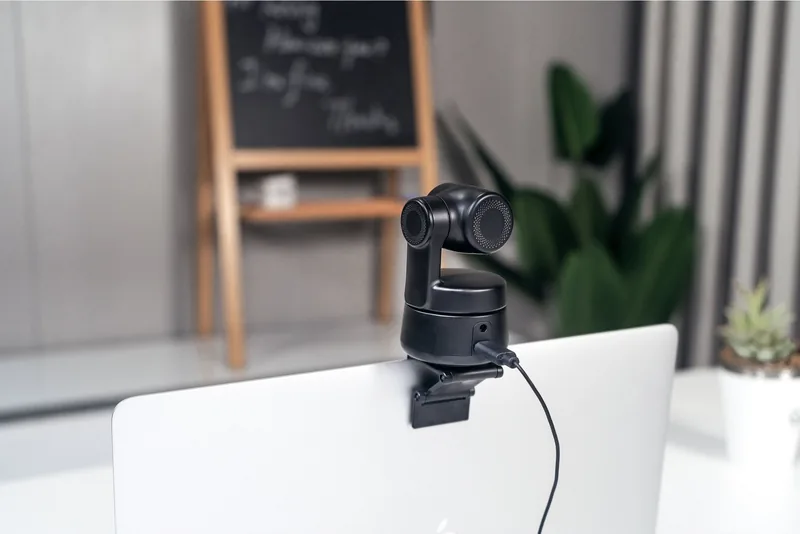
Tiny offers an adjustable magnetic base for mounting on monitors or desktops and includes a standard UNC 1/4-20 thread on the base for tripod or stand attachment, giving flexible placement options.
Is this answer helpful?
Place your hand near your face to activate gesture mode; the indicator will turn blue. The three blue LEDs flash in sequence and then together to confirm recognition. Gestures can select/cancel tracking targets and perform 2x zoom in/out without touching buttons.
Is this answer helpful?
Yes. Use the TinyCam software on your computer to adjust gimbal rotation, choose targets, set presets, zoom, and perform firmware upgrades. Follow on-screen instructions and do not disconnect the device during an upgrade.
Is this answer helpful?
The LED indicator uses red, yellow, blue, and green. Examples: cycling blue indicates initialization, three green lights mean target locked, yellow indicates target lost, and red signals errors or upgrade failure. Refer to the manual for full status codes.
Is this answer helpful?
Yes. Connect via USB Type-C and the webcam will begin automatic installation on supported Windows or macOS systems. Wait a few seconds for installation to complete before accessing the camera.
Is this answer helpful?
The underside of the Tiny may warm during extended operation; this is considered normal. If you encounter excessive heat or functional issues, stop use and consult support or the latest manual on the manufacturer site.
Is this answer helpful?
Advantages and Disadvantages
Advantages

- AI tracking and auto framing provide smooth subject following without manual input.
- Gesture control enables hands-free target selection and zoom operations.
- Full HD 1080p video with USB Type-C ensures clear video and fast transfers.
- Versatile mounting: magnetic base for monitors/desktop and UNC 1/4-20 for tripods.
- TinyCam software supports gimbal control, presets, and firmware upgrades.
Disadvantages

- Limited to 1080p (no 4K option) which may not satisfy ultra-high-resolution needs.
- Gesture recognition can require practice and proper hand placement near the face.
- Device base may warm during extended use—normal but potentially concerning for some users.
- Firmware upgrades require stable connection; disconnecting during upgrade can cause issues.
- AI tracking may struggle in very low light or with complex backgrounds.
Product Specification
Type
Conference camera (PTZ)
Image sensor
1x CMOS
Resolution
1920x1080 Pixels (30fps), 1280x720 Pixels (60fps)
Viewing angle
90° (diagonal)
Pan
-150° to 150° (motorized, 120°/sec)
Tilt
-45° to 45° (motorized, 120°/sec)
Zoom function
2x digital
Compression/Codecs
MJPEG, H.264
Connections
1x USB-C 2.0 (480Mb/s, socket)
Wireless
N/A
Camera cover
available
Microphone
integrated (stereo, omnidirectional)
Speaker
N/A
Lighting
N/A
Cable length
59.06in
Power supply
via USB
Mount
PTZ stand, with 1/4" thread, magnetic
Dimensions
3.52x2.28x2.28in
Weight
0.32lb
Scope of delivery
Camera, mount, USB-C to USB-A adapter, USB-C cable
Features
Motion detection (gesture control), face detection (Face-Tracking), app controllable, privacy zones
Product Description
OBSBOT Tiny AI FullHD 1080p PTZ Webcam Manual
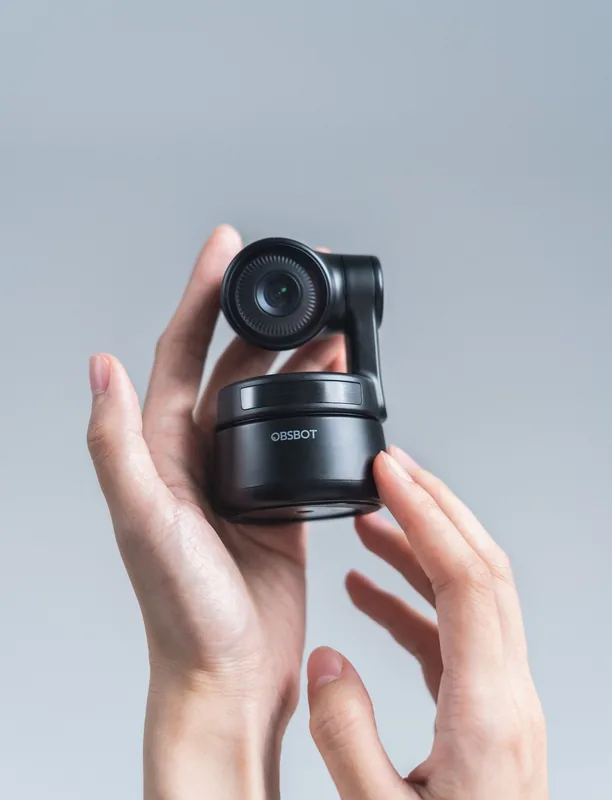
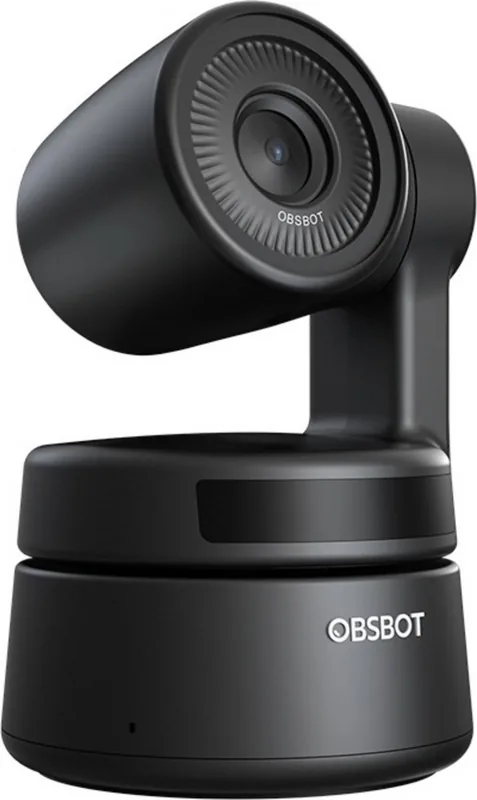
The OBSBOT Tiny AI FullHD 1080p PTZ Webcam blends compact design with advanced AI-driven features to elevate streaming, conferencing, and content creation. At its core, Tiny uses deep learning and neural network computing to deliver precise AI tracking, automatic framing, and intuitive gesture control. The 1080p Full HD sensor ensures crisp video while a USB Type-C connection provides reliable, high-speed video transfer and compatibility with both Windows and Mac platforms.
Tiny’s magnetically adjustable base and standard UNC 1/4-20 thread make mounting flexible—attach it to a monitor, place it on a desktop, or mount it on a tripod. Setup is plug-and-play: connect via the data cable and allow a few seconds for automatic installation. During prolonged use the unit’s base may warm slightly; this is normal.
Gesture control is a standout feature. By placing your hand near your face, the camera switches its indicator to blue and recognizes simple gestures for selecting or canceling tracking targets and for 2x zoom in/out—no physical buttons required. The multi-color LED indicator communicates device states, from initialization and target lock to firmware upgrade and error conditions, providing clear visual feedback.
The TinyCam desktop software offers further control: adjust gimbal rotation, select/unlock tracking targets, zoom, set preset positions, and perform firmware upgrades. Follow on-screen instructions when connected; do not disconnect the device during firmware updates. The manufacturer provides the latest manual and firmware updates via the official support site.
With its AI features, compact form, and easy mounting options, the OBSBOT Tiny is tailored for creators and professionals who need reliable automated framing and hands-free controls during live sessions.
Notes
- Supports Windows and macOS.
- Uses USB Type-C for efficient video transfer.
- Magnetic base plus UNC 1/4-20 connector for versatile mounting.
- Firmware upgrades via TinyCam; avoid disconnecting during updates.
- Indicator lights (red, yellow, blue, green) show status and errors.
Search for 67,706 Manuals online


Type-in Brand or Model