
OBSBOT Meet Manual
PDF manual · 6 Pages
English



Quick check
Incorrect answer, please try again.
Chat with your OBSBOT Meet manual using AI
Get instant AI answers from your OBSBOT Meet manual
Ask anything about the OBSBOT Meet. Answers come from this manual, with the pages they are based on.
Ask a Question
Do you recommend Meet?
Yes NoFrequently Asked Questions
It is designed for video calls, conferencing, livestreaming, and online presentations. Its AI features help keep a person or group framed while providing Full HD video through a USB connection.
Is this answer helpful?
Single Mode centers the nearest person and offers close-up or upper-body views. Group Mode adjusts the frame to include multiple people. Auto-framing can be enabled in OBSBOT MeetCam or with the camera status button.
Is this answer helpful?
Yes. The adjustable magnetic base is intended for monitor mounting, and the camera also includes a standard UNC 1/4-20 mounting point for compatible tripods.
Is this answer helpful?
The webcam supports Windows 7, Windows 8, Windows 10 or later, and macOS 10.13 or later. For 1080p at 60 fps, a 7th-generation Intel Core i5 or newer system with 8 GB RAM is recommended.
Is this answer helpful?
The software can manage auto-framing, field of view, 1x to 2x digital zoom, camera direction, focus, HDR, anti-flicker, sleep mode, firmware updates, language, and supported video settings on Windows.
Is this answer helpful?
Press and hold the status button for three seconds. When the indicator turns off, sleep mode is active. In this mode, both the webcam video and audio are disabled.
Is this answer helpful?
Advantages and Disadvantages
Advantages

- AI auto-framing supports Single Mode for an individual and Group Mode for multiple participants.
- 1080p video, autofocus, HDR, and anti-flicker settings help improve image quality in varied lighting.
- Magnetic monitor mount and UNC 1/4-20 tripod connection provide flexible placement options.
- OBSBOT MeetCam offers control over field of view, 2x digital zoom, focus, direction, and sleep mode.
- USB-C connectivity and compatibility with Windows, macOS, and major meeting platforms simplify setup.
Disadvantages

- Auto-framing disables manual view, zoom, and direction adjustments while it is active.
- HDR and anti-flicker are off by default and require configuration in OBSBOT MeetCam.
- Some apps may require manual image rotation when the camera is used in portrait orientation.
- 1080p at 60 fps needs relatively modern computer hardware for recommended performance.
- The optional remote control is sold separately.
Product Specification
Type
Webcam
Image sensor
1x 1/4" CMOS 2.0 MP
Resolution
1920 x 1080 pixels (60 fps)
Field of view
65-86 degrees (diagonal)
Zoom function
2x digital
Compression/codecs
MJPEG, H.264, YUV
Ports
1x USB-C 3.0 (5 Gb/s, socket)
Wireless
N/A
Focusing
Autofocus, manual
Camera cover
Flip mechanism
Microphone
Integrated (stereo, omnidirectional)
Speaker
N/A
Lighting
N/A
Cable length
4.92 ft
Power supply
Via USB
Mount
With 1/4" thread, magnetic
Dimensions
2.2 x 1.73 x 2.09 in
Weight
4.69 oz, 2.54 oz (without mount)
Package contents
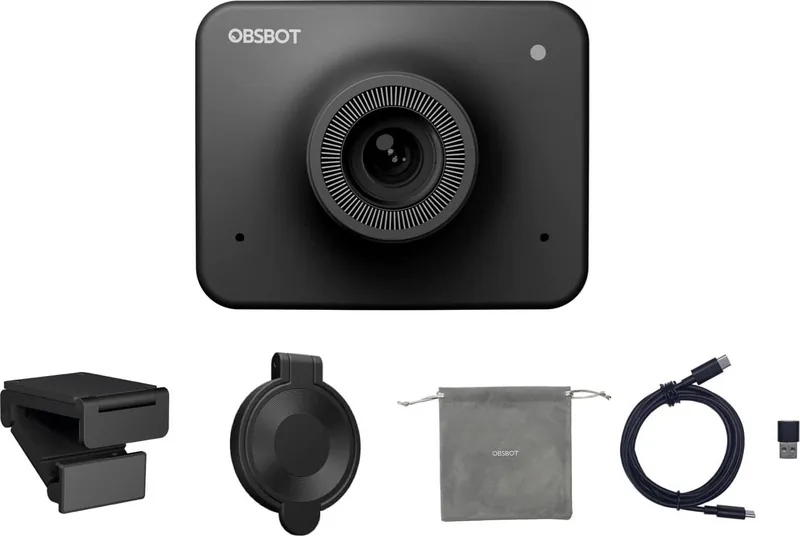
Camera, camera cover, mounting clip, USB-C to USB-A adapter, USB-C cable
Special features
Status LED, app-controlled, HDR
Product Description
OBSBOT Meet FHD Webcam Manual: Smarter Video for Everyday Calls
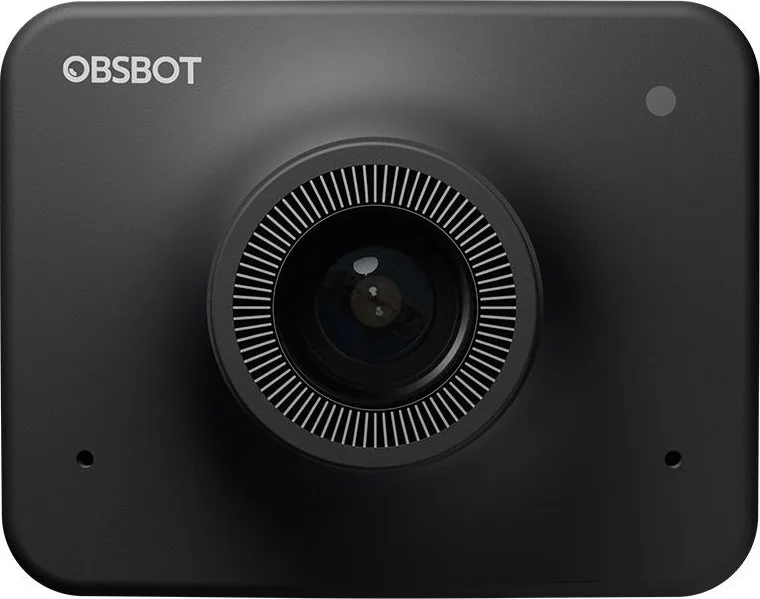
The OBSBOT Meet FHD Webcam combines 1080p video, AI-assisted framing, and a compact magnetic design for clearer remote communication. It is built for video calls, livestreams, online classes, and team meetings where keeping the speaker properly framed matters. This OBSBOT Meet FHD Webcam Manual overview highlights the main features that help users set up and personalize the camera.
AI Framing That Adapts to Your Scene
The camera uses AI-based auto-framing to adjust composition as people move. Single Mode identifies the nearest person and centers them in the image, with close-up and upper-body framing choices in landscape orientation. Group Mode expands the composition to include multiple people, making it useful for collaborative calls and small presentations.
Auto-framing can be enabled in OBSBOT MeetCam or toggled with the status button on top of the camera. When framing is active, manual view, zoom, and direction controls are unavailable, helping the camera maintain its automatic composition without conflicting settings.
Flexible Mounting and Simple Connectivity
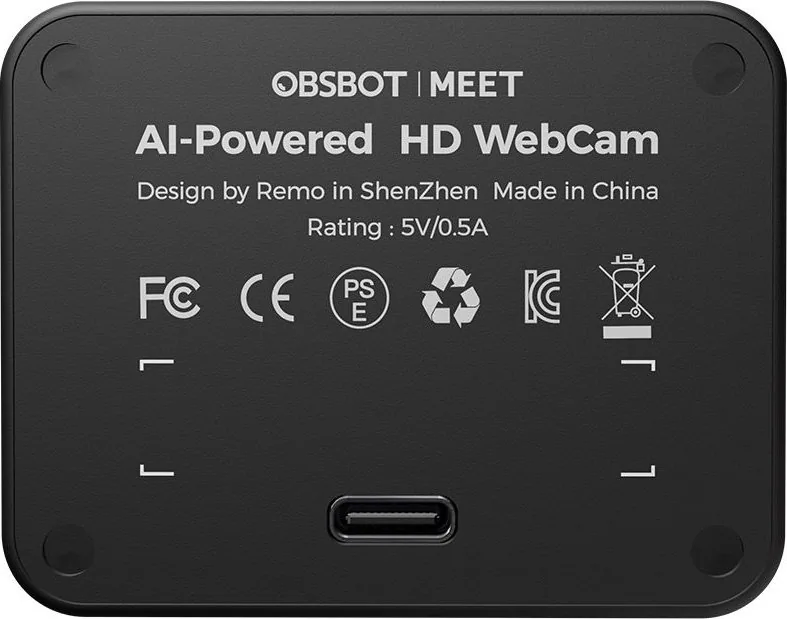
A magnetic, adjustable base lets the OBSBOT Meet sit on top of a monitor, while the built-in UNC 1/4-20 mount supports tripod placement. The webcam connects through USB-C and includes a USB-C to USB-A adapter for broader computer compatibility. It works with Windows and macOS and can be used with popular communication services such as Zoom, Microsoft Teams, Skype, and Google Meet.
The webcam supports both portrait and landscape positioning. Some software may require manual rotation, so users should verify orientation in their chosen video application before joining an important call.
Control Video Settings with OBSBOT MeetCam
OBSBOT MeetCam provides expanded controls for auto-framing, field of view, zoom, direction, focus, HDR, and anti-flicker. The selectable viewing angles of 86, 78, and 65 degrees allow users to balance background coverage with a tighter presentation. Digital zoom is adjustable from 1x to 2x.
Autofocus is enabled by default and continuously adjusts focus as the subject moves closer or farther away. Manual focus is available for users who prefer fixed control. HDR can improve visibility in scenes with uneven lighting, including backlit windows or dim rooms. Anti-flicker is also available to reduce flicker under fluorescent lighting or when recording displays.
Notes
- Hold the status button for three seconds to enter or exit sleep mode. Sleep mode disables both video and audio.
- Check the camera indicator light for initialization, active framing, updates, or possible device errors.
- Do not disconnect the webcam while a firmware update is in progress.
- For 1080p at 60 fps, a modern Intel Core i5 system and 8 GB of RAM are recommended.
Search for 67,706 Manuals online


Type-in Brand or Model