
OBSBOT Meet 4K Manual
PDF manual · 6 Pages
English



Quick check
Incorrect answer, please try again.
Chat with your OBSBOT Meet 4K manual using AI
Get instant AI answers from your OBSBOT Meet 4K manual
Ask anything about the OBSBOT Meet 4K. Answers come from this manual, with the pages they are based on.
Ask a Question
Do you recommend Meet 4K?
Yes NoFrequently Asked Questions
You can activate Auto Framing on the OBSBOT MeetCam software or by pressing the status button on top of the webcam. You can switch between Single Mode for one person or Group Mode for multiple people.
Is this answer helpful?
The OBSBOT Meet 4K supports up to 4x digital zoom. Users can control zoom settings manually from 1x to 4x through the OBSBOT MeetCam software.
Is this answer helpful?
White light indicates work status. Green light shows Auto Framing is on. Red light means upgrade failed or product failure. Yellow flashing happens during an upgrade.
Is this answer helpful?
Long press the status button for three seconds. When the indicator light turns off, Sleep Mode is activated and both video and audio are cut off.
Is this answer helpful?
It is compatible with Windows 7, 8, 10 or later and macOS 10.13 or later. Specific requirements apply for 4K resolution and high frame rates.
Is this answer helpful?
HDR is off by default. You can switch it on in the OBSBOT MeetCam software to repair exposure differences in low light or sunlight.
Is this answer helpful?
Advantages and Disadvantages
Advantages

- 4K Ultra HD lens for superior video quality in conferences and streaming
- AI Auto Framing adjusts to fit individuals or groups in the scene automatically
- Built-in HDR helps maintain exposure in low light or direct sunlight
- Dual microphones provide clear audio capture for all meeting participants
- Magnetic bracket allows flexible placement on monitor mounts or standard tripods
Disadvantages

- Surface may get hot during extended periods of continuous operation
- Requires specific CPU and RAM configurations to run 4K resolution smoothly
- Auto rotation features depend on specific software support like OBS
- Remote Controller is not included and must be purchased separately
- Firmware updates require a stable USB connection and cannot be interrupted
Product Specification
Type
Webcam
Image Sensor
1x CMOS 8.3 MP
Resolution
3840x2160 Pixels (30fps), 1920x1080 Pixels (60fps)
Field of View
65-86 deg (diagonal)
Zoom Function
4x digital
Compression/Codecs
MJPEG, H.264, YUV
Connections
1x USB-C 3.0 (5Gbps, port)
Wireless
N/A
Focus
Autofocus, manual
Camera Cover
Flip Cover
Microphone
Integrated (stereo, omnidirectional)
Speakers
N/A
Lighting
N/A
Cable Length
4.92 ft
Power Supply
via USB
Mount
with 1/4" thread, magnetic
Dimensions
2.20x1.73x2.09 in
Weight
0.29 lbs, 0.16 lbs (without Mount)
Package Contents
Camera, Camera Cover, Mount Clip, USB-C to USB-A Adapter, USB-C Cable
Features
Status LED, controllable via app, HDR
Product Description
Exploring the OBSBOT Meet 4K Webcam Manual
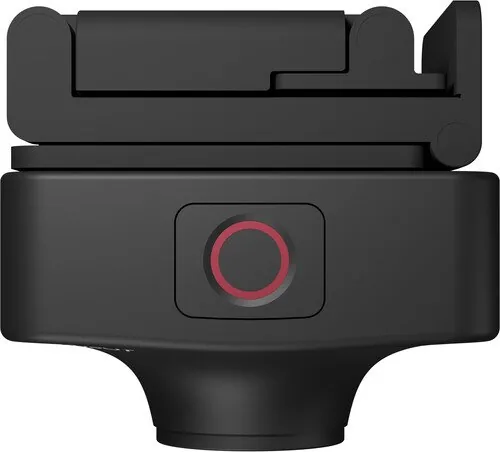
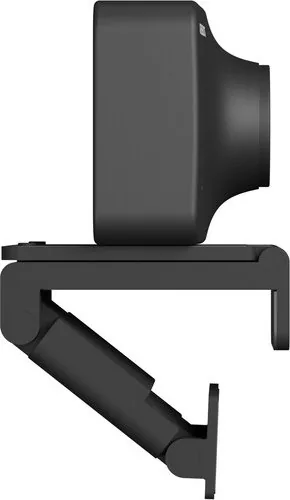
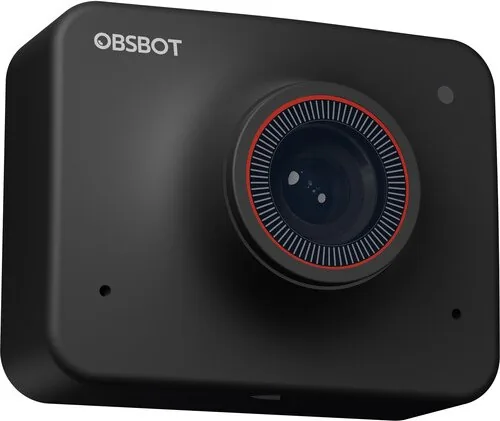
The OBSBOT Meet 4K Webcam Manual serves as the definitive guide for users seeking high-quality video communication. This AI-powered device utilizes deep learning neural networks to deliver impressive Auto-framing capabilities. Whether you are streaming live content or joining video calls, the camera ensures you remain centered and perfectly composed. The hardware boasts a 4K Ultra HD lens that captures stunning detail during professional conferences. Connecting the device is straightforward via the USB-C port. It supports efficient video transfer speeds. The USB-C connection standard ensures stable data transfer rates consistently. It is compatible with Windows and macOS systems. The magnetic bracket allows flexible placement on monitors or tripods using standard UNC 1/4-20 mounts. Users can also engage the Privacy Cover Slot to ensure security when the camera is not in use. The built-in dual microphones provide clear audio capture for all participants in your meetings.
OBSBOT MeetCam software unlocks full potential for the hardware. Users can easily toggle Auto Framing through Single or Group modes. This feature automatically adjusts the field of view to fit one or multiple people in the scene. Additional settings include digital zoom up to 4x and HDR for low-light environments. The Focus mode intelligently adjusts in real-time to keep subjects sharp using AI technology. Manual focus options are also available for precise control when needed. Recommended CPUs are 7th Gen Intel Core i5 or later. For 4K resolution, newer Apple computers are suggested to ensure optimal performance. Ensure RAM is at least 8GB for best results during heavy usage.
Indicator lights provide quick status updates to prevent confusion. White signifies work status while Green indicates Auto Framing is active. Red flashing denotes upgrade failure or errors regarding the lens or AI. Sleep Mode can be activated by long pressing the status button for three seconds. In this state, video and audio are cut off completely to save resources. Firmware updates are managed through the software interface, pushing automatically when new versions are available. Always connect the data cable during upgrades to prevent hardware corruption. If the product works for a long time the surface may get hot which is normal operation. Remember to check system compatibility before purchasing the device online.
The interface also allows virtual background customization and language switching globally. Users gain full control over camera parameters including view angles and exposure settings. This comprehensive tool ensures a smooth and reliable experience for all video communication needs on supported platforms. Users should watch instructional videos before installation to avoid setup errors. Ensure the bracket foot is flush with the monitor back for stability during intense camera movements. The setup process takes only minutes for most standard computer configurations. This guide highlights the robust features designed for modern remote work and content creation needs effectively.
Search for 67,706 Manuals online


Type-in Brand or Model