
NextBase 212 Manual
PDF manual · 39 Pages
English



Quick check
Incorrect answer, please try again.
Chat with your NextBase 212 manual using AI
Get instant AI answers from your NextBase 212 manual
Ask anything about the NextBase 212. Answers come from this manual, with the pages they are based on.
212 Maintenance Schedule
Periodically reformat the memory card to ensure stable performance. Do this after downloading any files you want to keep.
Clean the device with a soft dry cloth. For tough dirt, use neutral detergent diluted in water on a soft cloth.
Free maintenance reminders
Timed to your purchase date. Always free, unsubscribe anytime.
Ask a Question
Do you recommend 212?
Yes NoFrequently Asked Questions
It supports Video, Photo, and Playback modes. Video records moving footage to your MicroSD card in loop segments. Photo captures still images. Playback lets you review files on the 2.7-inch LCD, including browsing, deleting, and protecting content.
Is this answer helpful?
The dash cam records continuously in short files (default 3 minutes). When the MicroSD card becomes full, it automatically deletes the oldest unprotected file to make space for new recordings. Protected files created by the G Sensor or manual Protect button will not be overwritten or deleted.
Is this answer helpful?
You can protect during an incident using the Protect File button while recording, or rely on the built-in G Sensor which detects forces and automatically protects the current recording. Protected status is shown on-screen, and protected clips can also be managed in Playback mode.
Is this answer helpful?
The device supports MicroSD cards up to 128GB. It recommends Class 10 cards for best results, and specifically notes 8-128GB as suitable. For stable performance, ensure the card is compatible and format it using the dash cam itself.
Is this answer helpful?
Install it so it does not obstruct the driver view, ideally behind the rear view mirror and within the windscreen area swept by the wipers. Make sure it is firmly attached, positioned within legal limits for intrusion, and that cables do not interfere with controls or airbag deployment.
Is this answer helpful?
Yes. Connect the dash cam to a PC or Mac via the supplied USB cable and use the Update option. Firmware updates are intended to be handled with the NEXTBASE Replay 3 Playback software for managing the update process.
Is this answer helpful?
When connected in Mass Storage mode, the dash cam acts as a read-only card reader. This means you can copy recorded files off the MicroSD card for playback, but you cannot upload or write new files onto the card in that mode.
Is this answer helpful?
Advantages and Disadvantages
Advantages

- Automatic start/stop based on vehicle ignition simplifies daily use.
- Loop recording in short segments (default 3 minutes) keeps files easy to manage.
- G Sensor plus manual Protect button helps preserve incident footage.
- Parking Mode detects movement for standby-based protected recordings.
- 2.7-inch LCD supports quick mode changes and on-device playback.
Disadvantages

- Mass storage mode is read-only, so you cannot add files to the card via USB.
- For performance, SD cards should be reformatted about every 2-3 weeks.
- Battery is limited and is not a replacement for the car adaptor.
- External AV output requires the correct 2.5 mm AV cable.
- Video playback compatibility depends on codecs and a suitable PC setup.
Product Specification
Effective Megapixels
3.0 Megapixels
Sensor
CMOS
Removable Storage
microSD/microSDHC/microSDXC
Video Function
MOV, 1920x1080@30p (16:9)
Viewing Angle
140°
Display
2.7" LCD, 0.69 million pixels
Connections
USB 2.0, Audio/Video output
Features
Motion Sensor
Dimensions
3.43x2.32x1.50in (WxHxD)
Weight
2.75 oz
Product Description
NextBase 212 Manual - Seamless Loop Recording for Everyday Drives
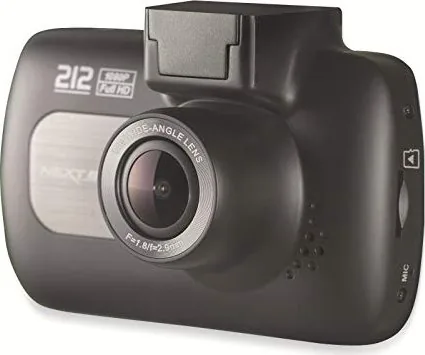
The NextBase 212 is an in-car dash cam built for simple, reliable use. The system is designed to keep you recording with minimal setup changes, while still offering the controls and options that matter when you need clear evidence. It records in small, manageable segments, supports video, photos, and playback, and includes features like file protection and parking mode to help cover more of what happens on the road.
Smart recording that manages storage automatically
When powered, the camera starts recording automatically and saves video in continuous loop segments. Each clip is stored as a short file (by default, 3 minutes), which helps keep downloads manageable for sharing with insurers or reviewing incidents. As the card fills, the dash cam automatically removes the oldest unprotected footage to make room for new recordings. If you need to keep a clip, the unit can protect files using the built-in G Sensor or a manual protect button.
Clear viewing and practical camera modes
A 2.7-inch LCD screen makes it easy to switch between Video, Photo, and Playback modes. Video mode includes on-screen status such as recording, resolution, exposure, time and date, microphone status, and whether the current file is protected. Photo mode lets you capture still images, while playback mode helps you review and manage recordings directly on the device.
Easy installation and power options
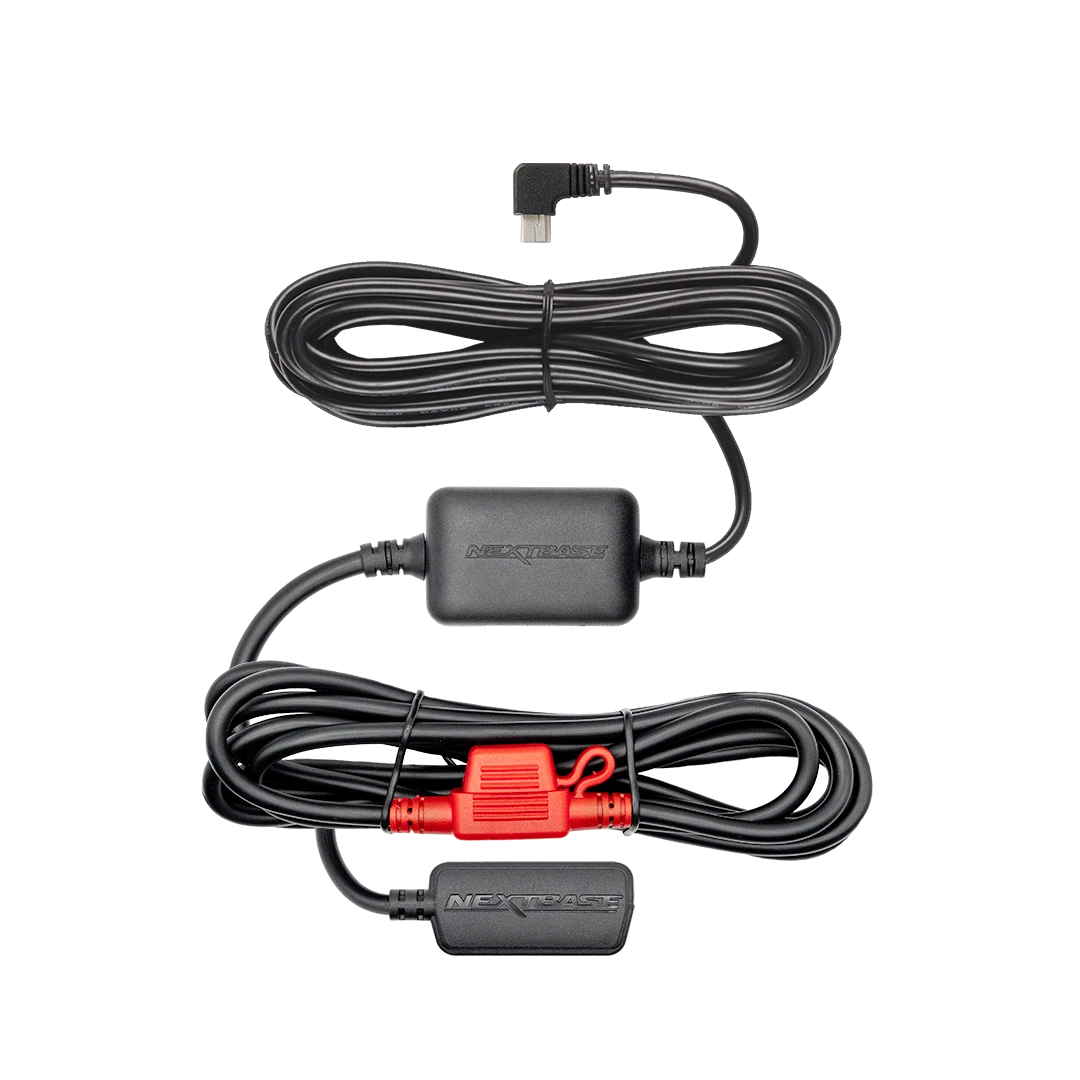
The included powered mount uses an easy-fit approach, allowing quick attachment and removal while leaving the power cable connected to the mount. The dash cam can power on based on vehicle ignition, and it supports Parking Mode behavior designed for brief protected recording when motion is detected.
Key results
- Loop recording saves short files (default 3 minutes) and overwrites the oldest unprotected clips automatically.
- G Sensor and Protect button help prevent important moments from being deleted during loop recording.
- 2.7-inch LCD enables on-device playback, file protection, and basic file management.
- MicroSD support up to 128GB (recommended Class 10, 8-128GB) helps provide significant coverage time.
- Automatic start/stop reduces the need to manually operate the camera while driving.
Notes
- For stable performance, the SD card should be reformatted periodically, after saving any files you want to keep.
- The built-in battery is not intended as a full-time power source and works best for short interruptions.
- Mass storage via USB is read-only, so copy files for playback rather than trying to write new ones to the card.
Search for 67,706 Manuals online


Type-in Brand or Model