
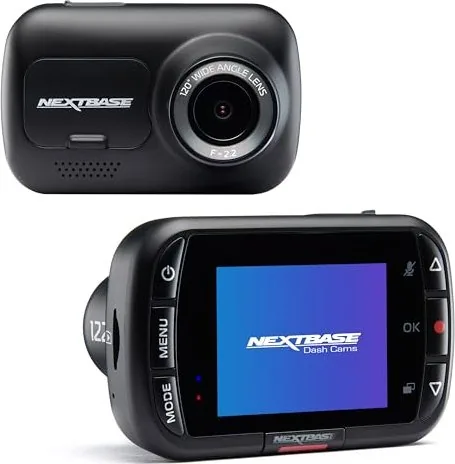
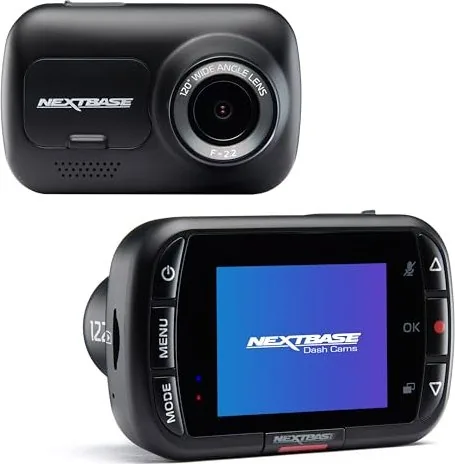
NextBase 122 Manual
PDF manual · 33 Pages
English



Quick check
Incorrect answer, please try again.
Chat with your NextBase 122 manual using AI
Get instant AI answers from your NextBase 122 manual
Ask anything about the NextBase 122. Answers come from this manual, with the pages they are based on.
122 Maintenance Schedule
Format the SD card in the dash cam every 2-3 weeks to ensure stable performance and free space. Back up files you want to keep before formatting.
Regularly check the Nextbase website for firmware updates to fix bugs and improve functionality. Update via SD card or PC connection.
Ask a Question
Do you recommend 122?
Yes No
Riley Butler
4 months ago
Does this dashcam actually work well at night or is the footage too blurry to be useful as evidence?

Hanna Herzog
6 months ago
Is the image quality reliable in low light and after long-term use, or are there issues with night recordings?

Manual.ly
6 months ago
The Nextbase 122 features a compact design with a comfortable display for easy operation. While some users have reported excellent video evidence including time stamps even after years of exposure to extreme weather, others have noted that night vision and low-light performance may be insufficient for clear identification. Image quality can vary based on specific lighting conditions and individual unit performance.
Lukas Weber
6 months ago
Does the parking mode work effectively after several years without maintenance?
Frequently Asked Questions
First, charge the device fully via USB. Attach the chosen mount (adhesive or suction) to your windscreen behind the rearview mirror. Insert a compatible MicroSD card, then click the camera onto the mount. Connect the car power cable to the mount's USB port and plug it into your vehicle's 12V outlet. The camera will power on automatically.
Is this answer helpful?
You must use a Class 10 or U1 MicroSD card with a minimum write speed of 48MB/s. While standard cards may work initially, Nextbase recommends their branded cards specifically designed to handle the constant read/write cycles of dash cams to prevent recording failures.
Is this answer helpful?
Yes, the device includes a built-in microphone and speaker. Audio recording is enabled by default but can be toggled on or off within the Video Menu settings if you prefer silent recordings.
Is this answer helpful?
The internal G-Sensor monitors forces exerted on the camera. If a collision or sudden impact occurs, it triggers a protection mechanism that locks the current video file so it cannot be overwritten by the loop recording feature. You can also manually protect files using the Protect button.
Is this answer helpful?
Yes, firmware updates are available on the Nextbase website. To update, download the .bin file to a formatted MicroSD card, insert it into the camera, and connect the power cable. The camera will detect the update and install it automatically upon startup.
Is this answer helpful?
The Nextbase 122 has a small internal lithium-polymer battery that keeps the camera running for approximately 15 minutes after power loss. This ensures the final recording session is saved and the camera shuts down safely without corrupting files.
Is this answer helpful?
Yes, the Nextbase 122 features Intelligent Parking Mode. When enabled, the camera enters standby when the car is off. If it detects motion or vibration while parked, it wakes up and records a protected 30-second clip to capture potential incidents.
Is this answer helpful?
Advantages and Disadvantages
Advantages

- Automatic start-stop technology activates recording with vehicle ignition
- High-definition 720p video recording at 30fps captures clear details
- G-Sensor protects vital footage during collisions or sudden impacts
- Click & Go magnetic mount allows for easy installation and removal
- Loop recording ensures continuous storage without manual file management
Disadvantages

- Internal battery provides only short-term backup power during outages
- Requires Class 10 or U1 MicroSD cards for optimal high-speed writing
- Screen saver may cause display to blank if not configured properly
- Non-branded SD cards may fail to handle continuous write cycles effectively
- Video playback while driving is restricted or illegal in many jurisdictions
Product Specification
Effective Megapixel
1.0 Megapixel
Sensor
CMOS
Memory Card Slot
microSD/microSDHC
Video Function
MPEG-4, 1280x720@30p (16:9)
Viewing Angle
120 degrees
Display
2-inch LCD, 0.23 million pixels
Connections
USB 2.0
Features
Motion sensor, Loop function
Dimensions
3.15 x 1.97 x 1.73 inches (WxDxH)
Weight
2.89 oz
Product Description
Discover the Nextbase 122: Your Essential Driving Companion
The Nextbase 122 represents a significant step forward in personal vehicle safety and documentation. Designed with the everyday driver in mind, this compact dash cam prioritizes ease of use without sacrificing critical performance features. Whether you are commuting to work or embarking on a long road trip, having a reliable record of your journey can provide invaluable peace of mind.
At the heart of the Nextbase 122 is its ability to capture high-definition video at 720p resolution with 30 frames per second. This clarity ensures that license plates and road signs are legible even at speed. The camera utilizes a wide-angle lens covering 120 degrees, allowing for comprehensive coverage of the road ahead while minimizing blind spots. One of its most intelligent features is the automatic start-stop technology. As soon as power is detected from your vehicle's ignition, the device springs into action, recording immediately. Conversely, it shuts down gracefully when you turn off the engine, ensuring you never miss a moment and never worry about draining your car battery.
Storage management is handled seamlessly through loop recording. The camera continuously records in one-minute segments, automatically deleting the oldest files once the memory card reaches capacity. This ensures you always have the most recent driving footage available. For added security, the built-in G-Sensor detects sudden impacts or collisions. Upon detecting a force exceeding a set threshold, it instantly locks the current video file to prevent it from being overwritten, preserving crucial evidence for insurance claims or legal proceedings.
Installation is straightforward thanks to the Click & Go magnetic mount system. You can choose between an adhesive base or a suction cup, both of which allow for easy removal and reinstallation of the camera unit. The device also features a parking mode that activates when motion is detected while the vehicle is stationary, offering protection against hit-and-run incidents. With a user-friendly interface and intuitive menu controls, setting up your language, time, and date is quick and simple. The Nextbase 122 stands as a robust tool for modern drivers seeking reliability and clarity on the road.
Search for 67,706 Manuals online


Type-in Brand or Model
Sophia Bailey
6 months ago
How reliable is the video quality, especially for night recordings and after long-term use in extreme weather?
Manual.ly
6 months ago
The Nextbase 122 offers good image quality with clear time stamps, making it effective for capturing incidents like parking damage. It is designed to withstand temperature extremes from winter frost to summer heat without requiring constant maintenance. However, some users have reported that night vision performance can be poor, resulting in unclear footage. We recommend checking your specific settings and ensuring the lens is clean for optimal results.