
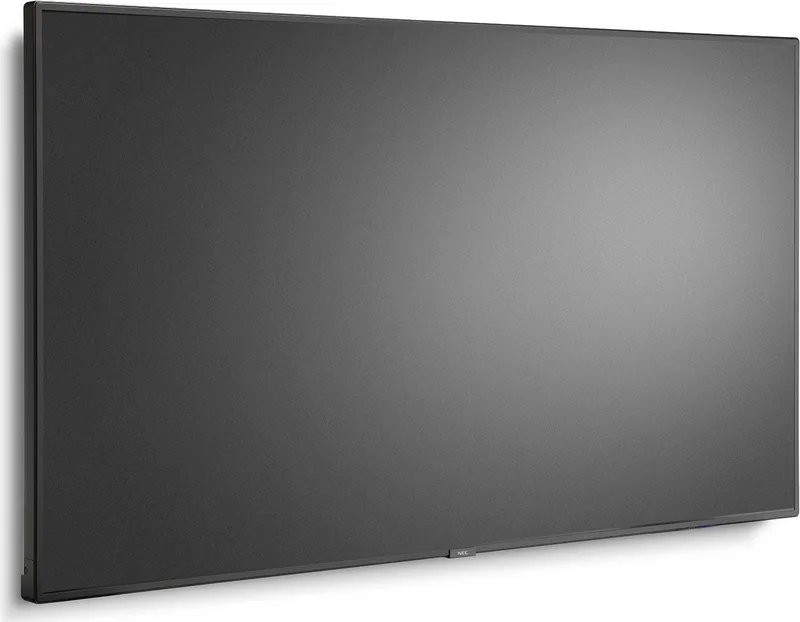
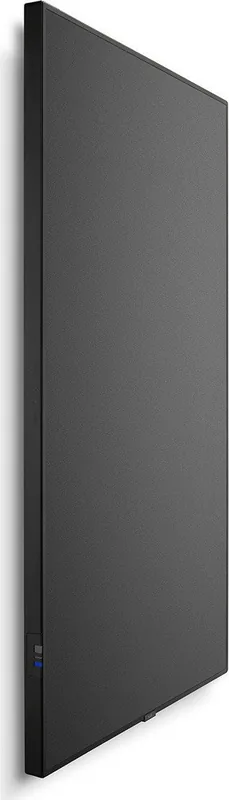
NEC MultiSync V654Q Manual
PDF manual · 80 Pages
English



Quick check
Incorrect answer, please try again.
Chat with your NEC MultiSync V654Q manual using AI
Get instant AI answers from your NEC MultiSync V654Q manual
Ask anything about the NEC MultiSync V654Q. Answers come from this manual, with the pages they are based on.
MultiSync V654Q Maintenance Schedule
Wipe clean the ventilation holes a minimum of once a month to ensure reliable performance.
Clean the ventilation holes at the rear side of the cabinet at least once a year to remove dirt and dust.
Periodically check for loose screws, gaps, distortions, or other problems with mounting equipment.
Regularly check the mounting location for signs of damage or weakness that may occur over time.
Free maintenance reminders
Timed to your purchase date. Always free, unsubscribe anytime.
Ask a Question
Do you recommend MultiSync V654Q?
Yes NoFrequently Asked Questions
It is best used in professional spaces such as meeting rooms, signage installations, classrooms, lobbies, and control environments where reliable display performance and flexible control are important.
Is this answer helpful?
Yes. It includes a media player that can play still images, videos, and background music from USB storage or microSD media, which is helpful for simple signage setups.
Is this answer helpful?
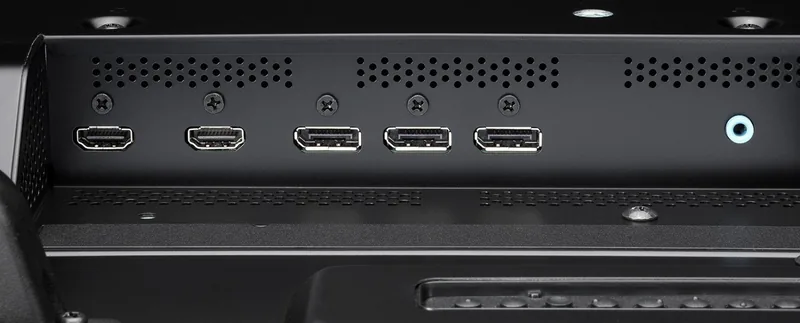
The display supports HDMI, DisplayPort, USB, LAN, RS-232C, audio connections, and other expansion options depending on the configuration.
Is this answer helpful?
Yes. The V654Q supports multi-display setups and DisplayPort daisy-chain workflows, making it useful for video walls or synchronized presentation systems.
Is this answer helpful?
Yes, professional installation is strongly recommended. The display should be mounted securely, with proper ventilation and approved accessories to ensure safe operation.
Is this answer helpful?
Yes. It supports scheduling for power, input, and picture modes, along with functions like emergency content playback and proof-of-play for managed environments.
Is this answer helpful?
Advantages and Disadvantages
Advantages

- Wide connectivity with HDMI, DisplayPort, USB, LAN, and RS-232C for flexible integration.
- Built-in media player supports direct playback from USB or microSD without extra hardware.
- Scheduling, proof-of-play, and emergency content tools help automate professional signage.
- Advanced picture modes and color controls support presentations, signage, and calibration needs.
Disadvantages

- Professional installation is strongly recommended, so it is not a simple plug-and-play setup.
- Several functions depend on optional boards or specific hardware configurations.
- Cable, mounting, and ventilation requirements are strict and must be followed carefully.
- Not intended for outdoor use or casual consumer-style installation.
Product Specification
Diagonal
65"/65.00in
Resolution
3840x2160, 16:9
Brightness
500cd/m^2
Contrast
4,000:1 (static), no information (dynamic)
Response time
8 ms
Viewing angle
178 degrees/178 degrees
Panel
VA
Shape
straight (flat)
Backlight
White-LED
HDR
N/A
Refresh rate
60 Hz
Signal frequency
no information (horizontal), no information (vertical)
Connections
3x HDMI 1.4, 2x DisplayPort, 1x DisplayPort-Out, 1x 0.14 in jack (Line-In)
Further connections
1x RJ-45 LAN, 1x serial, 1x JAE 80-Pin OPS, 2x IR-In (0.14 in), 3x USB-A 2.0 (480Mb/s), 1x microSD
VESA
400x400 (free)
Power consumption
no information (maximum), no information (typical), no information (old energy label A+++ to G), 0.5W (Standby)
Energy efficiency class SDR (A to G)
G
Energy consumption SDR
180kWh/1000h
Dimensions (WxHxD)
57.32x32.72x2.80in
Weight
92.60 lb
Special features
Speakers (2x 10W)
Manufacturer warranty
three years
Product Description
NEC MultiSync V654Q 65-inch Manual: A Practical Guide to a Professional Large-Format Display
The NEC MultiSync V654Q 65-inch is designed for environments where dependable performance matters as much as image quality. It fits naturally into meeting rooms, retail signage, classrooms, reception areas, and control spaces, offering a professional display experience that is built for daily use rather than casual entertainment. The model belongs to NEC’s large-format MultiSync family, and its feature set reflects a strong focus on stability, control, and flexible integration.
One of the most useful strengths of the V654Q is its broad connectivity. With HDMI, DisplayPort, USB, LAN, and RS-232C support, it can adapt to a wide range of sources and control systems. That makes it easier to connect laptops, media players, storage devices, and network-based management tools. It also supports multi-display and daisy-chain workflows, which is especially valuable in signage installations and video wall layouts where consistent output is important.
The built-in media player adds another layer of convenience. Users can display still images, motion content, and background music directly from USB storage or microSD media, reducing the need for extra hardware in simple installations. Scheduling options, emergency content handling, and proof-of-play functions make the display useful for businesses that need automation and reliable content delivery throughout the day.
Image tuning is another highlight. The display supports several picture modes, aspect options, and advanced color controls, helping it handle presentations, text-heavy material, and motion content with equal confidence. For users who need more refined color behavior, SpectraView Engine and related calibration tools provide additional flexibility. Combined with power management and cooling features, the V654Q is built to work efficiently while maintaining consistent performance.
Beyond features, the guidance around installation and maintenance is clearly serious. Proper mounting, ventilation, cable selection, and regular cleaning all play a role in protecting the display and extending its life. This is not a product meant for rushed setup; it rewards careful planning and professional installation.
Notes
- Best suited for indoor professional environments.
- Some advanced functions may require optional boards or extra configuration.
- Approved cables and proper ventilation are strongly recommended.
Overall, the NEC MultiSync V654Q 65-inch Manual points to a display that balances flexibility, control, and reliability. It is a smart choice for teams that need a large-format screen with practical tools for modern business communication.
Search for 67,706 Manuals online


Type-in Brand or Model