
NEC MultiSync P435 Manual
PDF manual · 113 Pages
English



Quick check
Incorrect answer, please try again.
Chat with your NEC MultiSync P435 manual using AI
Get instant AI answers from your NEC MultiSync P435 manual
Ask anything about the NEC MultiSync P435. Answers come from this manual, with the pages they are based on.
MultiSync P435 Maintenance Schedule
When the cooling fan runs continuously, wipe the ventilation holes clean at least once a month.
Remove dirt and dust from the ventilation holes on the rear side of the cabinet at least once a year.
Perform Self Calibration at least once per year, depending on monitor usage and other factors.
Free maintenance reminders
Timed to your purchase date. Always free, unsubscribe anytime.
Ask a Question
Do you recommend MultiSync P435?
Yes NoFrequently Asked Questions
Yes, the monitor supports 8K signals when using DisplayPort 1 inputs exclusively.
Is this answer helpful?
Use the internal SpectraView Engine or Stand-alone calibration feature with a compatible color sensor.
Is this answer helpful?
Yes, you can set a password to prevent unauthorized access to the OSD menu or power controls.
Is this answer helpful?
Use shielded signal cables for HDMI, USB, and DisplayPort to prevent interference with radio reception.
Is this answer helpful?
Yes, it supports network control via LAN ports using management software like NaViSet Administrator.
Is this answer helpful?
Wipe ventilation holes a minimum of once a month if the fan runs continuously, or once a year otherwise.
Is this answer helpful?
No, the product cannot be installed upside down to ensure proper ventilation and safe operation.
Is this answer helpful?
Advantages and Disadvantages
Advantages

- UHD panel resolution offers four times pixel count of full-HD for precise details.
- SpectraView Engine ensures highly precise color control and stability.
- Supports 8K signals via DisplayPort 1 for future-proof connectivity.
- Security password protects settings from unauthorized changes.
- Network management allows control of multiple monitors simultaneously.
Disadvantages

- Installation may require trained service personnel to prevent injury.
- Safety wire needed for wall mounting to prevent falling hazards.
- Ventilation requirements are strict to prevent overheating in enclosed spaces.
- Power cord must be earthed properly to avoid electric shock risks.
- Remote control range may reduce significantly with direct sunlight interference.
Product Specification
Diagonal
43 inches
Resolution
3840 x 2160, 16:9
Brightness
700 cd/m2
Contrast
8,000:1 (static), N/A (dynamic)
Response Time
8ms
Viewing Angle
178 deg / 178 deg
Panel
VA (S-PVA)
Shape
Flat
Backlight
White LED
HDR
N/A
Bit Depth
10-bit (1.07 Billion colors)
Refresh Rate
60Hz
Signal Frequency
15-135kHz (horizontal), 23-76Hz (vertical)
Ports
2x HDMI, 2x DisplayPort, 1x HDMI-Out, 1x DisplayPort-Out, 1x 3.5mm Jack (Line-Out)
Additional Ports
2x USB-A 2.0 (480Mb/s), 2x RJ-45 LAN, 1x serial, 1x Intel SDM-L-Slot
VESA Mounting
11.81" x 11.81" (free)
Operating Time
24 hours / 7 days
Power Consumption
90W (max), N/A (typical), N/A (Energy label old A+++ to G), 0.5W (standby)
SDR Energy Class (A to G)
G
SDR Energy Consumption
87 kWh / 1000 h
HDR Energy Class (A to G)
G
HDR Energy Consumption
87 kWh / 1000 h
Dimensions (WxHxD)
38.11" x 22.09" x 2.64"
Weight
40.79 lbs
Features
Speakers, Light Sensor, Temperature Sensor, NFC, DICOM
Manufacturer Warranty
3 years
Product Description
NEC MultiSync P435 43-Inch Display Overview
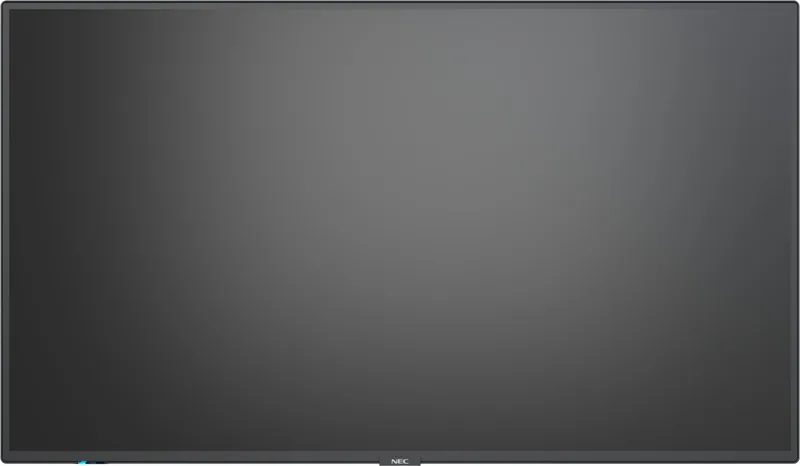
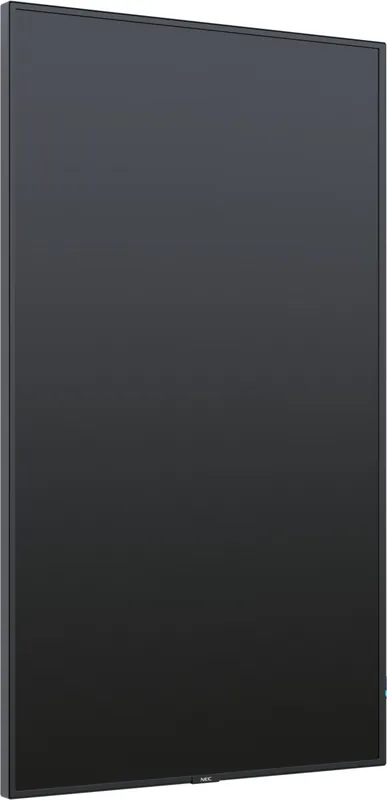
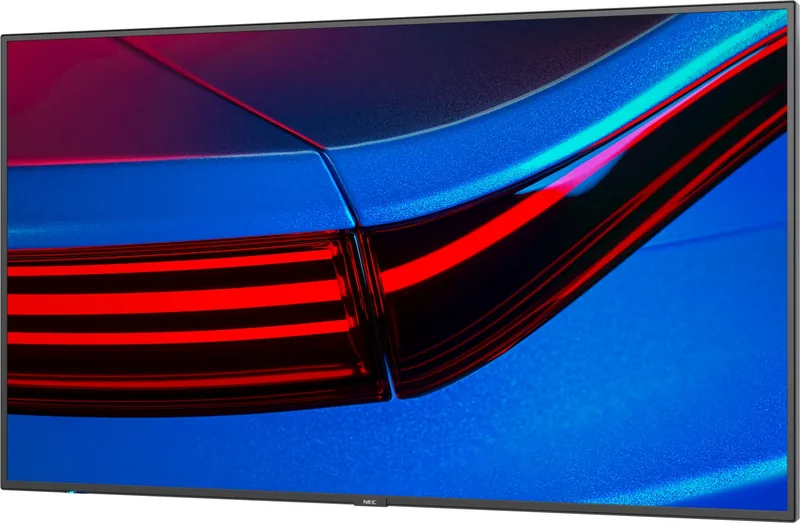
The NEC MultiSync P435 stands out as a premium choice for professional display needs. This 43-inch screen features a high-definition UHD panel that delivers 3840 by 2160 resolution. This pixel count offers four times the clarity of standard full-HD displays, allowing for precise reproduction of details in high-resolution images and video. Professionals in graphic design and content creation will appreciate the wide color gamut capabilities combined with the proprietary SpectraView Engine. This engine ensures superior color accuracy and stability over time. The system includes advanced color management tools such as ICC profiles and 3D Look Up Tables for printer output emulation.
Connectivity and Expansion
Users benefit from versatile connectivity options. The monitor supports 8K signals when using DisplayPort 1 inputs exclusively. You can also connect PCs via HDMI or DisplayPort. The Dual Daisy Chain Mode allows video to continue if one signal fails. Network management is simplified with LAN ports enabling remote operation using NaViSet Administrator 2. This tool allows asset management across multiple displays. Security features are robust, including password protection and control locking options. You can set start-up locks to prevent unauthorized access when power is switched on. HDMI cables with the logo ensure compatibility with high-bandwidth protection coding. You can control volume remotely or via the joystick key on the screen.
Installation and Safety
Proper installation is critical for safety. The unit has a cooling fan to maintain temperature during long use. However, ventilation requirements are strict. You cannot mount this product in poorly ventilated spaces or near heat sources. If wall mounting, use safety wires to prevent tipping and injury. The G-sensor helps provide guidance when installing vertically. Cleaning instructions specify using soft non-abrasive cloths without glass cleaner. Power cords must be earthed properly to avoid shock hazards. Schedules can be programmed to turn the unit on or off automatically. This ensures energy saving and reduces screen burn risk. The remote control works within a 7-meter range. You can use Point Zoom to magnify specific areas of the image up to ten times.
Advanced Features
The display supports Picture-in-Picture viewing for multitasking. Multiple input sources can appear simultaneously on the screen. The Aspect Ratio settings allow for full or letterbox modes depending on input. Time settings sync with NTP servers for accurate scheduling. The OSD menu provides extensive control over backlight, color, and audio. Security slots are available for Kensington locks. Option boards like Intel SDM allow custom computing integration. The backlight has a limited life so power saving modes are recommended when not in use. The Still Image feature freezes video for clear viewing. You can also adjust power management to reduce consumption during standby.
Conclusion
In summary, this monitor offers high reliability and performance. It supports multi-picture viewing modes like Picture-by-Picture. Security is high, with options to lock buttons on the unit or remote. It includes an optional Intel SDM slot for added computing flexibility. The display is designed for office or domestic environments as information technical equipment. Careful adherence to maintenance guidelines ensures longevity and safety. Enjoy vivid colors and robust management tools for your workflow. Troubleshooting guides help resolve screen or video signal issues. Brightness controls adapt well to different lighting conditions.
Search for 67,706 Manuals online


Type-in Brand or Model