
NEC MultiSync C981Q Manual
PDF manual · 79 Pages
English



Quick check
Incorrect answer, please try again.
Chat with your NEC MultiSync C981Q manual using AI
Get instant AI answers from your NEC MultiSync C981Q manual
Ask anything about the NEC MultiSync C981Q. Answers come from this manual, with the pages they are based on.
MultiSync C981Q Maintenance Schedule
If the fan operates continuously, clean the ventilation holes at least once a month to ensure proper cooling.
Clean the openings on the back of the housing at least once a year to remove dirt and dust for reliable function.
Check the bracket regularly for loose screws, deformation, or other problems, and inspect the mounting site for damage.
Free maintenance reminders
Timed to your purchase date. Always free, unsubscribe anytime.
Ask a Question
Do you recommend MultiSync C981Q?
Yes NoFrequently Asked Questions
It is designed for large-format commercial viewing, including presentations, digital signage, meeting spaces, and other environments that need a very large, bright, and controllable display.
Is this answer helpful?
Yes. It has a built-in media player that can play content from USB storage or microSD cards, including still images, video files, and background music in supported formats.
Is this answer helpful?
The display includes HDMI, DisplayPort, USB ports, LAN, RS-232C, audio connections, and option board support, giving it strong flexibility for AV and network setups.
Is this answer helpful?
Yes, but portrait installation must follow the proper rotation direction and ventilation guidance. The manual stresses safe mounting and correct airflow to avoid damage.
Is this answer helpful?
Yes. It supports daisy-chain style connections and multi-display configuration features, making it useful for large visual systems and synchronized content layouts.
Is this answer helpful?
It should be installed by qualified personnel with the correct mounting accessories. The monitor is heavy, needs strong support, and must not block ventilation openings.
Is this answer helpful?
Yes. It can be controlled through LAN and RS-232C, and the on-screen settings allow scheduling, input control, and other management functions for professional use.
Is this answer helpful?
Advantages and Disadvantages
Advantages

- Massive 98-inch screen offers excellent visibility for meetings, signage, and shared viewing.
- Wide connectivity includes HDMI, DisplayPort, USB, LAN, and RS-232C for flexible integration.
- Built-in media player supports USB and microSD playback, plus scheduling and emergency content.
- Advanced picture controls and SpectraView options help tailor image quality to different uses.
Disadvantages

- Installation is complex and should be handled by qualified personnel, not a single user.
- The display needs strong mounting support and careful ventilation planning.
- Some features depend on optional boards or specific settings, which may add complexity.
- Media playback is limited by supported file formats and storage compatibility rules.
Product Specification
Diagonal
98"/97.99"
Resolution
3840x2160, 16:9
Brightness
350cd/m²
Contrast
1,300:1 (static), no information (dynamic)
Response time
8ms
Viewing angle
178°/178°
Panel
IPS
Shape
straight (flat)
Backlight
White-LED
HDR
N/A
Refresh rate
60Hz
Signal frequency
no information (horizontal), no information (vertical)
Connections
3x HDMI 2.0, 2x DisplayPort 1.2, 1x DisplayPort-Out 1.2, 1x 3.5mm jack (Line-Out)
Other connections
2x RJ-45 LAN, 1x serial, 1x JAE 80-Pin OPS, 1x IR-In (3.5mm), 4x USB-A 2.0 (480Mb/s), 1x USB-B 2.0 (480Mb/s), 1x USB-A (BC), 1x microSD
VESA
400x400 (free)
Power consumption
no information (maximum), 240W (typical), no information (energy label old A+++ to G), 0.5W (Standby)
Energy efficiency class SDR (A to G)
G
Energy consumption SDR
240kWh/1000h
Dimensions (WxHxD)
86.38x49.17x3.66in
Weight
198.42lb
Special features
Speakers (2x 10W), optional external speakers (2x 15W), light sensor, motion sensor, temperature sensor, NFC, IPX5 certified (front), IPX2 certified (rear), HDCP 2.2
Manufacturer's warranty
three years
Product Description
NEC MultiSync C981Q 98" Manual: A Closer Look at a Large Format Display
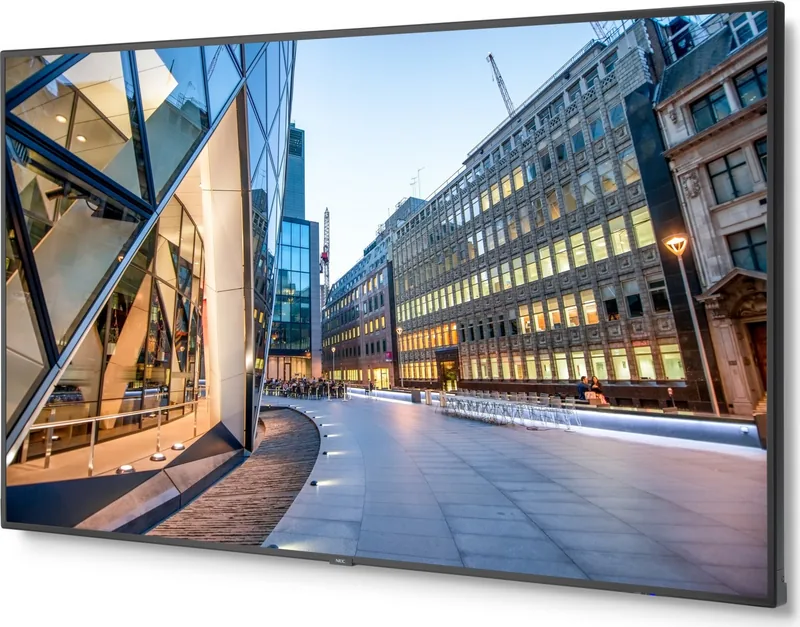
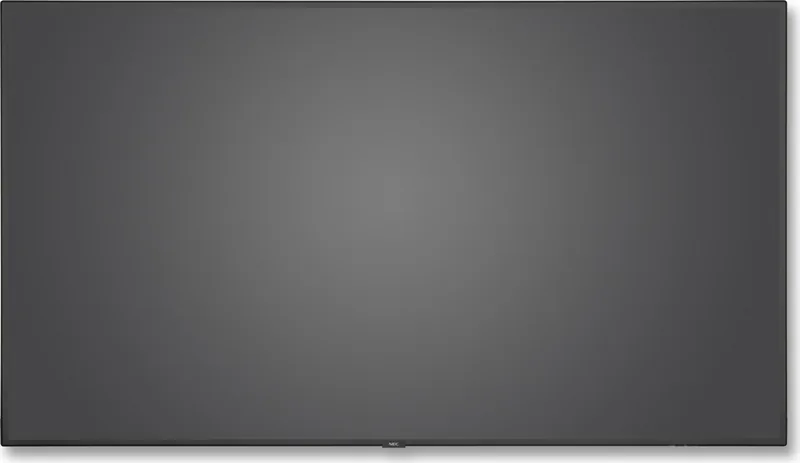
The NEC MultiSync C981Q 98" is built for environments that need a powerful, oversized screen with dependable performance and flexible control. From conference rooms and control areas to digital signage installations, this display is designed to handle demanding visual tasks while keeping setup and operation manageable. The NEC MultiSync C981Q 98" Manual highlights a system that balances image quality, connectivity, and long-term reliability.
What stands out
One of the biggest strengths of this model is its scale. The 98-inch panel delivers a highly visible canvas for presentations, video walls, and public-facing content, making it easier to share information with large groups. It also supports a wide range of video inputs, including HDMI, DisplayPort, USB, and network control options, which makes it easier to integrate into modern AV setups.
The display is also focused on control and customization. Users can adjust picture modes, contrast, gamma, color temperature, aspect ratio, and rotation to match different content types. For organizations that need consistent branding or specialized visuals, these settings help fine-tune the viewing experience. The SpectraView Engine and advanced picture controls add even more precision for environments where color accuracy matters.
Built for flexible content use
Another practical advantage is the built-in media player. With support for USB storage and microSD cards, the monitor can play still images, videos, and background audio without requiring a separate playback device. It also includes tools for scheduled playback, emergency content, and content copying over a network, which is especially useful for retail, education, and corporate messaging.
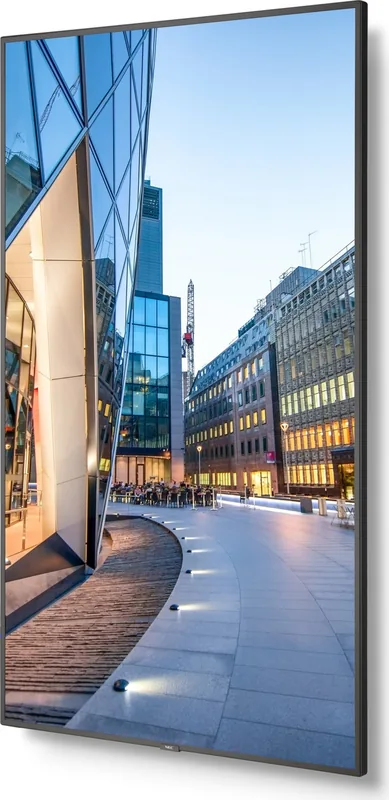
Installation and operation are clearly treated as serious topics. The manual emphasizes qualified mounting, ventilation, safety wiring, and proper orientation, especially for portrait use or video wall deployments. That attention to detail helps protect both the display and the people around it. Internal cooling fans, power management features, and remote monitoring options through LAN or RS-232C add to the professional appeal.
Notes
- Best suited for large-scale commercial or institutional use.
- Requires careful installation and proper ventilation.
- Strong choice when you need built-in playback and remote control.
- Ideal for teams looking for a flexible, high-visibility display platform.
Search for 67,706 Manuals online


Type-in Brand or Model