
Natec Euphonie Manual
PDF manual · 12 Pages
English



Quick check
Incorrect answer, please try again.
Chat with your Natec Euphonie manual using AI
Get instant AI answers from your Natec Euphonie manual
Ask anything about the Natec Euphonie. Answers come from this manual, with the pages they are based on.
Ask a Question
Do you recommend Euphonie?
Yes NoFrequently Asked Questions
Turn on Bluetooth on your device. Move the switch on the mouse to BT and hold the blue connect button for 5 seconds. Go to Bluetooth settings and select Natec Euphonie.
Is this answer helpful?
Yes, the mouse can be used during the charging process without interruption. Connect the micro USB cable to the mouse and a power source.
Is this answer helpful?
You can program five buttons specifically. These are buttons three, four, five, and seven according to the manual instructions provided for customization.
Is this answer helpful?
The product comes with a two-year limited manufacturer warranty covering defects. Keep your proof of purchase for any warranty claim assistance required later.
Is this answer helpful?
Hold down buttons one and two simultaneously for about three seconds. This resets programmed functions back to their original default configuration immediately.
Is this answer helpful?
The optical sensor supports a resolution range from 1200 to 2400 DPI. Adjustments can be made via the button located at the specific programming section.
Is this answer helpful?
Charge the battery every three months if the mouse is not in use. Storing with low power for long periods may damage the battery capacity permanently.
Is this answer helpful?
Advantages and Disadvantages
Advantages

- Ergonomic vertical design reduces wrist strain during long usage sessions significantly.
- Dual connectivity mode supports both Bluetooth and USB receiver for flexibility.
- Programmable buttons allow customization of specific macro functions for efficiency.
- OLED display shows connection status and settings for better user feedback.
- Rechargeable battery supports usage during charging without interruption.
Disadvantages

- Vertical shape requires a learning curve for users accustomed to flat mice.
- Only five buttons are programmable compared to competitors with more options.
- Battery requires charging every three months if not used regularly to avoid damage.
- No RGB lighting features available to enhance aesthetic appeal or visibility.
- Safety warnings prohibit use in extreme temperatures or magnetic fields.
Product Specification
Handedness
right hand (vertical)
Buttons
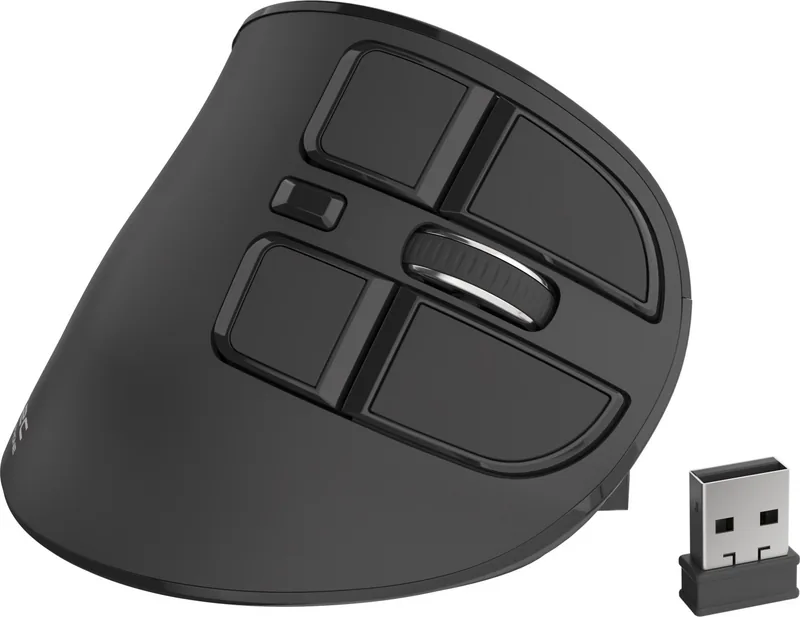
9 (total), 2 (primary), 3 (top), 3 (left), 1 (scroll wheel click)
Scroll Wheel
1x 2-way
Tracking
LED-red / IR
Resolution
2400dpi, adjustable to 1200dpi
Lighting
N/A
Connection
wireless (2.40GHz), USB-A (USB-A Receiver) or wireless (Bluetooth)
Power
Battery (built-in)
Dimensions (WxHxD)
2.83 x 2.95 x 4.37 in
Approximate Volume
9.58 cubic inches (approximate shape)
Weight
4.23 oz
Color
solid, black
Features
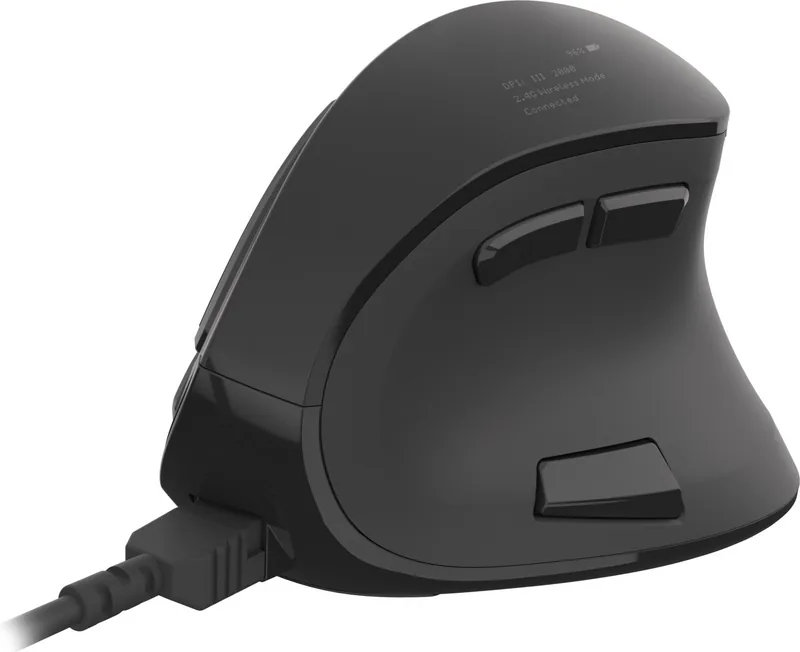
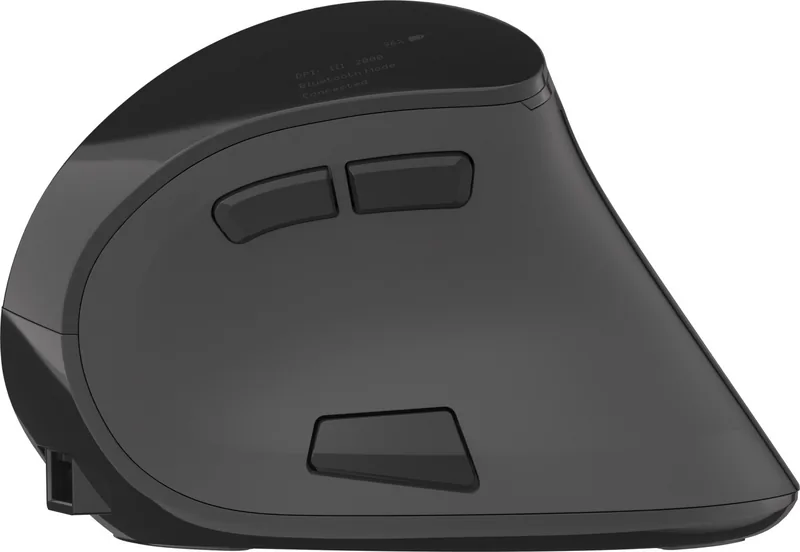
Thumb rest, display, stowable receiver
Product Description
Elevate Your Workspace with the Natec Euphonie
Are you searching for a reliable peripheral that supports both health and productivity? The Natec Euphonie Vertical Wireless Mouse black, USB/Bluetooth Manual provides essential guidance for new users. This device is designed to minimize wrist strain through a unique vertical orientation. Standing vertically, the mouse encourages a natural handshake grip position. This alignment reduces pronation of the forearm and lowers the risk of repetitive strain injuries during extended use periods.
Seamless Connectivity Options
Users have the freedom to choose between Bluetooth and USB receiver modes. The Bluetooth switch is located on the base and pairs quickly with modern devices. Hold the blue connect button to enter pairing mode and search the list. For a stable connection, the 2.4G receiver plugs directly into a USB port. The system automatically installs drivers required for Windows or Linux environments.
Customization and Control
The mouse features nine physical buttons available for interaction with your system. Five of these specific buttons can be programmed to execute custom tasks or shortcuts. Access this feature by holding the DPI button to open the setting interface on the OLED screen. The scroll wheel allows for easy navigation through available function options. You can save changes and reset to factory settings easily using specific button combinations found in the guide.
Performance Specifications and Maintenance
Precision is managed by an optical sensor capable of adjusting between 1200 and 2400 DPI. An integrated OLED display provides visual feedback regarding connection status. Power management technology enables the device to enter hibernation when idle. A simple button press reactivates the system instantly. Recharging is handled through a provided micro USB cable. The device remains functional while charging for uninterrupted work flow.
Warnings and Warranty
To maintain battery health, charge every three months if the mouse sits unused. A two-year limited manufacturer warranty covers defects in materials and workmanship. Adhering to safety instructions ensures longevity and compliance with European standards like RoHS. Use the product in safe environments to prevent damage. Do not drop the device as rough handling may break it. Avoid wet or dusty locations for optimal performance.
Installation Notes
Make sure the receiver is plugged in tightly to ensure signal stability. Keep the mouse away from strong magnets during operation. The on/off switch helps conserve battery power when the device is not in use for a long period. Follow the quick installation guide included in the box for detailed steps.
Search for 67,732 Manuals online


Type-in Brand or Model