

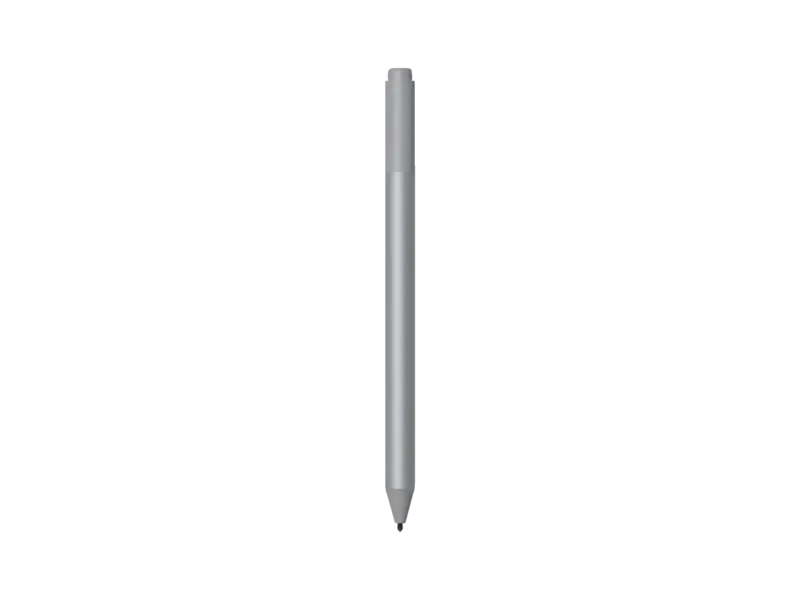

Microsoft Surface Hub Pen Manual
PDF manual · 92 Pages
English


Quick check
Incorrect answer, please try again.
Chat with your Microsoft Surface Hub Pen manual using AI
Get instant AI answers from your Microsoft Surface Hub Pen manual
Ask anything about the Microsoft Surface Hub Pen. Answers come from this manual, with the pages they are based on.
Ask a Question
Do you recommend Surface Hub Pen?
Yes NoFrequently Asked Questions
Simply remove the pen from its charging dock on the side of the Surface Hub. The application will launch automatically. Alternatively, you can select Start and then choose Whiteboard from the app list.
Is this answer helpful?
Yes, the Surface Hub supports multi-touch and multi-pen input. Up to three pens can write on the whiteboard simultaneously, allowing for dynamic group collaboration during meetings.
Is this answer helpful?
If you forget to end the meeting, the session goes to sleep rather than timing out. The Welcome screen will appear next time someone enters the room with a prompt to resume. All files remain available until the session is manually ended.
Is this answer helpful?
You can use the flat end of the pen to erase directly on the screen. You can also select the Erase tool from the Whiteboard menu to erase using touch or the pen tip.
Is this answer helpful?
The pen does not contain internal batteries that need replacement. It recharges wirelessly when placed back into the charging docks located on the side of the Surface Hub.
Is this answer helpful?
Advantages and Disadvantages
Advantages

- Dual-ended design with a precise writing tip and integrated eraser
- Automatically launches Whiteboard app when removed from the dock
- Supports simultaneous multi-user input with up to three pens
- Enables advanced Smart Ink features like shape recognition and table creation
- Recharges conveniently via side-mounted docking stations
Disadvantages

- Requires specific Surface Hub hardware to function properly
- Smart Ink features depend on having the latest Windows 10 updates installed
- Pen cannot be used if the charging dock is not connected to power
- Erasers may wear down over time with heavy usage
- No physical storage compartment included on the hub itself
Product Specification
Suitable for
Microsoft Surface Hub
Type
active stylus
Tip
fine
Barrel
round
Product Description
Mastering the Microsoft Surface Hub Replacement Pen
The Microsoft Surface Hub Replacement Pen is an essential accessory designed to enhance your collaborative experience on the large-format touch displays. Whether you are brainstorming in an ad-hoc meeting or leading a scheduled session, this gray and black pen provides the precision needed for digital ink. The device features a dual-ended design where the tip allows for writing, drawing, capturing, and selecting items with high accuracy. The flat end serves as a built-in eraser, making it easy to correct mistakes instantly without switching tools.
Designed for seamless integration with the Surface Hub ecosystem, the pen docks into charging stations located on the side of the unit. This ensures the battery remains powered for extended use during long meetings. When removed from the dock, the Whiteboard application launches automatically, allowing you to start ideating immediately. The pen supports multi-user environments, enabling up to three pens to write simultaneously on the whiteboard canvas. This feature fosters dynamic group collaboration where multiple team members can contribute ideas in real-time.
Beyond simple note-taking, the pen works with advanced Smart Ink features. These capabilities include Ink to Shape, which converts rough hand-drawn shapes into perfect geometric figures, and Ink to Table, which transforms drawn rectangles into functional data tables. The pen also interacts with the Ruler tool for straight lines and the Lasso tool for selecting complex image groups. Its compatibility with Touchscreen mode means users can switch between pen input and finger gestures effortlessly using the on-screen toggle.
Using the Surface Hub Replacement Pen transforms your meeting space into a versatile digital workspace. It eliminates the need for physical markers and paper, keeping all content organized and easily shareable via email or OneDrive. The ergonomic design ensures comfort during prolonged use, while the durable construction withstands the rigors of daily office life. By incorporating this tool, teams can leverage the full potential of the Surface Hub software suite, including Skype for Business integration and split-screen app management.
Key Notes
- Always return the pen to the charging dock when finished to maintain battery life.
- Use the flat end for quick erasing instead of navigating menus.
- Ensure the Surface Hub firmware is updated to utilize the latest Smart Ink features.
Search for 67,706 Manuals online


Type-in Brand or Model