
Microsoft Sculpt Comfort Desktop Manual
PDF manual · 47 Pages
English



Quick check
Incorrect answer, please try again.
Chat with your Microsoft Sculpt Comfort Desktop manual using AI
Get instant AI answers from your Microsoft Sculpt Comfort Desktop manual
Ask anything about the Microsoft Sculpt Comfort Desktop. Answers come from this manual, with the pages they are based on.
Ask a Question
Do you recommend Sculpt Comfort Desktop?
Yes NoFrequently Asked Questions
The palm lift is an integrated part of the keyboard design that provides physical support for your wrists. It helps maintain a neutral position to prevent strain during extended usage.
Is this answer helpful?
If you hold both the left and right spacebars for three seconds, the left spacebar becomes the backspace key. An LED confirms this change.
Is this answer helpful?
Yes, you can swipe down to browse all open apps in a list view and swipe up to switch between recent apps using the touch tab.
Is this answer helpful?
Yes, the palm rest is fully detachable. You can remove it easily for cleaning or to change your typing setup configuration.
Is this answer helpful?
Yes, the device supports Windows 7 gestures. You can swipe the tab back and forward to navigate within the operating system.
Is this answer helpful?
Press the scroll wheel to act as a middle click and use wheel tilt to scroll left or right for horizontal movement.
Is this answer helpful?
The device uses a standard USB wireless connection to link to your computer without requiring physical cables.
Is this answer helpful?
Advantages and Disadvantages
Advantages

- Ergonomic palm lift promotes neutral wrist posture
- Detachable palm rest allows for adjustable comfort
- Split spacebar reduces the reach for the backspace key
- Windows touch gestures improve navigation speed
- Wireless USB connection reduces desktop clutter
Disadvantages

- Learning curve for the gesture controls
- Spacebar feature requires memory for toggle action
- LED indicator can be overlooked in bright light
- Wireless connection may have interference issues
- Requires specific key spacing adjustment initially
Product Specification
Package Contents
Mouse, Keyboard
Layout
German
Connectivity
Wireless (2.40 GHz)
Tracking (Mouse)
Blue LED
Features
Numpad
Product Description
Elevate Your Typing Experience
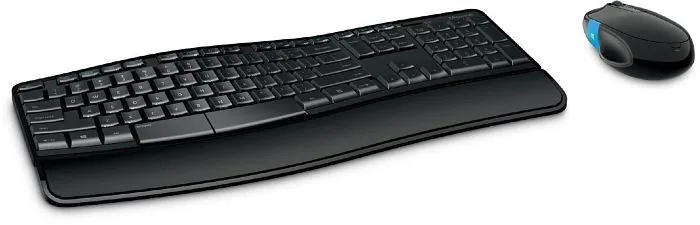
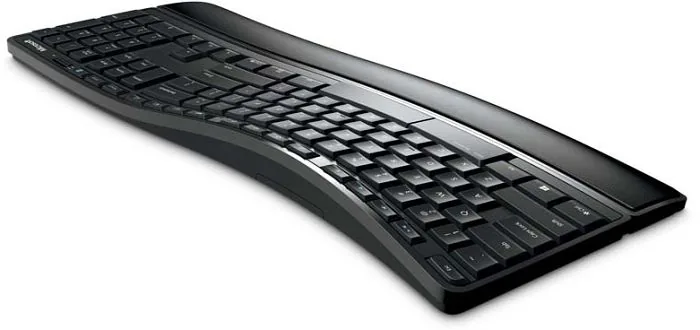
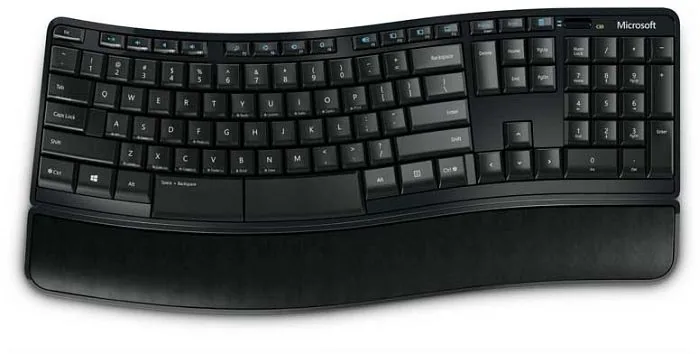
Discover the power of the Microsoft Sculpt Comfort Wireless Desktop, USB, DE Manual configuration. This system brings ergonomic comfort to your daily computing tasks. The palm lift provides essential support to promote a neutral wrist position. It helps reduce strain during long sessions. The detachable palm rest allows users to adjust the height and angle as needed. This flexibility ensures a customized fit for every desk setup.
Smart Key Design
The keyboard features a split spacebar design with an optional backspace key. Typing speed improves because you do not need to reach far for corrections. To make the left spacebar a backspace key, hold both spacebars for three seconds. An LED in the corner confirms the change. Repeat the action to remove the function. This feature is unique and highly useful for professionals wanting speed.
Gesture Controls
Windows 8 and Windows 7 gestures are fully supported. Clicking the Windows touch tab switches between the Start screen and current apps. Swipe down to browse all open apps in a list view. Swipe up to switch between recent apps. The scroll wheel supports vertical or horizontal scrolling. You can also use a middle click for different options. Navigation becomes fluid without relying solely on a mouse.
Wireless Freedom
Connectivity relies on a standard USB wireless connection. This keeps your desk clean and organized. The devices pair quickly with compatible hardware. Compatibility extends across multiple operating systems. The hardware supports various languages as seen in regional versions. Whether you need English or German interface options, the core hardware remains robust. Battery life is optimized for continuous use. Cleaning is easy since parts separate. This ensures hygiene and longevity for the device.
Comprehensive Notes
Ensure you follow the spacebar hold instructions carefully. The LED feedback is critical for validation. Do not guess the status. Practice the swiping gestures to build muscle memory. These tools streamline your workflow significantly. The investment pays off in reduced fatigue and increased speed. Consider this when planning an international office setup.
Search for 67,706 Manuals online


Type-in Brand or Model
Elena Martinez
5 months ago
Does the keyboard label hold up over time and is the mouse ergonomics good for large hands?
Manual.ly
5 months ago
Thank you for your inquiry. Many users find the keyboard durable, though labels can wear after heavy use over several years. For the mouse, the design fits medium hands best. Users with larger hands might find the palm area narrow. The underside is magnetic, so please use on non-metallic surfaces for smooth movement. If you have warranty questions, please contact our support team with your purchase date.