
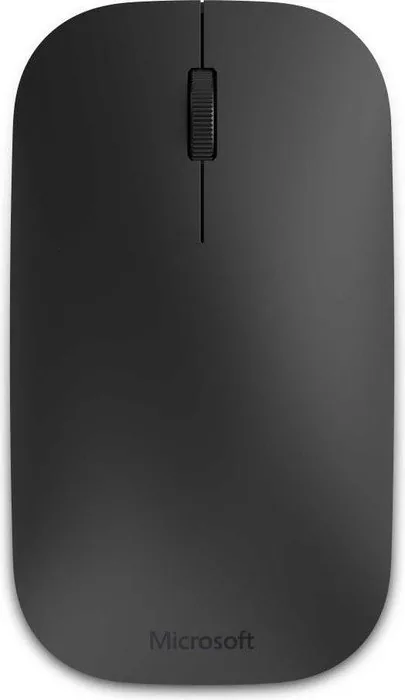
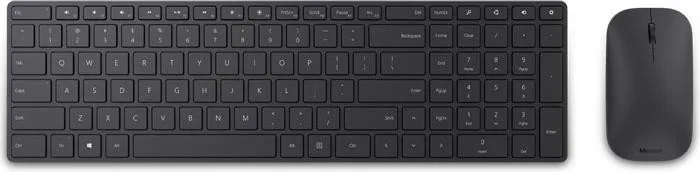
Microsoft Designer Bluetooth Desktop Manual
PDF manual · 14 Pages
English



Quick check
Incorrect answer, please try again.
Chat with your Microsoft Designer Bluetooth Desktop manual using AI
Get instant AI answers from your Microsoft Designer Bluetooth Desktop manual
Ask anything about the Microsoft Designer Bluetooth Desktop. Answers come from this manual, with the pages they are based on.
Ask a Question
Do you recommend Designer Bluetooth Desktop?
Yes NoFrequently Asked Questions
It is a wireless keyboard-and-mouse set designed to connect over Bluetooth and provide a clean, cable-free typing and navigation experience, especially for Windows users.
Is this answer helpful?
Press and hold the binding button on the underside of the mouse for about 3 seconds. When the LED starts blinking, the mouse is ready to pair.
Is this answer helpful?
Hold the binding button on the keyboard for 3 seconds, wait for the blinking LED, then open Bluetooth settings on Windows and select Designer Keyboard to pair.
Is this answer helpful?
Yes, the keyboard may ask for a passkey during the connection process. Enter the requested code when prompted to complete pairing.
Is this answer helpful?
Open the battery door by sliding it or pushing it upward, then insert the batteries in the direction shown so the device powers correctly.
Is this answer helpful?
Yes, but the text says you should follow the manufacturer’s pairing instructions for other devices, since the setup steps may differ from Windows.
Is this answer helpful?
Advantages and Disadvantages
Advantages

- Bluetooth pairing is straightforward for both the mouse and keyboard, with a clear LED indicator showing when each device is ready.
- The setup flow is Windows-friendly and easy to follow through Bluetooth settings.
- Battery access is simple, making first-time installation and replacement quick.
- The desktop design supports a neat, cable-free workspace with minimal clutter.
Disadvantages

- Pairing is centered on Windows steps, so other devices may need different instructions.
- The keyboard can require a passkey, adding one extra step during setup.
- Battery-powered operation means users must manage replacements over time.
- Language variations in the instructions may feel confusing if you only need one local version.
Product Specification
Package contents
Mouse, Keyboard
Layout
DE
Connection
wireless (Bluetooth LE)
Tracking (Mouse)
LED-blue 1000dpi
Special features
Numeric keypad
Product Description
Microsoft Designer Bluetooth Desktop: A Clean Wireless Setup for Everyday Productivity
The Microsoft Designer Bluetooth Desktop is built for users who want a streamlined keyboard-and-mouse experience without the clutter of cables. Designed around Bluetooth connectivity, it focuses on quick pairing, practical battery access, and a familiar Windows setup flow. The pairing instructions emphasize a simple process: open the battery compartment, insert batteries correctly, and hold the binding button until the LED starts blinking.
Smooth Bluetooth pairing for keyboard and mouse
What stands out most is how clearly the desktop set handles pairing. The mouse and keyboard each have their own binding button, and the blinking light gives an immediate sign that the device is ready to connect. On Windows, the setup path goes through Bluetooth settings, where users can select the Designer Mouse or Designer Keyboard and complete pairing. The keyboard may also request a passkey, which adds a layer of confirmation during setup.
Practical details that matter
The text also highlights battery placement and compartment access, which are important for first-time use. The battery doors open by sliding or pushing upward, and the batteries should be inserted in the direction shown. These are small details, but they help reduce confusion during installation and keep the setup process moving quickly.
Although the instructions are centered on Windows devices, the manual also notes that other platforms should follow the manufacturer’s pairing guidance. That makes the product feel flexible, while still being especially well suited for Microsoft and Windows users. For anyone searching for the Microsoft Designer Bluetooth Desktop, Bluetooth, German Manual, the value is in its straightforward setup language and minimalistic approach to wireless input.
Notes
- Best for users who want a tidy desk and simple Bluetooth input.
- Setup is easiest when you follow the device-specific pairing steps carefully.
- The keyboard may require an extra passkey during connection.
Search for 67,706 Manuals online


Type-in Brand or Model
Kiana Kling
8 months ago
My keyboard and mouse Bluetooth keep disconnecting or freezing after not using them for a while (sometimes also across different laptops). Is there a fix, or should I return it?
Manual.ly
8 months ago
Sorry about the trouble. In most cases this can be improved by re-pairing and checking Bluetooth power settings. Please try: (1) Remove the keyboard and mouse from Windows Bluetooth settings and pair again from scratch. (2) Move closer (within about 1 m) and avoid wireless interference (other BT dongles, USB 3.0 devices). (3) Update your Windows Bluetooth drivers, then restart. (4) In Device Manager, open your Bluetooth controller properties and disable "Allow the computer to turn off this device to save power." (5) If batteries are low, replace them for both keyboard and mouse. If disconnections or freezes continue after these steps on multiple devices, we recommend initiating a return or warranty claim.