
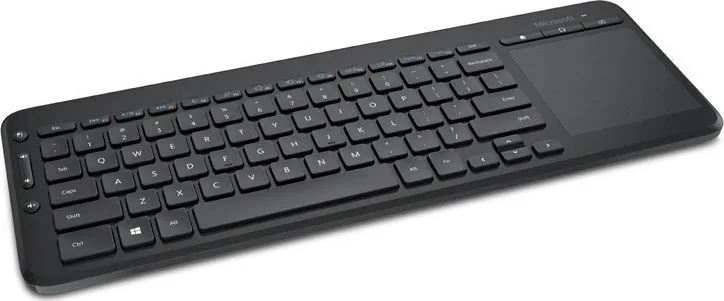
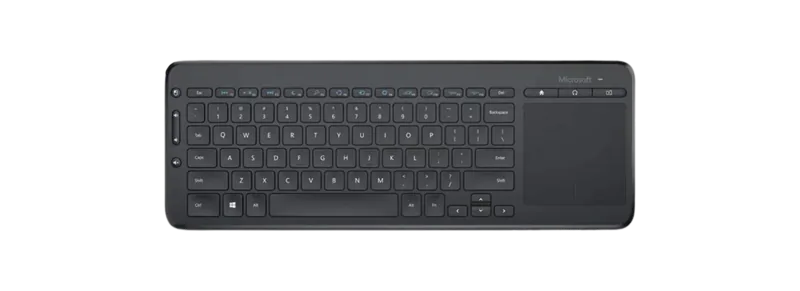
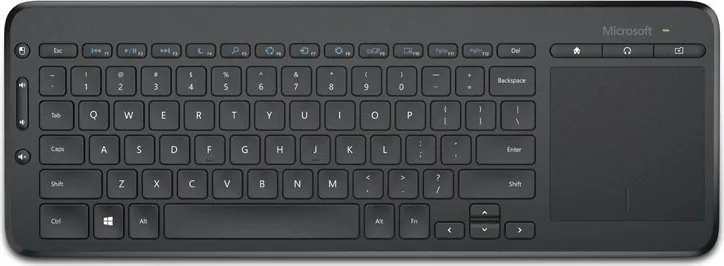
Microsoft All-in-One Media Keyboard Manual
PDF manual · 11 Pages
English


Quick check
Incorrect answer, please try again.
Chat with your Microsoft All-in-One Media Keyboard manual using AI
Get instant AI answers from your Microsoft All-in-One Media Keyboard manual
Ask anything about the Microsoft All-in-One Media Keyboard. Answers come from this manual, with the pages they are based on.
Ask a Question
Do you recommend All-in-One Media Keyboard?
Yes NoVideo Manual
Affordable Alternative For Apple Magic Keyboard , The Satechi Slim X1 Bluetooth Backlit Keyboard
Frequently Asked Questions
Yes. The USB connection provides plug-and-play compatibility with most Windows systems. For added customization of media keys and gestures, install Microsoft Mouse and Keyboard Center from microsoft.com/hardware/downloads.
Is this answer helpful?
The built-in multi-touch trackpad supports common gestures such as single-tap for left click, two-finger tap for right click, two-finger scrolling, and pinch-to-zoom. Edge swipe gestures (left, top, right) are supported where the Windows version and apps allow.
Is this answer helpful?
Yes. Its compact footprint, integrated trackpad, and media keys make it well-suited for living-room PCs and media centers where a combined keyboard-and-pointer solution reduces clutter and simplifies navigation from a sofa or chair.
Is this answer helpful?
DE indicates the German keyboard layout (QWERTZ) with localized key legends and placements. If you prefer another layout (e.g., US QWERTY), choose the corresponding regional variant.
Is this answer helpful?
Yes. Microsoft Mouse and Keyboard Center lets you remap media keys, adjust cursor sensitivity, and customize certain gestures. Download it from microsoft.com/hardware/downloads for the best personalization options.
Is this answer helpful?
The keyboard is optimized for general typing and media control with low-profile keys. Heavy typists or gamers seeking mechanical feedback or ultra-low latency may prefer a dedicated mechanical keyboard and separate high-precision mouse.
Is this answer helpful?
Edge gestures (swipe from left/top/right) depend on the Windows version and app support. Newer Windows releases and UWP apps support many gestures, but behavior can vary by system and software.
Is this answer helpful?
Advantages and Disadvantages
Advantages

- Integrated multi-touch trackpad eliminates the need for a separate mouse in many scenarios.
- Compact design with full DE layout preserves functionality while saving desk or lap space.
- Media keys and quick-access buttons streamline playback and volume control.
- USB plug-and-play ensures easy setup and broad Windows compatibility.
- Customizable via Microsoft Mouse and Keyboard Center for tailored shortcuts and sensitivity.
Disadvantages

- Integrated trackpad may be less precise than a dedicated mouse for fine tasks.
- DE layout may confuse users accustomed to other keyboard layouts (e.g., US QWERTY).
- Limited battery or wired options depending on model; check exact variant for power details.
- Some Windows edge gestures may depend on OS version and app support.
- Low-profile keys may have less tactile feedback for heavy typists.
Product Specification
Layout
DE
Type
Rubber Dome
Backlight
N/A
Keycap Level
regular, framed, Chiclet
Keycap Format
flat
Keycap Profile
straight
Numeric Keypad
N/A
Cursor Block
offset
Control Keys
N/A
Enter Key
Standard
Delete Key
Standard
Status Indicator
N/A
Palm Rest
N/A
Case
Plastic
Connection
wireless (2.4GHz), USB (USB-A receiver)
Power Supply
2x AAA
Dimensions (WxHxD)
14.45x0.75x5.20in
Weight
0.96 lb
Special Features
6 multimedia keys, splash-proof, FN key, Touchpad
Product Description
Microsoft All-in-One Media Keyboard schwarz, USB, DE Manual
The Microsoft All-in-One Media Keyboard in black (schwarz) with USB and DE layout blends practicality with multimedia convenience. Designed for living-room PCs, home offices, and shared workspaces, this compact keyboard integrates a full QWERTZ layout, responsive low-profile keys, and a built-in multi-touch trackpad to replace the need for a separate mouse. Its USB plug-and-play connection ensures broad compatibility with Windows systems and straightforward setup.
Compact and user-focused, the keyboard places media controls and quick-access buttons within easy reach, making media playback, volume adjustments, and navigation simple. The DE (German) layout preserves localized key labels and formatting for users who prefer or require regional keyboard standards. The black finish provides a neutral aesthetic that fits most environments, while the sturdy build ensures it endures everyday use.
The integrated multi-touch trackpad supports common Windows gestures: tap for left click, two-finger tap for right click, pinch to zoom, and two-finger scrolling. Edge swipe gestures enable fast app switching and access to system controls—swipe from the left to cycle recent apps, from the top to reveal the app bar, and from the right to open the Charm bar on supporting Windows versions. These gestures streamline navigation, especially when the keyboard is used with a TV or in a relaxed seating arrangement.
For advanced customization, Microsoft’s Mouse and Keyboard Center software allows remapping of media keys, adjusting cursor sensitivity, and tailoring gesture behavior. This is particularly useful for users who want to personalize shortcuts or optimize the keyboard for specific apps and media setups.
Whether used for multimedia streaming, casual browsing, or light productivity tasks, the Microsoft All-in-One Media Keyboard schwarz, USB, DE offers a simple all-in-one input solution. It’s especially appealing to users who value compactness and integrated pointing control without sacrificing essential typing features.
Notes
- Supports Windows multi-touch gestures and basic media key customization via Microsoft Mouse and Keyboard Center.
- DE layout (German) provides localized key legends and placements.
- USB connection ensures plug-and-play usage on most Windows PCs.
Search for 67,706 Manuals online


Type-in Brand or Model
Lukas Kern
10 months ago
Does the wireless range work from the couch, and what should I do if the cursor starts lagging or disconnecting after a few meters?
Manual.ly
10 months ago
The cursor lag or disconnect is usually caused by limited radio reception (distance, obstacles, or the USB receiver being blocked). Try the following: place the USB receiver so it has a direct line of sight to where you sit; connect the receiver to the keyboard via a longer USB extension cable to improve placement; avoid using it behind/inside metal objects or dense walls; replace the batteries (low power can reduce range); and keep the receiver away from other wireless sources that may cause interference. Actual range varies by room layout, but for couch use many customers get stable performance at a few meters when the receiver is positioned well.