

Medion Erazer Major X20 Manual
PDF manual · 49 Pages
English



Quick check
Incorrect answer, please try again.
Chat with your Medion Erazer Major X20 manual using AI
Get instant AI answers from your Medion Erazer Major X20 manual
Ask anything about the Medion Erazer Major X20. Answers come from this manual, with the pages they are based on.
Erazer Major X20 Maintenance Schedule
Carry out a complete discharging and charging cycle once a month to prevent the battery from becoming permanently damaged or unable to be charged.
Use only a damp, lint-free cloth. Do not use solvents, corrosive or aerosol-based detergents.
Use special cleaning products for the display and touchpad, such as glass cleaner.
Free maintenance reminders
Timed to your purchase date. Always free, unsubscribe anytime.
Ask a Question
Do you recommend Erazer Major X20?
Yes NoFrequently Asked Questions
It is a 16-inch notebook for private use, including gaming, multimedia, digital communication, content handling, and everyday productivity. Its operating modes and extensive connectivity also make it practical for users with external displays, accessories, and wired networks.
Is this answer helpful?
The notebook provides Office Mode, Gaming Mode, and Turbo Mode through a dedicated switch. Office Mode is intended for regular use, while Gaming and Turbo modes provide options for more demanding workloads.
Is this answer helpful?
It includes USB 3.2 Type-A ports, Thunderbolt 4 via Type-C, HDMI, a 2.5 Gbit RJ45 LAN connection, a card reader, microphone input, and a combined headset audio jack. Compatible docks can expand display connectivity.
Is this answer helpful?
Yes. It supports Wi-Fi standards 802.11a/b/g/n/ac/ax on 2.4 GHz, 5 GHz, and 6 GHz bands, as well as Bluetooth. Airplane mode can disable all wireless connections when needed.
Is this answer helpful?
Yes. Double tap the upper-left area of the touchpad to switch touchpad functions on or off. This can be useful when an external mouse is connected.
Is this answer helpful?
Use the supplied power adapter, avoid covering the notebook during charging, and keep it away from heat and flammable surfaces. For longer storage, keep roughly 50 percent charge and perform a full discharge and charge cycle monthly.
Is this answer helpful?
Advantages and Disadvantages
Advantages

- Three selectable operating modes support office work, gaming, and higher-performance tasks.
- Thunderbolt 4, HDMI, USB 3.2, 2.5 Gbit LAN, card reader, and audio ports support versatile connectivity.
- Wi-Fi 6-capable standards, Bluetooth, and wired LAN provide flexible network options.
- Optional external liquid-cooling support can help users build a more advanced gaming setup.
- Keyboard backlight controls and dedicated shortcut keys improve daily usability.
Disadvantages

- The 5 GHz Wi-Fi function is intended for indoor use in EU countries.
- The integrated battery is not designed for simple user replacement.
- An external cooling box, docking station, external monitors, and memory cards are not included.
- High-performance gaming, video, and graphics work can reduce battery runtime.
- The display should not be opened beyond 120 degrees to avoid possible damage.
Product Specification
Type
Laptop
Display
16 in, 2560 x 1600 (WQXGA), 16:10, 189 ppi, 240 Hz, non-glare (matte), IPS, NVIDIA G-Sync, 100% sRGB
HDD
N/A
Flash
N/A
Graphics
NVIDIA GeForce RTX 4070 - 8 GB GDDR6 - Mobile, 36 SM/4608 SP, codename "AD106" (Ada Lovelace, TSMC 5 nm "NVIDIA 4N"), 2040 MHz, 140 W maximum GPU power
Operating system
Windows 11 Home
Input
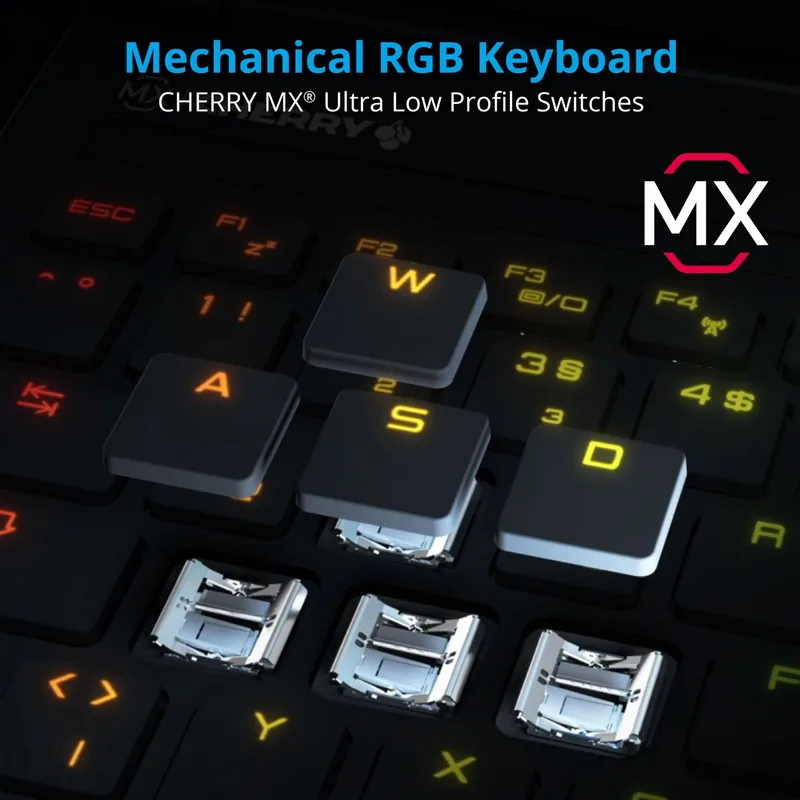
Keyboard with German layout (per-key RGB backlighting, numeric keypad, Cherry MX mechanical switches), touchpad
Ports
1x USB-A 3.1 (10 Gb/s), 2x USB-A 3.0 (5 Gb/s), 1x Thunderbolt 4 (40 Gb/s, PD), 1x HDMI 2.1, 2x 3.5 mm jack, 1x RJ-45 1 Gb LAN, 1x microSD, 1x DC-in barrel jack (power input)
Wireless
Wi-Fi 6E (WLAN 802.11a/b/g/n/ac/ax, 2x2, Intel AX211), Bluetooth 5.3
Authentication
IR camera, TPM 2.0
Camera
2 megapixels
Optical drive
N/A
Battery
built-in, lithium polymer, 4-cell
Power adapter
1x barrel connector
Weight
5.51 lb
Dimensions
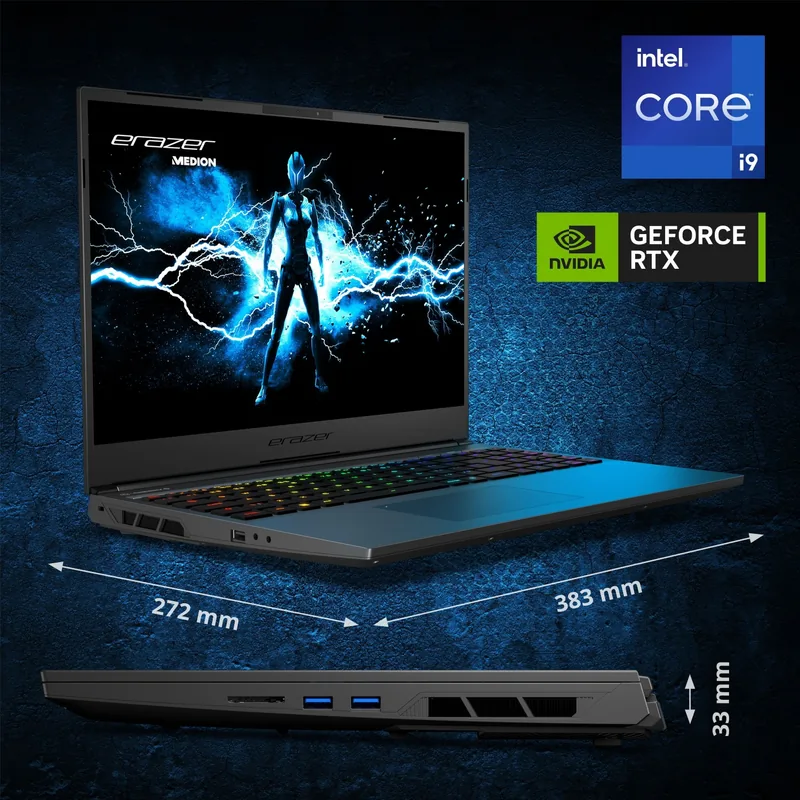
14.06 x 10.59 x 1.30 in (W x D x H)
Color
black
SSD/HDD slots
2x M.2 PCIe
Warranty
2 years (return to depot)
USB notation
Link
Product Description
Medion Erazer Major X20 - Read, Download & Print Free
The Medion Erazer Major X20 is a 16-inch gaming notebook designed for users who want a capable desktop-style setup in a portable format. Its 40.6 cm display, dedicated gaming and turbo operating modes, illuminated keyboard controls, and broad connection options make it suitable for gaming, entertainment, study, and demanding everyday computing.
Built for flexible performance
A dedicated mode switch lets users move between Office Mode, Gaming Mode, and Turbo Mode. This gives the notebook a practical way to adapt to quieter everyday tasks or more intensive workloads. The keyboard also supports adjustable backlighting, while shortcut keys provide quick control over sleep mode, display output, wireless settings, touchpad status, sound, and brightness.
The Medion Erazer Major X20 includes a full keyboard, responsive touchpad, integrated webcam, microphones, stereo speakers, and audio connections for headsets or external microphones. The touchpad can be turned on or off with a double tap in its upper-left corner, which is useful when using an external mouse during games or creative work.
Strong connectivity for a modern setup
Connection options are a major highlight. The notebook includes USB 3.2 Type-A ports, a Thunderbolt 4 Type-C port, HDMI, a 2.5 Gbit RJ45 LAN port, a card reader, and a combined audio jack. These ports support external displays, storage devices, accessories, wired networking, and compatible docking solutions. An optional liquid-cooling connection is also available for users who want to connect a separate cooling unit.
For wireless use, the system supports Wi-Fi standards from 802.11a/b/g/n through ac and ax across 2.4 GHz, 5 GHz, and 6 GHz bands, plus Bluetooth connectivity for compatible peripherals. A dedicated airplane mode disables wireless connections when required.
Everyday operation and care
The integrated battery charges through the supplied power adapter and is designed for both mobile and mains-powered use. Battery runtime varies with screen settings, processor demand, graphics activity, and the applications being used. Energy-saving controls can reduce power use by turning off the display or placing the system into sleep mode after periods of inactivity.
The notebook is intended for indoor private use. For reliable operation, it should be used on a stable surface with clear ventilation openings and protected from moisture, dust, direct sunlight, and extreme temperatures. Regular backups are recommended before updates, recovery actions, or major system changes.
Notes
- Use the supplied power adapter for charging.
- Keep ventilation areas unobstructed during intensive use.
- Connect the power adapter before a system recovery.
- Handle the display carefully and do not open it beyond 120 degrees.
Search for 67,706 Manuals online


Type-in Brand or Model