
Medion Erazer Defender P40 Manual
PDF manual · 50 Pages
English



Quick check
Incorrect answer, please try again.
Chat with your Medion Erazer Defender P40 manual using AI
Get instant AI answers from your Medion Erazer Defender P40 manual
Ask anything about the Medion Erazer Defender P40. Answers come from this manual, with the pages they are based on.
Erazer Defender P40 Maintenance Schedule
Carry out a full discharge and charge cycle once a month to maintain battery health. This applies during normal use and storage.
If storing the notebook for a long time, perform a full discharge and charge cycle monthly to prevent permanent damage.
Wipe the notebook with a slightly damp, lint-free cloth. Do not use solvents or aggressive cleaning agents.
Use special cleaning agents like glass cleaner for the display and touchpad. Ensure no liquids enter the device interior.
Free maintenance reminders
Timed to your purchase date. Always free, unsubscribe anytime.
Ask a Question
Do you recommend Erazer Defender P40?
Yes NoFrequently Asked Questions
Windows activates automatically once you establish an internet connection during the initial setup process.
Is this answer helpful?
Perform a full discharge and charge cycle once a month when stored. Keep the device plugged in when not charging to avoid deep discharge damage.
Is this answer helpful?
Yes, you can use Windows Recovery options to refresh your PC or set it to factory state. Back up data first to prevent loss of important files.
Is this answer helpful?
The model includes HDMI and Mini Display Port connections. Thunderbolt 4 also supports video output over a compatible adapter or dock.
Is this answer helpful?
The device adheres to EN ISO 9241-307 Class II standards. Specific pixel counts are allowed depending on resolution before replacement is approved.
Is this answer helpful?
Due to the 5GHz frequency range, usage is permitted inside buildings in the EU region only. Outdoor use of this frequency band is restricted.
Is this answer helpful?
No, opening the case voids warranty and risks electrical shock. Only authorized service technicians should perform internal maintenance or repairs.
Is this answer helpful?
Advantages and Disadvantages
Advantages

- Intel Core i7-13700HX processor offers excellent multitasking speed
- GeForce RTX 4060 handles high settings gaming and rendering
- 1TB SSD provides fast boot times and ample storage
- 16GB RAM ensures smooth transitions between open apps
- HDMI and Thunderbolt 4 ports allow flexible peripheral connection
Disadvantages

- Built-in battery prevents user replacement without service center
- 5GHz WLAN restricted to indoor use only per regional norms
- Screen requires careful handling to avoid pressure damage
- Device can run hot during sustained heavy gaming loads
- No user serviceable parts allows no DIY internal repairs
Product Specification
Type
Laptop
Display
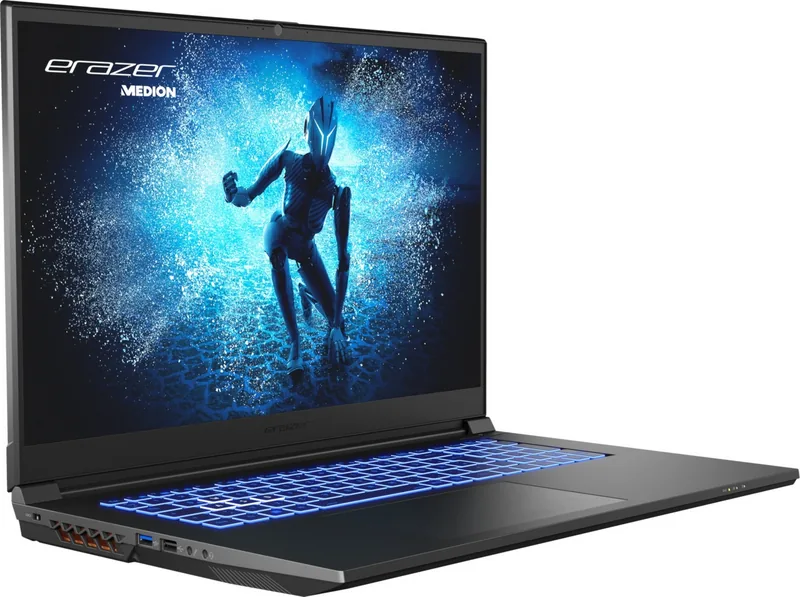
17.3", 2560x1440 (QHD), 16:9, 170ppi, 240Hz, non-glare (matte), IPS, 100% sRGB
CPU
Intel Core i7-13700HX, 8-cores+8-cores/24 Threads, 2.10-5.00GHz, 30MB+14MB Cache, 55-157W TDP (PBP/MTP), Codename "Raptor Lake-HX" (Golden Cove or Raptor Cove + Gracemont, Intel 7)
RAM
16GB DDR5-4800 (2x 8GB SO-DIMM Modules, 2 Slots, max. 32GB)
SSD
1TB M.2 PCIe 4.0
Hard Drive
N/A
Flash
N/A
Graphics
NVIDIA GeForce RTX 4060 - 8GB GDDR6 - Mobile, 24SM/3072SP, Codename "AD107" (Ada Lovelace, TSMC 5nm "NVIDIA 4N"), 2370MHz, 140W Max GPU Power
Operating System
Windows 11 Home
Input
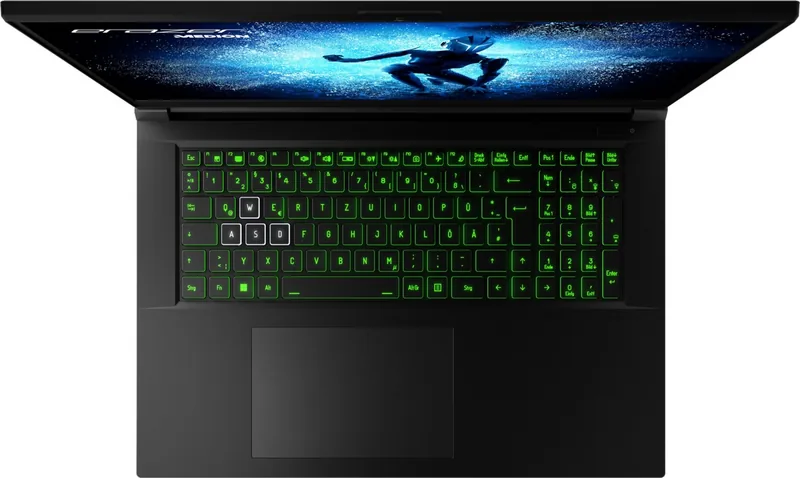
Keyboard with DE Layout (RGB backlit, Numpad, Rubber Dome), Touchpad
Ports
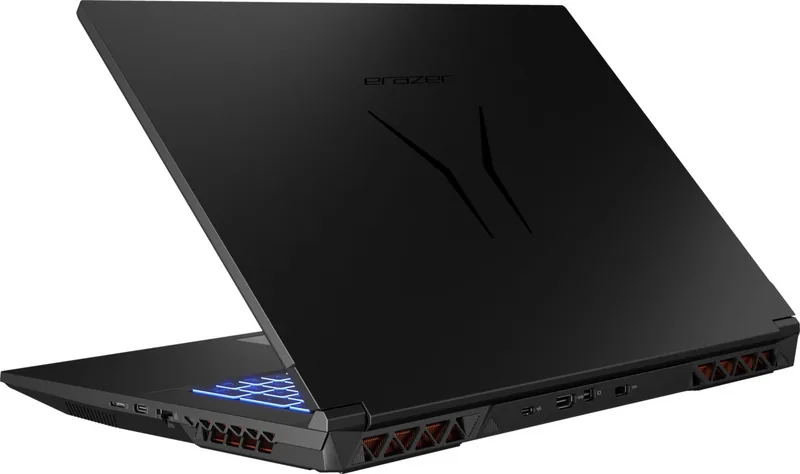
1x USB-C 3.1 (10Gb/s), 1x USB-A 3.0 (5Gb/s), 1x USB-A 2.0 (480Mb/s), 1x Thunderbolt 4 (40Gb/s, Power Delivery, PD), 1x Mini DisplayPort 1.4, 1x HDMI 2.1, 2x 3.5mm Jack, 1x RJ-45 1Gb LAN, 1x microSD, 1x DC-In Barrel Jack (Power)
Wireless
Wi-Fi 6E (WLAN 802.11a/b/g/n/ac/ax, 2x2, Intel AX211), Bluetooth 5.3
Authentication
N/A
Camera
0.9 Megapixel
Optical Drive
N/A
Battery
Fixed, Li-Polymer, 4 Cells, 73Wh
Power Supply
1x Barrel Plug (280W)
Weight
6.39 lbs
Dimensions
15.63 x 10.39 x 1.33 in (WxDxH)
Color
Black
SSD/HDD Slots
2x M.2 PCIe
Warranty
2 years (Mail-in)
USB Naming
Link
Product Description
Unleash Power with the Medion Erazer Defender P40
The Medion Erazer Defender P40 stands as a formidable choice for gamers and content creators seeking high performance without breaking the bank. Equipped with a robust Intel Core i7-13700HX processor, this machine delivers exceptional multitasking capabilities and speed for demanding applications. Pairing this with an NVIDIA GeForce RTX 4060 graphics card ensures smooth gameplay at high settings and efficient video rendering. With 16GB RAM installed directly, users experience seamless transitions between open applications and background processes. Storage needs are met by a spacious 1TB SSD, allowing for rapid loading times and ample space for large game libraries. This configuration supports the rigorous demands of modern software and entertainment.
Design and Connectivity
The chassis of the Medion Erazer Defender P40 is built for durability while maintaining a sleek aesthetic suitable for modern setups. It features a standard DE Manual compliance region layout ensuring usability across German specifications and local power standards. The 17.3-inch display provides a vast canvas for immersive visuals and detailed editing work. Connectivity options include Thunderbolt 4, HDMI, and multiple USB ports for peripheral expansion. A microSD card reader adds versatility for photographers and media users who need quick data transfer. The keyboard includes adjustable backlighting for late-night sessions in low light conditions. Ergonomics play a key role, as the layout aims to reduce strain during prolonged usage periods.
Performance and Reliability
Energy management is crucial for portable devices. The notebook integrates advanced power management features to optimize battery life during unplugged use. However, sustained loads like gaming will drain power quicker than expected. Users should follow guidelines to maintain the battery health over time through regular cycles. Safety notes emphasize avoiding moisture and keeping the device on stable surfaces to prevent overheating or physical damage. The cooling system utilizes multiple ventilation slots to manage heat effectively during peak operations. Thermal throttling is minimized with proper airflow around the vents.
Initial Setup and Maintenance
Getting started is straightforward with pre-installed operating system software. Users can begin working immediately after unboxing and basic configuration. It is vital to handle the screen carefully to avoid cracks or pressure damage on the delicate glass. If issues arise, system recovery options exist to reset the device to factory settings safely. Data backups are recommended before any major updates or repairs to prevent permanent loss of important files. Regular cleaning of the keyboard and display with soft materials maintains the look and function of the hardware for years of reliable service.
Final Thoughts
Owning the Medion Erazer Defender P40 means investing in a system capable of handling heavy workloads efficiently. Whether for professional design or competitive gaming, the combination of the Core i7-13700HX and GeForce RTX 4060 proves potent. Regular updates and proper maintenance ensure longevity in your daily workflow. Always refer to safety sections for hardware protection to avoid accidents during operation. This laptop represents a strong balance of power and value in the current market for high performance laptops designed for diverse needs.
Search for 67,706 Manuals online


Type-in Brand or Model