

Medion Erazer Crawler E40 Manual
PDF manual · 49 Pages
English



Quick check
Incorrect answer, please try again.
Chat with your Medion Erazer Crawler E40 manual using AI
Get instant AI answers from your Medion Erazer Crawler E40 manual
Ask anything about the Medion Erazer Crawler E40. Answers come from this manual, with the pages they are based on.
Erazer Crawler E40 Maintenance Schedule
Carry out a complete discharging and charging cycle once a month to prevent the battery from becoming fully discharged and permanently damaged.
Use only a damp, lint-free cloth to clean the notebook. Do not use solvents, corrosive or aerosol-based detergents.
Use special cleaning products for the display and the touchpad (e.g. glass cleaner). Ensure no liquids penetrate inside the device.
Free maintenance reminders
Timed to your purchase date. Always free, unsubscribe anytime.
Ask a Question
Do you recommend Erazer Crawler E40?
Yes NoFrequently Asked Questions
It includes USB 2.0, USB 3.2 Type-A, USB 3.2 Type-C, HDMI, Mini DisplayPort, RJ45 LAN, a microphone input, and a combined headset audio jack. This allows connections to displays, storage, networks, and audio accessories.
Is this answer helpful?
Yes. An external monitor can be connected through HDMI, and another display option is available through Mini DisplayPort. Shut down the notebook before connecting a display, then power on the monitor and notebook.
Is this answer helpful?
Press Fn plus F1 to switch the touchpad on or off. The clickpad also supports touch-based controls, but it should only be operated with fingers and cleaned using a soft, dry, lint-free cloth.
Is this answer helpful?
Yes. It supports Wi-Fi on 2.4 GHz, 5 GHz, and 6 GHz bands, including 802.11 a/b/g/n/ac/ax standards, and Bluetooth for short-range wireless devices. Airplane mode disables wireless functions when required.
Is this answer helpful?
Charge the notebook only with the supplied adapter, avoid charging unattended on flammable surfaces, and keep the device uncovered during charging. For long storage, leave the battery near 50 percent capacity and perform a full discharge and charge cycle monthly.
Is this answer helpful?
Connect the supplied power adapter and confirm that the battery is charging. If it is already connected to mains power, test the outlet with another device. If the issue remains, inspect connections and contact authorized support.
Is this answer helpful?
Advantages and Disadvantages
Advantages

- 15.6-inch notebook with HDMI and Mini DisplayPort support for external displays.
- Strong connectivity selection includes USB Type-A, USB Type-C, RJ45 LAN, audio ports, Wi-Fi, and Bluetooth.
- Keyboard shortcuts provide quick control of fan speed, power modes, brightness, sound, webcam, and wireless settings.
- Integrated webcam, microphones, stereo speakers, keyboard, and clickpad support everyday communication and media use.
- Windows recovery options can refresh the system while retaining personal files or reset it when needed.
Disadvantages

- Battery runtime depends heavily on workload and may decrease during graphics-intensive tasks.
- The integrated battery is not intended for user replacement and requires service support if replacement is needed.
- 5 GHz Wi-Fi operation is restricted to indoor use in EU countries.
- The display should not be opened beyond 120 degrees, limiting positioning flexibility.
- Repairs, upgrades, and UEFI changes are recommended only for qualified or highly experienced users.
Product Specification
Type
Laptop
Display
15.6 in, 1920 x 1080 (FHD), 16:9, 141 ppi, 144 Hz, non-glare (matte), IPS
CPU
Intel Core i5-13500H, 4C+8c/16T, 2.60-4.70 GHz, 18 MB+16 MB cache, 45-95 W TDP (PBP/MTP), codename "Raptor Lake-H" (Raptor Cove + Gracemont, Intel 7)
RAM
16 GB DDR5-4800 (2 x 8 GB SO-DIMM modules, 2 slots, max. 32 GB)
SSD
512 GB M.2 PCIe 4.0
HDD
N/A
Flash
N/A
Graphics
NVIDIA GeForce RTX 4050 - 6 GB GDDR6 - Mobile, 20SM/2560SP, codename "AD107" (Ada Lovelace, TSMC 5 nm "NVIDIA 4N"), 2370 MHz, 100 W max GPU power
Operating System
Windows 11 Home
Input
Keyboard with DE layout (RGB backlit, numeric keypad, rubber dome), touchpad
Ports
1 x USB-C 3.1 (10 Gb/s), 1 x USB-A 3.1 (10 Gb/s), 1 x USB-A 3.0 (5 Gb/s), 1 x USB-A 2.0 (480 Mb/s), 1 x Mini DisplayPort 1.4, 1 x HDMI 1.4, 2 x 3.5 mm audio jack, 1 x RJ-45 1 Gb LAN, 1 x SD card, 1 x DC-in barrel jack (power connector)
Wireless
Wi-Fi 6E (WLAN 802.11a/b/g/n/ac/ax, 2x2, Intel AX211), Bluetooth 5.3
Authentication
TPM 2.0
Camera
0.9 megapixel
Optical Drive
N/A
Battery
Built-in, Li-polymer, 4 cells, 54 Wh
Special Features
Security lock (Kensington Security Slot)
Weight
4.98 lb
Dimensions
14.21 x 9.49 x 1.1 in (W x D x H)
Color
Black
SSD/HDD Slots
2 x M.2 PCIe
Warranty
Two years (mail-in)
USB Notation
Link
Product Description
Medion Erazer Crawler E40 Manual: A Practical Gaming Notebook Overview
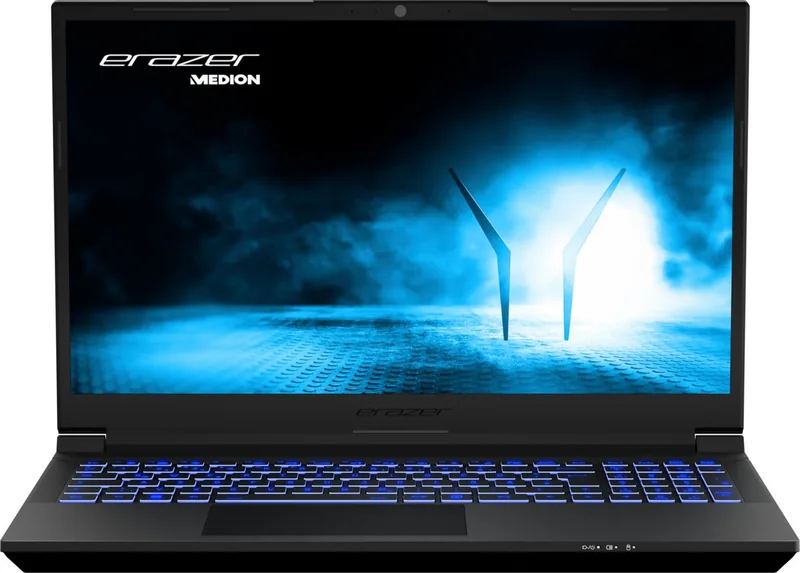
The Medion Erazer Crawler E40 is a 15.6-inch notebook designed for private use, combining everyday computing, multimedia, connectivity, and gaming-oriented controls in a portable format. The Medion Erazer Crawler E40 Manual highlights the essentials for setting up, using, protecting, and maintaining the system so owners can get comfortable with the notebook from day one.
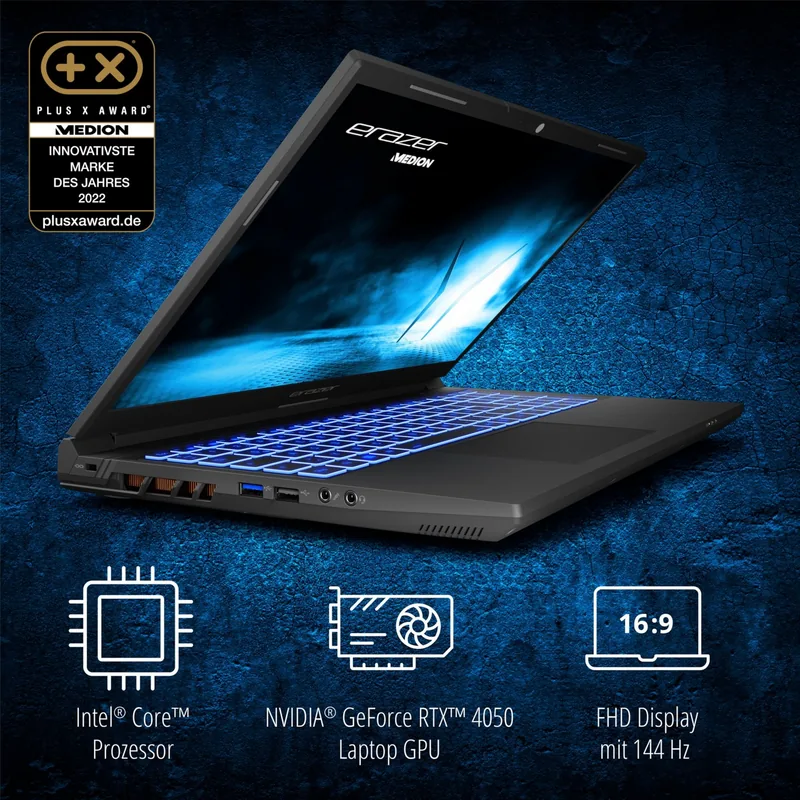
Its layout supports a broad range of accessories and display options. The notebook includes USB Type-A and USB Type-C ports, an HDMI output, Mini DisplayPort, RJ45 LAN, a combined audio jack, and a separate microphone input. These connections make it suitable for adding external monitors, wired networking, headsets, storage devices, and other peripherals. Stereo speakers, an integrated webcam, microphones, a keyboard, and a clickpad provide the core tools needed for communication, entertainment, and daily work.
Wireless connectivity is another important part of the experience. The system supports Wi-Fi across 2.4 GHz, 5 GHz, and 6 GHz bands, with standards up to Wi-Fi 6, plus Bluetooth for compatible wireless accessories. For travel or restricted environments, airplane mode can disable wireless connections quickly. The 5 GHz wireless feature is intended for indoor use in EU countries, so users should account for local restrictions when connecting on the move.
The keyboard provides helpful shortcut combinations for common tasks. Users can control volume, display brightness, webcam status, touchpad operation, external-display modes, airplane mode, sleep mode, fan speed, and power profiles. These direct controls help adapt the notebook to quieter work sessions, battery-focused use, or higher-performance activity without navigating deep into system settings.
Battery and power management are central to reliable portable use. The supplied AC adapter powers the notebook and charges its integrated battery. Battery life varies based on workload, especially during demanding graphics, video, music, or editing tasks. Energy-saving settings can automatically switch off the display and put the system into sleep mode after periods of inactivity. Regular backups are strongly recommended, particularly before updates, recovery procedures, or travel.
Everyday Care and Security
For best results, use the notebook on a stable, dry, well-ventilated indoor surface away from direct sunlight, dust, liquids, and strong magnetic sources. Do not block the ventilation openings or use the system for extended periods on a lap or soft surface. The display should be opened from the center and never beyond 120 degrees.
A startup password can be configured through UEFI settings, while a Kensington lock slot offers an additional physical security option. Windows recovery tools can refresh or reset the system when troubleshooting is necessary. The Medion Erazer Crawler E40 Manual also emphasizes careful cleaning, safe cable routing, responsible battery handling, and professional service for repairs or upgrades.
Notes
- Use only the supplied power adapter for charging.
- Back up personal data before recovery or configuration changes.
- Avoid opening the chassis unless work is performed by qualified service personnel.
Search for 67,706 Manuals online


Type-in Brand or Model