
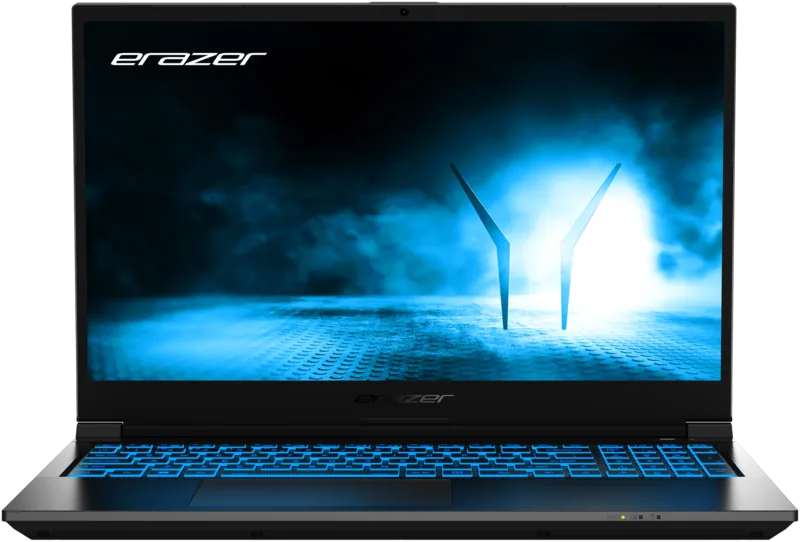
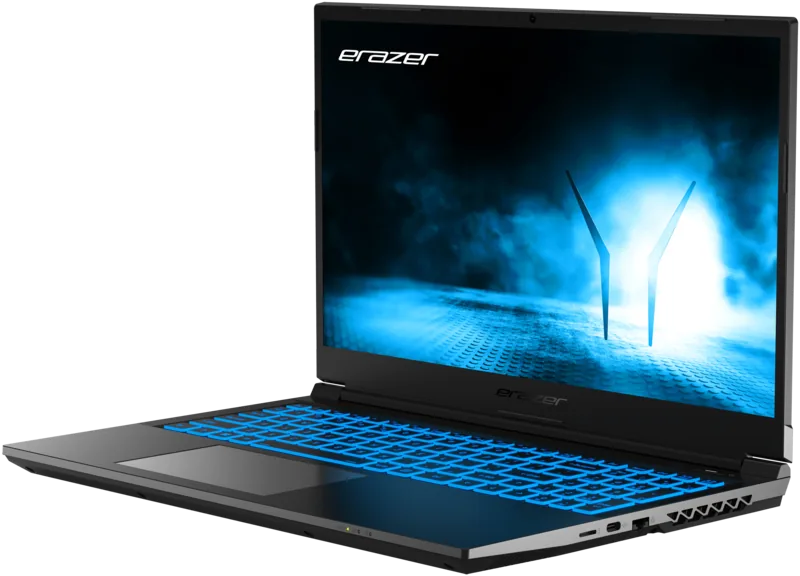
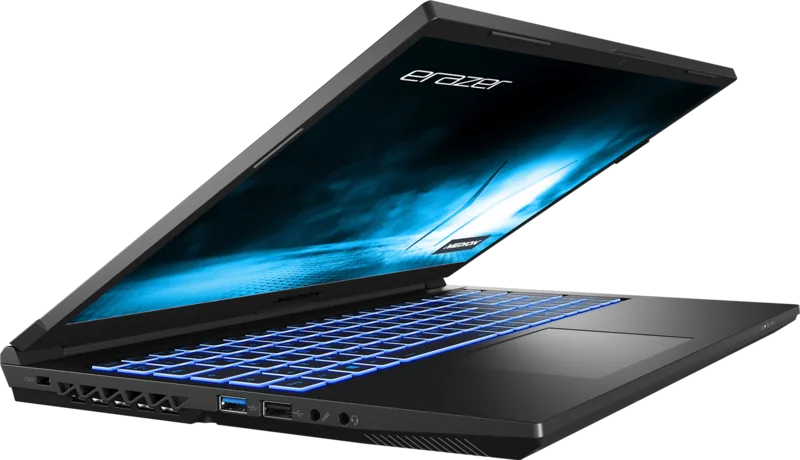
Medion Erazer Crawler E30 Manual
PDF manual · 49 Pages
English



Quick check
Incorrect answer, please try again.
Chat with your Medion Erazer Crawler E30 manual using AI
Get instant AI answers from your Medion Erazer Crawler E30 manual
Ask anything about the Medion Erazer Crawler E30. Answers come from this manual, with the pages they are based on.
Erazer Crawler E30 Maintenance Schedule
Discharge and recharge the battery completely once a month, then store the device at about 50% battery capacity.
Back up your data to external storage media before each update to prevent data loss.
Free maintenance reminders
Timed to your purchase date. Always free, unsubscribe anytime.
Ask a Question
Do you recommend Erazer Crawler E30?
Yes NoVideo Manual
Wie wechsle ich den Akku an meinem Medion Laptop? - Akoya, Erazer Akku tauschen!
Frequently Asked Questions
Windows is activated automatically as soon as an Internet connection is established during the setup process. The operating system handles activation keys in the background without manual intervention required from the user.
Is this answer helpful?
No. As the battery is integrated into the device it cannot be readily replaced by the user themselves. In this case the battery must be replaced by a service technician to ensure safety and warranty compliance.
Is this answer helpful?
The battery may be fully discharged. Plug the Notebook in using the AC adapter and charge the battery. Ensure you are not running high performance tasks that drain power too quickly.
Is this answer helpful?
Use PowerRecover or Windows Recovery Options. Back up data first. Restart device and press F11 for PowerRecover. Follow on screen instructions to restore factory defaults if software issues arise.
Is this answer helpful?
No. Indoor use only due to the use of 5 GHz Wi-Fi technology regulations. Using it outside may violate local laws regarding frequency band usage and transmission power limits.
Is this answer helpful?
Use a damp, lint-free cloth. Do not use solvents or aerosol-based detergents to clean the device. Never allow liquids to penetrate inside the device as this may cause damage to the electronics.
Is this answer helpful?
Advantages and Disadvantages
Advantages

- Multiple USB ports including USB 3.2 Gen 2 and Type C connectivity for flexible expansion.
- Wi-Fi solution supports dual-band 2.4 GHz and 5 GHz bands for reliable network access.
- Integrated security features like Kensington lock slot and power-on password protect data.
Disadvantages

- Indoor use only due to 5 GHz Wi-Fi frequency regulations in certain regions.
- Battery is integrated and cannot be replaced by the user themselves easily.
- Display should not be folded back by more than 120 degrees to avoid hinge damage.
Product Specification
Type
Laptop
Memory
16GB DDR4-3200 (2x 8GB SO-DIMM Modules, 2 Slots, max. 64GB)
Hard Drive
N/A
Flash Storage
N/A
Operating System
Windows 11 Home
Input
Keyboard with German Layout (RGB backlit, Number Pad, Rubber-Dome), Touchpad
Ports
2x USB-C 3.1 (10Gb/s), 1x USB-A 3.0 (5Gb/s), 1x USB-A 2.0 (480Mb/s), 1x Mini DisplayPort 1.4, 1x HDMI 2.1, 2x 3.5mm Jack, 1x RJ-45 1Gb LAN, 1x SD Card, 1x DC-In Jack (Power)
Wireless
Wi-Fi 6E (WLAN 802.11a/b/g/n/ac/ax, 2x2), Bluetooth 5.2
Authentication
TPM 2.0
Camera
0.9 Megapixel
Optical Drive
N/A
Battery
Built-in, Li-Polymer, 4 Cells, 93.3Wh
Weight
4.41 lbs
Dimensions
14.15 x 9.53 x 0.94 in (WxDxH)
Color
Black
Warranty
2 Years (Mail-in)
USB Notation
Link
Product Description
Medion Erazer Crawler E30 Experience
Welcome to the world of high-performance computing with the Medion Erazer Crawler E30. This notebook is designed to handle daily tasks efficiently while offering robust connectivity options for users. Those starting with this device will appreciate the 15.6 inch display which provides ample screen real estate for multitasking and media consumption. To ensure the best experience, it is highly recommended to review the detailed Medion Erazer Crawler E30 Manual before the initial setup begins. This guide covers essential safety protocols and operational details that safeguard your investment from early wear and tear.
The hardware configuration boasts several modern ports including USB 3.2 Gen 2 Type C and standard USB 3.2 Gen 1 Type A for peripheral expansion. Wireless connectivity is handled by a dual-band Wi-Fi solution supporting 2.4 GHz and 5 GHz bands along with Bluetooth for seamless peripheral connections. Audio inputs are available via a micro USB combo jack for external headsets. Display outputs include HDMI and Mini DisplayPort allowing for versatile multi-monitor setups in the office or home. The keyboard features dedicated function keys for system controls like backlighting adjustments and airplane mode toggles for travel.
Safety and maintenance are critical components of using this device responsibly in any environment. The manual emphasizes indoor usage only due to regulatory constraints on the 5 GHz frequency band in certain regions. Never attempt to open the housing as internal components are not user-serviceable and voiding warranty may occur. The integrated battery requires specific charging cycles to maintain long-term health and capacity. Avoid liquid exposure completely and ensure ventilation slots remain clear to prevent overheating during intense workloads. When transporting, use the original packaging to protect against physical damage and condensation risks.
System recovery tools like PowerRecover are included for resetting factory settings if critical software issues arise unexpectedly. Data backup is mandatory before any major updates to prevent unexpected data loss during process interruptions. Users should also engage ergonomics tips such as proper chair height and screen distance to avoid physical strain during long work sessions. Regular cleaning with a lint-free cloth preserves the chassis and screen integrity against dust and scratches. For further assistance, customer service channels are available online or via phone hotline for local support.
Notes
Keep the packaging for warranty claims during transport. Always charge fully before travel to ensure readiness. Update drivers regularly via Windows Update for compatibility. Use surge protectors for power safety against lightning strikes. Contact support if hardware issues persist after troubleshooting steps are exhausted. Maintain a safe distance from magnetic sources to prevent data loss from hard drives.
Search for 67,706 Manuals online


Type-in Brand or Model