
Medion Erazer Beast X40 Manual
PDF manual · 49 Pages
English



Quick check
Incorrect answer, please try again.
Chat with your Medion Erazer Beast X40 manual using AI
Get instant AI answers from your Medion Erazer Beast X40 manual
Ask anything about the Medion Erazer Beast X40. Answers come from this manual, with the pages they are based on.
Erazer Beast X40 Maintenance Schedule
To maintain battery capacity and prevent deep discharge damage, fully discharge and then recharge the battery once a month.
Wipe with a slightly damp, lint-free cloth. Use special cleaners for display/touchpad. Unplug power before cleaning.
Free maintenance reminders
Timed to your purchase date. Always free, unsubscribe anytime.
Ask a Question
Do you recommend Erazer Beast X40?
Yes NoFrequently Asked Questions
Windows activates automatically once you connect the device to the internet during the initial setup process. Ensure you have a stable Wi-Fi connection to complete activation.
Is this answer helpful?
No, the battery is integrated into the device. You must contact a qualified service technician or authorized repair specialist to replace the battery safely.
Is this answer helpful?
No, due to the 5 GHz frequency range of the wireless LAN solution, use is only permitted inside buildings in EU countries to comply with local regulations.
Is this answer helpful?
First check if the notebook is in hibernation by pressing the on/off switch. If the issue persists, verify that the battery is charged or the AC adapter is connected properly.
Is this answer helpful?
Use the Windows Recovery Options found in Settings under Update & Security. Select Recovery and choose to either refresh keeping files or reset removing everything.
Is this answer helpful?
Press the F2 key immediately after switching on the notebook to enter the UEFI configuration program. Changes here should only be made by experienced users.
Is this answer helpful?
Advantages and Disadvantages
Advantages

- Versatile connectivity with Thunderbolt 4 and HDMI for multiple displays
- Dedicated mode switches for instant optimization between gaming and office work
- Advanced cooling options including a liquid cooling connector port
- Robust safety features with clear warnings against unauthorized repairs
- Pre-installed operating system ready for immediate use out of the box
Disadvantages

- Battery is integrated and cannot be replaced by the user without service
- Wi-Fi usage restricted to indoor environments due to 5 GHz frequency regulations
- High surface temperatures on the mains adapter require careful placement
- Display angle limited to 120 degrees which may restrict viewing positions
- Requires original accessories only to maintain warranty and safety standards
Product Specification
Type
Notebook
Display
17.3", 2560x1600 (WQXGA), 16:10, 175ppi, 240Hz, non-glare (matte), IPS, 100% sRGB
HDD
N/A
Flash
N/A
Operating System
Windows 11 Home
Input
Keyboard with US layout (single-key RGB backlighting, numpad, Cherry MX mechanical switches), Touchpad
Connections
1x USB-A 3.1 (10Gb/s), 2x USB-A 3.0 (5Gb/s), 1x Thunderbolt 4 (40Gb/s, PD), 1x HDMI 2.1, 2x 3.5mm jack, 1x RJ-45 2.5Gb LAN (Realtek RTL8125BG), 1x microSD, 1x DC-In hollow socket (power connector)
Wireless
Wi-Fi 6 (WLAN 802.11a/b/g/n/ac/ax, 2x2, Intel AX201), Bluetooth 5.2
Authentication
TPM 2.0, IR camera
Camera
2 Megapixel
Optical Drive
N/A
Battery
Fixed, Li-Polymer, 4 cells, 99.8Wh
Power Supply
1x Hollow plug (300W)
Features
Prepared for water cooling
Weight
6.3 lbs
Dimensions
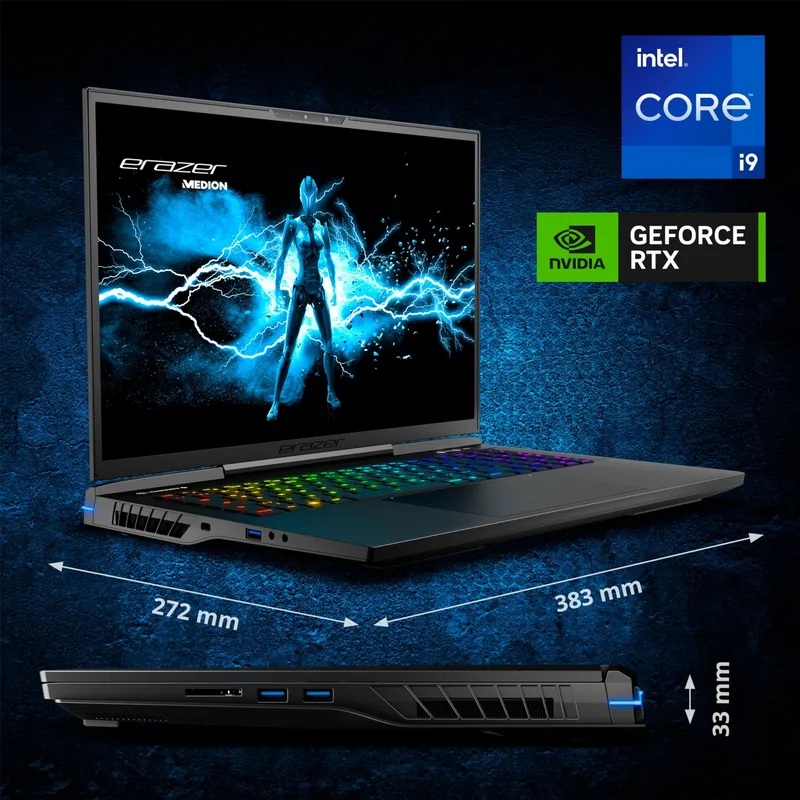
15.1x10.7x1.4 in (WxDxH)
Color
Black
SSD/HDD Slots
2x M.2 PCIe
Warranty
Two years (mail-in)
USB Spelling
Link
Product Description
Discover the Power of the Medion Erazer Beast X40
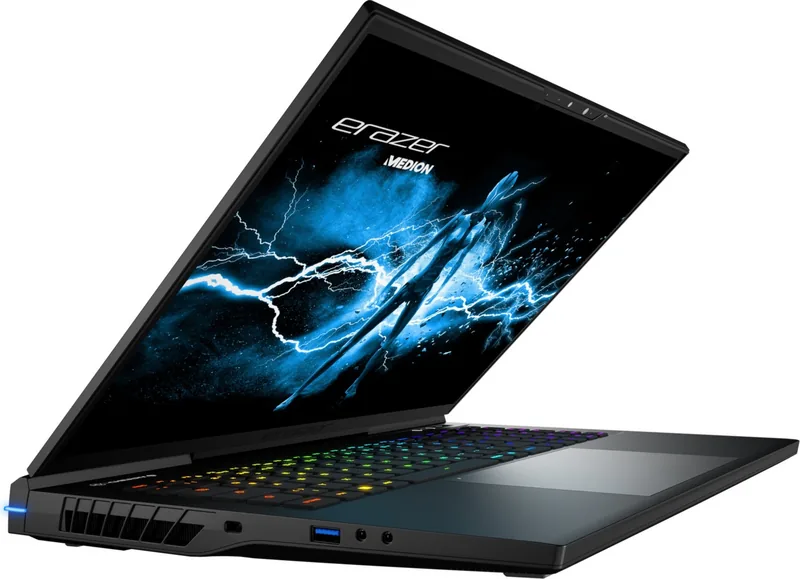
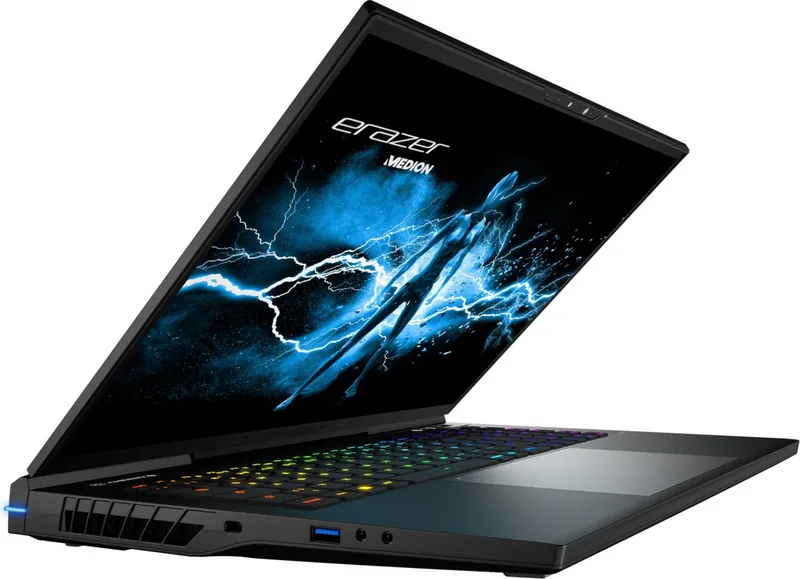
The Medion Erazer Beast X40 is a high-performance notebook designed for gamers and power users who demand speed and reliability. This 17-inch device combines robust processing capabilities with advanced cooling systems to ensure smooth gameplay and efficient multitasking. Whether you are rendering complex graphics, streaming live content, or simply managing heavy workloads, this machine delivers consistent performance.
One of the standout features of the Beast X40 is its versatile connectivity. Equipped with Thunderbolt 4, HDMI, and multiple USB 3.2 ports, it allows seamless integration with external monitors, storage devices, and high-speed peripherals. The inclusion of a dedicated liquid cooling connector offers an option for enhanced thermal management during intense sessions. The display supports crisp visuals, while the ergonomic keyboard layout ensures comfortable typing even during long hours of use.
Safety and durability are paramount in the design of this unit. The chassis includes ventilation openings strategically placed to prevent overheating, and the screen hinge is engineered to withstand repeated opening and closing without compromising structural integrity. Users are advised to follow specific setup guidelines regarding temperature and humidity to maintain optimal operation. The integrated battery provides mobility, though it is recommended to keep the AC adapter connected for maximum performance during demanding tasks.
Managing power efficiently is straightforward with built-in options that allow users to switch between Gaming Mode, Office Mode, and Turbo Mode instantly. These modes adjust system resources to suit the current activity, balancing energy consumption with processing power. For those concerned about security, the device supports password protection via UEFI configuration and offers a Kensington lock slot to prevent theft.
Maintenance is simple yet requires adherence to safety protocols. Never attempt to open the housing yourself as internal components are sensitive to static discharge and improper handling. Regular cleaning with a damp cloth and avoiding exposure to moisture will keep the device in top condition. If issues arise, the included manual provides detailed troubleshooting steps and contact information for customer support.
Important Notes
- Always disconnect the AC adapter before cleaning the device.
- Do not operate the notebook on soft surfaces like beds to avoid blocking ventilation.
- Backup your data regularly before performing system updates or resets.
- Use only the supplied AC adapter to prevent damage to the battery and motherboard.
Search for 67,706 Manuals online


Type-in Brand or Model