

Manhattan MondoHub II 163606 Manual
PDF manual · 2 Pages
English



Quick check
Incorrect answer, please try again.
Chat with your Manhattan MondoHub II 163606 manual using AI
Get instant AI answers from your Manhattan MondoHub II 163606 manual
Ask anything about the Manhattan MondoHub II 163606. Answers come from this manual, with the pages they are based on.
Ask a Question
Do you recommend MondoHub II 163606?
Yes NoFrequently Asked Questions
It is designed to expand a computer’s USB connectivity, especially for users who need many simultaneous connections. It works well in offices, labs, classrooms, and desktop setups with multiple peripherals or tablets.
Is this answer helpful?
It has 28 USB-A ports in total. Four are USB 3.0 ports for faster devices, and 24 are USB 2.0 ports for standard accessories and everyday USB hardware.
Is this answer helpful?
Usually no. The hub is meant to be detected automatically by the operating system, so setup is simple. In most cases, you just plug it in and start connecting devices.
Is this answer helpful?
The four ports nearest the attached cable are the USB 3.0 ports. They support up to 5 Gbps, making them the best choice for high-speed storage and other performance-sensitive devices.
Is this answer helpful?
Yes. Certain ports are optimized for charging and syncing Apple and Samsung tablets, and a button lets you switch between those two modes depending on your needs.
Is this answer helpful?
Yes. If connected devices need more power than the computer can provide, the included power adapter can be used to improve stability and support more demanding setups.
Is this answer helpful?
It can be, but it is especially useful for power users. If you only need a few ports, this model may be larger than necessary. Its strengths are capacity, flexibility, and tablet-focused features.
Is this answer helpful?
Advantages and Disadvantages
Advantages

- 28 total USB ports provide extensive expansion for busy workstations and multi-device setups.
- Includes 4 USB 3.0 ports for faster data transfer with compatible accessories.
- Dedicated charging/syncing function helps manage Apple and Samsung tablets more efficiently.
- Automatic detection simplifies setup and reduces the need for manual driver installation.
- Included power adapter supports devices that need additional power.
Disadvantages

- Only 4 ports offer USB 3.0 speed; most connections are limited to USB 2.0.
- Large port count may make the hub bulky for compact or travel-focused setups.
- Charging/sync features are most useful for tablets, so not every user will need them.
- Performance depends on the connected computer and available power source.
- The abundance of ports may be more than necessary for basic everyday use.
Product Specification
Type
USB-Hub
Design
1x external wired (connection cable not detachable)
Connection
1x USB-A 3.0 (plug via cable, 5Gb/s, 29.53in cable length)
Ports
4x USB-A 3.0 (socket, individually switchable), 24x USB-A 2.0 (socket, individually switchable)
Data transfer
4x USB-A 3.0 (socket, 5Gb/s), 20x USB-A 2.0 (socket, 480Mb/s), 4x USB-A 2.0 (socket, 480Mb/s, Apple Charging)
Power supply
Power supply also via connection, mains connection (1x barrel jack 5V/5A), external power supply possible and included (1x barrel jack 5V/4A)
Dimensions
4.41x0.91x9.02in (WxHxD)
Weight
0.77lb
Housing color
black
Compatibility
universal
Manufacturer's warranty
three years
USB notation
Link
Product Description
Manhattan MondoHub II: A Massive USB Hub Built for Real-World Workflows
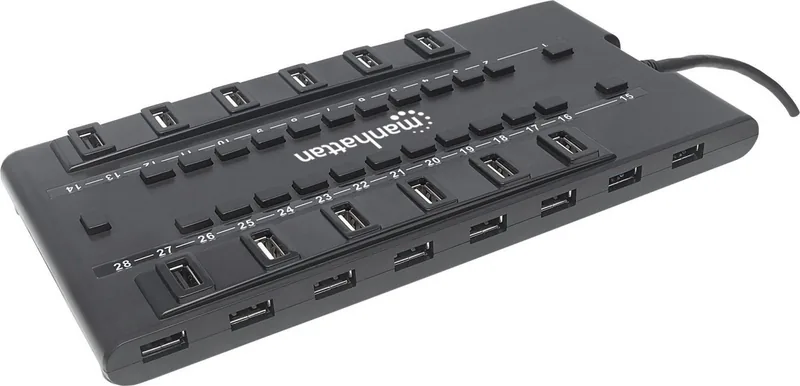
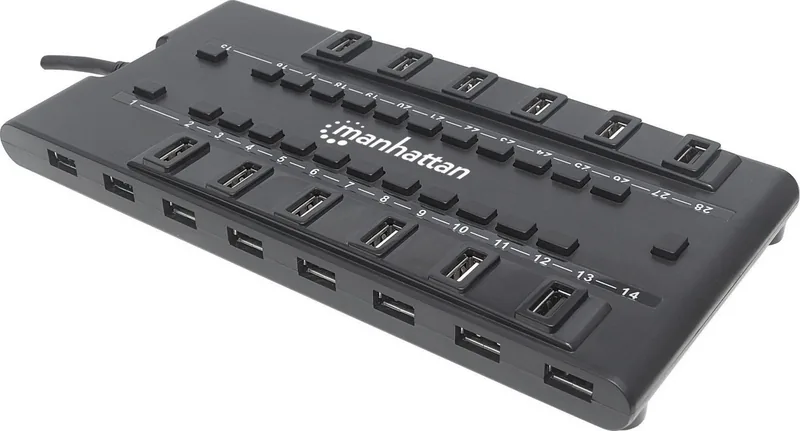
The Manhattan MondoHub II USB hub, 4x USB-A 3.0, 24x USB-A 2.0, USB-A 3.0 [plug] Manual is designed for users who need far more connectivity than a typical desktop setup can offer. With 28 total ports, it turns a single USB connection into a practical expansion center for keyboards, drives, peripherals, tablets, and accessories. It is the kind of hub that makes sense in offices, labs, classrooms, and shared workstations where devices multiply quickly.
What stands out first is the mix of speed and scale. The four ports closest to the attached cable support USB 3.0 speeds up to 5 Gbps, making them ideal for faster devices such as storage drives or high-bandwidth peripherals. The remaining 24 ports use USB 2.0, which is still perfectly suitable for accessories that do not need top-tier transfer rates. This balance keeps the hub flexible while focusing high-speed performance where it matters most.
The MondoHub II also goes beyond simple port expansion. Certain ports are optimized for charging and syncing Apple and Samsung tablets, and a dedicated button lets you switch between those two modes. Clear LED color cues help you see whether a port is charging or syncing, which is useful when managing multiple devices at once. That small detail adds convenience and reduces guesswork in busy setups.
Installation is straightforward. Plug the hub into a computer, and the operating system should detect it automatically without complicated setup. If your connected devices need extra power, the included adapter can provide the support needed for more demanding use cases. That makes the hub suitable not only for data connections, but also for charging-heavy environments.
Why it matters
For users who are tired of swapping cables or running out of ports, the MondoHub II offers a clean way to centralize connectivity. It is especially appealing if your workflow includes tablets, multiple USB accessories, and a desire for an organized desk. Rather than relying on small consumer hubs, this model feels built for larger, more active setups.
Notes
- Best for desks with many peripherals
- USB 3.0 ports are concentrated near the attached cable
- Charging and syncing modes are especially useful for tablets
- Extra power support is available when needed
Search for 67,732 Manuals online


Type-in Brand or Model
werner52
8 months ago
Does this USB hub work reliably with external hard drives (HDD/SSD), or is it only for phones and USB sticks? Mine feels very slow and the drives are not detected.
Manual.ly
8 months ago
Thanks for the feedback. Many USB hubs can be limited with larger storage devices, especially bus-powered HDDs. If your hard drive is not detected or transfer speeds are very low, please check: 1) Use a powered (self-powered) USB hub or an external power supply for the hard drive if it supports it. 2) Connect with a high-quality USB cable and ensure you are using USB 3.0 ports. 3) Avoid using multiple high-power devices at the same time. 4) Test the drive directly on your computer to confirm the drive itself is working. If it still fails, contact support with your hub model and OS so we can verify compatibility and settings.