
LevelOne GEP 8-Port PoE+ Manual
PDF manual · 17 Pages
English



Quick check
Incorrect answer, please try again.
Chat with your LevelOne GEP 8-Port PoE+ manual using AI
Get instant AI answers from your LevelOne GEP 8-Port PoE+ manual
Ask anything about the LevelOne GEP 8-Port PoE+. Answers come from this manual, with the pages they are based on.
Ask a Question
Do you recommend GEP 8-Port PoE+?
Yes NoFrequently Asked Questions
Inspect the power adapter carefully to ensure it is intact. Connect it to a wall power source first. Then plug the adapter directly into the switch port securely to establish power.
Is this answer helpful?
When the LED light blinks, it means data is actively transmitting or receiving packets across the wire. This indicates active data flow on the connected port.
Is this answer helpful?
Yes, the 123W PoE+ budget supports multiple powered devices simultaneously such as IP phones or wireless access points requiring power delivery.
Is this answer helpful?
The device is compatible with standard Ethernet cables like Cat-5e. This universal compatibility helps link computers, printers, or surveillance cameras efficiently.
Is this answer helpful?
Some variants like the GEP-1020 include two GE SFP ports for enhanced fiber connectivity options when needed for long-distance links.
Is this answer helpful?
The basic installation guide does not list a web interface for remote configuration. It relies on physical LED indicators for monitoring status locally.
Is this answer helpful?
Ensure your power supply meets AC 100-240V standards globally for safe operation. This allows international usability across many different regions safely.
Is this answer helpful?
Advantages and Disadvantages
Advantages

- Easy to install with clear visual feedback indicators for status
- Supports 8 PoE ports for powering connected devices simultaneously
- Compact design suitable for desktop or rack mounting easily
- Multiple models available including SFP port options for fiber
- Universal Ethernet cable compatibility for standard network devices
Disadvantages

- No advanced managed features mentioned for deep traffic control
- Limited to desktop form factor for small office setups only
- Basic LED indicators offer limited diagnostic data for errors
- No web interface for remote configuration listed in specs
Product Specification
Function
Switch
Type
Standalone, Rack-mountable (via mounting brackets)
Network Ports
8x RJ-45
Speeds
8x RJ-45 (10/100/1000Base-T)
PoE
8x RJ-45 PoE+ (8x 30W), total: 123W
Backplane
16 Gb/s, 11.9 Mp/s, 9KB Jumboframes, 128KB Packet Buffer, 8K MAC Addresses
Supported Standards
802.3, 802.3ab, 802.3af, 802.3at, 802.3az, 802.3u, 802.3x
Configuration
Unmanaged
Dimensions (WxHxD)
11.02x1.73x7.28 in, 1U
Weight
4.41 lbs
Color
Anthracite
Features
Metal housing, removable mounting brackets
Note
Various revisions available.
Product Description
LevelOne GEP Desktop Gigabit Switch Overview
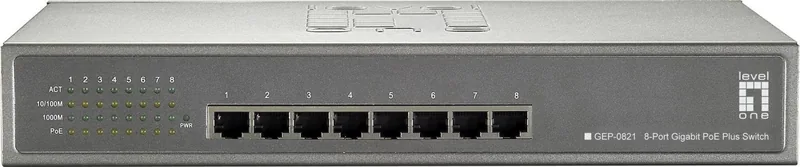
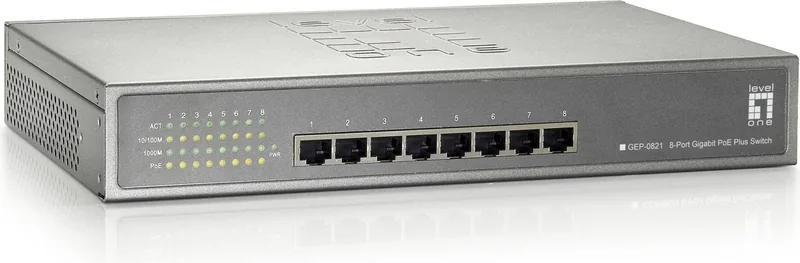
The LevelOne GEP Desktop Gigabit Switch offers a robust networking solution for small business and home office environments. Designed with efficiency in mind, this device brings reliable connectivity through its eight RJ-45 ports. These ports support Gigabit speeds, ensuring fast data transfer across your network segment. A key feature is the Power over Ethernet capability, allowing connected devices to receive power and data through a single cable. This simplifies cabling significantly and reduces clutter on your workspace effectively.
Installation Made Simple for Users
Setting up your networking equipment should not be complicated for daily users. The installation process follows straightforward steps found in the guide materials. First, inspect the power adapter carefully and make sure that it is properly connected to a wall power source. Next, plug the power adapter directly into the switch port securely. Finally, connect your network devices using standard Ethernet cables like Cat-5e. This universal compatibility makes it easy to link computers, printers, or surveillance cameras efficiently.
Monitoring Network Status Easily
Visual feedback is crucial for effective network maintenance without complex tools or software. The switch features LED indicators that provide real-time status updates on port activity continuously. The power light confirms the device is receiving electricity correctly. The Link or Act light shows if a port is physically connected to another device. When this light blinks, it means data is actively transmitting or receiving packets across the wire. If it remains off, the port is inactive or disconnected completely. This immediate visual cue helps troubleshoot connectivity issues quickly without needing additional software tools.
Ideal for Desktop Deployment
Compact design allows this switch to sit comfortably on a desk or rack mount depending on specific needs and space. The 123W PoE+ budget supports multiple powered devices simultaneously such as IP phones or wireless access points. Whether you use the GEP-0812 or the GEP-1020 series, reliability remains a top priority for all users. Diverse language support ensures international usability across many different regions globally. This versatility makes it a solid choice for expanding a local area network securely. Variants like GEP-0820 offer different port configurations for specialized setups requiring SFP modules for fiber connections. The GEP-1020 also includes two GE SFP ports for enhanced fiber connectivity options when needed. This flexibility ensures you can scale your infrastructure as your network grows over time without buying new hardware immediately.
Important Notes
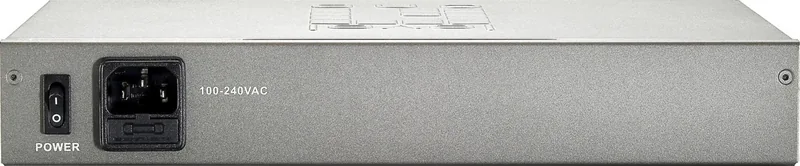
Ensure your power supply meets AC 100-240V standards globally for safe operation. Always check cable integrity and type before connecting hardware to avoid errors or damage risks. Keep ventilation slots clear to prevent overheating during operation to ensure longevity and stable performance under load. Consult local regulations for safe installation practices.
Search for 67,732 Manuals online


Type-in Brand or Model