
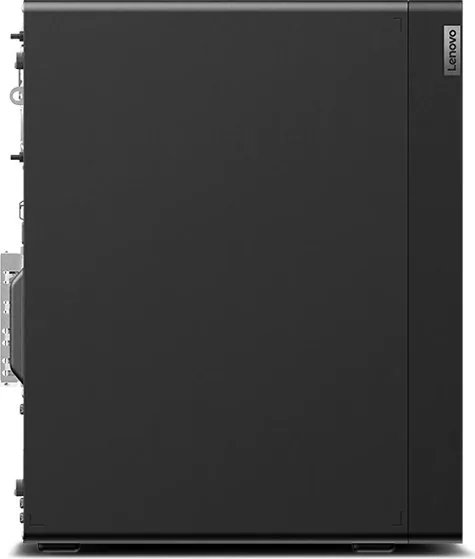
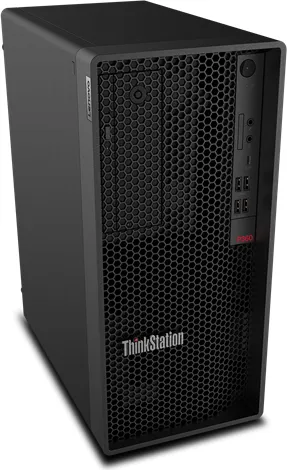
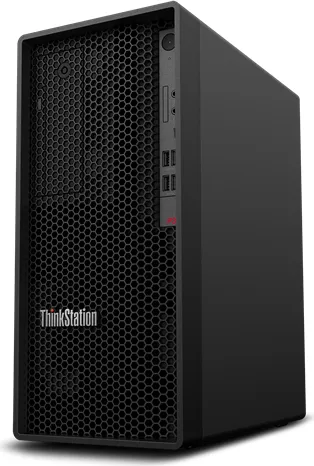
Lenovo ThinkStation P360 Tower Manual
PDF manual · 90 Pages
English


Quick check
Incorrect answer, please try again.
Chat with your Lenovo ThinkStation P360 Tower manual using AI
Get instant AI answers from your Lenovo ThinkStation P360 Tower manual
Ask anything about the Lenovo ThinkStation P360 Tower. Answers come from this manual, with the pages they are based on.
Ask a Question
Do you recommend ThinkStation P360 Tower?
Yes NoFrequently Asked Questions
The P360 Tower supports DDR5 UDIMMs (up to 128 GB across up to four slots) and multiple storage options including M.2 NVMe SSDs (Gen4 on supported models), 2.5-inch and 3.5-inch SATA drives, with configurable RAID levels (0, 1, 5, 10) via Intel RST in UEFI.
Is this answer helpful?
Restart and press F1 (or Fn+F1) at boot to enter UEFI BIOS. Under Devices ➙ ATA Drive Setup, change Configure SATA to RAID, or use Intel Rapid Storage Technology in UEFI to create, delete, or reset RAID volumes. Save changes with F10.
Is this answer helpful?
Yes, but only if required BIOS settings are enabled (SATA 4 Hot-Plug Support), the enclosure is connected to the correct SATA port, and the operating system does not reside on that drive. If requirements aren’t met, do not hot-swap while powered on.
Is this answer helpful?
Security options include UEFI BIOS power-on/supervisor/hard-disk passwords, certificate-based BIOS management, Intel BIOS Guard for authenticated updates, Smart USB Protection (Disabled/Read Only/No Access), E-lock cover protection, and Computrace (on select models).
Is this answer helpful?
BIOS updates are available via Lenovo Vantage or the Lenovo Support site. For recovery, follow the BIOS recovery jumper/process: move the Clear CMOS/Recovery jumper to maintenance position, boot with the BIOS update disc or package, allow the recovery to complete, then restore the jumper to standard position.
Is this answer helpful?
Many items are CRUs including memory modules, M.2 SSDs and brackets, primary and secondary storage drives, optical drive, front bezel, fans, keyboard/mouse, and power cord. Optional-service parts like power supply assembly and heat-sink assemblies may require additional skill.
Is this answer helpful?
Visit Lenovo Support at https://pcsupport.lenovo.com to find drivers, firmware, Vantage downloads, diagnostics, and product documentation specific to your machine type and serial number. Use Vantage for automated updates and health checks.
Is this answer helpful?
Advantages and Disadvantages
Advantages

- High expandability: multiple M.2 slots, 2.5/3.5 drive cages, and PCIe Gen4 slots for GPUs and add-in cards.
- Serviceable design: many customer-replaceable units with clear replacement procedures and hot‑swap front enclosure options.
- Strong security features: UEFI password options, certificate-based BIOS management, Intel BIOS Guard, E-lock, and Smart USB Protection.
- Robust management: Lenovo Vantage for updates, diagnostics, and warranty checks; BIOS recovery and secure-wipe tools.
- Flexible performance/thermal modes: Balance, Performance, and Full Speed let users trade acoustics for cooling and throughput.
Disadvantages

- Feature variability: some ports, Wi‑Fi, and optical drive depend on model selection and may not be present on all units.
- Complex setup for hot-swap: front-access hot-swap requires specific BIOS settings and cabling to avoid data loss.
- Physical size and weight: tower dimensions and maximum configured weight may limit portability and rack use.
- Firmware and BIOS operations can be technical: tasks like RAID configuration, secure wipe, and certificate enrollment require care.
- Replacement steps sometimes require tools and careful handling (thermal grease, screw sequences) to avoid hardware damage.
Product Specification
Form factor
Tower
HDD
N/A
Flash
N/A
Rear ports
4x USB-A 3.0 (5Gb/s), 1x HDMI 2.1, 2x DisplayPort 1.4, 1x 3.5mm jack, 1x RJ-45 1Gb LAN (Intel I219-LM), 1x AC-In C13 (power connection)
Front/side ports
1x USB-C 3.1 (10Gb/s), 2x USB-A 3.1 (10Gb/s), 2x USB-A 3.0 (5Gb/s), 2x 3.5mm jack, 1x SD Card
Camera
N/A
Dimensions
6.69x14.80x12.40in (WxHxD)
Weight
21.38 lb
Volume
5.31 gal (calculated)
Color
black
USB notation
Link
Product Description
Lenovo ThinkStation P360 Tower Manual — Powerful, Secure, and Serviceable
The Lenovo ThinkStation P360 Tower stands out as a high-performance workstation aimed at professionals who need a reliable desktop for content creation, engineering, data analysis, and other compute-intensive tasks. Built with modern Intel processors, DDR5 memory support, and flexible storage and expansion options, the P360 Tower balances performance, quiet operation, and serviceability for demanding workflows.
Key capabilities and design
This tower supports up to four DDR5 UDIMMs (maximum 128 GB), multiple M.2 NVMe slots, and 2.5-inch or 3.5-inch drive cages, enabling high-capacity, high-speed local storage and RAID configurations for redundancy or performance. Discrete GPU options can be installed in PCIe Gen4 x16 slots, and integrated display outputs include DisplayPort and HDMI with optional USB-C display support. The unit ships with 500 W or 750 W power supplies depending on configuration, and cooling options include intelligent thermal modes to trade acoustic level for performance.
The P360 Tower emphasizes expandability and field serviceability. Many components are customer-replaceable (CRUs) such as storage drives, M.2 SSDs, memory modules, optical drives, fans, and power supply assemblies. The chassis provides tool-accessible parts, front-access storage enclosures (hot-swap capable if configured correctly), and clear replacement procedures for graphics cards, heat sinks, and other components.
Management, BIOS, and security
Firmware and system management are robust: UEFI BIOS supports secure boot, certificate-based BIOS management, configuration-change detection, BIOS recovery and clear-CMOS procedures. Security features include E-lock mechanical cover locks, Smart USB Protection modes, hard-disk and power-on passwords, Intel BIOS Guard, and options for Computrace asset management. Lenovo Vantage integrates system updates, diagnostics, warranty checks, and health monitoring for an easy maintenance workflow.
Connectivity and usability
The tower offers a range of USB (including USB-C and Thunderbolt variants depending on model), Ethernet, optional Wi-Fi and Bluetooth, audio jacks, and legacy ports like PS/2 and serial on select configurations. Cable management features and smart cable-clip accessories help maintain tidy setups. Power and thermal presets let users choose between Balance, Performance, and Full Speed modes to match priorities.
Who it’s for
The ThinkStation P360 Tower is ideal for professionals needing a configurable, serviceable workstation with enterprise-grade security and support options. It suits small studios, engineering teams, and IT-managed environments where uptime, repairability, and predictable maintenance are important.
Notes
- Models vary: some features (Wi‑Fi, optical drive, certain ports) are model-dependent.
- Hot-swap front-access drives require specific BIOS and cabling settings.
- Always back up data before replacing storage components or using secure-wipe functions.
Search for 67,706 Manuals online


Type-in Brand or Model