

Lenovo Tab P12 TB372FC Manual
PDF manual · 46 Pages
English


Quick check
Incorrect answer, please try again.
Chat with your Lenovo Tab P12 TB372FC manual using AI
Get instant AI answers from your Lenovo Tab P12 TB372FC manual
Ask anything about the Lenovo Tab P12 TB372FC. Answers come from this manual, with the pages they are based on.
Ask a Question
Do you recommend Tab P12 TB372FC?
Yes NoFrequently Asked Questions
Turn on the tablet, choose a language, connect to Wi-Fi or a supported mobile network, accept the service agreements, and follow the on-screen steps. You can transfer data, sign in to Google, review privacy settings, select a screen lock, and choose gesture or button navigation.
Is this answer helpful?
Yes. Compatible apps can be used in split screen, and One Vision also offers floating windows for temporary tasks. You can adjust the split-screen area, replace an app, or convert a split-screen app into a floating window. Not every app supports these modes.
Is this answer helpful?
Lenovo Freestyle connects the tablet with a computer on the same network. It can help project tablet apps to the computer, mirror or extend the computer display to the tablet, and transfer files between devices. Both devices need the Lenovo Freestyle app or feature enabled and the same Lenovo ID.
Is this answer helpful?
The tablet supports the optional Lenovo Tab Pen Plus. The pen can be paired by Bluetooth and used for writing, drawing, screenshots, AI scanning, quick notes, magnification, and handwriting-to-text conversion. Charge the pen before pairing or first use.
Is this answer helpful?
Use Reading Mode to change the display effect for reading, or enable Night Light to reduce blue light with a warmer screen tone. Automatic brightness can adapt to ambient light. Lenovo also recommends using the tablet in a well-lit area, maintaining distance, and taking screen breaks.
Is this answer helpful?
Open Battery settings to enable power saving, charging protection, or battery maintenance options. Charging protection can limit charging behavior during certain conditions to help reduce battery aging. The tablet can also identify unusual battery use and offer one-key optimization.
Is this answer helpful?
Yes. The owner can add standard user accounts or one guest account through Multiple Users settings. Each profile can have separate access and settings. The owner manages accounts and can switch or remove users when needed.
Is this answer helpful?
Advantages and Disadvantages
Advantages

- Large-screen tablet experience with a matte display option, Reading Mode, Night Light, and automatic brightness controls.
- Flexible multitasking through floating windows and split screen for compatible apps.
- Lenovo Freestyle supports file sharing, screen projection, and extended-display workflows with a computer.
- Optional Lenovo Tab Pen Plus supports handwriting, drawing, quick notes, screenshots, and text conversion.
- Useful shared-device controls include owner, standard user, and guest profiles.
Disadvantages

- Some split-screen, projection, and portrait features may not work with every app.
- Lenovo Freestyle requires the tablet and computer to use the same network and Lenovo ID.
- The Lenovo Tab Pen Plus is optional and must be charged and paired separately.
- Factory reset erases all data from internal storage, so backups are essential.
- The integrated battery is not user-replaceable and requires authorized service.
Product Specification
CPU
MediaTek MT6877V Dimensity 7050, 2x 2.60 GHz (ARM Cortex-A78) + 6x 2.00 GHz (ARM Cortex-A55)
RAM
8 GB LPDDR4X
Storage
128 GB Flash (UFS 2.2)
Graphics
ARM Mali-G68 (iGPU)
Display
12.7 in, 2944x1840, 273 ppi, multi-touch, IPS/LTPS, digitizer, 400 nits, 1500:1, 96% DCI-P3, glass (Corning Gorilla Glass 3), anti-glare
Ports
1x USB-C 2.0 (480 Mbps, power input)
Wireless
Wi-Fi 6 (WLAN 802.11a/b/g/n/ac/ax, 2x2), Bluetooth 5.2
Navigation
GPS, GLONASS, Galileo, compass
SIM
N/A
Cellular
N/A
Networks
N/A
Card Reader
microSDXC (up to 1 TB)
Webcam
13 megapixel, f/2.2 (front), 8 megapixel, f/2.2, flash (rear)
Operating System
Android 13
Battery
Li-polymer, 10,200 mAh, 9 hr battery life
Dimensions
11.55 x 7.51 x 0.27 in
Weight
1.36 lb (tablet)
Color
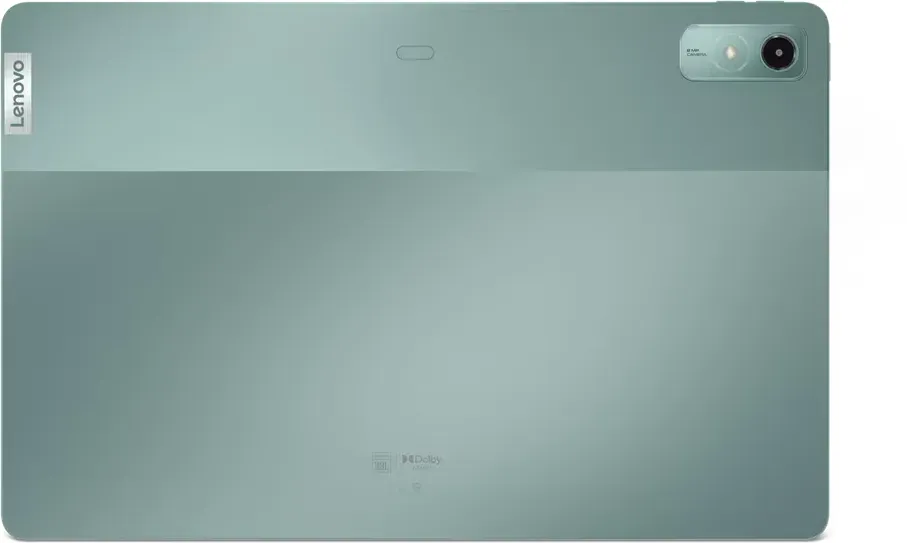
green/black (Sage)
Special Features
Docking connector (pogo pin), accelerometer, orientation sensor, color sensor, Hall sensor, compass, fingerprint reader (power button), stylus (Tab Pen Plus)
Note
Different country versions may be available.
Product Description
Lenovo Tab P12 TB372FC Manual: A Versatile Tablet for Work and Entertainment
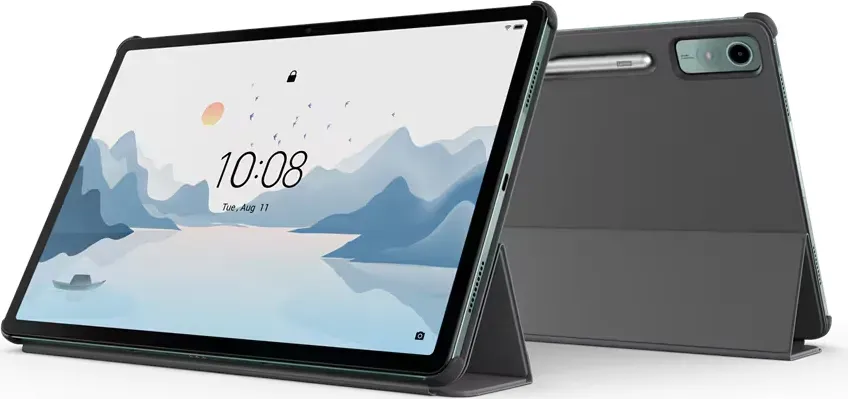
The Lenovo Tab P12 TB372FC with Matte Display is designed for users who want a large-screen Android tablet that can handle everyday entertainment, learning, creative tasks, and light productivity. Its interface combines familiar Android controls with Lenovo features that make multitasking, personalization, and connected work more practical. The Lenovo Tab P12 TB372FC Manual helps users move from first-time setup to advanced tools with confidence.
Simple setup and personalized control
Getting started centers on connecting to Wi-Fi, signing in to a Google account, transferring content from another device, and choosing a secure screen lock. Users can select gesture navigation or traditional on-screen navigation buttons, then organize the home screen with apps, widgets, wallpapers, and a taskbar. The Entertainment Space can also provide a personalized hub for films, shows, games, videos, and books.
Display controls include manual or automatic brightness, Reading Mode, and Night Light settings that reduce blue light in dim environments. The tablet also supports security choices such as a password, PIN, pattern, fingerprint recognition through the power-button sensor, and face recognition as an alternative unlock method.
Made for multitasking and connected workflows
One Vision features support more flexible app use. Floating windows can keep a temporary task visible without constant app switching, while split screen lets compatible apps run side by side. The interface can even accommodate additional apps in a multitasking layout, helping users compare information, take notes, browse, or communicate more efficiently.
Lenovo Freestyle extends the tablet experience to a compatible computer on the same network. It can support tablet app projection, computer screen mirroring or extension to the tablet, and file sharing. Multi-user settings are also available, allowing an owner to create separate standard or guest profiles for shared household use.
Creative tools and everyday essentials
The optional Lenovo Tab Pen Plus adds handwriting and drawing capabilities. It can pair through Bluetooth and supports shortcuts such as screenshots, quick notes, AI scanning, magnification, and remote-control functions. The Notes app supports text, images, checklists, voice recordings, handwriting tools, shape recognition, and handwriting-to-text conversion.
Additional tools include camera modes for photos, video, portraits, and AI scans, along with Files for storage cleanup, searching, and Nearby Share transfers. Battery settings include power saving, charging protection, battery maintenance options, and unusual battery-use detection.
Notes
- Keep system software updated through official sources.
- Back up important data before performing a factory reset.
- The integrated battery should be serviced only through authorized Lenovo support.
- Use approved chargers and avoid exposing the tablet to liquids or extreme temperatures.
Search for 67,706 Manuals online


Type-in Brand or Model