

Lenovo Tab P11 Pro (2nd Gen) TB132FU Manual
PDF manual · 29 Pages
English


Quick check
Incorrect answer, please try again.
Chat with your Lenovo Tab P11 Pro (2nd Gen) TB132FU manual using AI
Get instant AI answers from your Lenovo Tab P11 Pro (2nd Gen) TB132FU manual
Ask anything about the Lenovo Tab P11 Pro (2nd Gen) TB132FU. Answers come from this manual, with the pages they are based on.
Ask a Question
Do you recommend Tab P11 Pro (2nd Gen) TB132FU?
Yes NoFrequently Asked Questions
Use only Lenovo-approved standard adapters and a compatible USB cable. Using non-approved adapters can affect charging performance, cause irregular charging or damage the device. If the charger is damaged or wet, disconnect and replace it.
Is this answer helpful?
Open Settings > Display and enable Augenschutzmodus (eye protection) or Reading Mode. You can adjust color temperature or choose automatic effects to reduce blue light and improve comfort during low-light reading.
Is this answer helpful?
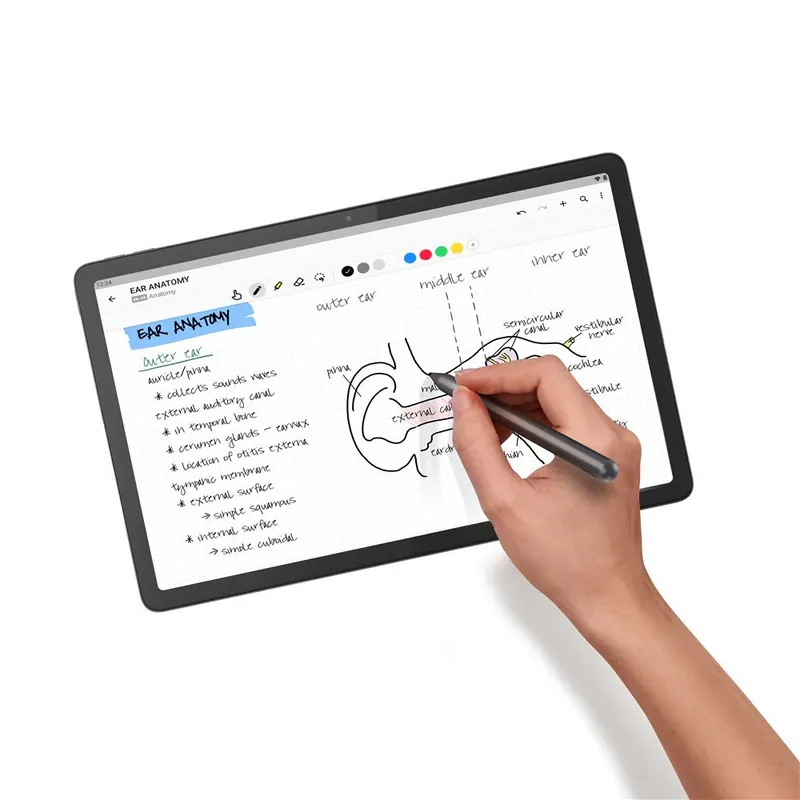
Open the Memo app or press the pen button and tap the screen to start a quick note. Memo supports writing, drawing, scanning documents, screenshots and converting the pen into a laser pointer or magnifier for presentations and annotations.
Is this answer helpful?
Force power off by holding Power and Volume Down for about 8 seconds to restart. If problems persist, charge the battery for 30 minutes and retry the forced restart or consult Lenovo support for further diagnostics.
Is this answer helpful?
Connect via USB cable, then open notifications and tap the USB charging notification to select a mode: File transfer (MTP) for general files, PTP for photos, MIDI for music apps, or charge-only for power. Choose the appropriate mode to begin transfer.
Is this answer helpful?
Yes. Go to Settings > System > Multiple users or open the quick settings and add users. There are owner, guest and standard user accounts. You can switch, add or remove users through user settings and the lock screen icon.
Is this answer helpful?
Back up important data first. Then go to Settings > System > Reset options > Erase all data (factory reset) and confirm. This will delete all internal data and restore factory defaults, so ensure backups are made beforehand.
Is this answer helpful?
Advantages and Disadvantages
Advantages

- Vivid OLED display with eye-protection mode for comfortable reading and multimedia.
- Supports Lenovo Precision Pen 3 for natural handwriting, drawing and annotation.
- Strong battery life (8000mAh) suitable for extended multimedia and productivity use.
- Modern connectivity: Wi‑Fi 6, Bluetooth 5.1, GPS/GLONASS and multiple USB modes.
- Productivity features: split-screen multitasking, multi-user support and keyboard shortcuts.
Disadvantages

- Not all apps support split-screen mode, limiting multitasking in some scenarios.
- Internal battery is non-user-replaceable; service required for replacement.
- Some system apps cannot be uninstalled, which may clutter the home screen.
- Performance for intensive workloads (heavy editing or gaming) may be limited vs high-end chips.
- Requires Lenovo-approved chargers to ensure safe charging and warranty coverage.
Product Specification
CPU
MediaTek Kompanio 1300T, 4x 2.60GHz (ARM Cortex-A78) + 4x 2.00GHz (ARM Cortex-A55)
RAM
8GB LPDDR4X
Storage
256GB Flash (UFS 3.1)
Graphics
ARM Mali-G77 MC9 (iGPU)
Display
11.2", 2560x1536, 267ppi, Multi-Touch, OLED, 120Hz Display, Digitizer, 420cd/m², 600cd/m² (HDR), 100% DCI-P3, Dolby Vision
Ports
1x USB-C 3.0 (5Gb/s, Power connection)
Wireless
Wi-Fi 6 (WLAN 802.11a/b/g/n/ac/ax, 2x2), Bluetooth 5.1
Navigation
GPS, GLONASS, Compass
SIM
N/A
Cellular
N/A
Networks
N/A
Card reader
microSDXC (up to 1TB)
Webcam
8 Megapixel, f/2.0 (front), 13 Megapixel, f/2.4, AF (rear)
Operating System
Android 12
Battery
Li-Polymer, 8000mAh, 14h runtime
Dimensions
10.39x6.56x0.27in
Weight
1.06 lb (Tablet), not specified (Dock)
Color
grey/black (Storm Grey)
Note
Different country versions possible.
Product Description
Lenovo Tab P11 Pro G2 — Premium Android Tablet with Productivity Features
The Lenovo Tab P11 Pro G2 is a polished, high-performance tablet aimed at creative users, students and professionals who want a balance of multimedia, productivity and portability. It pairs a vibrant OLED display and robust battery life with a capable MediaTek Kompanio chipset and modern connectivity — delivering a smooth experience for streaming, note-taking, light editing and everyday multitasking.
Highlights and user experience
Equipped with an 11.x" OLED panel (model TB132FU), the Tab P11 Pro G2 delivers vivid colors, deep blacks and a comfortable reading experience enhanced by an eye-protection mode to reduce blue light. The tablet runs Android with a clean Lenovo UI that places useful apps and widgets on the home screen for quick access. Adaptive features like split-screen multitasking and a configurable notification/quick-settings area make switching between apps efficient.
Performance is powered by the MediaTek Kompanio1300T, paired with an 8000mAh battery that supports long browsing and media playback sessions. Wireless connectivity includes Wi‑Fi 6 (802.11 a/b/g/n/ac/ax), Bluetooth 5.1 and GPS/GLONASS for navigation and location services. The device supports fast file transfers and synchronization with PCs via USB, and offers multiple USB connection modes (file transfer, PTP, MIDI, charge-only).
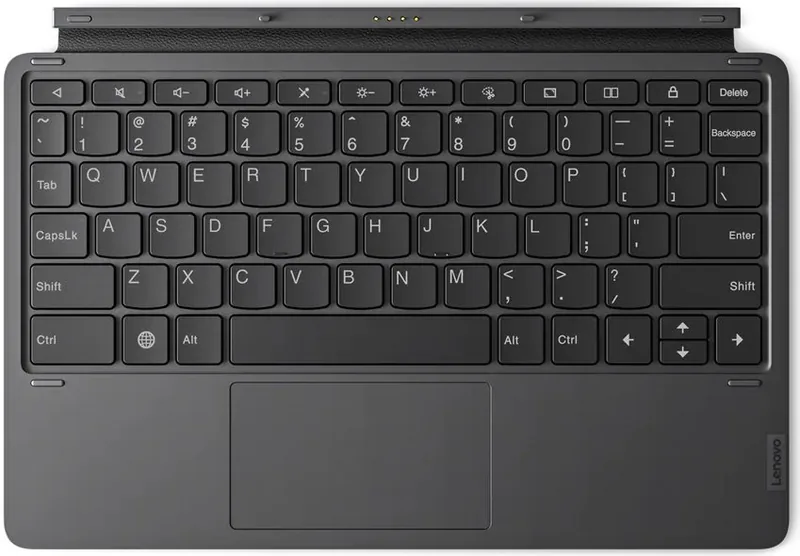
The Tab P11 Pro G2 also emphasizes productivity: the Lenovo Precision Pen 3 is supported for natural handwriting, drawing and annotation inside the Memo app, where you can create, edit and share notes, capture screenshots and scan documents. A detachable keyboard and numerous keyboard shortcuts further extend the tablet’s usability as a compact workstation.
Camera and media controls are straightforward: a flexible camera app for photos and videos, portrait mode with background blur and beauty effects, plus easy screenshot capture. Accessibility features, multi-user profiles (owner, guest, and additional users) and comprehensive Digital Wellbeing controls give families and individuals tailored control over usage, screen time and parental settings.
Safety, battery care and device maintenance are covered with guidance on proper charging (use Lenovo-approved adapters), temperature ranges, handling and recycling/disposal instructions. Built-in troubleshooting steps and reset procedures help resolve common issues like touchscreen unresponsiveness or network problems.
Notes
- Supports Lenovo Precision Pen 3 for enhanced pen input.
- Includes eye protection (blue-light reduction) and a configurable reading mode.
- Use only recommended Lenovo chargers to protect battery health and warranty.
Search for 67,706 Manuals online


Type-in Brand or Model