
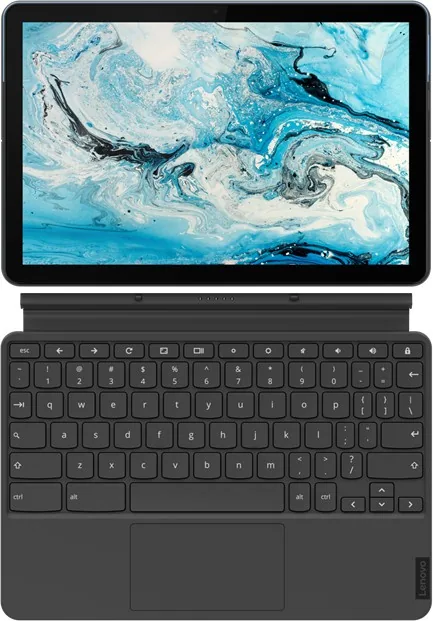
Lenovo IdeaPad Duet Chromebook CT-X636F Manual
PDF manual · 36 Pages
English


Quick check
Incorrect answer, please try again.
Chat with your Lenovo IdeaPad Duet Chromebook CT-X636F manual using AI
Get instant AI answers from your Lenovo IdeaPad Duet Chromebook CT-X636F manual
Ask anything about the Lenovo IdeaPad Duet Chromebook CT-X636F. Answers come from this manual, with the pages they are based on.
Ask a Question
Do you recommend IdeaPad Duet Chromebook CT-X636F?
Yes NoFrequently Asked Questions
You can log in with a Google Account which gives access to Google Web services like Gmail and Drive, or a Guest account for temporary use with limited privileges. If you do not have a Google Account you can create one online before signing in.
Is this answer helpful?
Yes, an active internet connection is required when you start the Chromebook for the first time to configure settings and sign in. You must also have internet access when signing in with a Google Account for the first time.
Is this answer helpful?
You can use the Files app to manage files stored on local storage, external storage devices, or Google Drive. You can check available storage, create folders, and delete unused files from the Downloads folder associated with your signed in account.
Is this answer helpful?
Yes, you can change the display language and input methods at any time. Go to the status bar, select Advanced, then Languages and input to add new languages or switch input methods using shortcuts like Ctrl plus Shift plus Space.
Is this answer helpful?
Open the status bar, select Settings, go to Advanced then Reset settings and choose Powerwash. Note that this will delete all locally stored user data so please back up your important files to Google Drive before resetting.
Is this answer helpful?
Do not drop the device or expose it to water. Keep it away from high voltage environments. Do not attempt to disassemble the unit or replace the battery yourself as this voids the warranty and risks safety hazards.
Is this answer helpful?
Advantages and Disadvantages
Advantages

- Flexible account management supports multiple users with owner control and guest privileges.
- Seamless Google Drive integration ensures easy file sharing across devices.
- Chrome Web Store provides extensive web based apps without heavy installation.
- Security features allow restricting sign in to authorized Google Accounts only.
- Energy efficient design supports reduced electricity consumption and environmental goals.
Disadvantages

- Internet connection is required for initial setup and first time account sign in.
- Guest accounts have limited privileges and cannot install apps.
- Battery is sealed and cannot be replaced by the user without voiding warranty.
- Local data is permanently deleted if the device is reset or powered washed.
- Device screen is glass and requires careful handling to avoid cracking or damage.
Product Specification
CPU
MediaTek P60T, 4x 2.00GHz (ARM Cortex-A73) + 4x 2.00GHz (ARM Cortex-A53)
RAM
4GB LPDDR4X (4GB soldered, not expandable)
Graphics
ARM Mali-G72 MP3 (iGPU)
Ports
1x USB-C 2.0 (480Mb/s)
Wireless
Wi-Fi 5 (WLAN 802.11a/b/g/n/ac, 2x2), Bluetooth 4.2
Navigation
N/A
SIM
N/A
Mobile Network
N/A
Networks
N/A
Card Reader
N/A
Webcam
2 Megapixel (front), 8 Megapixel, AF (rear)
Operating System
Chrome OS
Battery
Li-Polymer, 7000mAh, 27Wh, 10h battery life
Dimensions
9.45x6.30x0.29 in (with Dock: 9.65x6.69x0.72 in)
Weight
0.99 lb (Tablet), 1.04 lb (Dock)
Warranty
2 years
Note
Different country versions possible.
Product Description
Discover the Power of the Lenovo IdeaPad Duet Chromebook CT-X636F
The Lenovo IdeaPad Duet Chromebook CT-X636F Manual reveals the full potential of this versatile computing device designed for modern life. This Chrome-based system offers seamless integration with Google services allowing users to access Gmail and Drive instantly upon signing in. The flexibility of account management stands out as a primary feature enabling both personal and shared use. Owners establish full control while guest users enjoy limited access for temporary tasks without compromising main security settings.
Setting up the device requires an active internet connection to configure the language and keyboard settings initially. Once active, the operating system synchronizes apps and preferences across different hardware using the same Google Account. File management becomes effortless through the integrated Files application which handles local storage and external drives efficiently. Users can create folders and monitor available space directly within the interface to ensure smooth performance for daily tasks.
Connectivity extends to the Chrome Web Store where applications and browser themes await. Most tools are web based requiring no traditional installation process yet providing desktop shortcuts for daily convenience. Security measures include robust password protection and the ability to restrict sign ins to authorized users only. The device also prioritizes user safety with clear guidelines regarding battery handling and temperature ranges for extended usage.
Power management is critical for longevity throughout the lifecycle of the laptop. The built-in rechargeable battery must remain sealed to prevent accidental damage or unauthorized modification attempts. Charging requires approved Lenovo adapters to avoid overheating or charging irregularities that could harm the internal circuits. Environmental compliance follows strict recycling standards for all electronic components within the unit to reduce waste effectively. Audio levels should be monitored to protect hearing during extended listening sessions on headphones.
Ultimately this Chromebook provides a lightweight solution for education and productivity in various environments. The manual ensures every user understands how to reset settings or manage permissions effectively when sharing access. Whether for work or study the device adapts to individual needs through language settings and input methods for global usability. Users can switch input methods quickly using keyboard shortcuts to enhance typing efficiency in multiple languages.
Resetting the device allows for transferring ownership or fixing operating system issues quickly. This process deletes locally stored data so backing up important files is essential before proceeding. Shutting down saves power and ensures components cool down properly for the next session. Keep the device away from hot surfaces to avoid discomfort or skin burns during charging or high activity.
Notes.** Always adhere to the safety warnings provided to maintain warranty coverage. Keep the device away from liquids and extreme temperatures for optimal performance and reliability over time. Avoid dropping the device to prevent glass screen damage. Plastic bags can be dangerous so keep them away from children to prevent suffocation hazards. Use only standard data cables that comply with USB specifications for safe connectivity.
Search for 67,706 Manuals online


Type-in Brand or Model