
Jabra Manuals
Manuals
Categories

Jabra Manuals: The Complete Guide to Setup, Use, and Master Your Jabra Devices
Introduction
Jabra Manuals are comprehensive resources designed to help you set up, customize, and troubleshoot your Jabra headsets, earbuds, speakerphones, webcams, and conferencing systems. Whether you’re a first-time user or an IT administrator managing multiple devices, these manuals provide step-by-step instructions, visual guides, and best practices to unlock the full potential of your Jabra products.
Getting Started
Finding the Right Manual
- Identify your exact model name and number (e.g., Jabra Evolve2 65, Jabra Elite 8 Active, Jabra Speak 750).
- Visit the official Jabra support website and search by model.
- Select your region and language for localized instructions.
- Download the PDF manual or view the web-based quick start guide.
What’s Included in a Jabra Manual
- Unboxing and contents checklist
- Device overview with labeled diagrams
- Setup and pairing instructions
- Controls and button functions
- LED indicator meanings
- Charging and battery management
- Software integration (e.g., Jabra Sound+, Jabra Direct, Jabra Xpress)
- Fit, comfort, and usage tips
- Firmware updates and maintenance
- Troubleshooting and FAQs
- Safety, compliance, and warranty information
Setup and Pairing
Bluetooth Headsets and Earbuds
- Charge fully before first use to optimize battery calibration.
- Enter pairing mode by following model-specific button sequences.
- Connect via your device’s Bluetooth menu; confirm with voice prompts or LED cues.
- For multipoint support, pair with multiple devices and manage priorities in the app.
USB and DECT Devices
- Connect USB-A/USB-C devices directly to your computer.
- For DECT headsets (e.g., Jabra Engage series), pair with the base and configure channels for interference-free operation.
- Use supplied dongles (Jabra Link adapters) for improved compatibility and call control.
App Integration
- Jabra Sound+ (mobile) for earbuds and consumer headsets: personalization, ANC control, EQ, firmware.
- Jabra Direct (desktop) for professional headsets and speakerphones: call control, diagnostics, updates.
- Jabra Xpress (IT): mass deployment, policy control, asset management at scale.
Controls and Features
Buttons and Gestures
- Media controls: play/pause, track skip, volume up/down.
- Call controls: answer/end, mute/unmute, hold, redial.
- ANC and HearThrough toggles for active noise control and ambient awareness.
- Voice assistant activation for hands-free commands.
LED Indicators
- Power and battery status via color codes.
- Pairing mode flashes and connection confirmation.
- Mute indicators on mic booms or inline controls.
- Busy light to signal availability in open offices.
Microphone and Audio Profiles
- Adjustable mic sensitivity and sidetone.
- Equalizer presets and custom EQ curves.
- Sound modes for calls, music, commuting, or focus.
Fit, Comfort, and Usage
Earbuds
- Try multiple ear tip sizes for proper seal and comfort.
- Use earwings or stabilizers if included for secure fit during workouts.
- Follow cleaning guidance to maintain acoustic ports.
Headsets
- Adjust headband and earcup rotation for balanced pressure.
- Position the mic boom two fingers from the corner of your mouth.
- Swap ear cushions periodically for hygiene and sound quality.
Speakerphones and Webcams
- Place speakerphones centrally on the table; use duplex mode for natural conversation.
- Angle webcams at eye level; use privacy shutters and software framing where available.
Software and Firmware
Updating Firmware
- Connect to Jabra Sound+ or Jabra Direct to check for updates.
- Keep the device connected and powered during updates.
- Review release notes for improvements and bug fixes.
Personalization
- Configure ANC levels, HearThrough sensitivity, and call equalization.
- Map button shortcuts (e.g., mute, voice assistant, Spotify Tap) where supported.
- Save profiles for different environments: home office, travel, open-plan.
Integration with Collaboration Platforms
- Certified models provide native controls for Microsoft Teams, Zoom, Google Meet, and more.
- Use the Teams button for join/notifications on certified devices.
- Ensure Jabra Direct is installed for call control synchronization on desktop.
Battery and Power Management
Charging Best Practices
- Use the supplied cable or certified chargers.
- For cases with wireless charging, align on a Qi pad.
- Avoid extreme temperatures to preserve battery health.
Battery Life Optimization
- Disable ANC when not needed; use HearThrough selectively.
- Reduce LED brightness or disable busy light if battery is a priority.
- Enable auto-off or sleep timers in the app.
Replacing Accessories
- Replace ear tips, cushions, and cables with genuine parts for performance and safety.
- Check model-specific part numbers in the manual.
Troubleshooting
Common Issues and Fixes
- No audio: verify device selection in OS sound settings and app.
- Unstable Bluetooth: reset pairings, update firmware, minimize 2.4 GHz interference.
- Mic not detected: grant microphone permissions, check mute state and app control.
- Poor ANC: ensure proper fit and seal; recalibrate in app.
- Echo or feedback: lower speaker volume, enable echo cancellation, reposition device.
Reset and Re-Pair
- Follow manual instructions for factory reset sequences.
- Remove old pairings from host devices before re-pairing.
Support Resources
- Use Jabra support pages for FAQs and community tips.
- Contact support with serial number and firmware version for faster assistance.
Safety and Compliance
Hearing Safety
- Use SafeTone or hearing protection features where available.
- Limit exposure to high volume; follow regional exposure guidelines.
Workplace Policies
- For professional environments, follow IT deployment standards and approved firmware versions.
Environmental and Regulatory
- Review RoHS, REACH, and recycling guidance.
- Dispose of batteries according to local regulations.
Product Families Covered
Elite Series (Earbuds)
- Designed for lifestyle and fitness with ANC, waterproofing, and personalization.
Evolve and Evolve2 (Professional Headsets)
- Optimized for hybrid work with superior microphones, busy lights, and UC certification.
Engage Series (DECT and Advanced UC)
- High-density wireless for call centers and offices with security and range features.
Speak Series (Speakerphones)
- Portable conference solutions with 360-degree microphones and plug-and-play simplicity.
PanaCast and Video Solutions
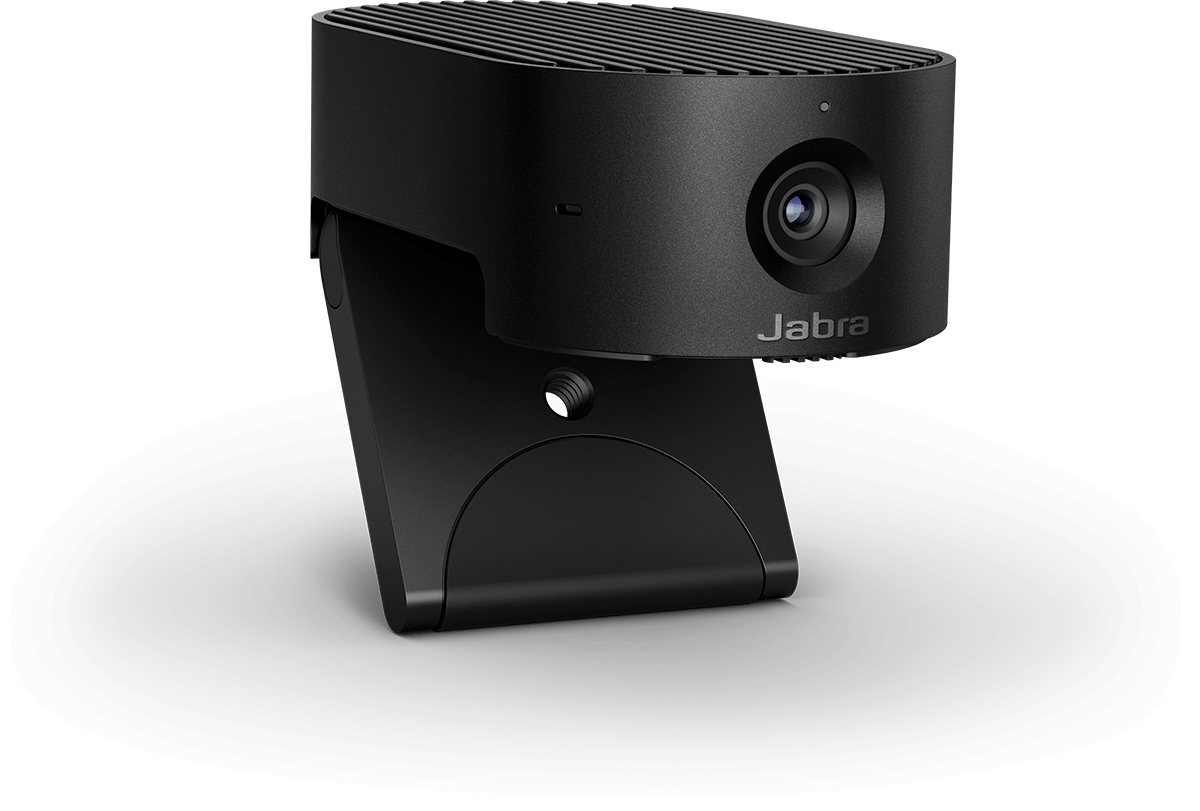
- Panoramic 4K and intelligent features for meeting rooms and hybrid collaboration.
Best Practices for Businesses and IT
Deployment
- Standardize on certified models for target collaboration platforms.
- Use Jabra Xpress for policy management, mass firmware updates, and inventory tracking.
Training
- Provide quick start guides and short onboarding sessions for end users.
- Promote features like mute, busy light, and ANC to improve etiquette and productivity.
Lifecycle Management
- Schedule periodic audits of firmware and device health.
- Replace consumables proactively to maintain hygiene and acoustic performance.
Accessibility and Inclusivity
Assistive Features
- Adjustable sidetone helps users monitor their voice comfortably.
- Voice prompts and LED cues support low-vision workflows.
- Custom EQ can improve clarity for users with mild hearing differences.
Care and Maintenance
Cleaning
- Wipe surfaces with a soft, slightly damp cloth; avoid harsh solvents.
- Remove debris from ear tips and mesh grilles carefully.
Storage
- Use protective cases to prevent damage in transit.
- Keep away from moisture and extreme temperatures.
Advanced Tips
Audio Tuning
- Create EQ presets for podcasts, calls, and music genres.
- Use ANC calibration tests where available for personalized noise reduction.
Call Quality Optimization
- Position microphones correctly and enable sidetone for natural speech.
- In noisy environments, use closed-back headsets or higher ANC settings.
Connectivity Strategies
- Prefer dedicated dongles for stability in congested RF environments.
- For desktops, update Bluetooth drivers and prioritize UC profiles.
When to Use the Manual vs. Quick Start Guide
Quick Start Guide
- Ideal for initial setup: pairing, charging, basic controls.
Full Manual
- Best for detailed feature exploration, app integration, firmware management, and troubleshooting.
Frequently Referenced Sections in Jabra Manuals
LED Behavior Tables
- Color and blink patterns explain battery state, pairing status, and call events.
Compliance and Warranty
- Region-specific safety and warranty duration details.
Accessory Lists
- Replacement parts, compatible chargers, and optional accessories like stands and dongles.
Conclusion
Jabra Manuals provide clear, actionable guidance to set up, personalize, and maintain your Jabra devices across work, travel, and home environments. By following the step-by-step instructions, leveraging the Jabra apps, and keeping firmware up to date, you’ll ensure reliable connectivity, excellent call quality, and optimal comfort. Whether you’re managing enterprise deployments or simply looking to get better sound from your earbuds, Jabra’s documentation gives you the confidence to use every feature effectively and keep your devices performing at their best.
Search for 1 Mio. Manuals online


Type-in Brand or Model