
Huawei B683 Manual
PDF manual · 12 Pages
English



Quick check
Incorrect answer, please try again.
Chat with your Huawei B683 manual using AI
Get instant AI answers from your Huawei B683 manual
Ask anything about the Huawei B683. Answers come from this manual, with the pages they are based on.
Ask a Question
Do you recommend B683?
Yes NoVideo Manual
Huawei B683 Router Log In
Frequently Asked Questions
Open a web browser and enter http://192.168.1.1. Log in with the default password "admin" (change it after first login). Only one user should log in at a time to avoid conflicts.
Is this answer helpful?
Power off and unplug the device before inserting or removing the SIM card. Remove the card cover, slide the SIM in with the gold contacts facing downward, then replace the cover.
Is this answer helpful?
Ensure Wi‑Fi is active, press and hold the device’s WPS button until the WPS indicator blinks, then activate WPS on the client device. The client guide will describe its WPS procedure.
Is this answer helpful?
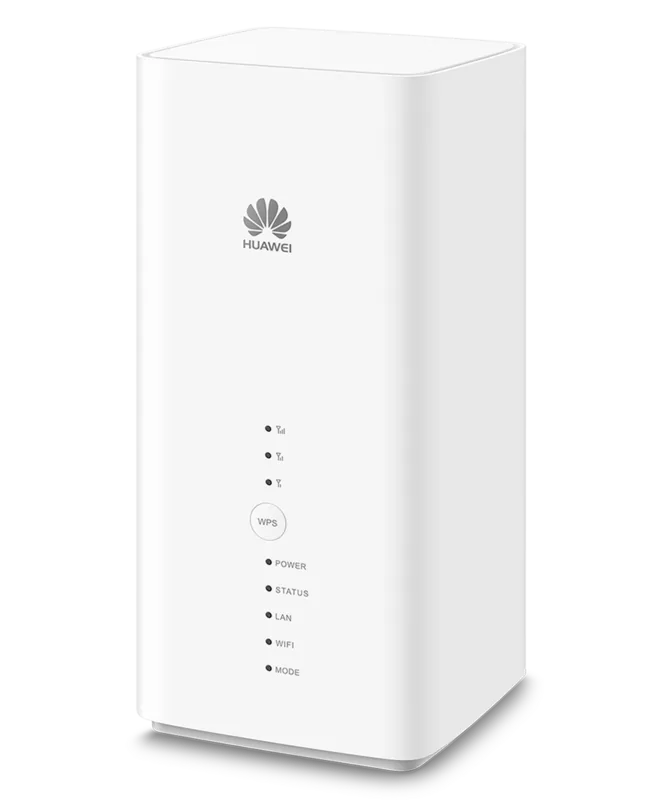
Red (fast‑blinking) indicates SIM or PIN problems, yellow (steady) means registered to the network, green (steady) means connected to the Internet, and off indicates no signal.
Is this answer helpful?
Yes. Screw the external antenna into the antenna port, then set the antenna mode to external on the management page. The antenna is for indoor use only and cannot be switched while data transfer is active.
Is this answer helpful?
Use a pointed object to press and hold the RESET button until the indicators blink; the device will restart and return to factory settings. This removes all custom configurations.
Is this answer helpful?
Use a compatible power adapter to prevent damage. Place the device high or near a window for better signal and keep it at least 1 meter away from other electronics to reduce interference.
Is this answer helpful?
Advantages and Disadvantages
Advantages

- Simple, user‑friendly setup with WPS and web management.
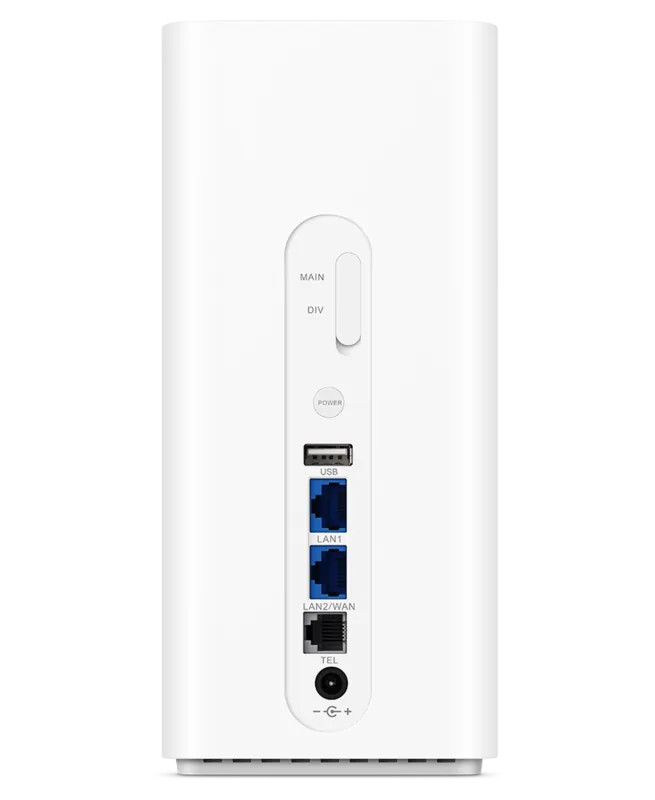
- Multiple LAN ports and USB sharing for local network resources.
- External antenna support for improved signal where needed.
- Clear LED indicators simplify troubleshooting.
- Flexible placement options (horizontal, stand, wall mount).
Disadvantages

- USB port limited to 500 mA may restrict some peripherals.
- Management interface expects older browsers; may be clunky on modern setups.
- External antenna mode must be set via web UI and cannot switch during transfers.
- Recommended PC specs are dated, reflecting older baseline hardware.
- Quick guide does not detail advanced security features.
Product Specification
Modem
GSM, UMTS
Network Standards
GPRS, EDGE, HSDPA, HSUPA, HSPA+
Bandwidth
21Mbps/5.76Mbps (UMTS)
Interfaces
4x LAN, Wi-Fi 4 (WLAN 802.11b/g/n), 1x USB
Dimensions
7.09x4.84x1.28in
SIM Form Factor
Mini-SIM
Special Features
Hotspot, Antenna Connector (Cellular)
Product Description
Huawei B683 — Reliable Home Internet Gateway
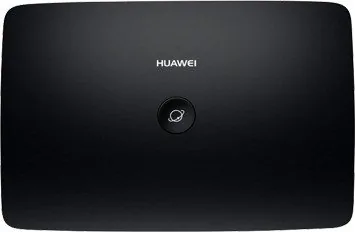
The Huawei B683 is a compact and capable home gateway designed to bring stable wired and wireless Internet to small offices and homes. With multiple LAN ports, a USB port for shared storage or printers, and support for external antennas, the B683 balances flexibility with simplicity. It offers straightforward setup options — wired Ethernet, Wi‑Fi (with WPS support), and various Internet connection modes (Auto, Manual, On Demand) — so users can choose the behavior that matches their data plan and usage patterns.
Key Features and Usage
From placement options to indicator lights, the B683 emphasizes usability. It can sit horizontally, be mounted on a stand, or hang on a wall for optimal signal reception. Clear LEDs show power, network status, Wi‑Fi/WPS activity, USB connection, and individual LAN link and activity. The device supports connecting a USB disk or printer (500 mA USB current limit) and offers an external antenna port for improved reception when needed; switching to external antenna requires enabling the mode via the local management interface.
Setup is user friendly: insert a SIM card (power off first), connect power and Ethernet if needed, and use either the web management page (http://192.168.1.1) or the WPS button for quick wireless client pairing. Wi‑Fi is enabled by default and can be toggled with the dedicated button. The device includes a physical Reset to restore factory defaults if configuration issues arise.
Performance and Compatibility
The B683 supports common desktop browsers and older Windows systems for management access. Recommended PC specs are modest — a Pentium‑class CPU and minimal RAM — reflecting the router’s role as a device easily managed from legacy or modern clients. Network indicators and clear status color codes (red, yellow, green) assist troubleshooting: from SIM errors to successful Internet connectivity.
Practical Notes
Placement matters: position the unit high or near a window and keep it at least 1 meter from other electronic devices to reduce interference. When using an external antenna, keep it indoors and set the antenna mode before attempting to change antennas; antenna switching cannot occur during active data transfers.
Pros and Cons
Pros:
- Simple, user‑friendly setup with WPS and web management.
- Multiple LAN ports and USB sharing for local network resources.
- External antenna support for improved signal where needed.
- Clear LED indicators simplify troubleshooting.
- Flexible placement options (horizontal, stand, wall mount).
Cons:
- USB port limited to 500 mA may restrict some peripherals.
- Management interface expects older browsers; some features may be clunky on modern setups.
- External antenna mode must be set via web UI and cannot switch during transfers.
- Limited current hardware recommendations reflect older baseline specs.
- No mention of advanced security features in the quick guide.
Notes:
- Default admin password is "admin"; change it after first login.
- Power off before inserting/removing the SIM card.
- Use only compatible power adapters to avoid damage.
- LAN cable length should not exceed 100 meters.
Summary
The Huawei B683 is a practical gateway for users needing a straightforward, multi‑interface router with options for USB sharing and external antenna support. Its clear indicators, physical buttons for Wi‑Fi/WPS, and simple web management make it suitable for users wanting reliable home or small‑office connectivity without complex configuration.
Search for 67,706 Manuals online


Type-in Brand or Model