
HPE Aruba 2530 24G Manual
PDF manual · 100 Pages
English



Quick check
Incorrect answer, please try again.
Chat with your HPE Aruba 2530 24G manual using AI
Get instant AI answers from your HPE Aruba 2530 24G manual
Ask anything about the HPE Aruba 2530 24G. Answers come from this manual, with the pages they are based on.
2530 24G Maintenance Schedule
If a fan fails and the switch continues to operate only if ambient temperature is normal, replace the switch for best operation.
If a PoE hardware fault occurs, the switch must be replaced.
Remove and reinstall the SFP; if the port fault indication reoccurs, replace the SFP.
Ask a Question
Do you recommend 2530 24G?
Yes NoFrequently Asked Questions
Yes, it supports IEEE 802.3at PoE+ standard delivering up to 30 watts per port.
Is this answer helpful?
Use the included RJ-45 to DB9 cable or a USB cable to the micro-USB console port.
Is this answer helpful?
Press the Clear button on the front panel for at least one second to delete passwords.
Is this answer helpful?
Yes, up to 16 switches can be connected to be managed via a single IP address.
Is this answer helpful?
Category 5e or better twisted-pair cabling complies with IEEE 802.3ab standards for best performance.
Is this answer helpful?
The 24 and 48-port models do not have a switch and power on when plugged in.
Is this answer helpful?
Yes, LEDs indicate status and faults for power, fans, links, and PoE delivery clearly.
Is this answer helpful?
Advantages and Disadvantages
Advantages

- IEEE 802.3at PoE+ support delivers up to 30 watts per port for connected devices without extra wiring
- Multiple management interfaces including Web browser, Telnet, and Console allow flexible administration from anywhere
- Support for stacking up to 16 switches provides centralized control and scalable network growth options easily
- Variable speed fans ensure quiet operation suitable for office environments while maintaining cooling efficiency
- Auto-MDIX feature allows use of straight-through cables for any connection type simplifying cabling requirements
Disadvantages

- 8-port versions require external power adapters which may limit portability and adds to desk clutter
- Non-HP SFP transceivers are not supported and may result in product malfunction or lack of functionality
- Variable speed fans can produce noise emission up to 43.9 dB under heavy load in larger configurations
- Requires specific Category 5e or better cabling for robust 1000 Mbps connections to meet standards
- No physical power switch on 24 and 48-port models means they power on whenever connected to AC source
Product Specification
Function
Switch
Type
Standalone, Rackmount (via mounting brackets), Wall mount (via mounting brackets)
Network Ports
24x RJ-45, 4x SFP
Speeds
24x RJ-45 (10/100/1000Base-T), 4x SFP (100M/1Gb/s)
PoE
24x RJ-45 PoE+, total: 195W
Backplane
56Gb/s, 41.6Mpps, 9KB Jumboframes, 1.5MB Packet buffer, 16K MAC addresses
Officially Supported Standards
802.1AX, 802.1AB, 802.1D, 802.1Q, 802.1p, 802.1s, 802.1w, 802.1X, 802.3, 802.3ab, 802.3af, 802.3at, 802.3az, 802.3u, 802.3x, IGMPv3, MLDv2
Configuration
Web interface, Console, serial (RJ-45, USB Micro-B)
Cooling
Active
Dimensions (WxHxD)
17.44 x 1.77 x 12.99 inches, 1U
Weight
8.71 lbs
Color
Black
Features
Metal case, removable mounting brackets, firmware updates possible
Manufacturer Warranty
Lifetime (10 years in AT/DE)
Note
For this device, "link aggregation" was officially specified using the obsolete standard IEEE 802.3ad. Since 2008, the function is no longer managed by the IEEE "Working Group 3" (IEEE 802.3, CSMA/CD - Ethernet), but by the "Working Group 1" (IEEE 802.1, High Level Interface - Internetworking) and technically unchanged via IEEE 802.1AX defined.
Product Description
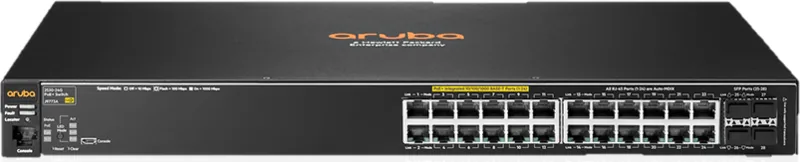
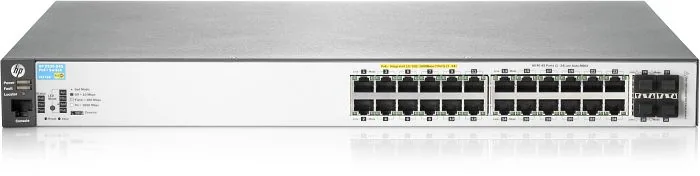
The HPE Aruba 2530 24G Rackmount Gigabit Managed Switch, 24x RJ-45, 4x SFP, PoE+ represents a significant leap in network infrastructure for small to medium businesses looking for reliability. This device offers robust connectivity options designed to handle demanding workloads efficiently. With 24 auto-sensing Gigabit ports, administrators can connect a multitude of devices including IP phones, access points, and servers without compromising speed. The inclusion of four SFP slots allows for flexible uplink options via fiber or copper, ensuring seamless integration into existing network topologies. High availability is supported through redundant paths and Spanning Tree Protocol.
Power over Ethernet Plus capabilities are a standout feature of this hardware. The switch supports the IEEE 802.3at standard, delivering up to 30 watts per port. This eliminates the need for separate power cables for compatible endpoints, reducing clutter and installation costs significantly. The internal power supply handles significant loads, making it ideal for environments requiring extensive powered devices. Management is straightforward through multiple interfaces including a web browser, Telnet, and a dedicated console port. This flexibility ensures that network administrators can monitor and configure the switch from virtually any location within the network. Remote access simplifies maintenance tasks significantly for larger teams.
Security and reliability are paramount in modern setups. The device includes features like Spanning Tree Protocol support to prevent network loops and VLAN capabilities to segment traffic logically. Auto-MDIX on all twisted-pair ports simplifies cabling, allowing straight-through cables for any connection type. The switch also supports stacking, enabling up to 16 units to be managed as one virtual device through a single IP address. This scalability is crucial for growing networks that need centralized control without managing individual unit interfaces constantly. Hardware diagnostic tests ensure operational integrity during self-tests upon power-up.
Physical installation offers versatility in various office environments. It can be mounted in standard 19-inch racks, on walls, or placed on horizontal surfaces. Cooling is managed by variable speed fans to maintain quiet operations even under load conditions. LED indicators provide immediate visual feedback on port status, link activity, and potential faults, aiding quick troubleshooting efforts effectively. A clear button exists for password recovery if access is lost unexpectedly. Whether used as a desktop switch or a segment switch implementing PoE, this hardware forms a reliable backbone for modern enterprise connectivity needs. Optimizing network performance becomes easier with these dedicated tools and configurations designed for longevity and efficiency. Administrators can restore factory defaults easily if configuration errors occur. The combination of hardware robustness and software flexibility makes this switch a premier choice for network architects.
Search for 67,706 Manuals online


Type-in Brand or Model