DOWNLOAD
MY HK HEADPHONE APP
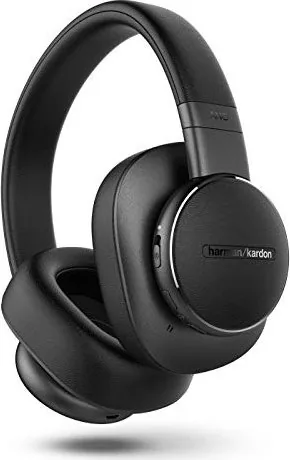
FLY ANC
THE GOOGLE ASSISTANT AMAZON ALEXA
a. T
1. Connect your headphones to your mobile device
2. Set up your Google Assistant using your mobile device:
On your Android device, press and hold the home button to open the
Google Assistant and follow the on-screen instructions.
On your iOS devices, open or download the Google Assistant app and
follow the app instructions.
Note:
●
The Google Assistant is available on eligible Android 5.0 devices or later.
●
For iOS devices, the Google Assistant app needs to be downloaded. Works
on Lollipop, Marshmallow and Nougat Android Phones with Google Play
Services, >1.5GB of memory and 720p or higher screen resolution.
●
For more information on what your Google Assistant can do, visit:
assistant.google.com/platforms/headphones
b. T
Note:
1.
2.
3.
JBL Headphones App. You can select under Settings > Voice assistant >
Google Assistant.
1.
2.
the App Store on your Apple device or Google Play on your Android
device.
3.
Talk to your
Google Assistant
Press and hold the Action button with four fingers to begin.
Requires pairing with eligible phone and internet connection.
For examples of questions and things you can do, visit:
g.co/assistant/explore
Double press the Action button with four fingers.
Press the Action button with four fingers.
After receiving a message notification, press and hold the
Action button with four fingers. When you’re done, release
the button.
Get your notifications
Stop your Google Assistant
Reply to a message
(where available)
Function
What to do
4.
5.
Headphones in the Available Devices section. Follow the rest of the
instructions in the Alexa App to complete set up.
6.
the utterances on the right:
Note:
1. For more information and things to try with Alexa, visit: www.amazon.com/al-
exadevices and select ‘Use Alexa’.
2. If you want to turn on or off the Amazon Alexa, please download our
JBL APP. You can select under Settings > Voice assistant > Amazon Alexa.
3. Alexa is not available in all languages and countries.
Ask for the weather
"Alexa, What's the weather?"
"Alexa, Play Niall Horan."
Note: Amazon Music is set as the default music service,
To change the default music service, use the Alexa app
"Alexa, Play NPR on IheratRadio."
"Alexa, What new skills do you have?"
While Alexa is talking, press and release the Action button
then say "Stop"
Play audio
Play audio from a specific
music service
Discover more skills
Stop Alexa
Things to try
Example of what to say
DA
/ GOOGLE ASSIST
1. Tilslut dine hovedtelefoner til din mobile enhed
2.
PådinAndroid-enhedskaldutrykkepåHjem-knappenogholdedennedeforatåbneGoogle
Assistantogfølgeinstruktionernepåskærmen.
ÅbnellerdownloadGoogleAssistant-appenpådineiOS-enheder
• GoogleAssistantertilgængeligpåunderstøttedeAndroid5.0-enhederellernyere
• GoogleAssistant-appenskalhentestiliOS-enheder
NougatAndroid-telefonermedGooglePlayServices,>1,5GBhukommelseog720pellerhøjere
skærmopløsning.
• Formereinformationom,hvaddinGoogleAssistantkangøre,kandubesøge:assistent.google.
com/platforms/headphones
T TrykogholdpåAction-knappenmedfirefingre,foratbegynde.
Kræverparringmeddenunderstøttedetelefonoginternetforbindelse.
Foreksemplerpåspørgsmålogting,dukangøre,kandubesøge:
g.co/assistant/explore
Fådinenotikationer DobbelttrykpåAction-knappenmedrengre.
StopdinGoogleAssistant T
Besvarenbesked(hvor
tilgængelig)
Nårduharmodtagetenmeddelelsesnotikation,trykogholdpå
Action-knappenmedrengre.Slipknappen,nårduerfærdig.
1. Google,AndroidogGooglePlayervaremærkertilhørendeGoogleLL
2.
3. HvisduviltændeellerslukkeforGoogleAssistant,skalduhenteappenMyJBLHeadphones.Du
kanvælgedenunderIndstillinger>Stemmeassistent>GoogleAssistant.
/ AMAZON ALEXA
1. Tilslut dine hovedtelefoner til din mobile enhed.
2.
ellerGooglePlaypådinAndroid-enhed.
3. ÅbnAlexa-appenognavigertilenhedssiden.
4. KlikpåknappenPlus(+)øversttilhøjrepåskærmenogvælg‘Tilføjenhed’.
5.
medtilgængeligeenheder
opsætningen.
6.
Bedomvejret “
Afspillyd “
AmazonMusicerindstilletsomstandardmusiktjeneste.Brug
Alexa-appentilatændrestandardmusiktjenesten
Afspillydfraenbestemt
musiktjeneste
“
Opleverefærdigheder “
StopAlexa MensAlexataler
sige“Stop”
1. FormereinformationogtingdukanprøvemedAlexa,kandubesøge:
www
2.
underIndstillinger>Stemmeassistent>AmazonAlexa.
3. Alexaerikketilgængeligpåallesprogogiallelande.
DE
1. SchließedeineKopörerandeinMobilgerätan.
2.
HalteaufdeinemAndroid-GerätdieStart-T
unddenAnweisungenaufdemBildschirmzufolgen.
ÖneaufdeinemiOS-GerätdieGoogleAssistant-Appoderladesieherunterundfolgeden
AnweisungenderApp.
• DerGoogleAssistantistaufgeeignetenAndroid5.0-Gerätenoderhöherverfügbar
• FüriOS-GerätemussdieGoogleAssistant-Appheruntergeladenwerden.Funktioniertauf
Lollipop-,Marshmallow-undNougat-Android-HandysmitGooglePlayServices,>1,5GB
Speicherund720poderhöhererBildschirmauösung.
• WeitereInformationenzudenFunktionsmöglichkeitendesGoogleAssistantsiehe:
assistant.google.com/platforms/headphones
Sprechemitdeinem
GoogleAssistant
HaltezumBeginnendieAktionstastemit4Fingerngedrückt.
ErfordertdieKopplungmiteinemgeeignetenT
Internetverbindung.
BeispielefürFragenundFunktionsmöglichkeitensiehe:g.co/
assistant/explore
Erhaltedeine
Benachrichtigungen
DrückedieAktionstastezweiMalmit4Fingern.
StoppedenGoogleAssistant
DrückedieAktionstastemit4Fingern.
AufeineNachricht
antworten(fallsverfügbar)
HaltedieAktionstastemit4Fingerngedrückt,nachdemdueine
Benachrichtigungerhaltenhast.LassedieT
1. Google,AndroidundGooglePlaysindMarkenvonGoogleLL
2.
3. ZumEin-oderAusschaltendesGoogleAssistantmussdieAppMyJBLHeadphones
heruntergeladenwerden.UnterEinstellungen>Sprachassistent>GoogleAssistantistdies
auswählbar
/ AMAZON ALEXA
1. SchließedeineKopörerandeinMobilgerätan.
2.
denApple-GerätoderausGooglePlayaufdeinAndroid-Gerätherunter
3. ÖnedieAlexa-AppundnavigierezurGeräteseite.
4. KlickeaufdiePlus-(+)-T
5.
„
abzuschließen.
6.
folgendenSätze:
FragnachdemWetter „Alexa,wieistdasWetter?“
Audiowiedergeben „Alexa,NiallHoranspielen.
AmazonMusicistalsStandard-Musikdiensteingestellt.
ZumÄnderndesStandard-MusikdiensteskanndieAlexa-App
verwendet werden.
Audiovoneinembestimmten
Musikdienstwiedergeben
„Alexa,NPRüberIheratRadiospielen.
WeitereFähigkeiten
kennenlernen
„Alexa,welcheneuenFähigkeitenhastdu?“
Alexaanhalten DrückeundlösedieAktionstastewährendAlexasprichtundsage
dann„Stopp“
1. WeitereInformationenundDinge
www
2.
UnterEinstellungen>Sprachassistent>AmazonAlexaistdiesauswählbar
3. AlexastehtnichtinallenSprachenundLändernzurV
EL
1. Συνδέστεταακουστικάστηνκινητήσυσκευήσας
2.
ΣτησυσκευήσαςAndroid,πατήστεκαικρατήστεπατημένοτοκουμπίτηςΑρχικήςσελίδαςγια
ναανοίξετετονΒοηθόGoogleκαιακολουθήστετιςοδηγίεςστηνοθόνη.
ΣτησυσκευήσαςiOS,ανοίξτεήκατεβάστετηνεφαρμογήΒοηθόςGoogleκαιακολουθήστε
τιςοδηγίεςεφαρμογής.
• ΟΒοηθόςGoogleείναιδιαθέσιμοςσεκατάλληλεςσυσκευέςμεAndroid5.0ήνεότερεςεκδόσεις.
• ΓιασυσκευέςiOS,πρέπειναγίνειλήψητηςεφαρμογήςΒοηθόςGoogle.Λειτουργείμε
τηλέφωναLollipop,MarshmallowκαιNougatAndroidμευπηρεσίεςGooglePlay
μεγαλύτερηαπό1,5GBκαιανάλυσηοθόνης720pήμεγαλύτερη.
• ΓιαπερισσότερεςπληροφορίεςσχετικάμετοτιμπορείνακάνειοΒοηθόςσαςGoogle,
επισκεφθείτετηδιεύθυνση:assistant.google.com/platforms/headphones
ΜιλήστεστοΒοηθόσας
Google
ΠατήστεκαικρατήστεπατημένοτοκουμπίActionμετέσσερα
δάχτυλαγιαναξεκινήσετε.
Απαιτείζεύξημεκατάλληλοτηλέφωνοκαισύνδεσηστοδιαδίκτυο.
Γιαπαραδείγματαερωτήσεωνκαιπράγματαπουμπορείτενα
κάνετε,επισκεφθείτετηδιεύθυνση:g.co/assistant/explore
Λάβετετιςειδοποιήσειςσας
Πατήστεδύοφορέςτοκουμπίactionμετέσσεραδάχτυλα.
ΣταματήστετοΒοηθόGoogle
Πατήστετοκουμπίactionμετέσσεραδάχτυλα.
Απαντήστεσεέναμήνυμα
(όπουείναιδιαθέσιμο)
Αφούλάβετεμιαειδοποίηση,πατήστεκαικρατήστεπατημένοτοκουμπί
actionμετέσσεραδάχτυλα.Όταντελειώσετε,αφήστετοκουμπί.
1. ΟιονομασίεςGoogle,AndroidκαιGooglePlayείναιεμπορικάσήματατηςGoogleLL
2.
3. ΕάνθέλετεναενεργοποιήσετεήνααπενεργοποιήσετετοΒοηθόGoogle,κατεβάστετην
εφαρμογήMyJBLHeadphones.ΜπορείτενατοεπιλέξετεαπότομενούΡυθμίσεις>Βοηθός
φωνής>ΒοηθόςGoogle.
/ AMAZON ALEXA
1. Συνδέστεταακουστικάσαςστηνκινητήσυσκευήσας.
2.
StoreστησυσκευήσαςAppleήαπότοGooglePlayστησυσκευήσαςAndroid.
3. ΑνοίξτετηνεφαρμογήAlexaκαιμεταβείτεστησελίδασυσκευών.
4. ΚάντεκλικστοκουμπίΣυν(+)στηνεπάνωδεξιάγωνίατηςοθόνηςκαιεπιλέξτε‘Προσθήκησυσκευής’
5.
ενότηταΔιαθέσιμεςσυσκευές.ΑκολουθήστετιςυπόλοιπεςοδηγίεςστηνεφαρμογήAlexaγια
ναολοκληρώσετετηνεγκατάσταση.
6.
μίααπότιςενδείξειςσταδεξιά:
Ρωτήστεγιατονκαιρό “
Παίξτεμουσική
“
ΗυπηρεσίαAmazonMusicέχειοριστείωςηπροεπιλεγμένη
υπηρεσίαμουσικής.Γιανααλλάξετετηνπροεπιλεγμένηυπηρεσία
μουσικής,χρησιμοποιήστετηνεφαρμογήAlexa
Παίξτεμουσικήαπόμια
συγκεκριμένηυπηρεσία
μουσικής
“
Ανακαλύψτεπερισσότερες
δυνατότητες
“
ΣταματήστετηνAlexa
ΌτανμιλάειηAlexa,πατήστεκαιαφήστετοκουμπίActionκαιστη
συνέχειαπείτε“Στοπ”
1. ΓιαπερισσότερεςπληροφορίεςκαιπράγματαπουμπορείτεναδοκιμάσετεμετηνAlexa,
επισκεφθείτετηδιεύθυνση:www.amazon.
2. ΕάνθέλετεναενεργοποιήσετεήνααπενεργοποιήσετετηνAmazonAlexa,κατεβάστετηνεφαρμογή
JBL.ΜπορείτενατοεπιλέξετεαπότομενούΡυθμίσεις>Βοηθόςφωνής>AmazonAlexa.
3. ΗAlexaδενείναιδιαθέσιμησεόλεςτιςγλώσσεςκαιχώρες.
1. Connectezvotrecasqueàvotreappareilmobile.
2.
SurvotreappareilAndroid,appuyezlonguementsurleboutondel’accueilpourouvrirl’
Googleetsuivezlesinstructionsàl’écran.
SurvosappareilsiOS,ouvrezoutéléchargezl’applicationGoogleAssistantetsuivezsesinstructions.
• L
• PourlesappareilsiOS,l’applicationGoogleAsssitantdoitêtretéléchargée.Fonctionnesurles
téléphonesAndroidLollipop,MarshmallowetNougatavecGooglePlayServices,plusde1,5Go
demémoireetunécrand’unerésolutiond’aumoins720pixels.
• Pourplusd’informationssurcequevotreAssistantGooglepeutfaire,visitez:
assistant.google.com/platforms/headphones.
ParleràvotreAssistant
Google
AppuyezlonguementsurleboutonActionavecquatredoigtspour
démarrer
RequiertlejumelageavecuntéléphoneéligibleetuneconnexionInternet.
Pourdesex
visitez:g.co/assistant/explore.
Obtenirvosnotications AppuyezdeuxfoissurleboutonActionavecquatredoigts.
ArrêtervotreAssistant
Google
AppuyezsurleboutonActionavecquatredoigts.
Répondreàunmessage
(sidisponible)
Aprèslaréceptiond’unenoticationdemessage,appuyez
longuementsurleboutonActionavecquatredoigts.Lorsquevous
avezterminé,relâchezlebouton.
1. Google,AndroidetGooglePlaysontdesmarquescommercialesdeGoogleLL
2.
3. Sivousvoulezactiveroudésactiverl’
JBLHeadphones.V
Google.
/ AMAZON ALEXA
1. Branchezvotrecasqueàvotreappareilmobile.
2.
survotreappareilAppleoudepuisGooglePlaysurvotreappareilAndroid.
3. Ouvrezl’applicationAlexaetallezdanslapagedesappareils.
4. CliquezsurleboutonPlus(+)ducoinsupérieurdroitdel’écranetsélectionnez«Ajouterunappareil».
5. SélectionnezCasquesdanslalistepuischoisissezvotrecasquesérieFL
disponibles.Suivezlerestedesinstructionsdel’applicationAlexapourterminerlaconguration
6.
desexpressionsàdroite:
Demandezlamétéo «Alexa,quelleestlamétéo?»
Diuserduson «Alexa,joueduNiallHoran.»
AmazonMusicestdénicommeservicemusicalpardéfaut,
pourchangerdeservicemusicalpardéfaut,utilisezl’applicationAlexa
Diuserdusondepuisun
servicemusicalspécique
«Alexa,joueduNPRsurIheratRadio.»
Découvrird’autresskills
(capacités)
«Alexa,quellesnouvellesskillsas-tu?»
ArrêterAlexa Pendantqu’
dites«Stop».
1. Pourplusd’informationsetd’autreschosesàessayeravecAlexa,visitez:
www
2.
V
3. Alexan’estpasdisponibledanstoutesleslanguesetdanstouslespays.
ES
/ ASISTENTE DE GOOGLE
1. Conectalosauricularesaldispositivomóvil
2.
EneldispositivoAndroid,manténpulsadoelbotóndeinicioparaabrirelAsistentedeGoogley
siguelasinstruccionesdelapantalla.
EnlosdispositivosiOS,abreodescargalaaplicacióndelAsistentedeGoogleysiguelas
instruccionesdelaaplicación.
• ElAsistentedeGoogleestádisponibleendispositivosAndroid5.0oposterioresquesean
compatibles.
• EnelcasodedispositivosiOS,esnecesariodescargarlaaplicacióndelAsistentedeGoogle.
FuncionaenteléfonosAndroidLollipop,MarshmallowyNougatconGooglePlayServices,>1,5
GBdememoriayresolucióndepantalla720posuperior
• ParaobtenermásinformaciónsobreloquepuedeshacerconelAsistentedeGoogle,visita:
assistant.google.com/platforms/headphones
HablarconelAsistentede
Google
Manténpulsadoelbotóndeacciónconcuatrodedosparaempezar
Esnecesarioemparejarloconunteléfonoquecumplalos
requisitosydisponerdeconexiónaInternet.
Puedesverejemplosdepreguntasycosasquepuedeshacer
en:g.co/assistant/explore
Recibirnoticaciones Pulsadosveceselbotóndeacciónconcuatrodedos.
DetenerelAsistentedeGoogle Pulsaelbotóndeacciónconcuatrodedos.
Responderaunmensaje(siestá
disponible)
Despuésderecibirlanoticacióndeunmensaje,mantén
pulsadoelbotóndeacciónconcuatrodedos.Cuandohayas
terminado,sueltaelbotón.
1. Google,AndroidyGoglePlaysonmarcascomercialesdeGoogleLL
2.
3. SiquieresactivarodesactivarelAsistentedeGoogle,descarganuestraaplicaciónMyJBL
Headphones.PuedesseleccionarloenAjustes>Asistentedevoz>AsistentedeGoogle.
/ AMAZON ALEXA
1. Conectalosauricularesaldispositivomóvil.
2.
dispositivoAppleodeGooglePlayenundispositivoAndroid.
3. AbrelaaplicaciónAlexayvealapáginadedispositivos.
4. Hazclicenelbotón(+)delapartesuperiorderechadelapantallayselecciona‘
5.
seccióndedispositivosdisponibles.SigueelrestodelasinstruccionesdelaaplicaciónAlexa
paracompletarlaconguración.
6.
lasfrasesdeladerecha:
Preguntaracercadeltiempo “
Reproduciraudio “
AmazonMusicestádenidocomoserviciode
músicapredeterminado.Paracambiarelserviciodemúsica
predeterminado,utilizalaaplicaciónAlexa.
Reproduciraudiodeunservicio
demúsicaconcreto
“
Descubremásposibilidades “
DetenerAlexa
MientrasAlexahable,pulsaysueltaelbotóndeacciónydi“Para”
1. ParaobtenermásinformaciónycosasquepuedesprobarconAlexa,visita:
www
2.
seleccionarloenAjustes>Asistentedevoz>AmazonAlexa.
3. Alexanoestádisponibleentodoslosidiomasypaíses.
/ A GOOGLE ASSZISZTENS
1. Csatlakoztassafejhallgatójátamobileszközéhez
2.
AzAndroideszközénnyomjamegéstartsanyomvaahomegombotaGoogleasszisztens
megnyitásához,majdkövesseaképernyőnmegjelenőutasításokat.
AziOSeszközénnyissamegvagytöltseleaGoogleasszisztensalkalmazást,majdkövesseaz
alkalmazásbanmegjelenőutasításokat.
• AGoogleasszisztensazAndroid5.0vagyannálfrissebboperációsrendszerűeszközökönérhetőel.
• AziOSeszközökrelekelltölteniaGoogleasszisztensalkalmazást.AmegfelelőLollipop,
MarshmallowésNougatAndroidtelefonokonaGooglePlayszolgáltatásokkalműködik,amihez
>1,5GBéslegalább720pfelbontásúkijelzőszükséges.
• AGoogleasszisztensképességeirőlszólótovábbiinformációkhozlátogassonelaz
assistant.google.com/platforms/headphonesweboldalra
BeszéljenaGoogle
asszisztenshez
AkezdésheznyomjamegéstartsanyomvaazujjaivalazAkciógombot.
Párosítanikellamegfelelőtelefonnal,illetvemegfelelő
internetkapcsolatravanszükség.
Példakérdésekértésazondolgoklistájáért,amiketcsinálhat,
látogassonelag.co/assistant/exploreweboldalra
Kapjonértesítéseket Azujjaivalduplánnyomjamegazakciógombot.
ÁllítsaleaGoogleasszisztenst
Azujjaivalnyomjamegazakciógombot.
V
(amikorlehetséges)
Miutánkapottegyüzenetértesítést,nyomjamegéstartsanyomvanégy
ujjávalazakciógombot.Amikorkészenvan,engedjeelagombot.
1. AGoogle,AndroidésaGooglePlayaGoogleLL
2.
3. HabevagykiszeretnékapcsolniaGoogleasszisztenst,kérjük,töltseleaMyJBLHeadphones
alkalmazást.ABeállítások>Hangasszisztens>Googleasszisztensalatttudjakiválasztani.
/ AMAZON ALEXA
1. Csatlakoztassafejhallgatójátamobileszközéhez.
2.
AppStore-ból,AndroideszközérepedigaGooglePlayáruházbóltudjaletölteni.
3. NyissamegazAlexaalkalmazást,majdmenjenazEszközoldalra.
4. KattintsonaképernyőjobbfelsősarkábanlévőaPlusz(+)gombra,majdválasszakiaz„Eszköz
hozzáadása”lehetőséget.
5. V
fejhallgatóját.AbeállításvéglegesítéséhezkövesseazAlexaalkalmazástovábbiutasításait.
6.
jobboldalonlévőhangjelzésekegyikét:
Kérdezzemeg,hogy
milyenazidőjárás
„Alexa,milyenazidőjárás?”
Audiolejátszása „Alexa,játsszNiallHorant”
AlapértelmezettzeneszolgáltatáskéntazAmazonMusic
vanbeállítva.Azalapértelmezettzeneszolgáltatásmegváltoztatásához
használjaazAlexaalkalmazást.
Audiolejátszása
egymeghatározott
zeneszolgáltatóról
„Alexa,játszdazNPR-tazIheartRadióról”
Fedezzefelazújabb
képességeket
„Alexa,milyenújképességeidvannak?”
Fedezzefelazújabb
képességeket
„Alexa,milyenújképességeidvannak?”
1. T
www
2.
Beállítások>Hangasszisztens>AmazonAlexaalatttudjakiválasztani.
3. Alexanemérhetőelmindennyelvenésmindenországban.
FI
1. Yhdistäkuulokkeesimobiililaitteeseesi
2.
PainajapidäAndroid-laitteessasialoitusnäytönpainikettaavataksesiGoogle-avustajan,jaseuraa
ruudullanäkyviäohjeita.
iOS-laitteessasiavaatailataaGoogle-avustaja-sovellus,janoudatasovelluksenohjeita.
• Google-avustajaonsaatavanakelpoisilleAndroid5.0-laitteillejauudemmille
• iOS-laitteilleGoogle-avustajatäytyyladata.T
puhelimissaGooglePlayServicesinkanssa,>1,5Gtmuistiajanäytöntarkkuus720ptaisuurempi.
• Saadaksesilisätietojasiitä,mitäGoogle-avustajasivoitehdä,käyosoitteessa
assistant.google.com/platforms/headphones
PuhuGoogle-avustajalle Painajapidätoimintopainikettaneljälläsormella.
V
internet-yhteyden.
Nähdäksesiesimerkkejäkysymyksistäjaasioista,joitavoittehdä,käy
osoitteessag.co/assistant/explore
Saailmoituksia Kaksoispainatoimintopainikettaneljälläsormella.
PysäytäGoogle-avustaja Painatoimintopainikettaneljälläsormella.
V
saatavana)
Kunoletsaanutviesti-ilmoituksen,painajapidätoimintopainiketta
neljälläsormella.Kunoletvalmis,vapautapainike.
1. Google,AndroidjaGooglePlayovatGoogleLL
2.
3. JoshaluatottaaGoogle-avustajankäyttööntaipoistaasenkäytöstä,lataaOmatJBL-kuulokkeet
-sovellus.V
/ AMAZON ALEXA
1. Yhdistäkuulokkeesimobiililaitteeseesi.
2.
GooglePlaystäAndroid-laitteellesi.
3. AvaaAlexa-sovellusjanavigoilaitteensivulle.
4. Napsautaplus(+)-painikettanäytönoikeassayläkulmassa,javalitse“Lisäälaite”.
5.
olevatlaitteet.SeuraaainamuitaAlexa-sovelluksenohjeitatehdäksesiasennuksenvalmiiksi.
6.
ilmauksista:
K “
T “
OletusmusiikkipalveluksiasetetaanAmazonMusiikki.
V
T
musiikkipalvelusta
“
Löydälisäätaitoja “
PysäytäAlexa
KunAlexapuhuu,painajavapautaT
1. Saadaksesilisätietojajaehdotuksiasiitä,mitävoitkokeillaAlexankanssa,meneosoitteeseen
www
2.
valitakohdastaAsetukset>Ääniavustaja>AmazonAlexa.
3. Alexaeiolesaatavinakaikillakielilläjakaikissamaissa.
IT
1. Collegalecuealtuodispositivomobile.
2.
SultuodispositivoAndroid,tienipremutoilpulsantehomeperaprirel’
seguileistruzionisulloschermo.
SultuodispositivoiOS,aprioscarical’applicazioneAssistenteGoogleeseguileistruzioni
dell’applicazione.
• L
• PeridispositiviiOS,l’applicazioneAssistenteGoogledeveesserescaricata.Compatibileconi
telefoniAndroidLollipop,MarshmalloweNougatconiServiziGooglePlay
erisoluzionedelloschermo720posuperiore.
• PerulterioriinformazionisuciòchepuòfareiltuoAssistenteGoogle,visita:
assistant.google.com/platforms/headphones
ParlaaltuoAssistente
Google
PeriniziarepremietienipremutoilpulsanteAzioneconquattrodita.
Richiedel’abbinamentoconuntelefonoidoneoeduna
connessioneadinternet.
Peresempididomandeecosechepuoifare,visitailsito:g.co/
assistant/explore
Ricevilenotiche PremiduevolteilpulsanteAzioneconquattrodita.
InterrompiiltuoAssistente
Google
PremiilpulsanteAzioneconquattrodita.
Rispondiadunmessaggio
(dovedisponibile)
Dopoaverricevutounmessaggiodinotica,tienipremutoilpulsante
Azioneconquattrodita.Quandohainito,rilasciailpulsante.
1. Google,AndroideGooglePlaysonomarchidifabbricadiGoogleLL
2.
3. Sedesideriattivareodisattivarel’
PuoieettuarelaselezioneinImpostazioni>Assistentevocale>AssistenteGoogle.
/ AMAZON ALEXA
1. Collegalecuealtuodispositivomobile.
2.
dispositivoAppleodaGooglePlaysultuodispositivoAndroid.
3. April’applicazioneAlexaevaiallapaginadeiDispositivi.
4. FaiclicsulpulsantePiù(+)inaltoadestradelloschermoeseleziona“
5.
disponibili.Seguilealtreistruzionidell’
6.
sulladestra:
Chiedichetempofarà “
Riproducidellamusica “
AmazonMusicèimpostatocomeserviziomusicalepredenito,
percambiareilserviziomusicalepredenito,utilizzal’appAlexa
Riproducimusicadauno
specicoserviziomusicale
“
Scoprialtrepossibilità “
InterrompiAlexa MentreAlexastaparlando,premierilasciailpulsanteAzionee
poidì“Stop”
1. PerulterioriinformazioniecosedaprovareconAlexa,visita:www
eseleziona‘UsaAlexa’
2.
selezioneinImpostazioni>Assistentevocale>AmazonAlexa.
3. Alexanonèdisponibileintuttelelingueepaesi.
HK FLY ANC_APP PART_QSG_SOP_V11.indd 1-7 8/26/2019 5:40:40 PM