
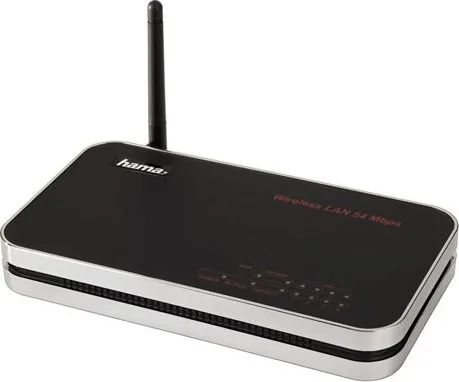
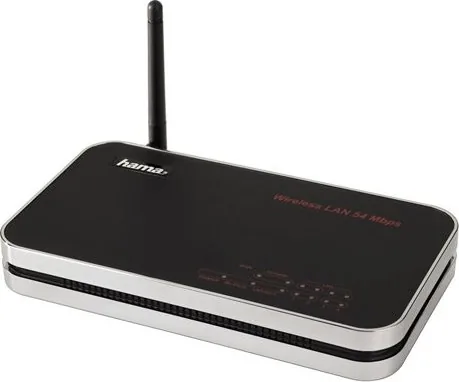
Hama Wireless LAN Router 54 Mbps Manual
PDF manual · 10 Pages
English



Quick check
Incorrect answer, please try again.
Chat with your Hama Wireless LAN Router 54 Mbps manual using AI
Get instant AI answers from your Hama Wireless LAN Router 54 Mbps manual
Ask anything about the Hama Wireless LAN Router 54 Mbps. Answers come from this manual, with the pages they are based on.
Ask a Question
Do you recommend Wireless LAN Router 54 Mbps?
Yes NoVideo Manual
Hama WLAN Steckdosen richtig einrichten | schnell & unkompliziert
Frequently Asked Questions
The default IP address is 192.168.2.1. Default login credentials are username: admin and password: 1234. Change these immediately to secure the router.
Is this answer helpful?
It supports 2.4 GHz operation in 802.11b (11 Mbps), 802.11g (54 Mbps) or a mixed b/g mode. You can set the SSID, choose one of 13 channels, and select AP or AP+WDS modes.
Is this answer helpful?
Use WPA2 (AES) or WPA2 Mixed if some devices require WPA. Choose a strong passphrase (8–63 characters) or a 64-character hex key. Avoid WEP due to known vulnerabilities.
Is this answer helpful?
Use AP+WDS mode to link access points wirelessly. Enter the MAC addresses of each AP in the WDS settings and ensure matching encryption settings. Only one AP should have DHCP enabled and each AP must have a unique static IP.
Is this answer helpful?
The web interface provides configuration backup (save/upload) to store or restore settings. Firmware updates are uploaded via the Firmware Update tool; note that updates reset some settings, so back up before upgrading.
Is this answer helpful?
Use CAT5 patch or crossover cables (max 100m) for LAN connections; the WAN cable depends on the modem (straight or crossover). Only use the supplied 12V power adapter to avoid damage.
Is this answer helpful?
The router maintains a continuous internet connection. Time-based or metered plans can incur high or unexpected charges, and background traffic from applications may keep data flowing even if browsers are closed.
Is this answer helpful?
Advantages and Disadvantages
Advantages

- Simple out-of-the-box setup with DHCP enabled and a configuration wizard to walk through LAN, WAN and wireless settings.
- Supports WPA/WPA2 security options (including WPA2 AES) for robust wireless encryption.
- Four integrated LAN ports plus WAN uplink provide wired connectivity for small networks.
- WDS (AP+WDS) mode allows extending wireless coverage between multiple access points.
- Tools for saving/restoring configuration and firmware updates via web interface.
Disadvantages

- Maximum wireless speed limited to 54 Mbps (802.11g), not suitable for modern high-bandwidth needs.
- WDS reduces effective bandwidth for each additional access point due to packet retransmission.
- Default credentials (admin/1234) present a security risk if not changed immediately.
- WEP support is available but insecure; reliance on older standards may be a drawback.
- Requires Java-capable browser for some functions and uses older interface conventions.
Product Specification
Modem
N/A
WAN
1x 100Base-TX
LAN
4x 100Base-TX
Wireless
WLAN 802.11b/g
Data rate
54Mbps (2.4GHz)
Security
64/128bit WEP, WPA
Antennas
1x external
Power consumption
not specified (consumption, operation), not specified (max. power supply output)
Band capability
Single Band
Product Description
Hama WLAN Router Manual: Quick Product Overview
The Hama WLAN Router is a compact broadband router designed for home and small office use, supporting 802.11b/g at up to 54 Mbps. It includes a four-port Ethernet switch, a WAN uplink, and wireless support with configurable modes (AP, AP+WDS/repeater). The unit ships with a 12V power supply, a configuration cable, and basic setup guidance to get networks online quickly.
Setup and Core Features
Out of the box the router uses the default LAN address 192.168.2.1 and an enabled DHCP server, so client systems configured for automatic IP assignment connect immediately. A Java-capable browser (e.g., Firefox or Internet Explorer) is used to access the web interface for configuration and an integrated setup wizard walks through timezone, LAN, WAN (commonly PPPoE for DSL), wireless basic settings, and wireless security.
Wireless operation supports 2.4 GHz modes (802.11b, 802.11g or mixed). You define SSID, channel (13 channels available), and transmission band. For extended coverage, WDS (AP+WDS) mode allows linking multiple access points wirelessly, noting that each added AP halves available throughput. When using multiple APs only one should run DHCP and each AP must have a unique IP in the same subnet.
Security and Encryption
The router supports WPA (TKIP), WPA2 (AES) and WPA2 Mixed modes and also offers legacy WEP options (64/128-bit, ASCII/Hex). WPA/WPA2 with a strong passphrase (8–63 characters) or 64-character hex is recommended; WEP is noted as insecure and discouraged.
Management and Maintenance
The admin web UI uses default credentials (admin / 1234) — changing them is advised. Tools include saving/restoring configuration files, resetting to factory defaults, and firmware updates via upload. Important status pages show LAN/WAN/WLAN port states and device information. The router should be used with the supplied power adapter only.
Practical Notes
Placement matters: avoid metal obstructions and interference sources (DECT phones, Bluetooth, other Wi‑Fi). For permanent internet connections a flat-rate tariff is recommended to avoid unexpected charges. The device is intended for indoor use in specified European countries.
Notes:
- Default IP: 192.168.2.1; default login admin / 1234 — change immediately.
- Use WPA2 if available; avoid WEP where possible.
- When using WDS, set only one DHCP server and assign unique static IPs to additional APs.
Search for 67,706 Manuals online


Type-in Brand or Model