
Hama Nano WLAN USB Stick 600 Mbps Manual
PDF manual · 20 Pages
English



Quick check
Incorrect answer, please try again.
Chat with your Hama Nano WLAN USB Stick 600 Mbps manual using AI
Get instant AI answers from your Hama Nano WLAN USB Stick 600 Mbps manual
Ask anything about the Hama Nano WLAN USB Stick 600 Mbps. Answers come from this manual, with the pages they are based on.
Ask a Question
Do you recommend Nano WLAN USB Stick 600 Mbps?
Yes NoFrequently Asked Questions
Windows 10, Windows 8.1, Windows 8, and Windows 7 are all supported.
Is this answer helpful?
The adapter supports up to 433 Mbps on the 5 GHz band using 802.11 ac standard.
Is this answer helpful?
It supports WEP, WPA, WPA2, TKIP, and AES encryption protocols.
Is this answer helpful?
You must download the driver manually from the official support website using your item number.
Is this answer helpful?
Yes, WPS works with WPA and WPA2 encryption to simplify connection setup.
Is this answer helpful?
The device consumes 5 volts at 150 milliamps of electrical power.
Is this answer helpful?
Clean with a lint-free damp cloth and avoid aggressive cleaning agents or water ingress.
Is this answer helpful?
Advantages and Disadvantages
Advantages

- Dual band support for stability.
- WPA2 encryption for security.
- Easy USB plug and play setup.
- Compatible with multiple Windows versions.
- WPS button simplifies connection.
Disadvantages

- Windows 7 requires manual driver install.
- USB 2.0 limits maximum throughput speed.
- Plastic construction might feel less durable.
- Not recommended for commercial environments.
- No battery to replace when empty.
Product Specification
Type
Wi-Fi Adapter
Form Factor
1x USB Stick
Connection
1x USB-A 2.0 (Plug)
Connectivity
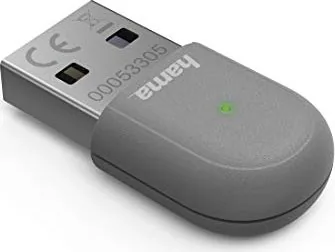
1x Wi-Fi 802.11a/b/g/n/ac (1x 2.4GHz or 1x 5GHz), 1x Amplifier, 1x Antenna (integrated, omnidirectional)
Data Rate
1x 2.4GHz Wi-Fi (150Mb/s, 1x1), 1x 5GHz Wi-Fi (433Mb/s, 1x1)
Power Supply
Power provided only via connection
Dimensions
0.63x0.31x1.14 in (WxHxD)
Weight
0.11 oz
Color
gray
Compatibility
universal
Warranty
2 years
USB Label
Link
Product Description
Transform Your Internet Experience
In today's fast paced world having reliable internet access is essential for work and leisure. The Hama Wireless LAN-Adapter, 2.4GHz/5GHz WLAN, USB-A 2.0 [Plug] Manual outlines key features for users seeking stable connections. This adapter brings high speeds to your device without needing internal expansion cards. It is designed for private home use rather than commercial settings where stability is paramount.
Performance and Technical Specifications
Supporting IEEE 802.11 b/g/n and 802.11 ac standards, this USB device delivers impressive throughput. You get up to 150 Mbps on the 2.4 GHz band and 433 Mbps on the 5 GHz band. Dual band flexibility ensures you avoid interference often found in crowded neighborhoods. It works seamlessly with modern routers operating on different frequencies. Maximum radio frequency power varies by band but stays within legal limits for safety. The power consumption remains low at five volts which is standard for USB devices.
Easy Setup Process
Getting started is straightforward for most users familiar with Windows systems. The package includes a CD with software. If using Windows Seven, download the driver from the support site. Enter your item number. Installation requires care. Once plugged into a USB port your computer detects it. Save open applications to prevent data loss during transfer. Ensure proper shutdown before unplugging.
Security Features and Encryption
Protecting your data remains a priority during wireless transmission. This adapter supports WPA and WPA2 encryption protocols which are current security standards. Older equipment using WEP is also supported though we recommend newer standards for better safety. WPS functionality simplifies connecting to compatible routers by pushing a button for auto-configuration. It works in conjunction with Access Points to transfer security data securely. Manual network configuration is also possible if WPS is not available on your router. Enter the password correctly and connection will be established immediately.
Important Safety and Maintenance Tips
Always check system requirements before buying or installing specific hardware. Windows 10, 8.1, 8, and 7 are compatible. USB 2.0 port is recommended for optimum performance. Use in dry environment to prevent damage. Do not force connector into socket immediately. If device damaged stop use. Keep out of children's reach. Do not modify product. Recycling applies at end of life cycle. Clean with lint-free cloth. Shutdown before unplugging. This simple maintenance care extends the lifespan significantly.
Search for 67,732 Manuals online


Type-in Brand or Model