


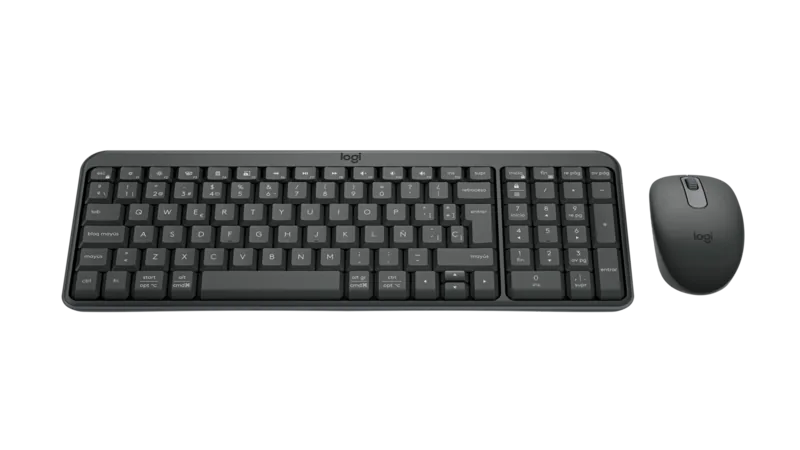
Hama KEY4ALL X510 Manual
PDF manual · 19 Pages
English



Quick check
Incorrect answer, please try again.
Chat with your Hama KEY4ALL X510 manual using AI
Get instant AI answers from your Hama KEY4ALL X510 manual
Ask anything about the Hama KEY4ALL X510. Answers come from this manual, with the pages they are based on.
KEY4ALL X510 Maintenance Schedule
Before inserting new batteries, clean the battery contacts and polar contacts to ensure proper connection.
Remove and dispose of dead batteries from the product immediately. Replace them when the status LED flashes red during operation.
Remove the batteries from the keyboard if it will not be used for an extended period to prevent leakage or damage.
Ask a Question
Do you recommend KEY4ALL X510?
Yes NoFrequently Asked Questions
The keyboard works with iOS 13.5 or higher, Android 7.0 or higher, and Windows 8, 10, or 11 on Bluetooth-enabled devices.
Is this answer helpful?
You can switch systems using shortcut keys with the function button. Press fn and Q for iOS, fn and W for Android, and fn and E for Windows.
Is this answer helpful?
The keyboard uses two 1.5V AAA batteries. Ensure correct polarity when inserting them to avoid leakage.
Is this answer helpful?
The maximum range for Bluetooth is ten meters without obstacles such as walls or people interfering with the signal.
Is this answer helpful?
The keyboard automatically switches to standby mode if you do not use it for longer than fifteen minutes to conserve battery.
Is this answer helpful?
Only clean the product with a slightly damp lint-free cloth. Do not use aggressive cleaning agents or allow water to enter the product.
Is this answer helpful?
No, do not modify the product in any way. Doing so voids the warranty and removes safety guarantees.
Is this answer helpful?
Advantages and Disadvantages
Advantages

- Bluetooth 5.0 wireless support ensures stable connections up to ten meters.
- Compatibility with iOS, Android, and Windows operating systems.
- Fourteen dedicated media keys for direct control of functions.
- Automatic standby mode activates after fifteen minutes of inactivity.
- Compact and portable design fits easily into bags.
Disadvantages

- Requires two 1.5V AAA batteries which are not included for every region.
- Maximum connection range is ten meters without obstacles.
- Forbidden for commercial use only intended for private usage.
- No backlight illumination for typing in dark environments.
- Cannot be modified without voiding the warranty claims.
Product Specification
Layout
German
Type
Rubber Dome
Backlight
N/A
Keycap Profile
Standard, Beveled, Chiclet
Keycap Style
Flat
Keycap Shape
Straight
Numpad
N/A
Arrow Keys
Separated
Control Keys
N/A
Enter Key
Short
Delete Key
N/A
Status Indicator
Capslock
Wrist Rest
N/A
Connection
Wireless (Bluetooth 5.0)
Power Source
2x AAA
Dimensions (WxDxH)
11.22 x 4.72 x 0.71 in
Weight
0.61 lbs
Features
FN Key, Command Key (Mac Layout)
Product Description
Unlock Productivity with the Hama KEY4ALL X510 Bluetooth Keyboard
Finding the right peripheral for your tablet or smartphone is crucial for modern efficiency and workflow optimization. The Hama KEY4ALL X510 Bluetooth Keyboard offers a sleek and portable solution that bridges the gap between high mobility and performance. This device is designed for private, non-commercial use, ensuring safe handling during tasks. Its compact design fits easily into bags, making it an ideal companion for students and professionals who need to type text on the go without sacrificing space. It helps maintain good posture while writing documents.
Seamless Connectivity and Multi-System Compatibility
One of the standout features is its robust Bluetooth 5.0 wireless support. This technology ensures a stable connection up to ten meters without walls interfering. Compatibility spans across major platforms including iOS, Android, and Windows devices. To utilize the full potential, users often consult the Hama KEY4ALL X510 Bluetooth Keyboard Manual resources for optimal setup procedures. The keyboard recognizes the operating system when paired, streamlining the process for immediate typing.
Multimedia Capabilities and Battery Life
The unit includes fourteen dedicated media keys for direct access to functions like play, pause, mute, and volume control. Powering this layout are two standard 1.5V AAA batteries offering longevity. A red LED indicator flashes to alert users when power is low, preventing interruptions. After fifteen minutes of inactivity, the keyboard enters standby mode to conserve energy effectively.
Operating System Switching Functions
The keyboard supports three distinct operating systems simultaneously. You can switch between Apple iOS, Android, and Windows using shortcut keys involving the function button. Pressing fn and Q selects iOS, while fn and W chooses Android, and fn and E sets Windows. This flexibility allows users to move between different devices quickly.
Safety and Maintenance Protocols
Never modify the product as it voids warranty claims. Do not use aggressive cleaning agents when wiping the surface. Only a slightly damp lint-free cloth should be used for maintenance. Children should not handle batteries without supervision. Ensure batteries are inserted with correct polarity to avoid leakage.
Important Notes
Please note that the range may be reduced by obstacles. Ensure Bluetooth settings are active on your device. Keep the keyboard dry and clean to ensure longevity and performance.
Search for 67,732 Manuals online


Type-in Brand or Model