Manual.ly Logo

GETT InduKey Cleankeys CK5 Manual

0.0 · 0 Ratings

PDF manual · 2 Pages

English

M: qwen/qwen3.5-flash-20260224
page

/ 2

Loading...
1d2eed464c465703617dd57ace6e872c3b28 page 2
INFORMATION FOR STARTING TO USE THE CK5
SETTING THE SENSITIVITY LEVEL
The touch sensitivity on capacitive keyboards can vary for different users. We
therefore recommend that you individually adjust the sensitivity of the keyboard.
The current sensitivity level is visually displayed on the LED bar during the setting
process. The greater the number of LEDs on display, the higher the touch sensitivity
of the keyboard is.
The setting works on a rolling basis and starts from the beginning again after it
reaches the maximum level.
You should test different settings to nd the best one for you.
Proceed as follows:
1. While continually pressing the Fn key, press the F7/sense key until you reach the
setting that you want.
2. The setting is permanently taken over after you release both keys. This procedure
takes about two seconds and is complete when the LEDs go off.
SETTING THE KEYBOARD VOLUME
The volume of the acoustic feedback when touching the keys is a very individual
matter. We therefore recommend that you make your own settings.
The current volume setting is visually displayed on the LED bar during the setting
process. The greater the number of LEDs on display, the louder the acoustic
feedback is.
The setting works on a rolling basis and starts from the beginning again after it
reaches the maximum level. It is also possible to switch off the acoustic feedback
completely (two red LEDS are lit up).
You should test different settings to nd the best one for you.
Proceed as follows:
1. While continually pressing the Fn key, press the F8/volume key until you reach the
setting that you want.
2. The setting is permanently taken over after you release both keys. This procedure
takes about two seconds and is complete when the LEDs go off.
LOCKING/UNLOCKING KEYS
The key functions can be locked so that you can clean the keyboard.
Proceed as follows:
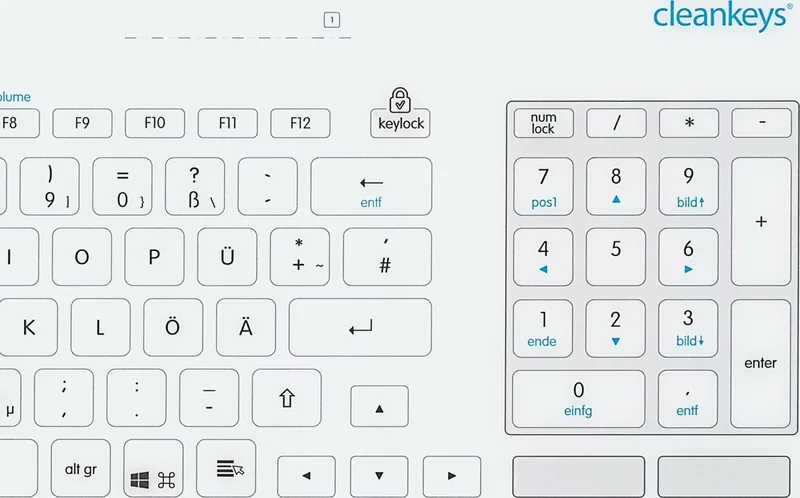
1. Press the keylock key until the green LED in the key is permanently lit up. This
procedure takes about two seconds.
2. To unlock the keyboard, press the keylock key again until the green LED goes off.
SWITCHING BETWEEN NUMPAD AND TOUCHPAD
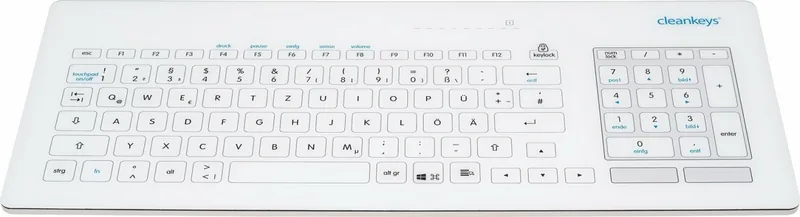
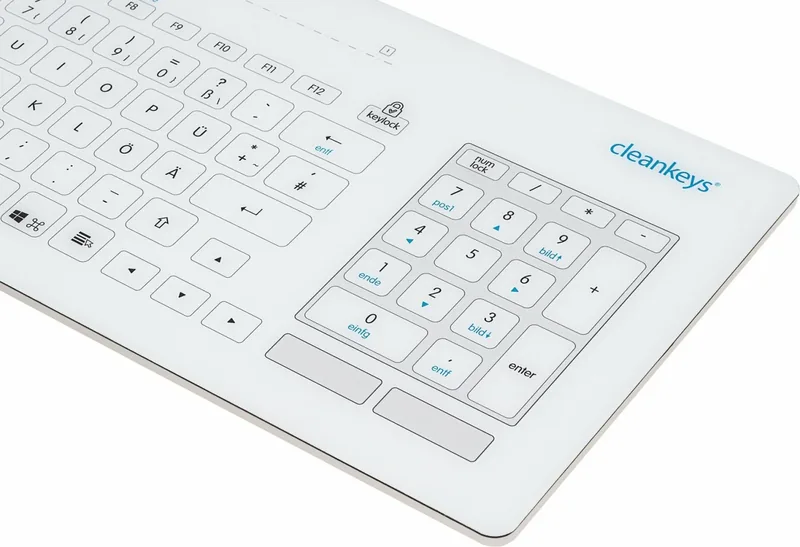
The numpad can also be used as a touchpad. The large gray area represents the
touchpad, while the two gray keys below act as touchpad mouse buttons.
Proceed as follows:
1. Press the Fn key and the Touchpad key at the same time until the green LED on
the key is permanently lit up; the touchpad mode is then activated. This procedure
takes about two seconds.
2. To unlock, press the Fn key and the touchpad key again until the green LED goes
off; the numpad mode is then activated.
NUM LOCK SETTING
The num lock function for the numpad matches the standard function of common
keyboards. It is available in the numpad mode and is indicated by the num LED.
Proceed as follows:
1. Press the num lock key in the numpad mode to reach the numeral level of the
numpad. The num lock LED is then lit up permanently.
2. To unlock, press the num lock key in the numpad mode again. The num lock LED
then goes off.
FN LEVEL
If you press the Fn key, another key level is activated. Function keys, which can be
activated at this level, are visible by the blue markings for the relevant functions.
This switch is possible at both levels on the numpad. While the numeral level of the
numpad is active (num lock LED is lit up), rapid access to the function keys on the
numpad is possible by pressing the Fn key (functions marked blue).
Proceed as follows:
1. Press the Fn key and the relevant blue function key at the same time. When you
release the Fn key, the numpad automatically switches back to the mode originally
selected. As long as you press the Fn key, the num lock LED goes off to indicate the
changed mode.
CTRL + ALT + DELETE
Because the keyboard has such a compact design, we recommend that you select
the option shown above for this standard combination to make operations simpler.
ESTABLISHING A CONNECTION WITH YOUR PC
1. Connect the keyboard to a USB port on your PC or terminal device.
2. Wait until the computer recognizes the keyboard. The LED bar will disappear once this has happened.
No keyboard driver is needed for this plug-and-play device.
SPECIAL FUNCTIONS AND FEATURES OF THE CK5
GETT Gerätetechnik GmbH
Mittlerer Ring 1
08233 Treuen
Telefon: +49 37468 - 660-0
Telefax: +49 37468 - 660-66
gett.de
gett-group.com
1
1
2
2
3
3
4
4
5
5
6
6
A A
B B
C C
D D
1 /1
Gezeichnet
Geprüft
Datum Name
A2
Freimaßtoleranz
DIN ISO 2768
T1-
T2-
Oberfläche
Rohmaterial: Gorillaglas
Materialdicke: 0,8mm
Maßstab: (bei A2) Masse:
Maßeinheit
mm
http://www.gett.de
CAD-Zeichnung darf nicht manuell geändert werden.
Weitergabe sowie Vervielfältigung, Verbreitung und/oder Bearbeitung dieses Dokumentes, Verwertung und Mitteilung seines Inhaltes sind verboten, soweit nicht ausdrücklich gestattet.
Zuwiderhandlungen verpflichten zu Schadensersatz. Alle Rechte für den Fall der Patenterteilung, Gebrauchsmuster- oder Geschmacksmustereintragung vorbehalten.
CK5
LED`s 100% weiss
C-Mix 2000 schwarz Schrift
Pantone 312 C Logo + Schrift (alt gr-Ebene)
Pantone Cool Gray Tastenrahmen
Cleankeys Weiss Hintergrund
Pantone Cool Gray 2C Numblockhintergrund
D2106
1
keylock
prtscr
volume
insert
pause
caps
lock
sense
US/EU-Layout
16.05.2019
A.Gläser
GD26203.cdr
16.05.2019
A.Gläser
„
alt gr
alt
enter
ctrl
esc
`
~
del
pdn
ins
end
pup
hm
num
lock
?
2
,
C
V
B
N
M
X
Q
A
W
S
E
D
R
F
T
G
H
U
J
I
K
O
L
P
fn
del
touchpad
on/off
1
!
F7
F8
num
lock
num-lock-LED
LED-bar
sense
1
1
2
2
3
3
4
4
5
5
6
6
A A
B B
C C
D D
1 /1
Gezeichnet
Geprüft
Datum Name
A2
Freimaßtoleranz
DIN ISO 2768
T1-
T2-
Oberfläche
Rohmaterial: Gorillaglas
Materialdicke: 0,8mm
Maßstab: (bei A2) Masse:
Maßeinheit
mm
http://www.gett.de
CAD-Zeichnung darf nicht manuell geändert werden.
Weitergabe sowie Vervielfältigung, Verbreitung und/oder Bearbeitung dieses Dokumentes, Verwertung und Mitteilung seines Inhaltes sind verboten, soweit nicht ausdrücklich gestattet.
Zuwiderhandlungen verpflichten zu Schadensersatz. Alle Rechte für den Fall der Patenterteilung, Gebrauchsmuster- oder Geschmacksmustereintragung vorbehalten.
CK5
LED`s 100% weiss
C-Mix 2000 schwarz Schrift
Pantone 312 C Logo + Schrift (alt gr-Ebene)
Pantone Cool Gray Tastenrahmen
Cleankeys Weiss Hintergrund
Pantone Cool Gray 2C Numblockhintergrund
D2106
1
keylock
prtscr
volume
insert
pause
caps
lock
sense
US/EU-Layout
16.05.2019
A.Gläser
GD26203.cdr
16.05.2019
A.Gläser
„
alt gr
alt
enter
ctrl
esc
`
~
del
pdn
ins
end
pup
hm
num
lock
?
2
,
C
V
B
N
M
X
Q
A
W
S
E
D
R
F
T
G
H
U
J
I
K
O
L
P
fn
del
touchpad
on/off
1
!
volume
function keys with the Fn level
1
1
2
2
3
3
4
4
5
5
6
6
A A
B B
C C
D D
1 /1
Gezeichnet
Geprüft
Datum Name
A2
Freimaßtoleranz
DIN ISO 2768
T1-
T2-
Oberfläche
Rohmaterial: Gorillaglas
Materialdicke: 0,8mm
Maßstab: (bei A2) Masse:
Maßeinheit
mm
http://www.gett.de
CAD-Zeichnung darf nicht manuell geändert werden.
Weitergabe sowie Vervielfältigung, Verbreitung und/oder Bearbeitung dieses Dokumentes, Verwertung und Mitteilung seines Inhaltes sind verboten, soweit nicht ausdrücklich gestattet.
Zuwiderhandlungen verpflichten zu Schadensersatz. Alle Rechte für den Fall der Patenterteilung, Gebrauchsmuster- oder Geschmacksmustereintragung vorbehalten.
CK5
LED`s 100% weiss
C-Mix 2000 schwarz Schrift
Pantone 312 C Logo + Schrift (alt gr-Ebene)
Pantone Cool Gray Tastenrahmen
Cleankeys Weiss Hintergrund
Pantone Cool Gray 2C Numblockhintergrund
D2106
1
keylock
prtscr
volume
insert
pause
caps
lock
sense
US/EU-Layout
16.05.2019
A.Gläser
GD26203.cdr
16.05.2019
A.Gläser
„
alt gr
alt
enter
ctrl
esc
`
~
del
pdn
ins
end
pup
hm
num
lock
?
2
,
C
V
B
N
M
X
Q
A
W
S
E
D
R
F
T
G
H
U
J
I
K
O
L
P
fn
del
touchpad
on/off
1
!

Chat with your GETT InduKey Cleankeys CK5 manual using AI

Get instant AI answers from your GETT InduKey Cleankeys CK5 manual

Ask anything about the GETT InduKey Cleankeys CK5. Answers come from this manual, with the pages they are based on.

Ask a Question

0/1000

Do you recommend InduKey Cleankeys CK5?

Yes No

Frequently Asked Questions

A

Press and hold the Fn key, then press the F7 key until the desired LED level is reached. Release both keys to save the setting permanently.

Is this answer helpful?

A

Yes. While holding Fn, press the F8 key until two red LEDs light up. This indicates the acoustic feedback is completely turned off.

Is this answer helpful?

A

Press the Keylock button until the green LED inside lights up continuously. Press it again to unlock the keys.

Is this answer helpful?

A

No. It is a plug-and-play device that connects via USB and is recognized by the computer automatically without driver installation.

Is this answer helpful?

A

Press the Fn key and the Touchpad key simultaneously. The touch mode activates when the key LED stays lit on.

Is this answer helpful?

M: qwen/qwen3.5-flash-20260224

Advantages and Disadvantages

Advantages

  • Capacitive surface offers a smooth and durable typing experience resistant to debris accumulation.
  • Adjustable touch sensitivity allows customization for individual hand pressure and user comfort.
  • Hybrid numpad and touchpad design saves valuable desk space while retaining full functionality.
  • Keylock feature ensures safety during cleaning by disabling all key inputs effectively.
VS

Disadvantages

  • Requires specific key combinations for switching modes which may confuse new users initially.
  • Acoustic feedback setup requires visual checking of LED bars to confirm volume levels.
  • Compact layout necessitates function key use to access full command set.
M: qwen/qwen3.5-flash-20260224

Product Specification

Layout

German

Type

Touch

Backlight

N/A

Keycap Level

No Keycaps

Keycap Format

No Keycaps

Keycap Dome

No Keycaps

Numeric Keypad

Standard

Cursor Block

Staggered

Control Keys

Standard

Enter Key

Half-Size

Delete Key

Standard

Status Indicators

Caps Lock, Num Lock

Wrist Rest

N/A

Housing

Plastic

Housing Color

Solid White

Keycap Finish

Solid White

Key Legends

Solid Black

Connection

Wired (6.56 ft), USB-A 2.0

Power Supply

USB

Dimensions (WxHxD)

15.94x0.89x6.57 in

Weight

1.65 lbs

Features

5 Multimedia Keys, Splash-Resistant + IP65, Fn Key, Touchpad, Glass Surface

M: qwen/qwen3.5-flash-20260224

Product Description

Advanced Typing Solutions for Modern Workspaces

The industrial environment demands equipment that withstands heavy usage while providing precise input. The device in question exemplifies this balance through its robust construction and adaptable features. Users operating in clean rooms or industrial settings appreciate the smooth surface that resists debris accumulation. Cleaning becomes a straightforward task when the locking function is engaged. This safety feature disables all key inputs, preventing accidental commands while the surface is wiped down.

Sensitivity settings play a crucial role in user comfort. Capacitive technology allows for touch adjustments that match individual hand pressure. The LED bar provides immediate visual feedback during the calibration process. Once the desired level is reached, the system confirms the change by turning off the indicators. This ensures that the setting is saved permanently without requiring software intervention. Volume controls for acoustic feedback work in a similar manner. Users can reduce noise to silence or increase it for audible confirmation. This flexibility caters to diverse working environments ranging from quiet offices to noisy factories.

Space optimization is achieved through the hybrid design of the input section. The numeric keypad serves a dual purpose as a touchpad when the mode is switched. Two specific keys below the touch area function as mouse buttons, eliminating the need for an external peripheral. This is particularly useful for laptops or setups with limited desk space. Switching modes is done via a specific key combination involving the function key. The transition is instant and confirmed by an LED indicator on the touch key. The Num Lock function operates standardly, allowing for traditional number entry when required.

Connectivity is handled through a standard USB connection. The system recognizes the hardware immediately without needing additional software drivers. This plug-and-play capability ensures rapid deployment in various computing scenarios. The keyboard layout matches the German standard, ensuring familiar character placement for local users. Technical specifications highlight the use of durable glass materials for the surface. This construction protects against scratches and physical wear over time. Identifying the specific model often involves the string GETT InduKey KR26202 Cleankeys CK5 Touchpad White USB German Manual in technical catalogs. Recognizing these identifiers helps in sourcing replacement parts or verifying compatibility with existing setups.

The function layer expands the available command set significantly. Blue markings indicate shortcuts accessible while holding the function key. This allows users to access secondary functions without cluttering the primary layout. The design philosophy centers on efficiency and durability. By combining tactile responsiveness with electronic versatility, the device supports prolonged typing sessions. Maintenance is simplified by the ability to lock inputs. Whether for cleaning or shipping, the keylock ensures that the device remains inactive. Integration with standard operating systems remains seamless due to the lack of driver dependency.

M: qwen/qwen3.5-flash-20260224

© Copyright 2026 Manual.ly