

Genius Scorpion M8-610 Manual
PDF manual · 2 Pages
English



Quick check
Incorrect answer, please try again.
Chat with your Genius Scorpion M8-610 manual using AI
Get instant AI answers from your Genius Scorpion M8-610 manual
Ask anything about the Genius Scorpion M8-610. Answers come from this manual, with the pages they are based on.
Ask a Question
Do you recommend Scorpion M8-610?
Yes NoFrequently Asked Questions
Press the scroll wheel to cycle through DPI levels. The LED color will change from yellow to green, cyan, and blue corresponding to speeds of 2400, 4800, 6400, and 8200 respectively.
Is this answer helpful?
It is not recommended. The optical sensor may fail to track properly on glass or mirrored surfaces. Use a mouse pad for best results.
Is this answer helpful?
The middle button acts as a scroll wheel clicker. It opens links in new tabs and allows for smooth vertical scrolling in documents and web pages.
Is this answer helpful?
Yes, you can assign macros to specific buttons using the assignment key. You can also add time delays to your custom macro sequences for more complex automation.
Is this answer helpful?
The logo LED stays off while the mouse is moving. It automatically turns on if the mouse remains stationary for three seconds to indicate idle status.
Is this answer helpful?
Advantages and Disadvantages
Advantages

- Adjustable DPI settings ranging from 2400 to 8200 for versatile performance
- Ten programmable buttons including side buttons for both left and right hands
- Intelligent LED system provides visual feedback on DPI levels and idle state
- Easy macro management with customizable delays for complex actions
- Standard USB connection ensures broad compatibility with most PCs
Disadvantages

- Optical sensor may not function correctly on glass or mirrored surfaces
- LED logo turns off during movement which might distract some users
- Limited software mentioned for advanced macro editing beyond basic delays
- No wireless connectivity option as it relies solely on USB cable
- Color coding for DPI levels requires memorization for quick identification
Product Specification
Suitability
right hand
Keys
6 (total), 2 (main), 1 (top), 2 (left), 1 (scroll wheel click)
Scroll wheel
1x 2-way
Tracking
Laser
Resolution
8200dpi, reducible to 6400/4800/2400/800dpi
Sensor
PixArt ADNS-9800
Lighting
RGB
Connection
wired (7.09ft), USB-A 2.0
Power supply
USB
Dimensions (WxDxH)
2.60x1.54x4.84in
Approximate Volume
5.06in^3 (approximated shape)
Weight
5.36oz
Color
solid, black, logo
Features
thumb rest, onboard memory, non-slip surface (rubberized sides), textile cable
Product Description
Discover the Genius Scorpion M8-610 Gaming Mouse
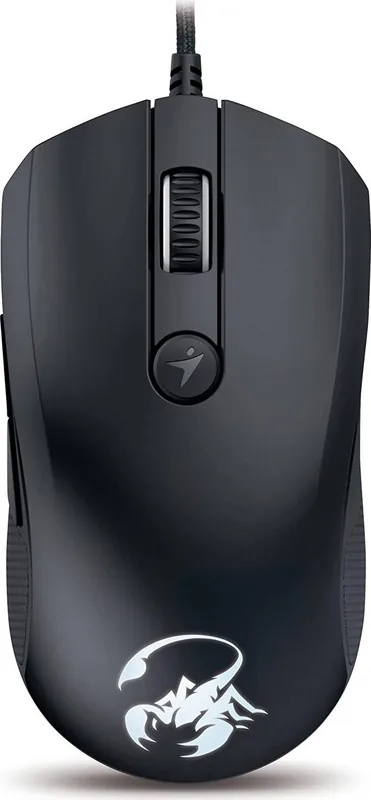
The Genius Scorpion M8-610 Gaming Mouse is a powerful peripheral designed for gamers and power users who demand precision and control. This sleek black USB mouse combines ergonomic design with advanced functionality, making it an ideal choice for intense gaming sessions or complex productivity tasks.
At the heart of this device lies its impressive DPI switching capability. The scroll wheel features an LED indicator that changes color to reflect your current sensitivity level. Starting from a standard yellow setting at 2400 DPI, you can switch through green (4800), cyan (6400), and blue (8200) modes instantly. This allows you to adapt to different game genres or workflow requirements without leaving your desk.
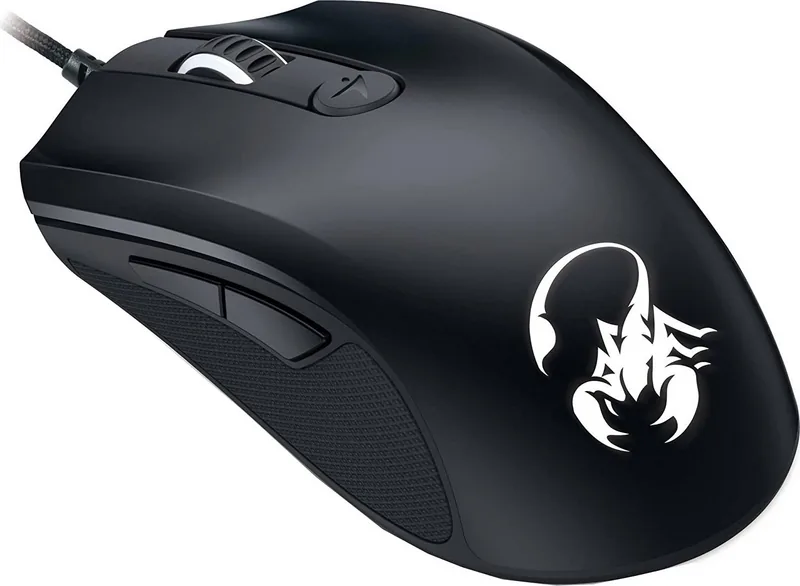
Ergonomics meet utility with its ten-button layout. Beyond the standard left and right clicks, the middle button enables smooth web browsing and document scrolling. A single click on a link opens it in a new tab, streamlining your navigation. The side buttons are strategically placed for both hands, offering forward and backward navigation in browsers like Internet Explorer and Chrome. This dual-hand accessibility ensures that every command is within reach, reducing strain during long hours of use.
Customization is key to the M8-610 experience. The dedicated assignment key lets you map macros to any defined button. You can even add delays to your custom macros, creating complex sequences with a single press. The intelligent LED logo adds a touch of style, turning off when the mouse moves and illuminating after three seconds of inactivity.
Note: For optimal performance, avoid using the optical sensor on glass or mirrored surfaces. Always connect the mouse to a powered USB port before starting your computer to ensure proper driver recognition.
Key Highlights
- High Precision: Adjustable DPI up to 8200 for pixel-perfect aiming.
- Versatile Controls: Ten programmable buttons for gaming and office work.
- Smart Lighting: Dynamic LED indicators for DPI status and idle detection.
- Macro Support: Full customization for complex commands.
- User Friendly: Simple plug-and-play installation via USB.
Search for 67,732 Manuals online


Type-in Brand or Model