
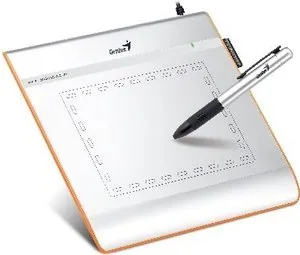
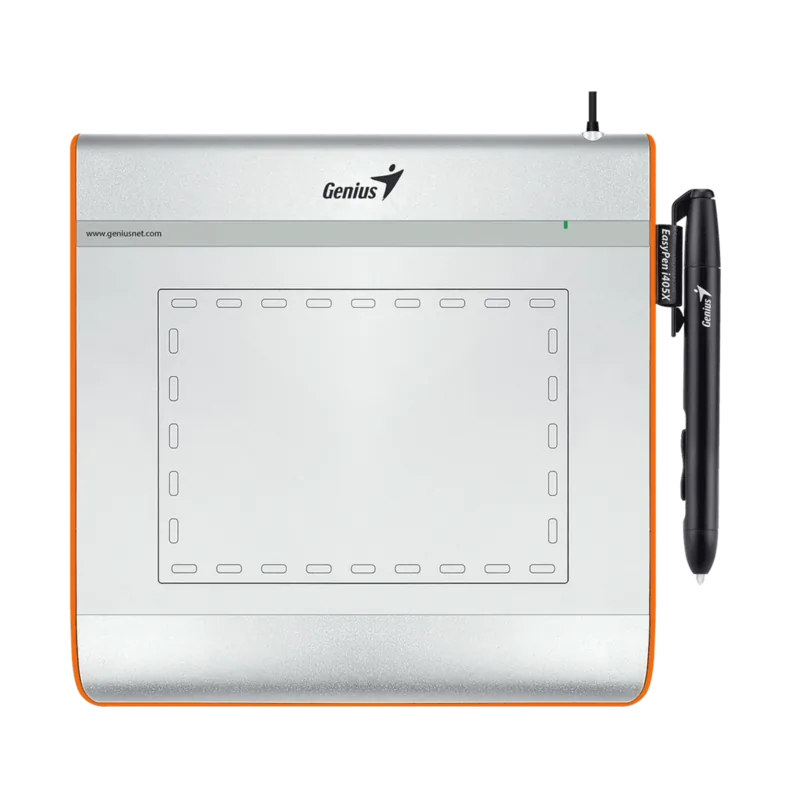

Genius EasyPen i405X Manual
PDF manual · 12 Pages
English



Quick check
Incorrect answer, please try again.
Chat with your Genius EasyPen i405X manual using AI
Get instant AI answers from your Genius EasyPen i405X manual
Ask anything about the Genius EasyPen i405X. Answers come from this manual, with the pages they are based on.
EasyPen i405X Maintenance Schedule
Place the pen in a holder or store with tip pointing upward or horizontally to avoid pressure on the tip.
Pull out the old tip using the Pen Clip and push the new tip into the digital pen.
Ask a Question
Do you recommend EasyPen i405X?
Yes No
maria_k
9 months ago
Does the product match my expectations, and is it good value for the price?

Manual.ly
9 months ago
Based on customer feedback, the product delivers what buyers expect, and the price-to-performance ratio is rated as very good. If you are choosing it for reliability and value, reviews suggest it is a solid purchase at the current price. For the best fit, double-check the key specifications you need (features, size, compatibility) before ordering, so it aligns with your intended use.
Frequently Asked Questions
Click Start All Programs io Tablet Uninstall. Restart your computer after removal.
Is this answer helpful?
Windows 7, Vista, or XP, a USB Port, and a DVD-ROM Drive for initial setup.
Is this answer helpful?
Keep the tip up or horizontal. Never place the pen tip down in a cup.
Is this answer helpful?
Reconnect the USB plug, reinstall the driver, and check if the LED light is on.
Is this answer helpful?
Yes, install both but only one device works at a time to prevent cursor jittering.
Is this answer helpful?
Use the sensitivity bar in the io Tablet software to set levels up to 1024.
Is this answer helpful?
Click Auto Adjust or switch to 4:3 or 16:9 settings in the tablet menu.
Is this answer helpful?
Advantages and Disadvantages
Advantages

- Pressure sensitivity up to 1024 levels
- USB wired reliability
- Customizable pen buttons
- Compatible with drawing software
- Lightweight wireless stylus
Disadvantages

- Requires specific Windows OS versions
- Battery management needed for pen
- No separate wireless receiver mentioned
- Requires driver installation first
- Tip wear over time
Product Specification
Type
Graphic Tablet
Active Area
5.51 x 4.02 in
Pen
Wireless, Tip, 2 Buttons, attached to device (Pen Holder)
Resolution
2540 lpi
Pressure Levels
1024
Display
N/A
Signal Input
N/A
Brightness
N/A
Contrast
N/A
Buttons
28x Buttons
CPU
N/A
RAM
N/A
Storage
N/A
Graphics
N/A
Host Port
USB 2.0
Other Ports
N/A
Wireless
N/A
Card Reader
N/A
Webcam
N/A
Operating System
N/A
Battery
N/A
Dimensions
7.87 x 7.83 x 0.39 in
Weight
0.77 lbs
Package Contents
Brand Software, 1x AAA Battery, 2x Replacement Tips, Pen, Main Unit
Product Description
Discover the Genius Easypen i405
Welcome to a new era of digital interaction where controlling your personal computer becomes an intuitive and fluid experience. The Genius Easypen i405 allows users to discover how easy it is to replace the standard mouse with a wireless digital pen. This innovative device enables users to draw lines that vary significantly from very thin to thick, light or dark due to its advanced pressure sensitivity feature. You can write text, sign official documents, annotate papers, and sketch designs just as easily as normal paper without the lag of conventional tools. It simulates functions like pencils, markers, brushes, or watercolor pens when used with commercial software packages like Adobe Photoshop, Corel Painter, and Paint Shop. Communication becomes much more fun and entertaining if you use MSN Messenger with this pen to create and send digital handwritings and hand drawn pictures instead of simple text messages. To ensure the tablet operates with maximum and smooth performance, always plug the USB connector directly to your PC or notebook USB port instead of using a USB Hub or other exterior USB port device.
Exploring Core Functions
After successfully installing the device driver, the pen tablet features a range of powerful capabilities. These include direct pointing where you move the cursor to any location by hovering the digital pen tip over the tablet surface. Users can also scroll documents and Web pages by pressing the middle button of the digital pen over the working area. The pressure sensitivity feature allows you to emulate various brushes and pencils by pressing on the pen tip harder, lighter, stronger or thicker for different line types. Configuration is easily managed through the system tray icon located at the lower right corner of the screen. You can adjust the pressure sensitivity slider which offers 1024 pressure levels sensitivity for all kinds of shapes and thickness. You may also define the working area dimensions or switch the screen ratio to match your LCD display perfectly.
Usage Tips and Maintenance
Proper storage is essential to maintain the device longevity. To store the pen properly, ensure the pen tip does not touch anything inside the holder. It is recommended to place the pen in a pen holder with the tip pointing upward or horizontally with the pen tip free of any pressure. If issues arise, check if the LED indicator is on. Remove the USB plug, uninstall the old driver, and download the latest version for a clean setup. Do not use more than two devices at the same time in case the screen cursor jitters significantly. System requirements include Windows 7, Vista, XP, USB Port, and DVD-ROM Drive. Test your pen in the tablet working area to see if it works as a mouse. Check Device Manager for an exclamation mark indicating incompatibility. You may re program the functions of the pen tip and the two barrel buttons. The Info tab displays devices you can choose to operate including the pen and interface language.
Important Notes
- Always install the driver before plugging the tablet into your PC.
- Restart the computer after driver installation is completed.
- Double tap the digital pen by keeping the pen tip away from the surface.
Search for 67,732 Manuals online


Type-in Brand or Model
Sven Richter
6 months ago
Do multiple reviews confirm the product meets expectations regarding value for money?
Manual.ly
6 months ago
Yes, the feedback indicates high satisfaction with the value proposition. Customers state exactly what they expected and praise the price performance ratio. For most buyers, it provides reliable quality at a competitive cost.