
Gemini GMX Manual
PDF manual · 27 Pages
English



Quick check
Incorrect answer, please try again.
Chat with your Gemini GMX manual using AI
Get instant AI answers from your Gemini GMX manual
Ask anything about the Gemini GMX. Answers come from this manual, with the pages they are based on.
Ask a Question
Do you recommend GMX?
Yes NoFrequently Asked Questions
Yes. Insert a USB memory device into the top USB input and the GMX will display folders and tracks on the LCD. USB devices are hot-swappable but should be removed before powering off to avoid data corruption.
Is this answer helpful?
Connect the GMX USB Out to your computer, press the MIDI button to enter MIDI mode, then select the GMX as both the MIDI and audio device in your DJ software. You can remap MIDI messages within your software if supported.
Is this answer helpful?
You can set manual Loop In/Out points, use auto-loop pads for predefined lengths (1/8 to 16 bars), halve/double loops with /2 or X2, store hot cues on performance pads, delete cues with SHIFT+pad, and re-engage last loop with Reloop/Exit.
Is this answer helpful?
Key Lock preserves the track's original pitch while you change tempo with the pitch fader. Hold SHIFT and press RANGE to adjust the pitch fader range. LOCK plus Browse lets you set and fix a desired BPM value.
Is this answer helpful?
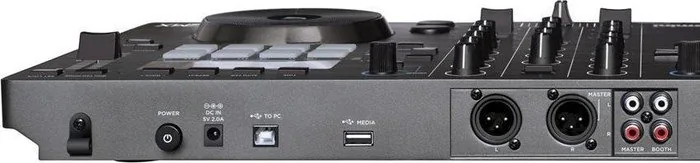
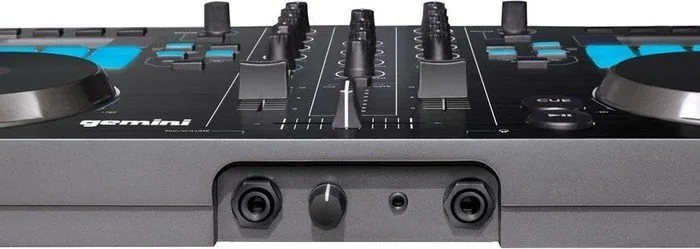
The GMX includes Master outputs (XLR & RCA), Booth RCA outputs, a headphone output, mic/aux input, USB Out for MIDI/audio and USB Thru/Hub for chaining devices (note: USB hubs are not supported for USB memory).
Is this answer helpful?
Ensure the USB device is fully inserted and not connected through a hub. If you see a media error, check the drive’s format. Back up data beforehand, as Gemini disclaims liability for data loss from incompatible devices.
Is this answer helpful?
Visit geminisound.com for downloads, mapping files and customer support. For U.S. warranty or repairs, contact Gemini customer service for an RA# and shipping instructions.
Is this answer helpful?
Advantages and Disadvantages
Advantages

- Standalone USB playback with clear waveform LCD and top-mounted USB slot for quick browsing.
- Comprehensive mixer section: per-channel gain, 3-band EQ, filter, PFL, 60mm faders and crossfader.
- Performance pads for hot cues and auto loops with manual Loop In/Out and loop adjust functions.
- Flexible tempo control: pitch fader with range, key-lock, BPM ID3/Auto/Manual and Lock feature.
- Plug-and-play MIDI compatibility for PC/Mac with re-mappable MIDI messages and software integration.
Disadvantages

- Does not support USB hubs; some USB devices may be incompatible or require reformatting.
- Higher audio bit depths/sample rates can increase latency and impact performance.
- Limited one-year warranty; certain parts (like laser assemblies) have shorter coverage.
- No bundled advanced software—MIDI mapping and deeper integration require user setup.
- Physical unit lacks internal storage; relies entirely on external USB memory devices.
Product Specification
Type
DJ Software Controller
Inputs
Mic In (0.25in Jack)
Outputs
Stereo Line Out (XLR), 3x Stereo Line Out (RCA), Headphone (0.14in Jack), Headphone (0.25in Jack)
Other Connections
1x USB-A, 1x USB-B
Jog Wheel
2x, touch-sensitive
Features
Audio Interface, Hot Cues, integrated effects, MIDI-compatible
Product Description
Gemini GMX: Powerful, Portable Media Controller
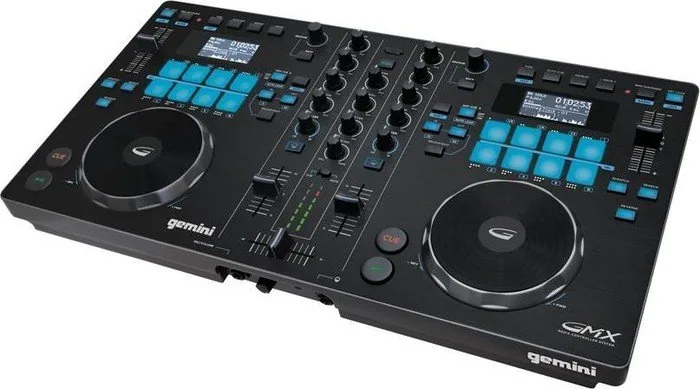
The Gemini GMX is a compact, feature-rich media controller designed for DJs and pro-audio users who need reliable standalone playback and seamless computer integration. Built around a top-mounted USB memory slot and a clear waveform LCD, the GMX lets you browse folders and tracks instantly, set cue points, perform loops, trigger hot cues and control tempo with a tactile jog wheel and performance pads.
Equipped with balanced XLR and unbalanced RCA master outputs, booth outputs, a headphone jack, mic/aux input and a USB MIDI port, the GMX bridges club-suitability and studio flexibility. Its mixer section offers per-channel gain, a three-band EQ, a band-pass filter, PFL (pre-fader listen), 60mm track faders and a crossfader — everything needed for tight, hands-on mixing. The pitch fader includes range and key-lock functions so you can adjust tempo without shifting pitch, while BPM modes (ID3 / Auto / Manual) and a Lock feature let you match or fix tempos quickly.
For live performance the GMX shines: performance pads can toggle between hot-cue and auto-loop banks, enabling instant loop lengths (1/8 to 16 bars) or manual Loop In/Out editing with half/double adjustments. Scratch and reverse modes, plus jog-wheel search, offer direct tactile control for scratching and precise cue placement. MIDI mode turns the GMX into a plug-and-play controller for DJ software on PC and Mac; audio and MIDI drivers are supported without extra installs, and mappings can be reassigned in compatible software.
Reliability and user care are emphasized: Gemini ships the GMX with essential cables and a one-year limited warranty. The manual outlines troubleshooting tips for USB compatibility, MIDI recognition and recommended file/BPM handling. Practical safeguards—like removing USB devices before powering off and avoiding USB hubs—help prevent data errors and playback issues.
Whether used standalone with USB drives or as a MIDI controller in software setups, the Gemini GMX offers a robust feature set tailored for DJs who want dependable hardware performance and flexible integration.
Notes
- Hot cues and loops are stored to pads and can be deleted with SHIFT+pad.
- Avoid exceeding 0 dB on the master to prevent distortion.
- Use direct USB device connections; hubs are not supported.
- MIDI/audio mapping and driver updates may be found at geminisound.com.
Search for 67,732 Manuals online


Type-in Brand or Model