
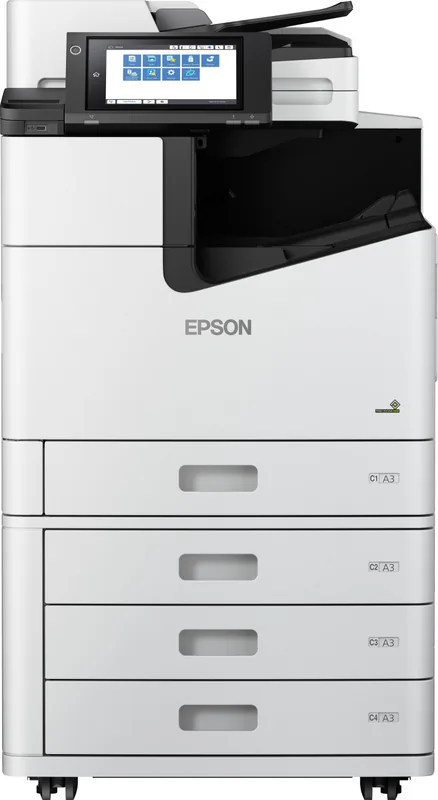
Epson WorkForce Enterprise WF-M21000 D4TW Manual
PDF manual · 647 Pages
English


Quick check
Incorrect answer, please try again.
Chat with your Epson WorkForce Enterprise WF-M21000 D4TW manual using AI
Get instant AI answers from your Epson WorkForce Enterprise WF-M21000 D4TW manual
Ask anything about the Epson WorkForce Enterprise WF-M21000 D4TW. Answers come from this manual, with the pages they are based on.
WorkForce Enterprise WF-M21000 D4TW Maintenance Schedule
Clean the platen glass surface with a soft cloth if copies or scanned images are smudged.
Clean the roller and inside of the ADF with a soft damp cloth if copies are smudged or paper does not feed correctly.
Replace the maintenance rollers according to the instructions included in the replacement kit packaging.
Print a nozzle check pattern when print quality is poor or after printing large volumes to detect clogged nozzles.
Run print head cleaning if the nozzle check shows missing lines, repeating up to three times if necessary.
Free maintenance reminders
Timed to your purchase date. Always free, unsubscribe anytime.
Ask a Question
Do you recommend WorkForce Enterprise WF-M21000 D4TW?
Yes NoDo you recommend WorkForce Enterprise WF-M21000 D4TW?
Yes NoFrequently Asked Questions
The Epson WorkForce Enterprise WF-M21000 D4TW is designed to handle up to 85,000 pages per month, making it suitable for large enterprises with heavy printing demands.
Is this answer helpful?
Yes, the printer supports mobile printing via Wi-Fi Direct and compatible apps, allowing you to send documents from iOS and Android devices without needing a computer.
Is this answer helpful?
You can use the Secure Print feature which holds jobs in the printer memory until you enter a PIN code at the control panel, ensuring no one else can access your files.
Is this answer helpful?
Absolutely, the built-in duplex unit allows for two-sided printing automatically, saving paper and reducing costs while maintaining high-quality output on both sides.
Is this answer helpful?
The printer includes intelligent ink management systems that alert you well in advance. You can also continue printing for a short time even if the cartridge is empty due to reserve capacity.
Is this answer helpful?
Advantages and Disadvantages
Advantages

- Extremely fast printing speeds ideal for high-volume workflows
- Intuitive touchscreen interface simplifies complex operations
- Comprehensive security features protect confidential data effectively
- Flexible connectivity options include Wi-Fi Direct and cloud integration
- High-capacity paper trays minimize refill interruptions during long jobs
Disadvantages

- Initial setup may require technical knowledge for network configuration
- Larger physical footprint requires dedicated space in the office
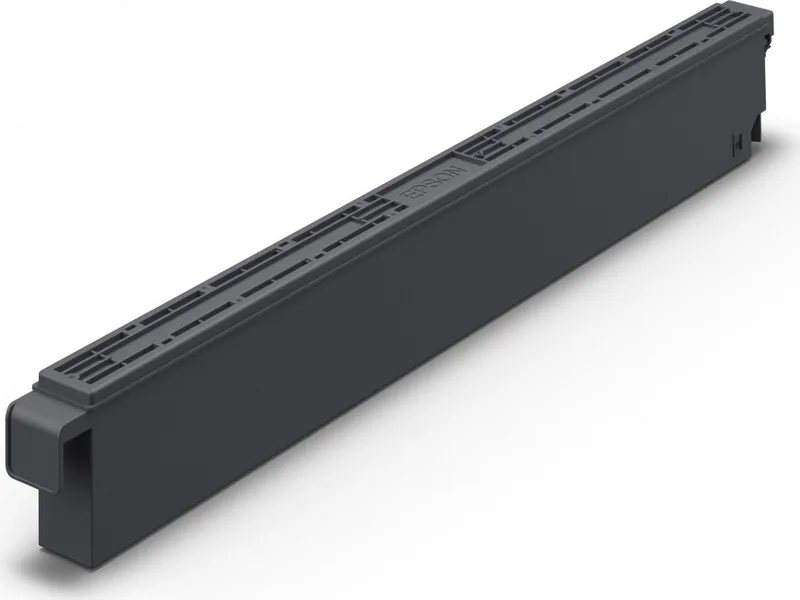
- Replacement maintenance boxes can be costly over extended periods
- Some advanced finishing features require optional hardware attachments
- Learning curve exists for users unfamiliar with enterprise printer menus
Product Specification
Format
A3 (Print), A3 (Scan)
Type
Printer/Scanner/Copier/Fax
Color System
1-color, 1x Single Cartridge
Consumables
T858
Printing
2400x600dpi - 100/54 ppm (A4) (ISO)
Scanning
600x600dpi (CIS)
Copying
600x600dpi
Paper Input
2350 sheets (4x 550 sheets + 1x 150 sheets), RADF (150 sheets), Duplex Unit
Memory
3GB (RAM)
Connections
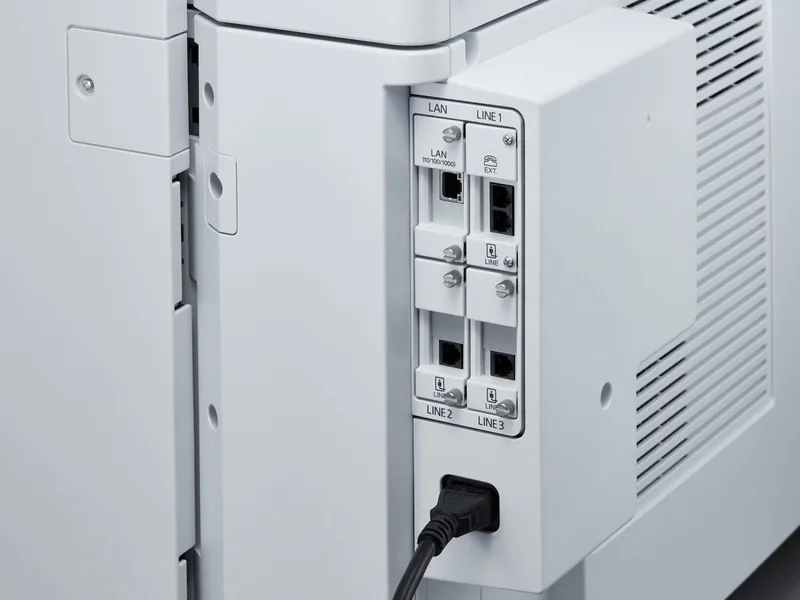
1x USB-B 3.0, 1x USB-A 2.0 (Host), 1x Fax (RJ-11)
Network
Gb LAN, Wi-Fi 4 (WLAN 802.11a/b/g/n), NFC, Wi-Fi Direct, AirPrint, Cloud Print, Mobile Print
Display
color, 8.9", Touchscreen
Power Consumption
170W (typical), 76W (standby), 1.1W (sleep), 0.1W (off)
Sound Pressure Level
59.0dB(A)
Emulation
PCL 6, PCL 5c, PostScript 3, PDF 1.7, ESC/P-R, ESC/P, ESC/Page
Case Color
white
Dimensions
26.5x48.5x29.8 inches
Weight
410 lbs
Features
USB Direct Scan, Direct Print
Manufacturer Warranty
1 Year (On-site)
Product Description
Epson WorkForce Enterprise WF-M21000 D4TW Black Ink: A Powerhouse for Modern Offices
The Epson WorkForce Enterprise WF-M21000 D4TW represents a significant leap in enterprise-grade printing technology, designed to meet the rigorous demands of high-volume office environments. At the heart of this machine lies its advanced black ink system, engineered for speed, reliability, and cost efficiency. This printer is not merely a device; it is a comprehensive solution that integrates printing, scanning, copying, and faxing into a seamless workflow.
Users will appreciate the intuitive touch interface that guides them through complex tasks with ease. Whether you are managing large print jobs or handling sensitive documents, the machine offers robust security features to protect your data. The ability to print from various devices, including smartphones and tablets, ensures that your team can work efficiently from anywhere in the office. The high-capacity paper trays reduce the frequency of refills, allowing for uninterrupted productivity throughout the day.
The inclusion of versatile finishing options like stapling and booklet creation transforms standard documents into professional presentations instantly. Maintenance is straightforward, with clear indicators for ink levels and waste boxes, ensuring minimal downtime. The energy-saving modes further demonstrate Epson's commitment to sustainability without compromising performance. This printer stands out as an essential tool for businesses looking to streamline their operations while maintaining top-tier output quality.
Key Features Overview
- High-Speed Performance: Capable of rapid printing speeds suitable for busy departments.
- Advanced Connectivity: Supports Wi-Fi Direct, Ethernet, and cloud services for flexible access.
- Security Protocols: Built-in safeguards prevent unauthorized access to sensitive information.
- Versatile Paper Handling: Accommodates various paper sizes and types, including envelopes and thick cardstock.
- Smart Management: Remote monitoring tools allow administrators to track usage and status effortlessly.
Search for 67,732 Manuals online


Type-in Brand or Model