
Epson WorkForce DS-360W Manual
PDF manual · 143 Pages
English


Quick check
Incorrect answer, please try again.
Chat with your Epson WorkForce DS-360W manual using AI
Get instant AI answers from your Epson WorkForce DS-360W manual
Ask anything about the Epson WorkForce DS-360W. Answers come from this manual, with the pages they are based on.
WorkForce DS-360W Maintenance Schedule
Replace the pickup roller when its service life is exceeded. Reset its scan counter in Epson Scan 2 Utility after replacement.
Replace the separation pad when its service life is exceeded. Reset its scan counter in Epson Scan 2 Utility after replacement.
Ask a Question
Do you recommend WorkForce DS-360W?
Yes No
maria_k
10 months ago
My scanner works well, but on Wi-Fi it sometimes takes a while until it is found. Also, after some time it occasionally feeds multiple sheets or does not pick paper correctly. What should I do?

Manual.ly
10 months ago
Thanks for the details. For the Wi-Fi delay, make sure the scanner and your phone/PC are on the same network (same SSID), the signal is strong, and no network switching happens. Try restarting the scanner and re-connecting (pairing) in the app/device settings. If available, update the scanner firmware and your scanning app, as connectivity improvements are released regularly. For misfeeds and double feeding, first align the paper stack and do not overfill the tray. Check that the paper guides match the paper size and that the paper is not warped or too thick. Clean the paper feed rollers with a dry, lint-free cloth, and inspect them for dust. If the issue persists, reset the feed settings and perform a quick calibration (if your model offers it).
Video Manual
Epson DS 310 Portable Sheet-Fed Color Document Scanner
Frequently Asked Questions
Its battery operation and wireless options let you scan without staying plugged into a desk setup. That makes it suitable for shared spaces, field work, and flexible office environments.
Is this answer helpful?
Yes. It supports standard paper, long paper, receipts, envelopes, business cards, and some plastic cards. Each type has its own loading and settings guidance for best results.
Is this answer helpful?
Yes. The scanner supports major Windows versions and Mac OS X. Epson Scan 2 and Document Capture tools provide the main scanning and workflow options on both platforms.
Is this answer helpful?
Automatic Feeding Mode lets you scan different originals one at a time. The scanner starts automatically when each item is loaded, which is helpful for mixed batches and receipts.
Is this answer helpful?
Yes. With Document Capture Pro or Document Capture, you can send scans to cloud services, email, FTP servers, or save them in organized folders depending on your workflow.
Is this answer helpful?
The scanner uses consumables such as the pickup roller and separation pad. These parts need replacement after a certain number of scans, and the scanner should be cleaned regularly for best performance.
Is this answer helpful?
Advantages and Disadvantages
Advantages

- Battery-powered design supports scanning away from a fixed power source.
- Wireless, USB, and AP mode options give flexible connection choices.
- Handles many original types, including receipts, envelopes, and cards.
- Epson software adds OCR, cloud, email, and job-based workflow features.
Disadvantages

- Some original types need careful placement to avoid jams or poor feeds.
- Receipts and long originals require special scanning settings and support.
- Battery charging depends on temperature and can slow over USB 2.0.
- Consumable parts like rollers and pads need periodic replacement.
Product Specification
Type
mobile document scanner
Resolution
600x600dpi
Speed
25/25 ppm (B/W/Color)
Paper/Film Format
A4
Paper/Film Feed
20 sheets DADF, duplex unit
Connections
1x USB 3.0
Wireless
Wi-Fi 4 (WLAN 802.11b/g/n)
Display
N/A
Software
OCR software
Dimensions
11.34x2.64x3.50in
Weight
2.87lb
Special Features
LED lighting, Battery (Li-ion)
Manufacturer Warranty
1 year
Product Description
Epson WorkForce DS-360W: A Compact Scanner Built for Flexible Work
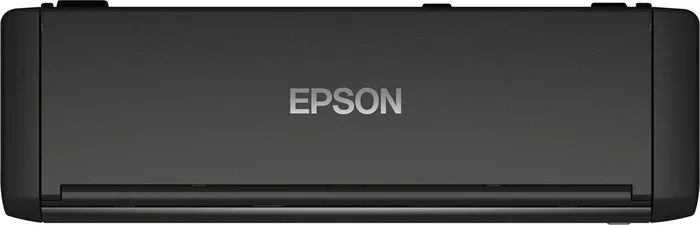
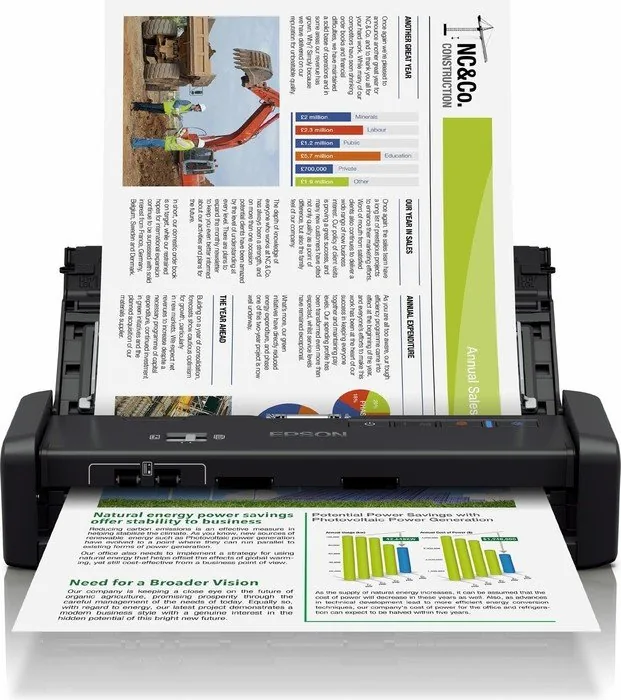
The Epson WorkForce DS-360W is a practical choice for professionals who need fast, mobile-friendly scanning without being tied to a desk. It combines a lightweight design with wireless connectivity, USB support, and battery operation, making it a strong fit for busy offices, remote teams, and on-the-go document handling. If you are looking for the Epson WorkForce DS-360W Manual, you’ll quickly notice that this scanner is designed around simplicity, speed, and everyday reliability.
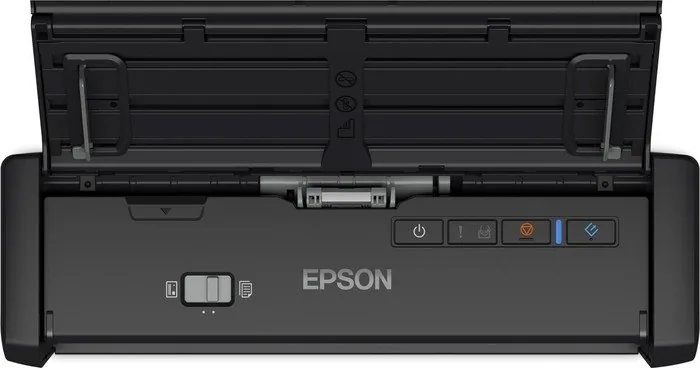
One of its biggest strengths is versatility. The scanner can handle standard paper, long originals, receipts, envelopes, business cards, and selected plastic cards, giving users more freedom than a basic desktop scanner. Its ADF and card slot make switching between document types straightforward, while the control panel keeps the workflow easy to understand. The Automatic Feeding Mode is especially useful when you need to scan mixed originals one by one without constant supervision.
Software support adds even more value. Epson Scan 2 provides detailed image controls for text documents, while Document Capture Pro and Document Capture help streamline saving, emailing, cloud uploads, and even job-based scanning. For business cards, Presto! BizCard helps turn contact details into editable text. That means the DS-360W is not just about scanning paper—it’s about helping you organize information faster and with less manual effort.
Portability also stands out. The battery lets the scanner operate away from a power outlet, and Wi-Fi or AP mode connection options make setup more flexible in different environments. This makes it a smart tool for mobile work, shared desks, and field use where cable management matters. The manual also highlights important safety, placement, and maintenance guidance, helping users get consistent results while protecting the device over time.
Notes
- Use the correct feed selector before scanning.
- Keep originals flat and within supported size limits.
- Replace consumables when scan counts reach service limits.
- Charge the battery in the recommended temperature range.
Why it stands out
The Epson WorkForce DS-360W blends portability, document versatility, and helpful software into one compact scanner. For users who need dependable scanning with minimal setup friction, it offers a well-rounded balance of convenience and control.
Search for 67,732 Manuals online


Type-in Brand or Model
Lea Schneider
10 months ago
How reliable is the scanner over Wi-Fi, and what can cause it to sometimes take multiple sheets or fail to pick a sheet after longer use?
Manual.ly
10 months ago
Over Wi-Fi, slight delays can happen when the scanner reconnects to the network. If it is not found right away, wait a moment and restart the scanner and your router, then try again. Also check that the scanner firmware and the app are up to date. For feeding issues (grabbing multiple sheets or not picking one), first make sure the paper is aligned and not overfilled, and adjust the paper guides to the sheet size. Fan the stack and avoid mixed or curled paper. If the problem appears after some time, clean the pickup/feed rollers with a dry lint-free cloth and try again. If it still occurs, contact support with your device and firmware details.