
ECS Elitegroup A520AM4-M3 Manual
PDF manual · 64 Pages
English



Quick check
Incorrect answer, please try again.
Chat with your ECS Elitegroup A520AM4-M3 manual using AI
Get instant AI answers from your ECS Elitegroup A520AM4-M3 manual
Ask anything about the ECS Elitegroup A520AM4-M3. Answers come from this manual, with the pages they are based on.
A520AM4-M3 Maintenance Schedule
In places of hot and humid weather, turn on your computer once every other week to circulate the air and prevent damage from humidity.
Routinely clean the CPU cooler fan to remove dust and hair. Long term accumulation of dust reduces cooling effectiveness.
Ask a Question
Do you recommend A520AM4-M3?
Yes NoDo you recommend A520AM4-M3?
Yes NoFrequently Asked Questions
The motherboard supports up to 64 GB of DDR4 memory across two DIMM slots. It is compatible with speeds up to 3200 MHz depending on the CPU capabilities. Install dual channel configuration for optimal performance.
Is this answer helpful?
No, this model does not include built-in Wi-Fi or Bluetooth. You must use a wired Ethernet connection or add a PCIe expansion card for wireless networking capabilities.
Is this answer helpful?
You can clear CMOS by shorting the jumper or removing the battery. This should also be done via the BIOS menu under Exit or Restore Defaults options for a software reset.
Is this answer helpful?
It utilizes the AMD AM4 socket. This allows compatibility with various Ryzen processors and Athlon chips designed for desktop platforms. Check CPU support list before buying.
Is this answer helpful?
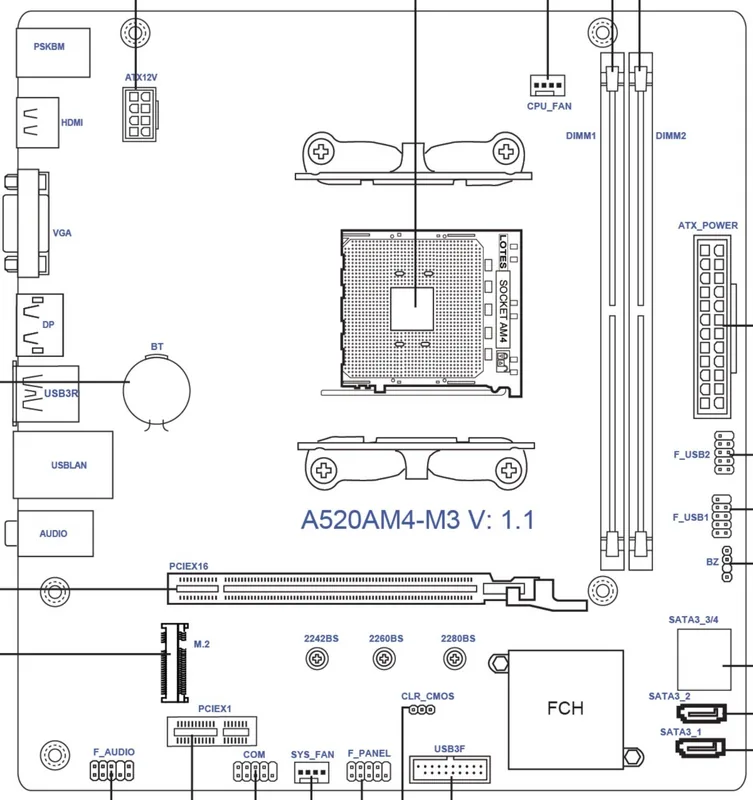
Yes, there is one M.2 slot supporting 2242, 2260, and 2280 sizes. It handles both PCIe Gen3 and SATA protocols for storage expansion.
Is this answer helpful?
There is one PCIe x16 Gen3 slot for graphics and one PCIe x1 Gen3 slot for add-on cards. You can also use the on-board SATA ports.
Is this answer helpful?
Warranty terms vary by region and distributor. Contact ECS support for specific coverage details regarding repairs or replacements for your unit.
Is this answer helpful?
Advantages and Disadvantages
Advantages

- Supports up to 64GB dual channel DDR4 3200MHz memory for efficient multitasking performance.
- PCIe x16 Gen3 slot enables modern graphics card upgrades for enhanced visual capabilities.
- Integrated TPM 2.0 chip offers robust security features for protecting sensitive user data.
- M.2 slot allows for fast NVMe SSD installation to improve boot and load times significantly.
- Gigabit Ethernet controller provides reliable wired network connections for stable internet access.
Disadvantages

- Micro ATX form factor limits total number of expansion slots compared to larger boards.
- No built-in wireless connectivity like Wi-Fi or Bluetooth requires external adapters.
- Basic on-board audio may not suffice for high-end audiophile setups without enhancements.
- Limited USB 3.2 headers require careful cable management for front panel connectivity.
- BIOS interface is basic and lacks some advanced tuning options for extreme overclocking.
Product Specification
Form Factor
µATX
Socket
AMD AM4
Chipset
AMD A520
CPU Compatibility
Ryzen 5000G, Ryzen 5000, Ryzen 4000G, Ryzen 3000, without TDP limitations (Manufacturer List)
Memory
2x DDR4 DIMM, dual PC4-25600U/DDR4-3200, Max 64GB (UDIMM)
Expansion Slots
1x PCIe 3.0 x16, 1x PCIe 3.0 x1, 1x M.2/M-Key (PCIe 3.0 x4/SATA, 2280/2260/2242)
Internal Headers
1x USB 3.0 Header (5 Gb/s, 2x USB 3.0), 2x USB 2.0 Header (480 Mb/s, 4x USB 2.0), 4x SATA 6 Gb/s (A520), 1x Serial, 1x TPM Header, 1x Speaker
Cooling Headers
1x CPU Fan 4-Pin, 1x Fan 4-Pin
Lighting Headers
N/A
Buttons/Switches
N/A
Audio
7.1 (Realtek ALC897)
Graphics
iGPU
Wireless
N/A
RAID Level
0/1/10 (A520)
Multi-GPU
N/A
Power Connectors
1x 24-Pin ATX, 1x 8-Pin EPS12V
VRM
5 Virtual Phases (3+2), 5 Physical Phases (3+2)
Lighting
N/A
BIOS
1x 16MB (128Mb)
Features
Audio+solid capacitors, Onboard TPM 2.0 Support (AMD fTPM)
USB Labeling
Link
Product Description
Building a Reliable Desktop Platform
Creating a new computer system requires selecting a solid foundation for longevity and performance. The ECS Elitegroup A520 is designed for users seeking AMD compatibility within a budget friendly range. It supports the AM4 socket which opens up a vast selection of processors for various needs ranging from office work to multimedia creation. Memory capacity reaches up to sixty-four gigabytes across two slots allowing seamless multitasking capabilities for demanding applications.
Performance Expansion and Storage
High speed data transfer is essential for modern workflows. This board features a primary PCIe Gen3 slot suitable for dedicated graphics cards that enhance visual processing tasks. Four SATA connectors provide ample room for adding solid state drives or traditional hard disk storage. An M.2 slot is also available for ultrafast NVMe SSDs ensuring rapid boot times and application launches. Network connectivity is handled by a reliable gigabit Ethernet port for stable internet access without wireless latency issues.
Security and Configuration
Secure operations are paramount for protecting personal data. The chipset includes dedicated TPM 2.0 support allowing for advanced encryption and secure boot features to safeguard the system integrity. System management is simplified through a comprehensive BIOS interface offering controls for power management and hardware monitoring. Users familiar with the ECS Elitegroup A520 Manual will appreciate the detailed setup options available for optimizing fan curves and voltage settings. Troubleshooting common hardware conflicts is easier with the clear guidance regarding jumper settings and BIOS resets. This ensures data privacy remains secure against unauthorized access attempts. Additional audio jacks allow for versatile sound configurations for headsets or speakers.
Installation and Maintenance
Assembly is straightforward for enthusiasts who value clarity. Headers for front panel audio and USB connections are conveniently located for cable routing. Fan headers include smart control logic to reduce noise levels during light usage while providing maximum cooling under load. The Micro ATX dimensions fit into most compact chassis found on the market today. Regular cleaning of dust prevents overheating issues that could degrade component lifespan over time. Power connectors utilize standard ATX pins ensuring compatibility with common power supply units. Cable organization becomes much simpler with these thoughtful design placements that minimize clutter inside the case.
Final Thoughts on Value
Choosing this motherboard ensures a balanced approach to PC building for students and professionals alike. It balances cost with features needed for reliable daily operation without excessive spending on premium components. The design includes compliance with major regulatory standards for electromagnetic compatibility in residential and business environments. Updating firmware can extend the lifespan of the motherboard by adding new processor support or fixing bugs detected by the development team. Overall it remains a strong candidate for entry level builds.
Notes
Note: Installation requires compatible power supply and chassis. Ensure proper cooling solutions are utilized to prevent overheating during extended use.
Search for 67,732 Manuals online


Type-in Brand or Model