
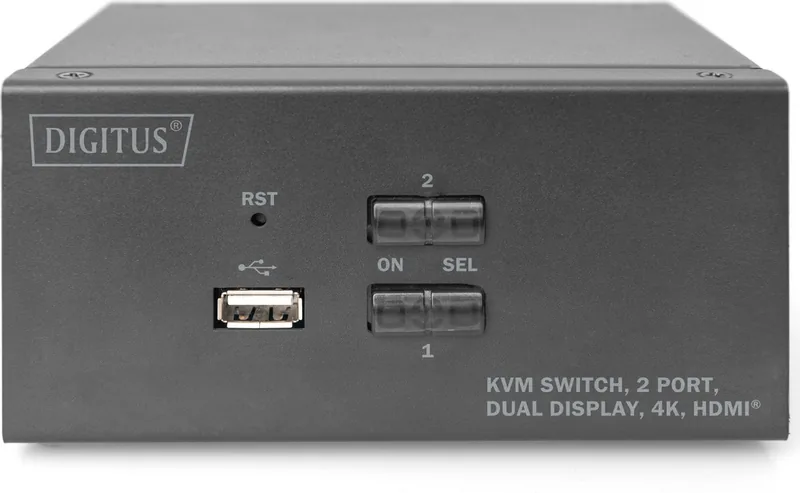
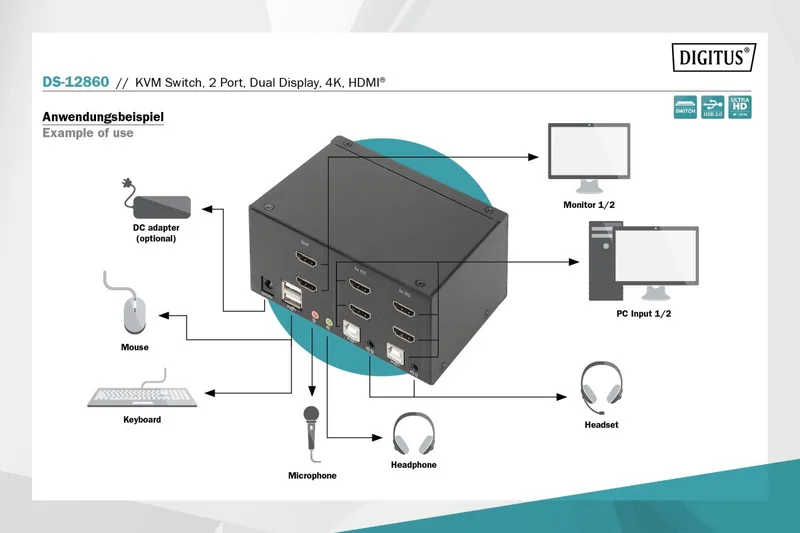
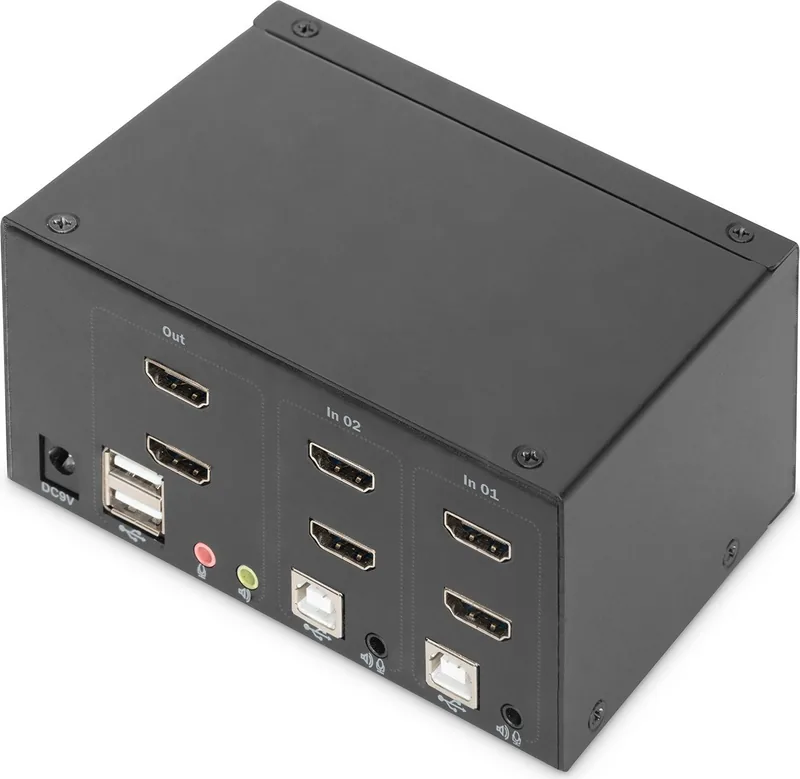
Digitus DS-12860 Manual
PDF manual · 16 Pages
English



Quick check
Incorrect answer, please try again.
Chat with your Digitus DS-12860 manual using AI
Get instant AI answers from your Digitus DS-12860 manual
Ask anything about the Digitus DS-12860. Answers come from this manual, with the pages they are based on.
DS-12860 Maintenance Schedule
Disconnect power before cleaning. Use a damp cloth only; do not use liquid or foaming cleaners.
Ensure that no foreign objects block the ventilation slots to prevent overheating during operation.
Ask a Question
Do you recommend DS-12860?
Yes NoFrequently Asked Questions
The switch supports a maximum resolution of 4K at 30Hz (3840x2160 @30Hz), ensuring crisp visuals for modern displays.
Is this answer helpful?
No, the device operates at the BIOS level and does not require any software drivers or installation procedures.
Is this answer helpful?
Yes, it is compatible with various operating systems including Windows XP and above, Linux distributions, Mac OS, and UNIX.
Is this answer helpful?
You can switch manually using the front panel buttons or by using customizable keyboard hotkey combinations.
Is this answer helpful?
The package includes a power adapter, but it is optional. The unit can also draw power from the computer USB port.
Is this answer helpful?
If issues occur, unplug data cables from all computers, remove power, wait ten seconds, then reconnect and restart.
Is this answer helpful?
Advantages and Disadvantages
Advantages

- Supports dual 4K HDMI displays for high-resolution workflows
- Built-in USB hub simplifies peripheral management
- No driver installation required due to BIOS-level operation
- Compatible with Windows, Linux, Mac, and UNIX operating systems
- Offers both manual button and customizable hotkey switching
Disadvantages

- Power supply is optional and must be purchased separately
- Maximum video resolution is limited to 4K at 30Hz
- Manual requires careful reading for optimal hotkey configuration
- Not suitable for outdoor use due to indoor-only design
- Physical footprint may be tight for very small desks
Product Specification
Type
KVM Switch
Ports
2
Monitor
HDMI 1.4
Keyboard/Mouse
USB
Audio
2x Jack
LAN
N/A
Resolution
3840x2160@30Hz
Features
Dual-Monitor
Product Description
Digitus KVM Switch 2-Port Dual Display 4K HDMI: The Ultimate Desktop Solution
Managing multiple computers without cluttering your desk is a challenge many professionals face. The Digitus KVM Switch 2-Port Dual Display 4K HDMI offers a streamlined solution for SOHO offices and multimedia setups. This device allows users to control two separate computers using a single USB keyboard, mouse, and dual HDMI display console. Its compact metal casing ensures durability while saving valuable desktop space.
The switch supports high-resolution video output up to 4K at 30Hz, making it ideal for modern monitors and creative work. A built-in USB hub enables peripheral access, allowing you to connect printers or storage devices directly to the switch. Installation is straightforward with no driver software required, as it operates at the BIOS level. Users can easily switch between systems using either the front panel buttons or customizable hotkeys on the connected keyboard.
This versatile hardware supports a wide range of operating systems, including Windows, Linux, macOS, and UNIX variants. The package includes necessary cables and an optional power adapter for specific environments. With features like automatic scanning and buzzer feedback, staying organized across two machines has never been easier. Whether for gaming, development, or office productivity, this switch provides seamless connectivity and performance.
Key Features and Benefits
The Digitus KVM Switch excels in flexibility and ease of use. It eliminates the need for multiple input devices, reducing cable chaos on your workspace. The dual HDMI support ensures that users with multi-monitor setups can maintain their workflow without interruption. Additionally, the ability to set custom hotkey combinations gives advanced users full control over switching speeds and methods.
Important Notes
- Always ensure the voltage matches local standards before powering on.
- Use the provided DC 9V adapter if external power is needed for special environments.
- Keep ventilation slots clear to prevent overheating during extended use.
Search for 67,732 Manuals online


Type-in Brand or Model