
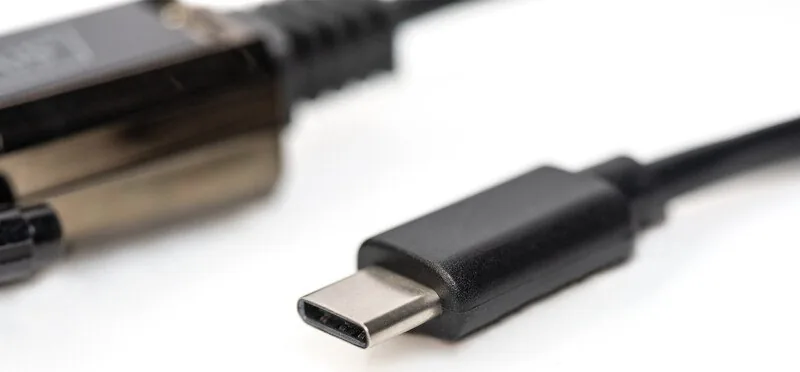
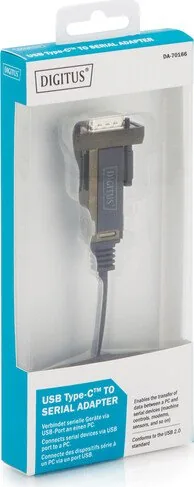
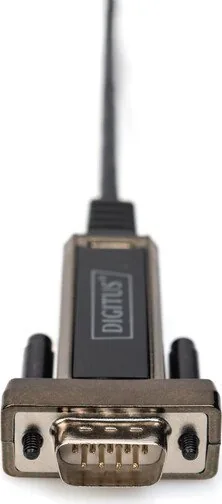
Digitus DA-70166 Manual
PDF manual · 19 Pages
English



Quick check
Incorrect answer, please try again.
Chat with your Digitus DA-70166 manual using AI
Get instant AI answers from your Digitus DA-70166 manual
Ask anything about the Digitus DA-70166. Answers come from this manual, with the pages they are based on.
Ask a Question
Do you recommend DA-70166?
Yes NoFrequently Asked Questions
Connect the device to a USB port. If Windows Update finds the driver, it installs automatically. If not, open Device Manager, find the device under Other Devices, right-click, select Update Driver, choose manual search, and point to the driver location.
Is this answer helpful?
Yes, download the driver from the FTDI website, open the .dmg file, and follow the on-screen instructions. After installation, restart your computer and connect the device to access it via the /dev directory.
Is this answer helpful?
If you trust the source, ignore the warning and proceed with installation by clicking 'Install this driver software anyway.' If unsure, contact your dealer for verified drivers.
Is this answer helpful?
On Windows, use the CDM-Uninstaller or remove entries in Device Manager for both the COM port and USB controller. On Mac, log in as Root, delete the USB Serial Driver.kext, and remove the network entry.
Is this answer helpful?
Hidden devices are those previously connected but currently unavailable. Enable them by creating a system variable named DevMgr_Show_nonpresent_devices with a value of 1 and viewing hidden items in the Device Manager.
Is this answer helpful?
This usually happens when the VID and PID programmed in the device EEPROM do not match those listed in the driver's INF files. You must verify these codes or reprogram the device EEPROM.
Is this answer helpful?
Yes, after installation, you can configure the new serial port in System Preferences under Network to act as a modem for internet connectivity, provided your ISP settings are known.
Is this answer helpful?
Advantages and Disadvantages
Advantages

- High data transfer speeds over 1 Mbit/s
- Compatible with various legacy devices like sensors and consoles
- Simple driver installation on Windows and Mac OS
- Supports automatic detection via Windows Update
- Reliable virtual COM port assignment
Disadvantages

- May require manual driver installation if auto-detection fails
- Potential conflicts if VID/PID codes do not match driver lists
- Hidden devices need special settings to view and remove
- Requires root access for full driver management on Mac
- Some older devices might need EEPROM reprogramming
Product Specification
Type
Adapter cable
Connectors
USB-C 2.0, serial (DB9)
Cable length
3.28 ft
USB spelling
Link
Product Description
Digitus USB 2.0 to Serial Adapter Cable: Bridging Legacy and Modern Tech
The Digitus USB 2.0 to serial adapter cable, 1m Manual, serves as an essential bridge for connecting legacy serial devices to modern computers lacking built-in COM ports. This elegant solution allows users to interface with a wide array of equipment, including weather stations, industrial sensors, motor controllers, set-top boxes, and even retro gaming consoles. By converting USB signals into reliable serial communication, this adapter ensures high compatibility and supports data transfer rates exceeding 1 Mbit/s, making it ideal for both professional and hobbyist applications.
Seamless Installation and Compatibility
Setting up the Digitus USB 2.0 to serial adapter cable is designed for simplicity across multiple operating systems. On Windows platforms, the device typically integrates smoothly with Windows Update, automatically fetching necessary drivers when connected. For manual setups, users can easily navigate through the Device Manager to update driver software, ensuring the virtual COM port is correctly assigned. The process involves selecting the appropriate INF files from a local folder or CD, guiding the system to recognize the new hardware under Universal Serial Bus Controllers.
Mac users also benefit from robust support, where the adapter installs via a straightforward .dmg file. Once installed and the system is rebooted, the device appears in the /dev directory, ready for terminal access or network configuration. Whether configuring a modem connection or simply accessing serial data, the adapter provides a stable link between your computer and peripheral devices.
Troubleshooting and Maintenance
While the Digitus USB 2.0 to serial adapter cable, 1m Manual, is plug-and-play friendly, occasional troubleshooting may be required. Issues often stem from mismatched VID and PID codes in the device EEPROM compared to the driver files. In such cases, verifying these identifiers against the FTDI database can resolve installation errors. Additionally, hidden devices in the Device Manager can be revealed by adjusting system environment variables, allowing for clean removal or reconfiguration without physical disconnection.
Removing the adapter involves using specific uninstaller tools or manually deleting registry entries and kext files on macOS. It is crucial to follow the correct order of operations to avoid leaving orphaned drivers that could affect other connected hardware. With proper care, this adapter remains a reliable tool for extending the life of serial equipment in a USB-dominated world.
Search for 67,706 Manuals online


Type-in Brand or Model