
Digitus 2-Port Dual-Display 4K DisplayPort Manual
PDF manual · 21 Pages
English


Quick check
Incorrect answer, please try again.
Chat with your Digitus 2-Port Dual-Display 4K DisplayPort manual using AI
Get instant AI answers from your Digitus 2-Port Dual-Display 4K DisplayPort manual
Ask anything about the Digitus 2-Port Dual-Display 4K DisplayPort. Answers come from this manual, with the pages they are based on.
Ask a Question
Do you recommend 2-Port Dual-Display 4K DisplayPort?
Yes No
Julian Weber
6 months ago
Does this adapter work with standard DP to HDMI cables, or do I need a specific configuration?

Manual.ly
6 months ago
Based on user feedback, direct DP-HDMI cables can sometimes cause signal issues. We recommend using a DP-DP cable with an HDMI adapter for consistent performance. The device generally functions as expected otherwise, though some users note a beep sound during power on.
Frequently Asked Questions
It supports 4K resolution. HDMI models support 4K at 30 FPS, while DisplayPort models support 4K at 60 FPS. This ensures clear and smooth video output for both standard and high-performance tasks.
Is this answer helpful?
No, drivers are not required. The switch utilizes a hardware connection at the BIOS level. This simplifies installation and ensures compatibility without additional software setups.
Is this answer helpful?
The switch supports Windows XP and newer, Linux distributions like Ubuntu and Debian, and macOS versions up to 10.6. It is designed for mixed environments with various platforms.
Is this answer helpful?
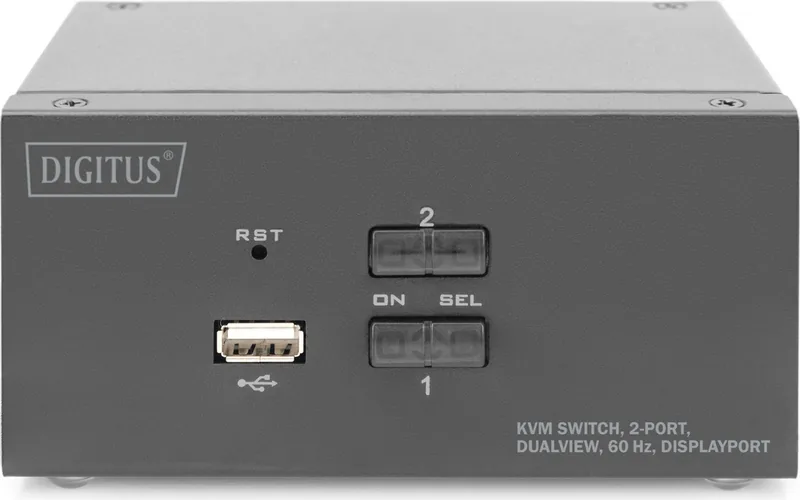
You can switch using front panel buttons or keyboard hotkeys. The buttons provide manual control, while hotkeys allow quick switching via the USB keyboard for efficiency.
Is this answer helpful?
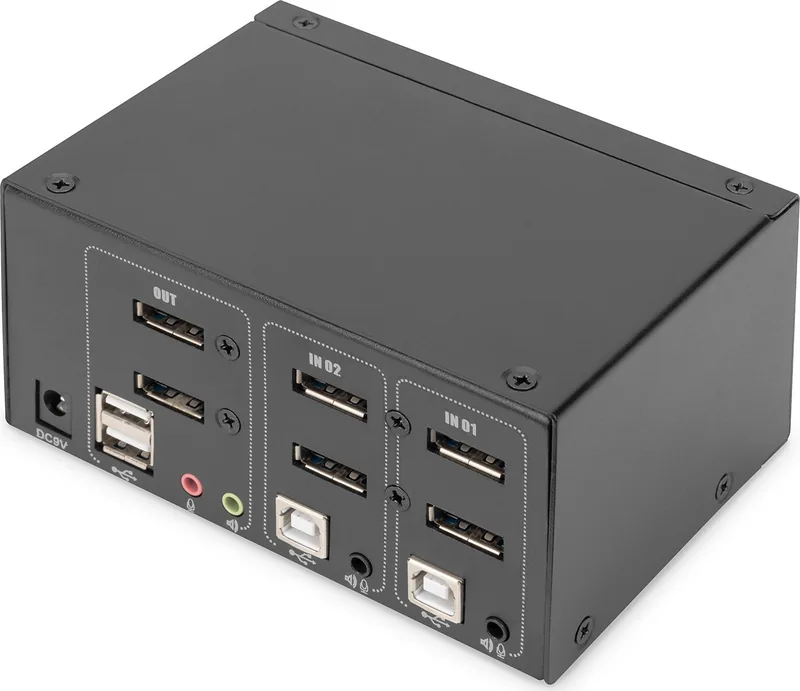
Yes, analog audio connections are included for speakers and microphones. This allows for clear communication during meetings or presentations without needing extra adapters.
Is this answer helpful?
Yes, the built-in USB hub allows you to connect storage devices. This saves port space on your computers and centralizes access to files across switched machines.
Is this answer helpful?
Advantages and Disadvantages
Advantages

- Supports 4K resolution for high-definition visuals on both HDMI and DisplayPort models
- No driver installation needed due to hardware connection at BIOS level
- Built-in USB hub saves computer ports for other peripherals
- Supports Multiple OS including Windows, Linux, and macOS systems
- Dual-Display support expands productivity without cluttering the desk
Disadvantages

- External power supply might be needed for some models or environments
- No warranty or explicit guarantee provided by the manufacturer
- Limited to specific resolution refresh rates depending on port type
- Manual configuration required for some hotkey settings
- Only suitable for indoor use environments as per safety guidelines
Product Specification
Type
KVM Switch
Ports
2
Monitor
DisplayPort
Keyboard/Mouse
USB
Audio
2x 3.5mm Jack
LAN
N/A
Resolution
3840x2160@60Hz
Features
Dual-Monitor
Product Description
Digitus KVM Switch Overview
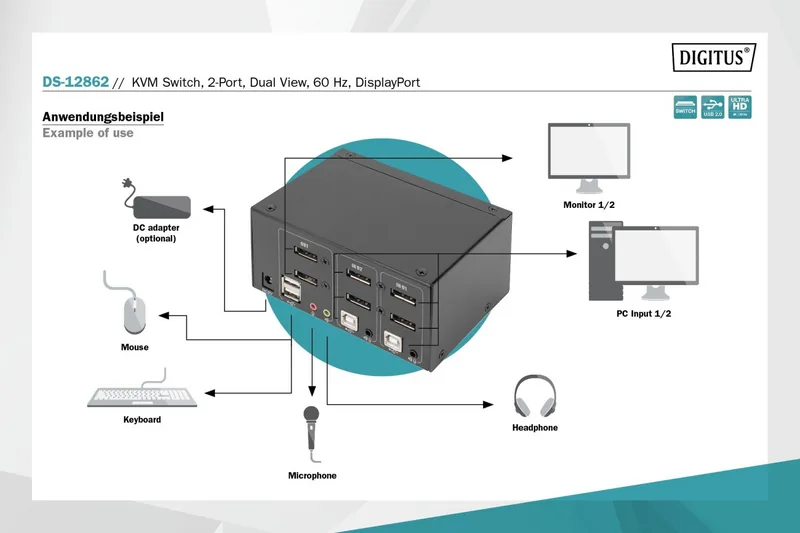
Managing multiple computer systems efficiently requires the right tools. The Digitus KVM Switch revolutionizes workspace management by allowing users to control several machines from a single console. This solution is ideal for professionals who need to switch between Windows, Linux, or macOS environments seamlessly. With support for Dual-Display setups, users can expand their productivity without cluttering their desk. The maximum resolution of 4K ensures crisp visuals for high-definition workflows across monitors.
Advanced Control Features
When considering a 2-Port KVM Switch for your setup, versatility is key for modern demands. The DisplayPort capability in specific models supports higher refresh rates up to 60 FPS at 4K resolution. This ensures smooth video playback and detailed graphics work for designers. Even the HDMI versions support up to 30 FPS at the same resolution, making them suitable for standard office tasks. Users benefit from a hardware connection at the BIOS level, meaning no driver installation is necessary. This simplifies the setup process and ensures stability. Configuration is intuitive and easy to follow for beginners. The 2-port KVM Switch Manual outlines how to use hotkeys on the USB keyboard to switch ports quickly. You can also use front panel buttons for manual switching if you prefer physical control. Automatic switching intervals can be configured to suit your workflow. The built-in USB hub allows peripherals like mice, keyboards, and storage devices to connect directly to the switch, saving valuable port space on your computers for other needs.
Compatibility and Safety
Compatibility is a major strength of this hardware solution. The system supports a wide range of operating systems including older versions like Windows XP and newer like Windows 11. Linux distributions such as Ubuntu and Debian are also fully supported for development environments. This makes the device a robust choice for mixed environments within companies. Safety guidelines emphasize keeping the device in a ventilated area and avoiding water exposure. The metal housing provides durability against wear and tear. Upgrading your office infrastructure with this technology reduces cable clutter significantly. It promotes a cleaner desk environment while maintaining high performance levels. Whether you choose the DisplayPort or HDMI version, the core functionality remains consistent across the product line. Always refer to the specific 2-port KVM Switch Manual for detailed setup instructions regarding your specific hardware. Ensure power requirements are met, as some environments may require an external DC power supply for optimal performance. Audio support is included for clear communication during meetings. The reset function is accessible via buttons if the system freezes. This ensures reliability over long periods of usage without interruption. Security is maintained through hardware connections without needing network access, reducing vulnerability. The compact design fits into tight spaces under desktops. It is perfect for data centers or home offices. Regular maintenance involves cleaning with a cloth. Never insert objects into the ventilation slots to prevent overheating. This protects the internal components from dust accumulation. Overall, this equipment enhances efficiency and productivity in any professional setting.
Search for 67,706 Manuals online


Type-in Brand or Model
Jeanette Welch
7 months ago
I've heard the startup beep is annoying. Also, will direct DP-HDMI cables work or do I need an adapter?
Manual.ly
7 months ago
The startup sound is hard-coded and cannot be turned off. For video transmission, direct DP-to-HDMI passive cables often fail to establish a signal. We recommend using a DP-to-HDMI active adapter or connecting via DP for reliable performance.