
Dascom Tally 2820 Manual
PDF manual · 168 Pages
English



Quick check
Incorrect answer, please try again.
Chat with your Dascom Tally 2820 manual using AI
Get instant AI answers from your Dascom Tally 2820 manual
Ask anything about the Dascom Tally 2820. Answers come from this manual, with the pages they are based on.
Tally 2820 Maintenance Schedule
The ribbon must be replaced if it is frayed or worn. The service life of the ribbon is 20 million characters.
Remove paper and dust with a soft brush. Clean with a vacuum cleaner to keep the interior dust free for optimal print head function.
Clean the printer housing with mild detergent and a soft lint-free cloth. Do not use abrasive cleaners or solvents.
Switch off the printer, open the cover, and carefully remove dust and ribbon or ink remains from the platen.
Clean the rollers of the upper friction as necessary with a mild cleaning agent and a soft, lint-free cloth.
Do not oil or grease the sliderails and shafts; otherwise damage will occur on the printer.
Ask a Question
Do you recommend Tally 2820?
Yes NoFrequently Asked Questions
Open the top cover while powered on. Slide the print head carriage left. Remove old cassette. Insert new ribbon with tension knob aligned. Close cover and click latch.
Is this answer helpful?
It features USB 2.0 and Ethernet by default. Parallel and serial interfaces are available as optional modules for connectivity.
Is this answer helpful?
Yes you can enable barcode printing through the menu settings. Ensure the emulation supports the specific barcode format you require.
Is this answer helpful?
The printer measures paper thickness automatically. You can manually correct the head gap value if print quality appears smudged or too light.
Is this answer helpful?
Yes the Ethernet interface allows network printing. You must configure the IP address and gateway via the menu settings.
Is this answer helpful?
The printer may display a Check Ribbon error. Using original cassettes ensures proper detection and reliable printing performance.
Is this answer helpful?
Yes you can reset to default values via the Menu function. Hold specific keys during power on to access advanced reset options.
Is this answer helpful?
Advantages and Disadvantages
Advantages

- High print speed suitable for industrial environments
- Resistant to dust and dirty hostile locations
- Multiple emulation modes including IBM and Epson
- Flexible menu settings for custom paper lengths
- Easy ribbon cassette replacement process
Disadvantages

- Can produce higher noise levels during operation
- Newer Windows drivers may not support internal fonts
- Menu navigation can be complex for new users
- Requires specific firmware versions for certain features
- Network setup requires manual IP configuration in some cases
Product Specification
Technology
Dot Matrix (A3)
Print Resolution
24 Pins
Print Width
16.54 inches
Print Speed
max. 1000 Characters/s (35 Sheets/min A4)
Memory
128 KB (Buffer)
Connectors
USB 2.0, LAN
Emulation
IBM ProPrinter XL24, Epson LQ-2250, MTPL
Dimensions (W x H x D)
23.62 x 7.87 x 10.43 inches
Weight
23.37 lbs
Special Features
Tear-off edge, 5-part
Manufacturer Warranty
2 years
Product Description
The Dascom Tally 2820 Review
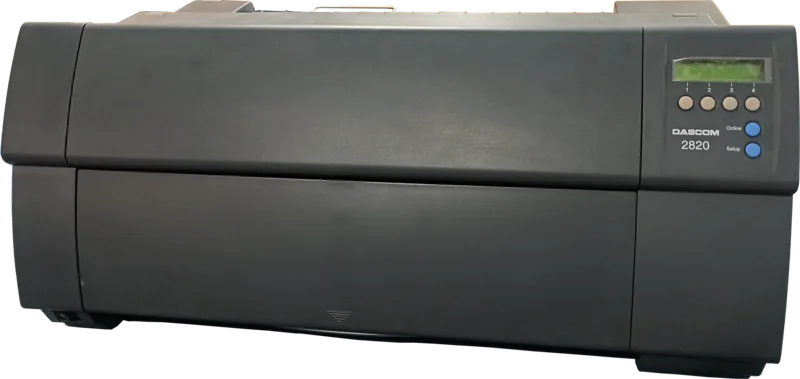
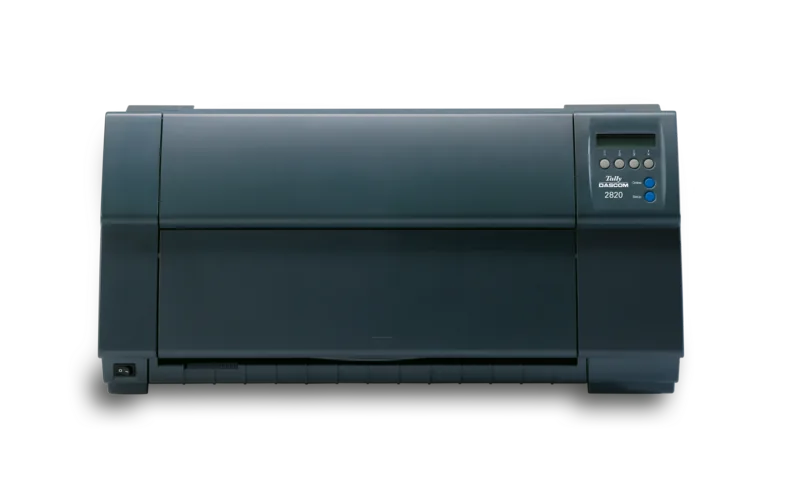
When businesses require reliability in harsh environments the Dascom Tally 2820 stands out as a robust industrial solution. It is designed to withstand dust dirty conditions while maintaining high print speeds and exceptional print quality and consistent speed. This machine boasts a high workload capacity ensuring low running costs over its lifespan. Many industries rely on this equipment for continuous operation where downtime is not an option.
Key Features Overview
The device comes with multiple interface options including USB and Ethernet connectivity. You can customize settings directly using the control panel or via software drivers on your computer. The control panel features a liquid crystal display showing online status and paper path information. Users can easily navigate through menus to adjust font character density and line spacing. This flexibility allows for precise formatting across various paper types.
Paper Handling and Maintenance
Loading fanfold paper is straightforward with tractor mechanisms on both sides. The printer includes automatic paper width detection and top margin detection for efficient setup. Replacing the ribbon cassette requires following specific steps to ensure the printer detects the correct components. The instructions suggest using original cassettes to avoid error messages during operation. Cleaning the housing and cleaning the interior are regular maintenance tasks to keep performance optimal. Protecting the unit from shock and direct sunlight helps longevity. Ensure the printer sits on a solid even base to prevent falls and ensure safety during operation.
Programming and Settings
Advanced menu functions allow for deeper configuration including emulation selection and protocol settings. You can set up different menu configurations for different applications like IBM or Epson modes. Network settings such as IP address and gateway are configurable via the menu structure. Large character printing and excellent barcode support add versatility for shipping labels and reports. Always refer to the Dascom Tally 2820 Manual for detailed safety instructions regarding voltage and placement.
Conclusion
This printer offers a professional solution for many sectors including warehousing and logistics. Its ability to handle hostile environments makes it a favorite choice for industrial applications. With options like tractor modules and autocut facilities you can tailor the machine to your specific needs. The user interface simplifies complex tasks while retaining powerful capabilities for power users. Investing in this hardware ensures consistent output quality day after day. Reliable performance is guaranteed through careful calibration of settings and proper cable connections every step of the way.
Search for 67,732 Manuals online


Type-in Brand or Model