
Cudy X6 Manual
PDF manual · 2 Pages
English



Quick check
Incorrect answer, please try again.
Chat with your Cudy X6 manual using AI
Get instant AI answers from your Cudy X6 manual
Ask anything about the Cudy X6. Answers come from this manual, with the pages they are based on.
Ask a Question
Do you recommend X6?
Yes NoFrequently Asked Questions
Open a web browser and go to http://cudy.net or http://192.168.10.1. Use admin as the default password. If the login window does not appear, set your computer to obtain IP and DNS automatically, verify the URL, try another browser, reboot the router, or toggle the network adapter.
Is this answer helpful?
Ensure the router has power and cables are secure. Check the broadband interface and LAN connections. Try connecting via Ethernet to configure, restore factory settings if needed, and reboot the router. If the signal still fails, hardware fault may be the cause—contact support.
Is this answer helpful?
While the router is powered on, press and hold the Reset button for about 6 seconds. Wait 1–2 minutes for the device to reboot and restore factory settings. Note this will erase custom configurations including Wi‑Fi names, passwords, and network settings.
Is this answer helpful?
Confirm your phone is connected to the Cudy router Wi‑Fi (the default SSID is on the bottom label) and that you entered the correct address (http://cudy.net or 192.168.10.1). If issues persist, follow Q1 steps: automatic IP, different browser, or reconnect to the correct Wi‑Fi.
Is this answer helpful?
System LED: blinking during startup, solid when ready. Internet LED: shows connected or not. WPS LED: indicates WPS in progress. Ethernet LEDs show per-port link status. Holding Reset ~6s restores defaults; holding WPS ~1s triggers pairing.
Is this answer helpful?
Yes. If your internet feed is a direct Ethernet line from the wall (not via a modem), plug it into the router’s WAN/INTERNET port and skip modem power cycle steps. Then proceed with the router setup as usual.
Is this answer helpful?
Visit http://www.cudy.com/support or email [email protected] for technical support, downloads, and the user manual including setup instructions and troubleshooting resources.
Is this answer helpful?
Advantages and Disadvantages
Advantages

- Wi‑Fi 6 (AX1800) improves multi-device performance and throughput for streaming and gaming.
- Simple Quick Setup via http://cudy.net or 192.168.10.1 with default admin access.
- Clear LED indicators and physical buttons for reset and WPS make basic troubleshooting easy.
- Supports both wired LAN ports and dual-band wireless for flexible connectivity.
- Multilingual setup guidance and visible default SSID/password on the device label.
Disadvantages

- Basic management features may be limited compared with high-end routers for advanced users.
- Default admin password is generic; users must change it to secure the network.
- Factory reset required for some persistent issues, which erases custom settings.
- No explicit mention of advanced security features like WPA3 or built‑in VPN.
- Performance depends on ISP and placement; signal issues require manual checks and resets.
Product Specification
Modem
N/A
WAN
1x 1000Base-T
LAN
4x 1000Base-T
Wireless
WLAN 802.11a/b/g/n/ac/ax (Wi-Fi 6), simultaneous
Transfer Rate
574Mbps (2.4GHz), 1201Mbps (5GHz)
Security
WEP, WPA, WPA2, WPA3, WPS
Antennas
4x external
Ports
N/A
Power Consumption
not specified (consumption, operation), 12V/1A/12W (max. power supply output)
Dimensions
8.07x5.43x1.50 in
Features
MU-MIMO, IPv6, VPN passthrough (PPTP/L2TP), Roaming, Mesh (shared band), OpenWRT
Band Capability
Dual Band (simultaneous), Mesh (shared band)
Manufacturer Warranty
three years
Transfer Rate 802.11ax (Wi-Fi 6 / Wi-Fi 6E) 2.4GHz
574Mbps (Spatial Streams: 2x2, Bandwidth: 40MHz, Modulation: 1024-QAM)
Transfer Rate 802.11ax (Wi-Fi 6 / Wi-Fi 6E) 5GHz
1201Mbps (Spatial Streams: 2x2, Bandwidth: 80MHz, Modulation: 1024-QAM)
Note
Specification of the transfer rate for 802.11ax at 2.4GHz and 5GHz. (802.11ax (2.4GHz) 2x2 40MHz 1024-QAM: 574Mbps, 802.11ax (5GHz) 2x2 80MHz 1024-QAM: 1201Mbps)
Note #2
Open-DD-WRT may only be available for certain revisions, please refer to further links!
Note #3
In some cases, the manufacturer's maximum consumption specification only corresponds to the maximum output power of the power supply unit and is therefore not meaningful information for everyday power consumption.
Product Description
Cudy X6, AX1800 Manual — Quick Overview
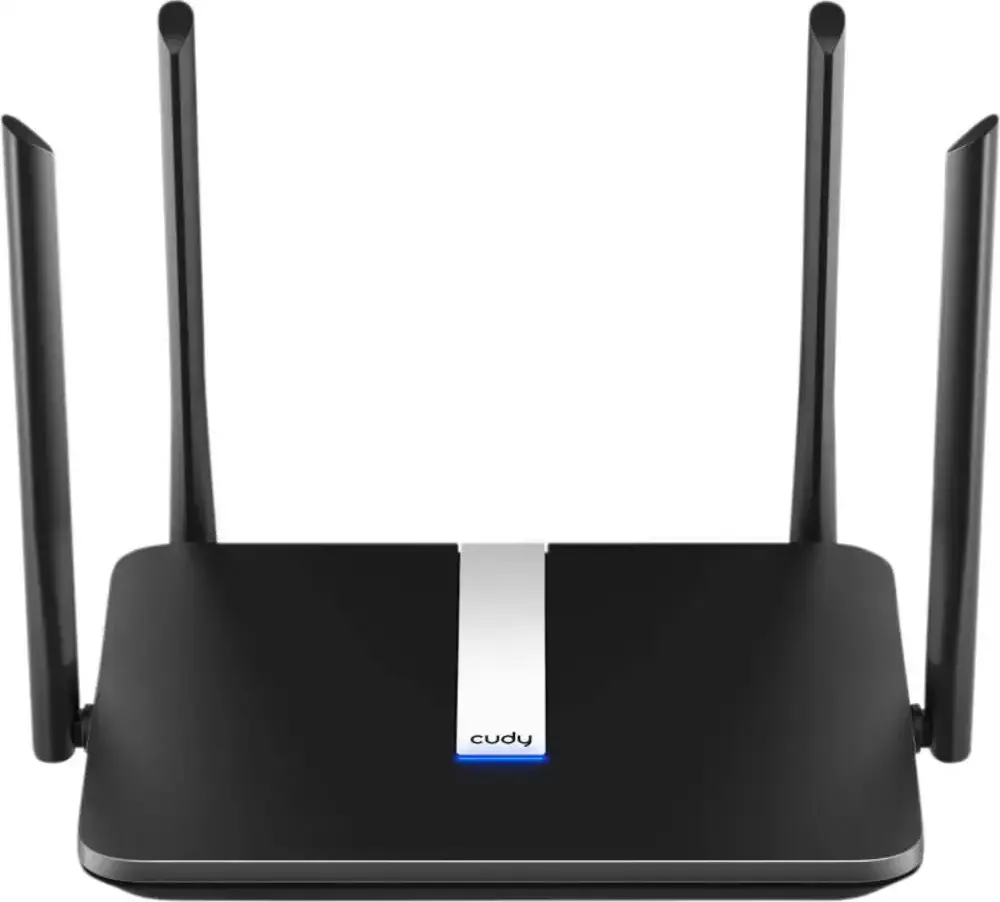
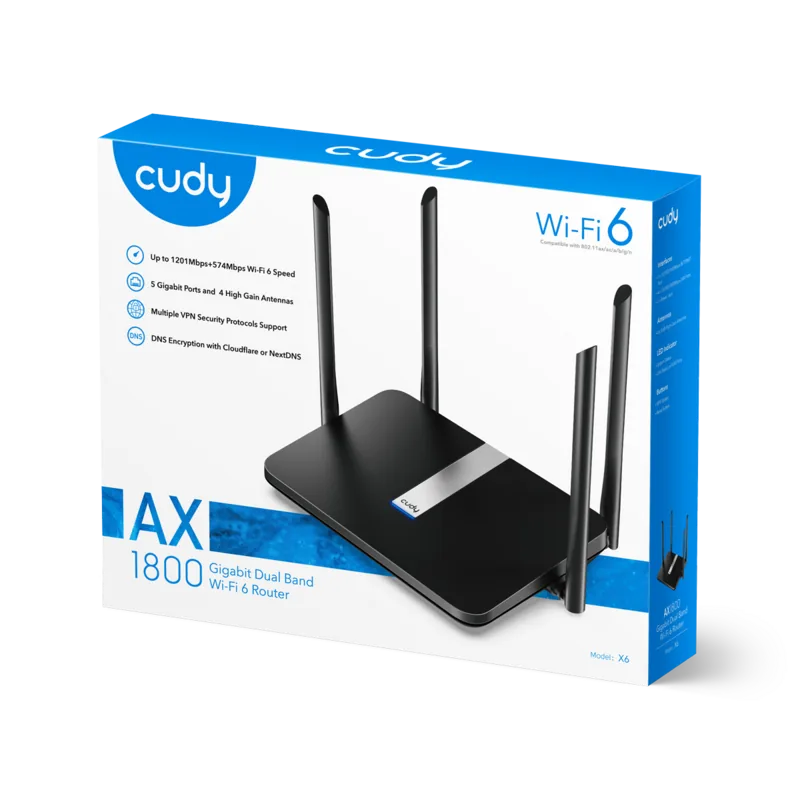
The Cudy X6 AX1800 is a dual-band Wi‑Fi 6 router designed for home and small office use. It balances strong wireless performance, straightforward setup, and essential management features. With AX1800-class speeds, it supports both 2.4GHz and 5GHz bands to deliver faster throughput and better device capacity compared with older Wi‑Fi standards.
Key Features and Setup Highlights
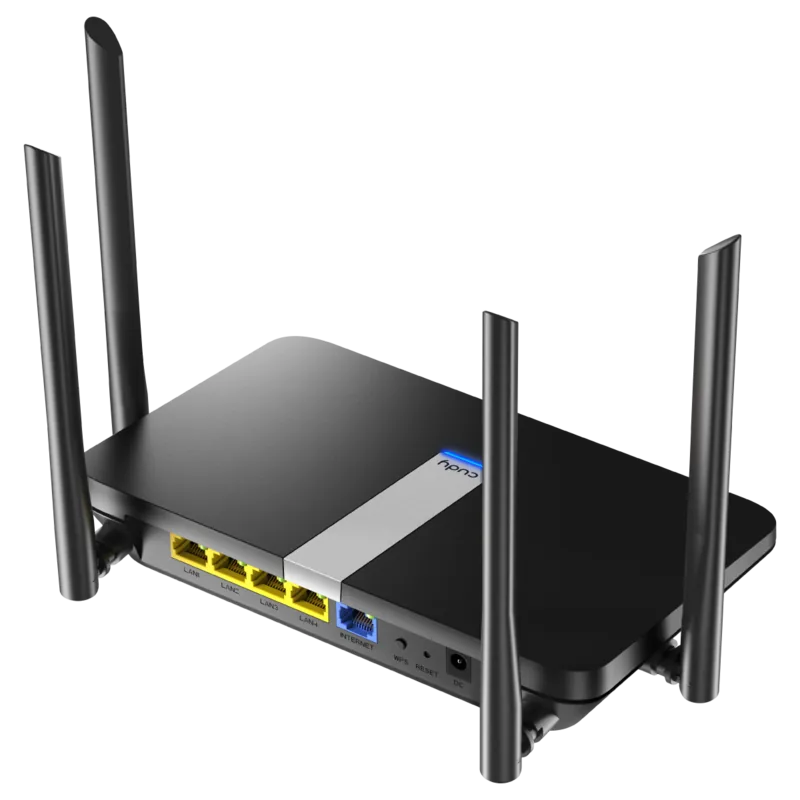
Cudy X6 offers an easy Quick Setup flow accessible via http://cudy.net or 192.168.10.1 using the default admin credentials. Physical installation is simple: connect the modem to the router’s WAN/INTERNET port, plug in power, wait for the system LED to go steady, then follow the on-screen steps. If the ISP provides Ethernet directly from the wall, plug that into the WAN port and skip modem-specific steps. For wired devices, use the LAN ports; wireless clients join using the SSID and password printed on the router’s underside.
The product includes LED indicators showing system, WPS status, internet connectivity, and per-port Ethernet link states. The reset and WPS buttons are clearly labeled—press and hold for six seconds to restore factory defaults, or press one second to trigger WPS pairing.
Management and Troubleshooting
Login issues commonly stem from static IP settings on a client or incorrect browser entries; changing the computer to obtain an IP automatically and verifying the URL usually resolves this. If Wi‑Fi is missing, check power and cable connections, try a wired setup for configuration, or perform a factory reset if necessary. After rebooting, ensure your device reconnects to the Cudy Wi‑Fi (SSID printed on the label) rather than another network.
Performance and Use Cases
As an AX1800 router, the X6 supports modern Wi‑Fi 6 features like improved spectral efficiency and multi-device handling, making it suitable for HD streaming, online gaming, and multiple smart home devices. Its compact setup and multilingual Quick Installation guidance make it approachable for non-technical users while offering adequate controls for basic network management.
Notes
- Default login: http://cudy.net or 192.168.10.1 (password: admin).
- Default SSID and password are printed on the bottom label.
- Hold reset ~6s to restore factory defaults; hold WPS ~1s to enable pairing.
- Contact support at http://www.cudy.com/support or [email protected].
Enjoy stable connections and simplified setup with Cudy X6, AX1800 — a practical choice for everyday wireless needs.
Search for 67,732 Manuals online


Type-in Brand or Model
officia_minus
9 months ago
Can I install OpenWrt on this router if it only accepts signed firmware images? Is there an official way to get started and then move to a newer OpenWrt version?
Manual.ly
9 months ago
Yes. Since the router only flashes signed images, you typically cannot jump directly to an arbitrary OpenWrt build. The manufacturer provides an OpenWrt image (usually an older but compatible version) that you can install via the router's web interface. After the device boots into that OpenWrt version, you can then upgrade to the current OpenWrt release using the normal upgrade process within OpenWrt. Please confirm the exact model and hardware target before installing, and back up your configuration before upgrading.