
Cudy AC1300 Manual
PDF manual · 2 Pages
English



Quick check
Incorrect answer, please try again.
Chat with your Cudy AC1300 manual using AI
Get instant AI answers from your Cudy AC1300 manual
Ask anything about the Cudy AC1300. Answers come from this manual, with the pages they are based on.
Ask a Question
Do you recommend AC1300?
Yes NoFrequently Asked Questions
The Cudy AC1300 supports both 2.4GHz and 5GHz frequency bands, allowing users to choose between longer range or higher speeds depending on their environment.
Is this answer helpful?
To install, insert the USB adapter into your computer, navigate to the driver folder, and double-click the Setup.exe file. Wait for the REALTEK Client Management Software to appear in the taskbar.
Is this answer helpful?
Yes, the device fully supports WPA2-PSK authentication and AES data encryption to ensure secure communication over wireless networks.
Is this answer helpful?
The original EU declaration of conformity is available for download at http://www.cudy.com/ce, confirming compliance with directives 2014/53/EU and others.
Is this answer helpful?
Yes, provided the older computer has a functioning USB-A 3.0 port. The adapter is backward compatible with USB 2.0 but offers faster speeds on 3.0.
Is this answer helpful?
The REALTEK USB Wireless LAN Utility is used to scan for networks, select SSIDs, enter keys, and view detailed statistics like speed and signal strength.
Is this answer helpful?
Yes, once connected, the utility window displays the current signal strength percentage and link quality to help you assess your connection health.
Is this answer helpful?
Advantages and Disadvantages
Advantages

- Dual-band 2.4GHz and 5GHz support for better coverage
- Simple plug-and-play installation via Setup.exe
- Real-time monitoring of signal and link quality
- Secure WPA2-PSK encryption with AES
Disadvantages

- Requires manual driver setup for initial use
- Only compatible with USB-A 3.0 ports
- No built-in power switch for easy disconnecting
- Range depends heavily on external antenna positioning
Product Specification
Type
WLAN Adapter
Form Factor
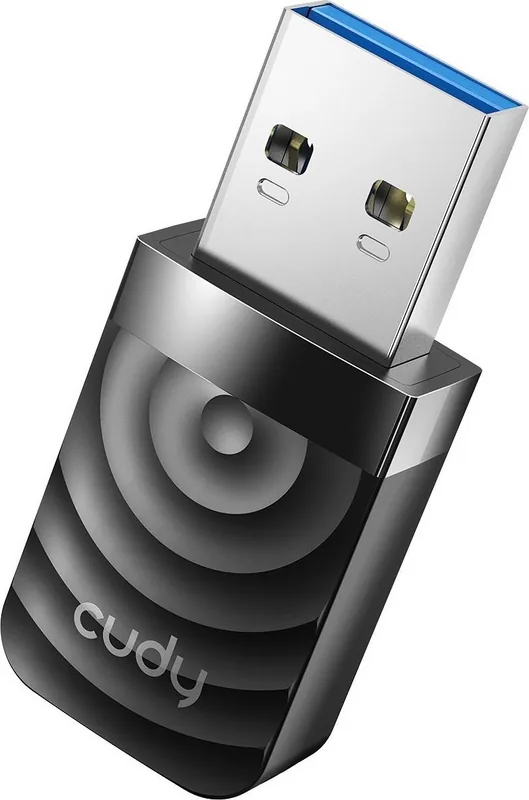
1x USB Stick
Connection
1x USB-A 3.0 (Plug, 5Gbps)
Connectivity
1x WLAN 802.11b/g/n (1x 2.4GHz or 1x 5GHz), 1x Power Amplifier (18dBm), 1x Antenna (Integrated, 2x Electric, 0.53dBi)
Transmission
1x 2.4GHz WLAN (47.68Mbps, 2x2), 1x 5GHz WLAN (104.44Mbps, 2x2)
Power Supply
Power supply only via Connection
Chipset
Realtek RTL8812BU (WLAN Adapter)
Dimensions
0.67x0.33x1.48 inches (WxDxH)
Case Color
Black
Compatibility
Universal
USB Naming
Link
Product Description
Upgrade Your Connectivity with the Cudy AC1300 WLAN Adapter
The Cudy AC1300 WLAN Adapter is a powerful solution designed to bring high-speed wireless connectivity to your desktop or laptop. This versatile device supports both 2.4GHz and 5GHz frequency bands, ensuring you can connect to the network that best fits your needs. Whether you are streaming high-definition video, gaming online, or working from home, this adapter provides the stability and speed required for a seamless experience.
Seamless Installation Process
Getting started with the Cudy AC1300 is straightforward. Simply insert the USB-A 3.0 plug directly into an available port on your computer. The system will recognize the hardware, and you can proceed with the driver installation by opening the driver folder and double-clicking the Setup.exe file. Once the installation is complete, the REALTEK Client Management Software icon will appear in the taskbar, confirming that the setup was successful.
Managing Your Network
After connecting, users can utilize the REALTEK USB Wireless LAN Utility to manage their connections easily. By double-clicking the utility icon, you can view available networks, select your desired SSID, and enter the network key to establish a secure link. The interface displays critical information such as signal strength, link quality, and connection speed, allowing you to monitor your performance in real-time. The adapter supports WPA2-PSK encryption with AES data protection, ensuring your data remains secure while browsing the web.
Compliance and Reliability
Cudy ensures that this device meets all essential requirements of European directives, including 2014/53/EU and 2011/65/EU. You can find the original EU declaration of conformity on their official website. This commitment to quality guarantees that the adapter operates efficiently and safely within regulatory standards.
Key Notes
- Supports dual-band frequencies for optimal range and speed.
- Uses USB-A 3.0 for fast data transfer rates.
- Includes comprehensive driver support via the included CD or download portal.
- Compatible with Windows operating systems.
Pros and Cons
Pros
- Dual-band support allows flexible connection options.
- Easy plug-and-play installation process.
- Real-time monitoring of signal strength and link quality.
- Secure WPA2-PSK encryption standard.
Cons
- Requires manual driver installation for full functionality.
- Limited to USB-A ports without an adapter.
- No physical switch for power management.
- Dependent on external antenna placement for maximum range.
Frequently Asked Questions
What frequency bands does this adapter support? The adapter supports both 2.4GHz and 5GHz bands for versatile connectivity.
How do I install the drivers? Insert the USB adapter, open the driver folder, and run Setup.exe to begin installation.
Does it support WPA2 encryption? Yes, it uses WPA2-PSK with AES encryption for secure network access.
Where can I find the EU declaration? The document is available at www.cudy.com/download under the CE section.
Can I use this on older computers? Yes, as long as the computer has a functional USB-A 3.0 port.
What software manages the connection? The REALTEK USB Wireless LAN Utility handles network selection and status.
Is the signal strength visible after connecting? Yes, the utility displays current signal strength and link quality metrics.
Search for 67,732 Manuals online


Type-in Brand or Model