
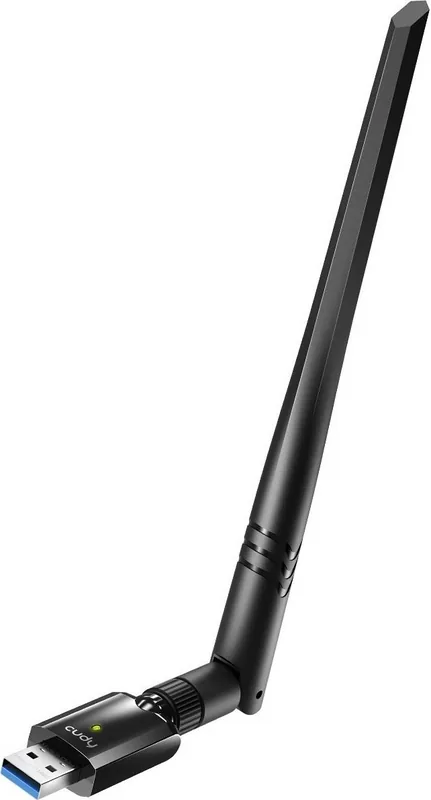
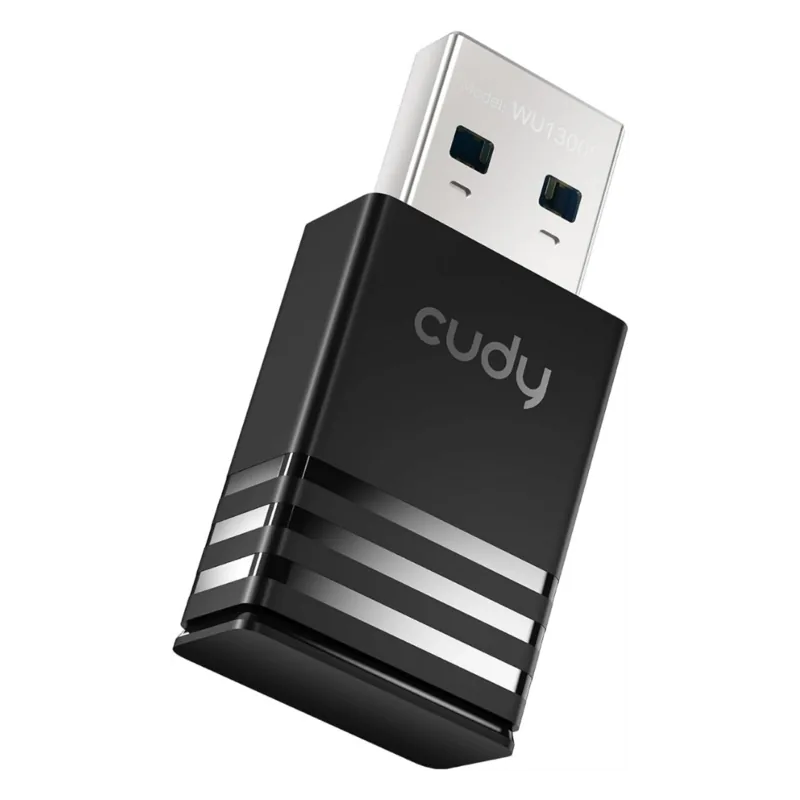
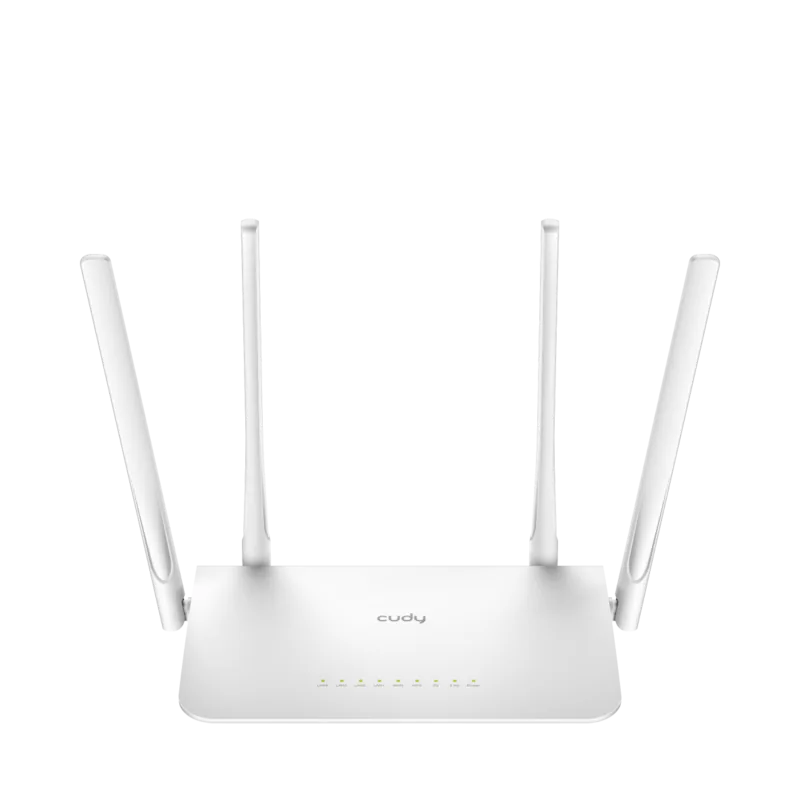
Cudy AC1300 USB Adapter Manual
PDF manual · 28 Pages
English



Quick check
Incorrect answer, please try again.
Chat with your Cudy AC1300 USB Adapter manual using AI
Get instant AI answers from your Cudy AC1300 USB Adapter manual
Ask anything about the Cudy AC1300 USB Adapter. Answers come from this manual, with the pages they are based on.
Ask a Question
Do you recommend AC1300 USB Adapter?
Yes NoFrequently Asked Questions
The supplied text describes a Cudy Wi-Fi extender that expands an existing router's wireless coverage. It does not provide specifications or setup instructions for a USB-A AC1300 wireless adapter.
Is this answer helpful?
Plug the extender in near the router and wait for its LED to turn solid. Press the WPS button on the router, then press the extender's WPS button within two minutes. Wait for the connection LEDs to become solid.
Is this answer helpful?
The extender creates names based on the host network name. The 2.4 GHz network typically ends in -EXT2G, while the 5 GHz network typically ends in -EXT5G. The default password is generally the same as the router password.
Is this answer helpful?
Connect a phone or computer to the extender's temporary Wi-Fi network. Open http://cudyre.net/ or http://192.168.10.254/, log in with the stated admin password, select Wireless Extender mode, and follow the on-screen steps.
Is this answer helpful?
Flashing red means the extender is connecting or not connected to the host Wi-Fi. Solid red means weak signal, purple means fair signal, and blue means a strong connection. Use this guidance to choose a better outlet location.
Is this answer helpful?
Place it roughly halfway between the router and the Wi-Fi dead zone. Choose an outlet where the LED shows a fair or strong host connection, ideally purple or blue, so it can extend a reliable signal.
Is this answer helpful?
With the extender powered on, hold the Reset button for about two seconds until the LEDs respond. Release the button and wait one to two minutes for the device to restart with its factory settings restored.
Is this answer helpful?
Advantages and Disadvantages
Advantages

- Offers WPS pairing and browser-based setup for flexible installation.
- Extends existing Wi-Fi with separate 2.4 GHz and 5 GHz network names.
- Color-coded LEDs help users find a placement with stronger router signal.
- Extended networks generally use the same Wi-Fi password as the host router.
- Includes reset and troubleshooting guidance for common connection issues.
Disadvantages

- The supplied information describes a Wi-Fi extender, not the requested USB-A AC1300 adapter.
- Optimal performance depends on placement and the strength of the host Wi-Fi signal.
- A weak red LED indication may require relocating the extender.
- Browser setup requires connecting to the temporary extender network first.
- Network names may change by adding -EXT2G or -EXT5G suffixes.
Product Specification
Type
Wi-Fi adapter
Form factor
1x USB stick
Interface
1x USB-A 3.0 (plug, 5 Gb/s)
Connection
1x Wi-Fi 802.11b/g/n (1x 2.4 GHz/1x 5 GHz simultaneous), 1x transmit amplifier (18 dBm), 1x antenna (integrated, 2x electrical, 2 dBi)
Transmission
1x 2.4 GHz Wi-Fi (300 Mb/s, 2x2), 1x 5 GHz Wi-Fi (867 Mb/s, 2x2)
Power supply
Power supply via interface only
Chipset
Realtek RTL8812BU (Wi-Fi adapter)
Dimensions
0.67 x 0.33 x 1.48 in (W x H x D)
Case color
black
Compatibility
universal
Special features
MU-MIMO
USB designation
Link
Product Description
Cudy AC1300 Wireless Adapter, 2.4GHz/5GHz Wi-Fi, USB-A 3.0 [Plug] - Read, Download & Print Free
The supplied product information actually describes a Cudy Wi-Fi extender rather than a USB-A wireless adapter. It is designed to expand an existing wireless network into areas where the router signal is weak or unavailable. By placing the extender between the router and a coverage dead zone, users can improve access for phones, laptops, smart TVs, and other Wi-Fi devices.
Simple Ways to Extend Wi-Fi Coverage
Setup can be completed through the WPS buttons or a browser-based configuration process. For a quick connection, plug the extender in near the router, press the router's WPS button, and then press WPS on the extender within two minutes. Once paired, the extender creates extended network names based on the original Wi-Fi name, typically ending in -EXT2G and -EXT5G.
The browser method provides an alternative when WPS is unavailable. Connect a computer or smartphone to the extender's temporary network, then open http://cudyre.net/ or http://192.168.10.254/. The setup interface guides users through selecting the host network and confirming its Wi-Fi password. After configuration, the extender may take one to two minutes to establish the connection.
Helpful LED Signal Guidance
A color-coded LED system helps identify the best installation spot. Flashing red indicates that the extender is connecting or is not connected to the host Wi-Fi. Solid red means the connection is active but weak, purple indicates a fair signal, and blue indicates a strong connection. This makes it easier to relocate the unit for more effective coverage.
For best results, position the extender about halfway between the router and the area with poor reception. Installing it too far from the router may result in a weak host signal, while placing it too close may limit the added coverage area. Devices connect using the extended SSID and usually use the same password as the main Wi-Fi network.
Notes
- The extender supports both 2.4 GHz and 5 GHz extended network names when available from the host router.
- If the setup screen does not open, confirm connection to the extender network and verify that automatic IP and DNS settings are enabled.
- A factory reset can be performed by holding the Reset button for about two seconds while powered on, then allowing one to two minutes for a restart.
- The provided information includes Cudy support contact details and EU compliance declarations.
Search for 67,732 Manuals online


Type-in Brand or Model