
Contour Design SliderMouse Pro Manual
PDF manual · 8 Pages
English



Quick check
Incorrect answer, please try again.
Chat with your Contour Design SliderMouse Pro manual using AI
Get instant AI answers from your Contour Design SliderMouse Pro manual
Ask anything about the Contour Design SliderMouse Pro. Answers come from this manual, with the pages they are based on.
Ask a Question
Do you recommend SliderMouse Pro?
Yes NoFrequently Asked Questions
The device allows adjustment from 600 to 2800 DPI. LED lights indicate the current speed selection. You can cycle through speeds or reset defaults by holding the speed button for eight seconds to restore factory values.
Is this answer helpful?
No, this unit is a wired product that connects via USB. The cable is mounted on the device for easy access and consistent power during all sessions without battery concerns.
Is this answer helpful?
Hold both cursor speed and left-click buttons for two seconds. Then use the scroll wheel to change settings while holding the speed button. Release to confirm the new click force tension level.
Is this answer helpful?
Basic operation is plug-and-play. Advanced customization is available via a driver download on the manufacturer website if you want deeper control over functions and specific button mappings for your workflow.
Is this answer helpful?
It covers functional defects due to faulty manufacturing. It does not cover damage from misuse. Dismantling the product will invalidate your warranty immediately so avoid opening the casing.
Is this answer helpful?
Yes, the box includes keyboard risers. You can place them under your keyboard for desired height and negative tilt to help hold a neutral wrist position for better ergonomics.
Is this answer helpful?
Yes, adjust the click tension until all LEDs are illuminated. Similarly, adjust the volume until all LEDs illuminate to disable the click volume feature from operating during navigation bar use.
Is this answer helpful?
Advantages and Disadvantages
Advantages

- Adjustable DPI range from 600 to 2800 for precision control of cursor speed
- Customizable navigation bar force and volume settings for unique click experience
- Plug-and-play USB connection without complex drivers needed for basic use
- Included keyboard risers promote proper ergonomic posture and negative tilt
Disadvantages

- Wired connection limits mobility compared to wireless options available elsewhere
- Warranty voids immediately if device is dismantled by the user
- Configuration requires manual button presses for some specific settings adjustment
- Software features available but may require internet access for driver download
Product Specification
Type
Scroll/Trackball mouse
Buttons
6 (total), 2 (main), 3 (side), 1 (scroll wheel)
Product Description
Contour Design SliderMouse Pro Overview
Why This Device Matters
In the modern workspace, comfort meets functionality in powerful ways. The SliderMouse Pro offers a unique approach to navigation that stands out from traditional mice. This peripheral is designed to reduce strain during extended computer sessions. Whether coding or browsing, having dedicated buttons enhances workflow efficiency. Many users search for guidance regarding their devices, often looking for the Contour Design SliderMouse Manual to understand optimal settings. Understanding how to configure ensures you get the most out of your purchase. This device transforms how you interact with your operating system daily.
Core Features and Configuration
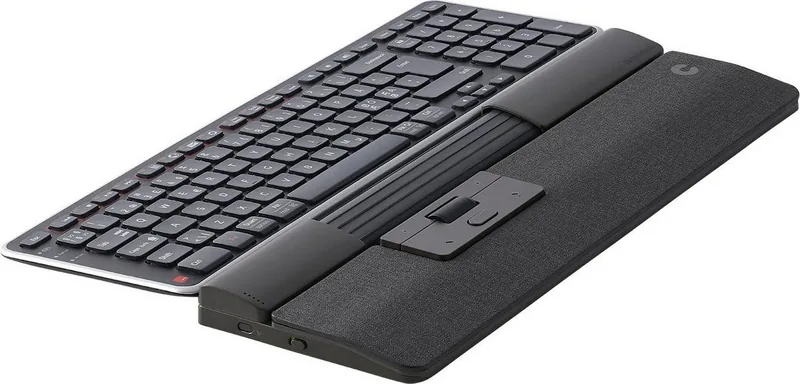
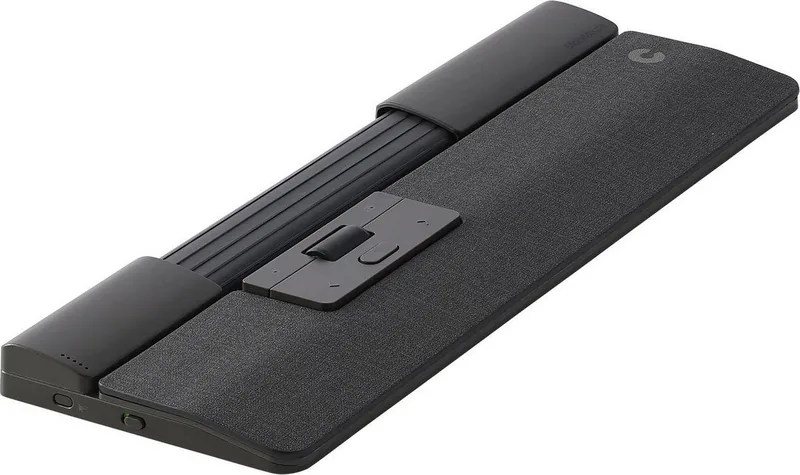
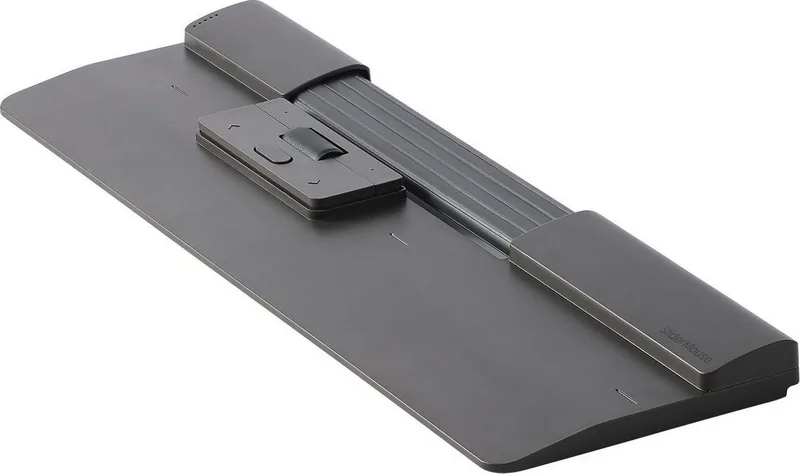
The hardware includes a versatile navigation bar, smooth scroll wheel, and buttons for copy and paste operations. Buttons handle left and right clicks alongside double-click functions. Cursor speed control is intuitive, allowing adjustment from 600 DPI to 2800 DPI. Visual feedback is provided via LED lights to confirm your current selection immediately. You can easily reset defaults by holding the speed button when settings feel stuck. Navigation bar responsiveness is customizable regarding physical force and sound volume. You can disable the click function entirely if needed.
Connection and Software
Connecting the device is seamless as it requires no extra software for basic operation. Simply plug the mounted USB cable into an open port and it works instantly. Advanced users may prefer the downloadable driver for specific tweaks. The physical buttons allow quick access to functions without leaving the mouse position. This integration saves time on repetitive actions.
Ergonomic Setup and Comfort
Keyboard alignment is crucial for posture and reducing fatigue. The package includes risers to adjust height and tilt angles. A negative tilt is recommended to maintain neutral wrist positions. This setup minimizes finger extension and supports comfort during work. The device connects via a standard USB cable, ensuring plug-and-play functionality. Software drivers are optional but available on the manufacturer website. Some users find the wired nature beneficial for consistent power.
Important Notes
Ensure the wrist rest is utilized correctly for maximum benefit. Avoid dismantling the unit as this voids protection and warranty coverage. Updates might be available via the download portal. Organize workspace to maintain focus and productivity. Care ensures longevity for this investment. Warranty covers functional defects only.
Search for 67,706 Manuals online


Type-in Brand or Model