
Contour Design RollerMouse Pro Manual
PDF manual · 8 Pages
English



Quick check
Incorrect answer, please try again.
Chat with your Contour Design RollerMouse Pro manual using AI
Get instant AI answers from your Contour Design RollerMouse Pro manual
Ask anything about the Contour Design RollerMouse Pro. Answers come from this manual, with the pages they are based on.
Ask a Question
Do you recommend RollerMouse Pro?
Yes NoFrequently Asked Questions
Connect via Bluetooth settings, insert USB dongle, or use the USB cable. The device remembers pairing information to reconnect automatically.
Is this answer helpful?
Approximately five hours for a full charge. You may continue to use the device as it charges if needed.
Is this answer helpful?
Yes, you may continue to use the device as it charges. It supports operation during the charging cycle.
Is this answer helpful?
Adjust tension or volume until all LEDs are illuminated. This disables the Rollerbar click function or volume.
Is this answer helpful?
Visit contourdesign.com/drivers for the free software driver available for customization and advanced settings.
Is this answer helpful?
LED lights show percentage from 20 to 100 when powered on. A single light flashes if below twenty percent.
Is this answer helpful?
Yes, keyboard risers allow negative tilt for neutral wrist position. Place risers under keyboards feet for height.
Is this answer helpful?
Advantages and Disadvantages
Advantages

- Revolutionary Rollerbar design reduces wrist strain compared to traditional mice.
- Multiple connectivity options including Bluetooth, USB dongle, and wired USB connection.
- Adjustable cursor speed ranges from 600 to 2800 DPI with LED feedback.
- Customizable click force and volume settings for preferred mouse action feel.
- Recharging capability allows usage while plugged in during the charging cycle.
Disadvantages

- Learning curve exists for users transitioning from traditional mouse clicking mechanisms.
- Requires manual adjustment or separate purchase of keyboard risers for optimal setup.
- Battery needs charging every few weeks depending on heavy wireless usage.
- Bluetooth pairing can be complex if the automatic mode fails to connect initially.
- Warranty invalidates if the user attempts to dismantle the product themselves.
Product Specification
Type
Scroll/Roller Mouse
Buttons
6 (total), 2 (main), 3 (top), 1 (scroll wheel)
Features
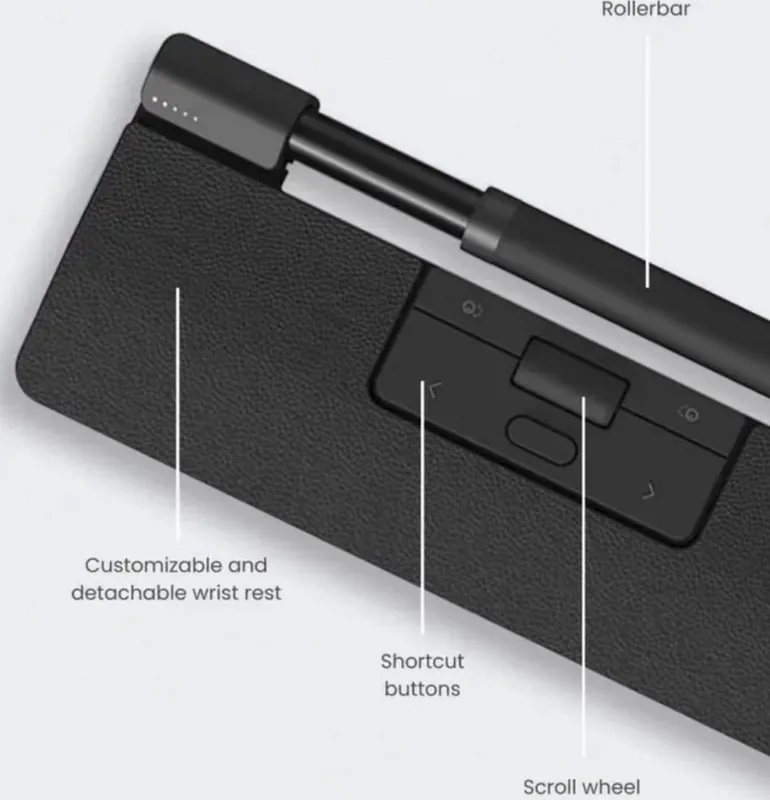
Removable palm rest (magnetic), Detachable cable (USB-C)
Product Description
Discovering Ergonomics with the Contour Design RollerMouse Pro
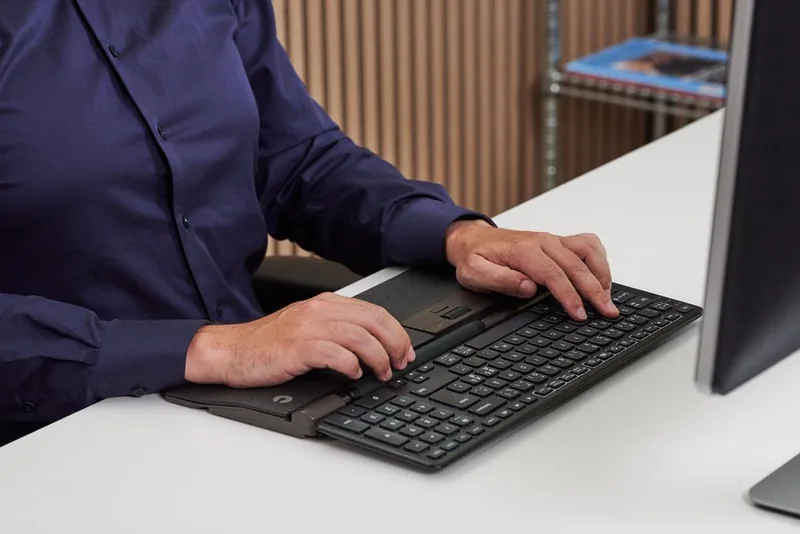
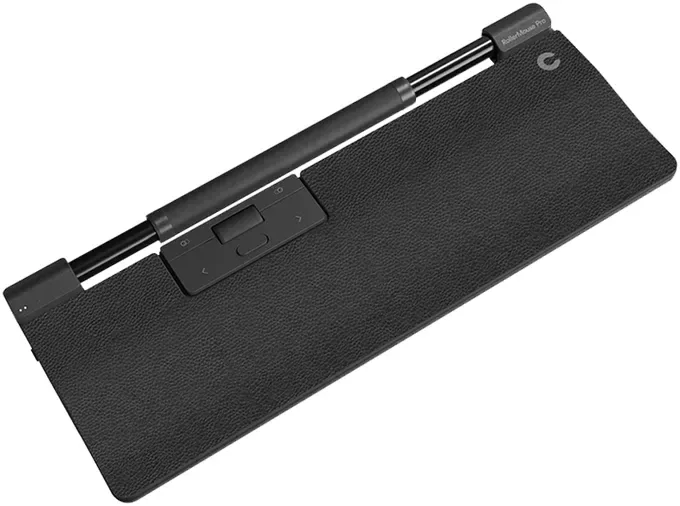
In the modern office environment, comfort is not merely a luxury but a necessity for productivity. Prolonged computer use often leads to repetitive strain injuries that affect the wrist and forearm. The Contour Design RollerMouse Pro stands out as a revolutionary input device designed to reduce strain and enhance workflow efficiency through its unique mechanical design. This innovative peripheral transforms traditional mouse usage by incorporating a central Rollerbar mechanism that allows users to navigate the computer screen with natural hand movements rather than repetitive wrist rotations or arm reaching. Understanding the full potential of this device requires familiarizing yourself with its comprehensive feature set, often detailed in the official guidance documentation.
Wireless versatility is a definitive hallmark of this peripheral model. It supports three distinct connection methods including Bluetooth pairing with modern computers, a dedicated USB dongle for legacy systems, or a direct wired USB connection for zero latency. This flexibility ensures seamless integration into various computer setups without compatibility issues or cable clutter on the desk surface. Setup is straightforward, involving power activation and selecting the mode. Once paired, the device operates automatically in a mode that remembers previous pairing information for quick reconnection upon startup.
Battery management is critical for maintaining uninterrupted wireless performance throughout the workday. The device features a clear LED indicator system that displays power levels ranging from twenty percent to one hundred percent visually. When charge drops below twenty percent, a single light flashes to remind users to connect the included USB-C charging cable to the port. Charging typically takes approximately five hours for a full cycle, though usage is permitted during the process without interruption to the workflow.
Customization options allow users to tailor the experience to their specific needs regarding sensitivity and feedback. Cursor speed can be adjusted via LED indicators corresponding to DPI levels from slow settings of 600 up to fast settings of 2800. Additionally, click force and volume for the Rollerbar can be finely tuned using specific button combinations found on the device body. This adaptability makes it suitable for both casual use and professional workflows requiring extreme precision and reduced physical impact. Ergonomic adjustments extend to keyboard positioning, where optional risers help maintain a neutral wrist angle to prevent pronation.
Backed by a solid warranty, functional defects due to faulty manufacturing are addressed through replacement, excluding damage from misuse or dismantling. Users are encouraged to visit the company website for driver downloads and standards information. Investing in this tool supports long-term health and efficiency while ensuring your workspace remains organized.
Search for 67,706 Manuals online


Type-in Brand or Model